
JavaScript Evolution: From Scripting Language to Modern Development Platform
Smooth Operators
How ES9 & ES10 Make JavaScript More Elegant
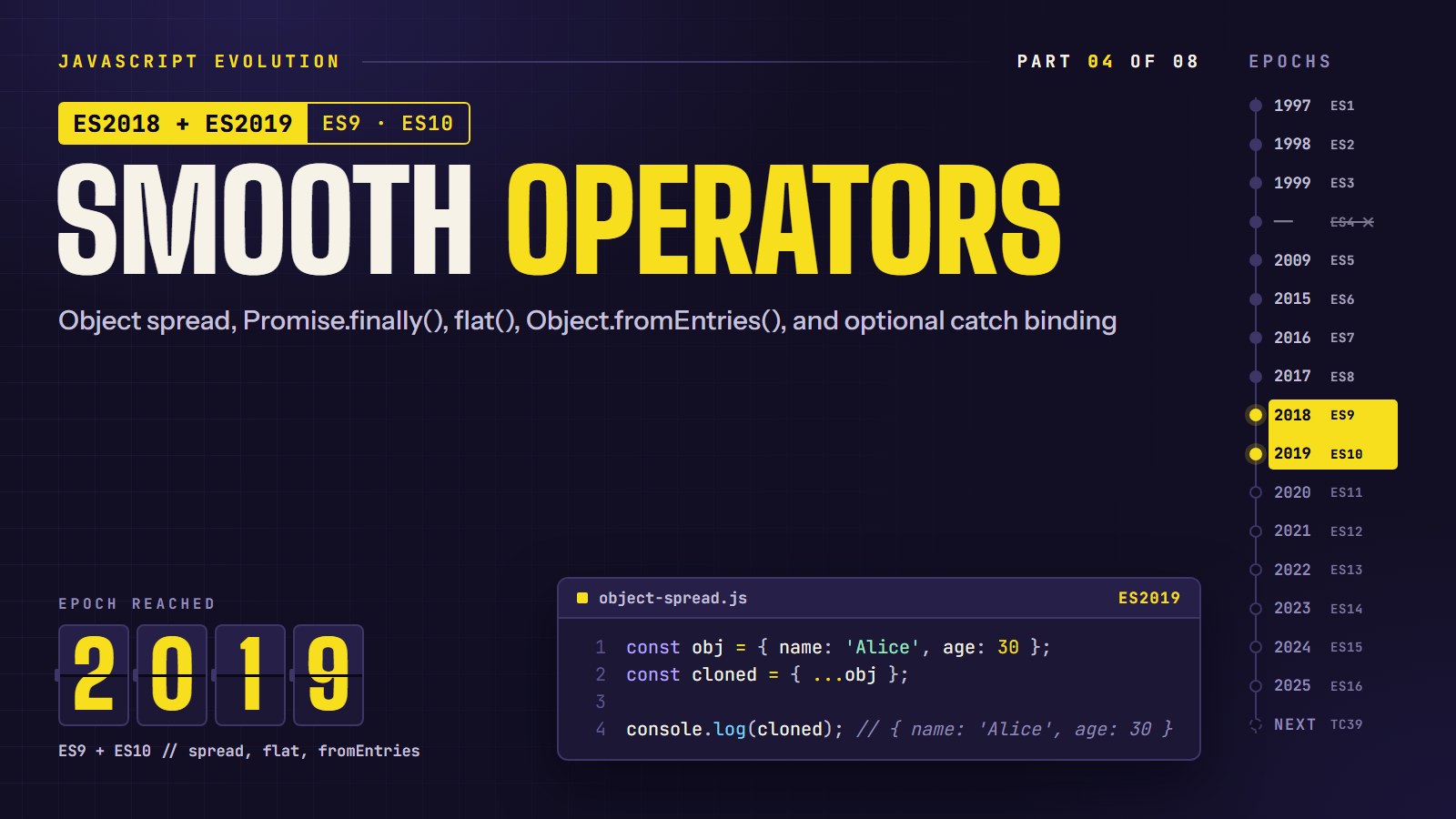
An API hands us a list of users. We want the active ones, keyed by id, with a copy we can change safely. A few years ago that meant a loop, a temporary object and some careful copying.
In this article, we are going to do it as one readable chain, using the small additions from ES9 (2018) and ES10 (2019). They are not flashy. Each one replaces a few lines of clumsy code with one short line.
The eight small cleanups: copying and merging objects with ..., running cleanup code with .finally(), flattening nested arrays with flat() and flatMap(), turning pairs back into an object with Object.fromEntries(), trimming one end of a string, and leaving out an unused catch variable. We will also chain several of them into one data pipeline.
The Object Spread Operator#
Before ES9, the usual way to combine objects was Object.assign(), which copies the properties of one or more objects onto a target object: Object.assign({}, a, b) builds a new object holding everything from a and b. It works, but the empty {} target is easy to forget and the call reads like plumbing. ES9 added object spread, which writes the same thing inline.
---html
<h1>Object Spread Operator - ES9</h1>

  <div class="description">
    <p>ES9 introduced the spread operator for objects, making it easier to clone, merge, and manipulate objects with an elegant syntax.</p>
  </div>

  <h2 class="example-title">Example 1: Cloning Objects</h2>
  <div class="code-container">
    <code>
// Before ES9: Using Object.assign()
const user = { name: "Alice", age: 28 };
const userCopy = Object.assign({}, user);

// With ES9 spread operator
const userCopySpread = { ...user };
    </code>
  </div>

  <button id="runBtn1" class="run-btn">Run Example</button>
  <div id="output1" class="output-container"></div>

  <h2 class="example-title">Example 2: Merging Objects</h2>
  <div class="code-container">
    <code>
// Before ES9: Using Object.assign()
const defaultSettings = { theme: "light", notifications: true };
const userSettings = { theme: "dark" };
const finalSettingsOld = Object.assign({}, defaultSettings, userSettings);

// With ES9 spread operator
const finalSettingsNew = { ...defaultSettings, ...userSettings };
    </code>
  </div>

  <button id="runBtn2" class="run-btn">Run Example</button>
  <div id="output2" class="output-container"></div>

  <h2 class="example-title">Example 3: Adding New Properties</h2>
  <div class="code-container">
    <code>
// Before ES9
const product = { name: "Laptop", price: 999 };
const productWithDiscount = Object.assign({}, product, { discountPrice: 899 });

// With ES9 spread operator
const productWithDiscountNew = { ...product, discountPrice: 899 };
    </code>
  </div>

  <button id="runBtn3" class="run-btn">Run Example</button>
  <div id="output3" class="output-container"></div>

  <h2 class="example-title">Example 4: Object Rest Pattern</h2>
  <div class="code-container">
    <code>
// Object rest pattern in ES9
const fullUser = {
  name: "Bob",
  age: 32,
  email: "bob@example.com",
  country: "Canada",
  occupation: "Developer"
};

// Extract specific properties, gather the rest
const { name, email, ...userDetails } = fullUser;
    </code>
  </div>

  <button id="runBtn4" class="run-btn">Run Example</button>
  <div id="output4" class="output-container"></div>
---css
:root {
      --bg-color: #f8f9fa;
      --text-color: #212529;
      --code-bg: #f1f3f5;
      --border-color: #dee2e6;
      --accent-color: #7048e8;
      --output-bg: #e9ecef;
    }

    @media (prefers-color-scheme: dark) {
      :root {
        --bg-color: #212529;
        --text-color: #f8f9fa;
        --code-bg: #343a40;
        --border-color: #495057;
        --accent-color: #9775fa;
        --output-bg: #343a40;
      }
    }

    body {
      font-family: -apple-system, BlinkMacSystemFont, "Segoe UI", Roboto, Helvetica, Arial, sans-serif;
      line-height: 1.6;
      margin: 0;
      padding: 20px;
      background-color: var(--bg-color);
      color: var(--text-color);
      transition: background-color 0.3s, color 0.3s;
      max-width: 800px;
      margin: 0 auto;
    }

    h1 {
      color: var(--accent-color);
      margin-bottom: 1rem;
    }

    .description {
      margin-bottom: 1.5rem;
    }

    .code-container {
      background-color: var(--code-bg);
      border-radius: 6px;
      padding: 15px;
      overflow: auto;
      margin-bottom: 1.5rem;
      border: 1px solid var(--border-color);
    }

    code {
      font-family: 'SFMono-Regular', Consolas, 'Liberation Mono', Menlo, monospace;
      font-size: 0.9em;
      white-space: pre;
    }

    .run-btn {
      background-color: var(--accent-color);
      color: white;
      border: none;
      padding: 8px 16px;
      border-radius: 4px;
      cursor: pointer;
      font-weight: 500;
      margin-bottom: 1rem;
      transition: opacity 0.2s;
    }

    .run-btn:hover {
      opacity: 0.9;
    }

    .output-container {
      background-color: var(--output-bg);
      border-radius: 6px;
      padding: 15px;
      border: 1px solid var(--border-color);
      min-height: 100px;
      margin-bottom: 1.5rem;
    }

    .example-title {
      font-weight: 600;
      margin-top: 2rem;
      color: var(--accent-color);
    }

    .code-comment {
      color: #868e96;
    }

    @media (prefers-color-scheme: dark) {
      .code-comment {
        color: #adb5bd;
      }
    }
---js
function formatOutput(value) {
  return JSON.stringify(value, null, 2);
}

document.getElementById('runBtn1').addEventListener('click', function () {
  const output = document.getElementById('output1');

  // Before ES9: Using Object.assign()
  const user = { name: "Alice", age: 28 };
  const userCopy = Object.assign({}, user);

  // With ES9 spread operator
  const userCopySpread = { ...user };

  output.innerHTML = `
        <strong>Original object:</strong>
        <pre>${formatOutput(user)}</pre>

        <strong>Using Object.assign():</strong>
        <pre>${formatOutput(userCopy)}</pre>

        <strong>Using spread operator:</strong>
        <pre>${formatOutput(userCopySpread)}</pre>

        <strong>Are they equal?</strong>
        <pre>Object.assign result === spread result: ${JSON.stringify(userCopy) === JSON.stringify(userCopySpread)}</pre>
      `;
});

document.getElementById('runBtn2').addEventListener('click', function () {
  const output = document.getElementById('output2');

  // Before ES9: Using Object.assign()
  const defaultSettings = { theme: "light", notifications: true };
  const userSettings = { theme: "dark" };
  const finalSettingsOld = Object.assign({}, defaultSettings, userSettings);

  // With ES9 spread operator
  const finalSettingsNew = { ...defaultSettings, ...userSettings };

  output.innerHTML = `
        <strong>Default settings:</strong>
        <pre>${formatOutput(defaultSettings)}</pre>

        <strong>User settings:</strong>
        <pre>${formatOutput(userSettings)}</pre>

        <strong>Using Object.assign():</strong>
        <pre>${formatOutput(finalSettingsOld)}</pre>

        <strong>Using spread operator:</strong>
        <pre>${formatOutput(finalSettingsNew)}</pre>
      `;
});

document.getElementById('runBtn3').addEventListener('click', function () {
  const output = document.getElementById('output3');

  // Before ES9
  const product = { name: "Laptop", price: 999 };
  const productWithDiscount = Object.assign({}, product, { discountPrice: 899 });

  // With ES9 spread operator
  const productWithDiscountNew = { ...product, discountPrice: 899 };

  output.innerHTML = `
        <strong>Original product:</strong>
        <pre>${formatOutput(product)}</pre>

        <strong>Using Object.assign():</strong>
        <pre>${formatOutput(productWithDiscount)}</pre>

        <strong>Using spread operator:</strong>
        <pre>${formatOutput(productWithDiscountNew)}</pre>
      `;
});

document.getElementById('runBtn4').addEventListener('click', function () {
  const output = document.getElementById('output4');

  // Object rest pattern in ES9
  const fullUser = {
    name: "Bob",
    age: 32,
    email: "bob@example.com",
    country: "Canada",
    occupation: "Developer" };


  // Extract specific properties, gather the rest
  const { name, email, ...userDetails } = fullUser;

  output.innerHTML = `
        <strong>Full user object:</strong>
        <pre>${formatOutput(fullUser)}</pre>

        <strong>Extracted properties:</strong>
        <pre>name: "${name}"
email: "${email}"</pre>

        <strong>Rest of the properties:</strong>
        <pre>${formatOutput(userDetails)}</pre>
      `;
});
The object spread operator (...) lets you copy an object, merge objects, and override properties in one expression. A shallow copy means only the top level is duplicated: if a property holds another object or array, the copy and the original still share that inner value.
ES9 also added rest and spread properties for objects, the same ... you may already know from arrays ([...array]).
For example, when you want to clone an object:
const obj = { name: 'Alice', age: 30 };
const cloned = { ...obj };

console.log(cloned); // { name: 'Alice', age: 30 }
Merging is where it earns its keep:
const obj1 = { name: 'Alice', age: 30 };
const obj2 = { job: 'Developer', location: 'NYC' };
const merged = { ...obj1, ...obj2 };

console.log(merged);
// { name: 'Alice', age: 30, job: 'Developer', location: 'NYC' }
When two objects share a key, the one spread later wins:
console.log({ ...{ a: 1, b: 2 }, b: 3 }); // { a: 1, b: 3 }
console.log({ b: 3, ...{ a: 1, b: 2 } }); // { b: 2, a: 1 }
And because the copy is shallow, an inner object is shared:
const original = { settings: { theme: 'dark' } };
const copy = { ...original };
copy.settings.theme = 'light';

console.log(original.settings.theme); // 'light', the inner object is the same one
Promise.finally(): The Cleanup Crew Has Arrived#
Promises are great, but there was always something missing: a way to run cleanup code regardless of success or failure. ES9 completed the Promise API with .finally().
---html
<div class="description">
    <p>ES9 introduced <code>Promise.finally()</code> which allows you to run code after a promise is settled, regardless of whether it was fulfilled or rejected. This is perfect for cleanup operations.</p>
  </div>

  <h2 class="example-title">Example: API Request with Loading State</h2>
  <div class="code-container">
    <code>
// A simulated API request that can succeed or fail
function fetchData(shouldSucceed = true) {
  return new Promise((resolve, reject) => {
    setTimeout(() => {
      if (shouldSucceed) {
        resolve({ status: 'success', data: { name: 'Product XYZ', price: 99.99 } });
      } else {
        reject({ status: 'error', message: 'Network error' });
      }
    }, 2000);
  });
}

// Without using finally()
function fetchWithoutFinally(shouldSucceed) {
  // Set loading state
  setLoading(true);

  fetchData(shouldSucceed)
    .then(result => {
      // Handle success
      logSuccess(result);
      // Clear loading state
      setLoading(false);
    })
    .catch(error => {
      // Handle error
      logError(error);
      // Clear loading state - duplicated code!
      setLoading(false);
    });
}

// Using finally()
function fetchWithFinally(shouldSucceed) {
  // Set loading state
  setLoading(true);

  fetchData(shouldSucceed)
    .then(result => {
      // Handle success
      logSuccess(result);
    })
    .catch(error => {
      // Handle error
      logError(error);
    })
    .finally(() => {
      // Clear loading state - in one place!
      setLoading(false);
    });
}
    </code>
  </div>

  <div class="controls">
    <button id="successWithoutFinally">Fetch Success without .finally()</button>
    <button id="errorWithoutFinally">Fetch Error without .finally()</button>
  </div>

  <div class="controls">
    <button id="successWithFinally">Fetch Success with .finally()</button>
    <button id="errorWithFinally">Fetch Error with .finally()</button>
  </div>

  <div class="output-container" id="output">
    <div class="log-entry">Click any button to start a demo...</div>
  </div>

  <h2 class="example-title">Why .finally() is Useful</h2>
  <p>The <code>.finally()</code> method provides several advantages:</p>
  <ul>
    <li>Eliminates duplicate cleanup code in <code>.then()</code> and <code>.catch()</code></li>
    <li>Ensures cleanup happens even if you forget to handle errors</li>
    <li>Makes your code more readable and maintainable</li>
    <li>Mirrors the familiar try/catch/finally pattern from synchronous code</li>
  </ul>
---css
:root {
      --bg-color: #f8f9fa;
      --text-color: #212529;
      --code-bg: #f1f3f5;
      --border-color: #dee2e6;
      --accent-color: #7048e8;
      --output-bg: #e9ecef;
      --success-color: #40c057;
      --error-color: #fa5252;
      --loading-color: #4dabf7;
    }

    @media (prefers-color-scheme: dark) {
      :root {
        --bg-color: #212529;
        --text-color: #f8f9fa;
        --code-bg: #343a40;
        --border-color: #495057;
        --accent-color: #9775fa;
        --output-bg: #343a40;
        --success-color: #51cf66;
        --error-color: #ff6b6b;
        --loading-color: #74c0fc;
      }
    }

    body {
      font-family: -apple-system, BlinkMacSystemFont, "Segoe UI", Roboto, Helvetica, Arial, sans-serif;
      line-height: 1.6;
      margin: 0;
      padding: 20px;
      background-color: var(--bg-color);
      color: var(--text-color);
      transition: background-color 0.3s, color 0.3s;
      max-width: 800px;
      margin: 0 auto;
    }

    h1 {
      color: var(--accent-color);
      margin-bottom: 1rem;
    }

    .description {
      margin-bottom: 1.5rem;
    }

    .code-container {
      background-color: var(--code-bg);
      border-radius: 6px;
      padding: 15px;
      overflow: auto;
      margin-bottom: 1.5rem;
      border: 1px solid var(--border-color);
    }

    code {
      font-family: 'SFMono-Regular', Consolas, 'Liberation Mono', Menlo, monospace;
      font-size: 0.9em;
      white-space: pre;
    }

    button {
      background-color: var(--accent-color);
      color: white;
      border: none;
      padding: 8px 16px;
      border-radius: 4px;
      cursor: pointer;
      font-weight: 500;
      margin-right: 10px;
      margin-bottom: 1rem;
      transition: opacity 0.2s;
    }

    button:hover {
      opacity: 0.9;
    }

    .output-container {
      background-color: var(--output-bg);
      border-radius: 6px;
      padding: 15px;
      border: 1px solid var(--border-color);
      min-height: 150px;
      margin-bottom: 1.5rem;
    }

    .example-title {
      font-weight: 600;
      margin-top: 2rem;
      color: var(--accent-color);
    }

    .log-entry {
      padding: 6px 0;
      border-bottom: 1px solid var(--border-color);
    }

    .log-entry:last-child {
      border-bottom: none;
    }

    .loader {
      display: inline-block;
      width: 16px;
      height: 16px;
      border: 2px solid var(--loading-color);
      border-radius: 50%;
      border-top-color: transparent;
      animation: spin 1s linear infinite;
      margin-right: 8px;
      vertical-align: middle;
    }

    @keyframes spin {
      to { transform: rotate(360deg); }
    }

    .success {
      color: var(--success-color);
    }

    .error {
      color: var(--error-color);
    }

    .loading {
      color: var(--loading-color);
    }

    .controls {
      margin-bottom: 1.5rem;
    }

    .code-comment {
      color: #868e96;
    }

    @media (prefers-color-scheme: dark) {
      .code-comment {
        color: #adb5bd;
      }
    }
---js
const output = document.getElementById('output');
let loadingIndicator = null;

function clearOutput() {
  output.innerHTML = '';
}

function logMessage(message, className) {
  const logEntry = document.createElement('div');
  logEntry.className = `log-entry ${className || ''}`;
  logEntry.innerHTML = message;
  output.appendChild(logEntry);
}

function setLoading(isLoading) {
  if (isLoading) {
    logMessage('<span class="loader"></span> Loading data...', 'loading');
    loadingIndicator = output.lastChild;
  } else if (loadingIndicator) {
    // Remove the loading indicator
    logMessage('✓ Loading complete!');
  }
}

function logSuccess(result) {
  logMessage(`Success: Received data: ${JSON.stringify(result.data)}`, 'success');
}

function logError(error) {
  logMessage(`Error: ${error.message}`, 'error');
}

// A simulated API request that can succeed or fail
function fetchData(shouldSucceed = true) {
  return new Promise((resolve, reject) => {
    setTimeout(() => {
      if (shouldSucceed) {
        resolve({ status: 'success', data: { name: 'Product XYZ', price: 99.99 } });
      } else {
        reject({ status: 'error', message: 'Network error' });
      }
    }, 2000);
  });
}

// Without using finally()
function fetchWithoutFinally(shouldSucceed) {
  clearOutput();

  // Set loading state
  setLoading(true);

  fetchData(shouldSucceed).
  then(result => {
    // Handle success
    logSuccess(result);
    // Clear loading state
    setLoading(false);
  }).
  catch(error => {
    // Handle error
    logError(error);
    // Clear loading state - duplicated code!
    setLoading(false);
  });
}

// Using finally()
function fetchWithFinally(shouldSucceed) {
  clearOutput();

  // Set loading state
  setLoading(true);

  fetchData(shouldSucceed).
  then(result => {
    // Handle success
    logSuccess(result);
  }).
  catch(error => {
    // Handle error
    logError(error);
  }).
  finally(() => {
    // Clear loading state - in one place!
    setLoading(false);
  });
}

// Wire up buttons
document.getElementById('successWithoutFinally').addEventListener('click', function () {
  fetchWithoutFinally(true);
});

document.getElementById('errorWithoutFinally').addEventListener('click', function () {
  fetchWithoutFinally(false);
});

document.getElementById('successWithFinally').addEventListener('click', function () {
  fetchWithFinally(true);
});

document.getElementById('errorWithFinally').addEventListener('click', function () {
  fetchWithFinally(false);
});
A promise is a value that arrives later and either succeeds (.then() runs) or fails (.catch() runs). Sometimes you need code that runs after either outcome, such as hiding a loading spinner. Before ES9 you pasted that code into both handlers. That's where finally() comes in.
const fetchData = () => {
  return new Promise((resolve, reject) => {
    setTimeout(() => resolve('Data loaded'), 2000);
  });
};

fetchData()
  .then((data) => {
    console.log(data);
  })
  .catch((error) => {
    console.log(error);
  })
  .finally(() => {
    console.log('Cleanup code runs here');
  });
// after 2 seconds:
// Data loaded
// Cleanup code runs here
This removes the need to duplicate cleanup code in both .then() and .catch() blocks. The finally callback gets no arguments and does not change the result passed along: the Data loaded value still flows to whatever comes next. Use it for resetting loading spinners, closing connections, or releasing resources.
Turning Your Arrays Flat as a Pancake#
Nested arrays are the bane of many developers' existence. ES10 gives us elegant solutions with flat() and flatMap().
---html
<h1>Array.flat() and Array.flatMap() - ES10</h1>

  <div class="description">
    <p>ES10 introduced <code>flat()</code> and <code>flatMap()</code> methods to simplify working with nested arrays. These methods help you flatten array structures without having to write complex recursive functions.</p>
  </div>

  <h2 class="example-title">Example 1: Array.flat() with Different Depths</h2>
  <div class="code-container">
    <code>
const nestedArray = [1, 2, [3, 4], [5, [6, 7]]];

// Flatten one level deep (default)
const flattenedDepth1 = nestedArray.flat();
// → [1, 2, 3, 4, 5, [6, 7]]

// Flatten two levels deep
const flattenedDepth2 = nestedArray.flat(2);
// → [1, 2, 3, 4, 5, 6, 7]

// Flatten all levels (Infinity)
const completelyFlat = nestedArray.flat(Infinity);
// → [1, 2, 3, 4, 5, 6, 7]
    </code>
  </div>

  <div class="depth-selector">
    <label>
      <input type="radio" name="depth" value="1" checked> Depth 1
    </label>
    <label>
      <input type="radio" name="depth" value="2"> Depth 2
    </label>
    <label>
      <input type="radio" name="depth" value="Infinity"> Infinity
    </label>
  </div>

  <button id="runBtn1" class="run-btn">Run Example</button>
  <div id="output1" class="output-container"></div>

  <h2 class="example-title">Example 2: Array.flatMap() - Mapping and Flattening</h2>
  <div class="code-container">
    <code>
// Before ES10: Using map and then flat
const numbers = [1, 2, 3];
const doubledAndOriginal = numbers.map(x => [x, x * 2]).flat();
// → [1, 2, 2, 4, 3, 6]

// With ES10 flatMap
const doubledAndOriginalFlatMap = numbers.flatMap(x => [x, x * 2]);
// → [1, 2, 2, 4, 3, 6]
    </code>
  </div>

  <button id="runBtn2" class="run-btn">Run Example</button>
  <div id="output2" class="output-container"></div>

  <h2 class="example-title">Example 3: Practical flatMap() with Text Analysis</h2>
  <div class="code-container">
    <code>
const sentences = [
  "JavaScript is amazing",
  "ES10 introduced flatMap",
  "This example shows practical usage"
];

// Extract all words and filter out short ones
const words = sentences.flatMap(sentence =>
  sentence.split(' ').filter(word => word.length > 3)
);
// → ["JavaScript", "amazing", "introduced", "flatMap", "This", "example", "shows", "practical", "usage"]
    </code>
  </div>

  <button id="runBtn3" class="run-btn">Run Example</button>
  <div id="output3" class="output-container"></div>

  <h2 class="example-title">Example 4: Performance Comparison</h2>
  <div class="code-container">
    <code>
// Using a custom recursive flatten function (pre-ES10)
function flattenRecursive(arr, depth = 1) {
  return depth > 0
    ? arr.reduce((acc, val) =>
        acc.concat(Array.isArray(val)
          ? flattenRecursive(val, depth - 1)
          : val
        ), [])
    : arr.slice();
}

// Using array reduce + concat (pre-ES10)
function flattenReduce(arr, depth = 1) {
  if (depth < 1) return arr.slice();
  return arr.reduce((acc, val) => {
    return acc.concat(Array.isArray(val) && depth > 1
      ? flattenReduce(val, depth - 1)
      : val);
  }, []);
}

// Using ES10 flat
function flattenNative(arr, depth = 1) {
  return arr.flat(depth);
}

// Compare performance with a large nested array
    </code>
  </div>

  <button id="runBtn4" class="run-btn">Run Performance Test</button>
  <div id="output4" class="output-container"></div>
---css
:root {
	--bg-color: #f8f9fa;
	--text-color: #212529;
	--code-bg: #f1f3f5;
	--border-color: #dee2e6;
	--accent-color: #7048e8;
	--output-bg: #e9ecef;
	--array-color: #4dabf7;
	--result-color: #40c057;
}

@media (prefers-color-scheme: dark) {
	:root {
		--bg-color: #212529;
		--text-color: #f8f9fa;
		--code-bg: #343a40;
		--border-color: #495057;
		--accent-color: #9775fa;
		--output-bg: #343a40;
		--array-color: #74c0fc;
		--result-color: #51cf66;
	}
}

body {
	font-family: -apple-system, BlinkMacSystemFont, "Segoe UI", Roboto, Helvetica,
		Arial, sans-serif;
	line-height: 1.6;
	margin: 0;
	padding: 20px;
	background-color: var(--bg-color);
	color: var(--text-color);
	transition: background-color 0.3s, color 0.3s;
	max-width: 800px;
	margin: 0 auto;
}

h1 {
	color: var(--accent-color);
	margin-bottom: 1rem;
}

.description {
	margin-bottom: 1.5rem;
}

.code-container {
	background-color: var(--code-bg);
	border-radius: 6px;
	padding: 15px;
	overflow: auto;
	margin-bottom: 1.5rem;
	border: 1px solid var(--border-color);
}

code {
	font-family: "SFMono-Regular", Consolas, "Liberation Mono", Menlo, monospace;
	font-size: 0.9em;
	white-space: pre;
}

.run-btn {
	background-color: var(--accent-color);
	color: white;
	border: none;
	padding: 8px 16px;
	border-radius: 4px;
	cursor: pointer;
	font-weight: 500;
	margin-bottom: 1rem;
	transition: opacity 0.2s;
}

.run-btn:hover {
	opacity: 0.9;
}

.output-container {
	background-color: var(--output-bg);
	border-radius: 6px;
	padding: 15px;
	border: 1px solid var(--border-color);
	min-height: 100px;
	margin-bottom: 1.5rem;
}

.example-title {
	font-weight: 600;
	margin-top: 2rem;
	color: var(--accent-color);
}

.array-visual {
	font-family: "SFMono-Regular", Consolas, "Liberation Mono", Menlo, monospace;
	margin: 1rem 0;
	overflow-x: auto;
}

.array-item {
	display: inline-flex;
	align-items: center;
	justify-content: center;
	min-width: 30px;
	height: 30px;
	margin: 3px;
	padding: 0 5px;
	background-color: var(--array-color);
	color: white;
	border-radius: 4px;
	font-size: 0.9em;
}

.array-nested {
	display: inline-flex;
	border: 1px dashed var(--border-color);
	padding: 3px;
	border-radius: 4px;
	background-color: rgba(73, 80, 87, 0.2);
}

.array-label {
	font-size: 0.85em;
	margin-bottom: 0.3rem;
	color: var(--text-color);
	opacity: 0.7;
}

.array-result {
	margin-top: 1rem;
	padding-top: 1rem;
	border-top: 1px dashed var(--border-color);
}

.array-result .array-item {
	background-color: var(--result-color);
}

.depth-selector {
	margin-bottom: 1rem;
}

.depth-selector label {
	margin-right: 1rem;
}

.performance {
	margin-top: 1.5rem;
	padding-top: 1rem;
	border-top: 1px solid var(--border-color);
	font-size: 0.9em;
}

.code-comment {
	color: #868e96;
}

@media (prefers-color-scheme: dark) {
	.code-comment {
		color: #adb5bd;
	}
}
---js
// Helper to visualize arrays
function createArrayVisualization(arr, isResult = false) {
  const container = document.createElement('div');
  container.className = isResult ? 'array-visual array-result' : 'array-visual';

  if (isResult) {
    const label = document.createElement('div');
    label.className = 'array-label';
    label.textContent = 'Result:';
    container.appendChild(label);
  }

  function renderArray(array, parent) {
    array.forEach(item => {
      if (Array.isArray(item)) {
        const nestedContainer = document.createElement('div');
        nestedContainer.className = 'array-nested';
        renderArray(item, nestedContainer);
        parent.appendChild(nestedContainer);
      } else {
        const itemEl = document.createElement('div');
        itemEl.className = 'array-item';
        itemEl.textContent = item;
        parent.appendChild(itemEl);
      }
    });
  }

  renderArray(arr, container);
  return container;
}

// Example 1: Array.flat()
document.getElementById('runBtn1').addEventListener('click', function () {
  const output = document.getElementById('output1');
  output.innerHTML = '';

  const depth = document.querySelector('input[name="depth"]:checked').value;
  const depthValue = depth === 'Infinity' ? Infinity : parseInt(depth);

  const nestedArray = [1, 2, [3, 4], [5, [6, 7]]];
  const flattened = nestedArray.flat(depthValue);

  const arrayLabel = document.createElement('div');
  arrayLabel.className = 'array-label';
  arrayLabel.textContent = 'Original Array:';
  output.appendChild(arrayLabel);

  output.appendChild(createArrayVisualization(nestedArray));
  output.appendChild(createArrayVisualization(flattened, true));

  const codeText = document.createElement('pre');
  codeText.innerHTML = `const nestedArray = [1, 2, [3, 4], [5, [6, 7]]];
const flattened = nestedArray.flat(${depth});
// Result: [${flattened.join(', ')}]`;
  output.appendChild(codeText);
});

// Example 2: Array.flatMap()
document.getElementById('runBtn2').addEventListener('click', function () {
  const output = document.getElementById('output2');
  output.innerHTML = '';

  const numbers = [1, 2, 3];

  // Before ES10: Using map and then flat
  const mapResult = numbers.map(x => [x, x * 2]);
  const doubledAndOriginal = mapResult.flat();

  // With ES10 flatMap
  const doubledAndOriginalFlatMap = numbers.flatMap(x => [x, x * 2]);

  // Original array
  const arrayLabel = document.createElement('div');
  arrayLabel.className = 'array-label';
  arrayLabel.textContent = 'Original Array:';
  output.appendChild(arrayLabel);
  output.appendChild(createArrayVisualization(numbers));

  // After map
  const mapLabel = document.createElement('div');
  mapLabel.className = 'array-label';
  mapLabel.style.marginTop = '1rem';
  mapLabel.textContent = 'After map(x => [x, x * 2]):';
  output.appendChild(mapLabel);
  output.appendChild(createArrayVisualization(mapResult));

  // After flat
  const flatLabel = document.createElement('div');
  flatLabel.className = 'array-label';
  flatLabel.style.marginTop = '1rem';
  flatLabel.textContent = 'After flat():';
  output.appendChild(flatLabel);
  output.appendChild(createArrayVisualization(doubledAndOriginal, false));

  // Direct flatMap result
  const flatMapLabel = document.createElement('div');
  flatMapLabel.className = 'array-label';
  flatMapLabel.style.marginTop = '1.5rem';
  flatMapLabel.textContent = 'Direct flatMap(x => [x, x * 2]) result:';
  output.appendChild(flatMapLabel);
  output.appendChild(createArrayVisualization(doubledAndOriginalFlatMap, true));

  const performanceNote = document.createElement('div');
  performanceNote.className = 'performance';
  performanceNote.innerHTML = '<strong>Note:</strong> flatMap() is more efficient than map().flat() because it only traverses the array once.';
  output.appendChild(performanceNote);
});

// Example 3: Practical flatMap
document.getElementById('runBtn3').addEventListener('click', function () {
  const output = document.getElementById('output3');
  output.innerHTML = '';

  const sentences = [
  "JavaScript is amazing",
  "ES10 introduced flatMap",
  "This example shows practical usage"];


  // Traditional approach: map, split, filter, and flatten
  const traditionalResult = sentences.
  map(sentence => sentence.split(' ')).
  flat().
  filter(word => word.length > 3);

  // Using flatMap
  const words = sentences.flatMap((sentence) =>
  sentence.split(' ').filter(word => word.length > 3));


  // Original array
  const arrayLabel = document.createElement('div');
  arrayLabel.className = 'array-label';
  arrayLabel.textContent = 'Original Array of Sentences:';
  output.appendChild(arrayLabel);

  const sentencesContainer = document.createElement('div');
  sentencesContainer.style.marginBottom = '1rem';
  sentences.forEach(sentence => {
    const sentenceEl = document.createElement('div');
    sentenceEl.textContent = `"${sentence}"`;
    sentencesContainer.appendChild(sentenceEl);
  });
  output.appendChild(sentencesContainer);

  // Step-by-step visualization would be complex, so just show the result
  const resultLabel = document.createElement('div');
  resultLabel.className = 'array-label';
  resultLabel.textContent = 'Words longer than 3 characters:';
  output.appendChild(resultLabel);
  output.appendChild(createArrayVisualization(words, true));

  const codeText = document.createElement('pre');
  codeText.innerHTML = `// Using flatMap for efficient processing
const words = sentences.flatMap(sentence =>
  sentence.split(' ').filter(word => word.length > 3)
);
// Result: ["${words.join('", "')}"]`;
  output.appendChild(codeText);

  const betterCode = document.createElement('div');
  betterCode.className = 'performance';
  betterCode.innerHTML = '<strong>Why this is better:</strong> Using flatMap combines the mapping and flattening operations, making the code more readable and efficient than chaining multiple array methods.';
  output.appendChild(betterCode);
});

// Example 4: Performance comparison
document.getElementById('runBtn4').addEventListener('click', function () {
  const output = document.getElementById('output4');
  output.innerHTML = '';

  // Using a custom recursive flatten function (pre-ES10)
  function flattenRecursive(arr, depth = 1) {
    return depth > 0 ?
    arr.reduce((acc, val) =>
    acc.concat(Array.isArray(val) ?
    flattenRecursive(val, depth - 1) :
    val),
    []) :
    arr.slice();
  }

  // Using array reduce + concat (pre-ES10)
  function flattenReduce(arr, depth = 1) {
    if (depth < 1) return arr.slice();
    return arr.reduce((acc, val) => {
      return acc.concat(Array.isArray(val) && depth > 1 ?
      flattenReduce(val, depth - 1) :
      val);
    }, []);
  }

  // Using ES10 flat
  function flattenNative(arr, depth = 1) {
    return arr.flat(depth);
  }

  // Generate a large nested array for testing
  function generateNestedArray(size, depth) {
    if (depth <= 0) return Array(size).fill(0).map((_, i) => i);

    const result = [];
    const subSize = Math.floor(size / 3);

    for (let i = 0; i < subSize; i++) {
      result.push(i);
    }

    for (let i = 0; i < 2; i++) {
      result.push(generateNestedArray(subSize, depth - 1));
    }

    return result;
  }

  const testArray = generateNestedArray(1000, 3);
  const depth = 2;

  output.innerHTML = '<p>Running performance tests on a large nested array...</p>';

  setTimeout(() => {
    // Test recursive function
    const startRecursive = performance.now();
    const resultRecursive = flattenRecursive(testArray, depth);
    const endRecursive = performance.now();
    const timeRecursive = endRecursive - startRecursive;

    // Test reduce function
    const startReduce = performance.now();
    const resultReduce = flattenReduce(testArray, depth);
    const endReduce = performance.now();
    const timeReduce = endReduce - startReduce;

    // Test native flat
    const startNative = performance.now();
    const resultNative = flattenNative(testArray, depth);
    const endNative = performance.now();
    const timeNative = endNative - startNative;

    output.innerHTML = `
          <h3>Performance Results</h3>
          <p>Flattening a nested array with ${resultNative.length} elements (depth: ${depth})</p>
          <ul>
            <li><strong>Custom recursive function:</strong> ${timeRecursive.toFixed(2)} ms</li>
            <li><strong>Reduce + concat function:</strong> ${timeReduce.toFixed(2)} ms</li>
            <li><strong>Native Array.flat():</strong> ${timeNative.toFixed(2)} ms</li>
          </ul>
          <div class="performance">
            <strong>Conclusion:</strong> The native Array.flat() method is typically more efficient than custom implementations, especially for large arrays. This is because it's optimized at the browser level, often with native code implementation.
          </div>
        `;
  }, 50);
});
Nested arrays? Flatten them! ES10 introduces the flat() method, which lets you flatten an array of arrays into a single-level array with one simple call. If you're dealing with more complex arrays or want to perform some transformations at the same time, flatMap() maps each item and flattens the result one level, in one pass.
const nestedArray = [1, [2, 3], [4, [5, 6]]];
const flattened = nestedArray.flat(2); // Flatten to a depth of 2

console.log(flattened); // [1, 2, 3, 4, 5, 6]
You control the depth of flattening. Called with no argument, flat() goes one level deep, so [1, [2, [3]]].flat() gives [1, 2, [3]]. Need to go deeper? Pass a larger number, or Infinity to flatten everything.
flatMap() combines mapping and flattening in one go:
const arr = [1, 2, 3];
const result = arr.flatMap(x => [x, x * 2]);

console.log(result); // [1, 2, 2, 4, 3, 6]
This suits cases where each item in your array might produce several results.
Object.fromEntries(): The Missing Puzzle Piece#
Object.entries(obj) turns an object into an array of [key, value] pairs: Object.entries({ a: 1 }) is [['a', 1]]. ES10 added the reverse, Object.fromEntries(), which turns such pairs back into an object.
---html
<h1>Object.fromEntries() - ES10</h1>

  <div class="description">
    <p>ES10 introduced <code>Object.fromEntries()</code> which transforms a list of key-value pairs into an object. It's essentially the reverse of <code>Object.entries()</code>, completing the object-to-array-to-object transformation cycle.</p>
  </div>

  <h2 class="example-title">Example 1: Basic Usage</h2>
  <div class="code-container">
    <code>
// Creating an object from an array of key-value pairs
const entries = [
  ['name', 'Alice'],
  ['age', 30],
  ['city', 'New York']
];

const person = Object.fromEntries(entries);
// → { name: 'Alice', age: 30, city: 'New York' }
    </code>
  </div>

  <button id="runBtn1" class="run-btn">Run Example</button>
  <div id="output1" class="output-container"></div>

  <h2 class="example-title">Example 2: The Complete Data Transformation Cycle</h2>
  <div class="code-container">
    <code>
// Start with an object
const product = {
  name: 'Laptop',
  price: 999,
  inStock: true
};

// Convert to array of entries
const entries = Object.entries(product);
// → [['name', 'Laptop'], ['price', 999], ['inStock', true]]

// Modify the data
const modifiedEntries = entries.map(([key, value]) => {
  if (key === 'price') {
    // Apply 10% discount
    return [key, value * 0.9];
  }
  return [key, value];
});

// Convert back to object
const discountedProduct = Object.fromEntries(modifiedEntries);
// → { name: 'Laptop', price: 899.1, inStock: true }
    </code>
  </div>

  <button id="runBtn2" class="run-btn">Run Example</button>
  <div id="output2" class="output-container"></div>

  <h2 class="example-title">Example 3: Converting Map to Object</h2>
  <div class="code-container">
    <code>
// Creating a Map
const userMap = new Map();
userMap.set('id', 123);
userMap.set('username', 'jsdev');
userMap.set('active', true);

// Converting Map to Object
const userObject = Object.fromEntries(userMap);
// → { id: 123, username: 'jsdev', active: true }

// Maps can have any type of keys, but Object keys are always strings
const mixedMap = new Map();
mixedMap.set('string', 'value');
mixedMap.set(42, 'number key');
mixedMap.set(true, 'boolean key');

const mixedObject = Object.fromEntries(mixedMap);
// → { 'string': 'value', '42': 'number key', 'true': 'boolean key' }
    </code>
  </div>

  <button id="runBtn3" class="run-btn">Run Example</button>
  <div id="output3" class="output-container"></div>

  <h2 class="example-title">Example 4: Practical Use Case - Processing Form Data</h2>
  <div class="code-container">
    <code>
// Simulating URL search params (like from a form submission)
const searchParams = new URLSearchParams('name=JavaScript&version=ES10&features=fromEntries&features=flat');

// Convert to object (pre-ES10 would be more complex)
const formData = Object.fromEntries(searchParams);
// → { name: 'JavaScript', version: 'ES10', features: 'flat' }
// Note: Only keeps the last value for 'features'

// To get all values for a key that appears multiple times,
// we need a custom solution:
const formDataComplete = {};
for (const [key, value] of searchParams) {
  if (formDataComplete[key]) {
    if (!Array.isArray(formDataComplete[key])) {
      formDataComplete[key] = [formDataComplete[key]];
    }
    formDataComplete[key].push(value);
  } else {
    formDataComplete[key] = value;
  }
}
// → { name: 'JavaScript', version: 'ES10', features: ['fromEntries', 'flat'] }
    </code>
  </div>

  <button id="runBtn4" class="run-btn">Run Example</button>
  <div id="output4" class="output-container"></div>

  <h2 class="example-title">Example 5: Object Transformation Pipeline</h2>
  <div class="code-container">
    <code>
// Library data object
const library = {
  books: 10000,
  dvds: 5000,
  magazines: 2000,
  ebooks: 15000,
  audiobooks: 3000
};

// Task: Create a new object with only digital items and convert units to "K"
const digitalItems = Object.entries(library)
  // Step 1: Filter for digital items
  .filter(([key]) => ['ebooks', 'audiobooks'].includes(key))
  // Step 2: Transform the values
  .map(([key, value]) => [key, `${(value / 1000).toFixed(1)}K`])
  // Step 3: Convert back to object
  .reduce((obj, [key, value]) => {
    obj[key] = value;
    return obj;
  }, {});
// Old way with reduce

// Clean ES10 way
const digitalItemsNew = Object.fromEntries(
  Object.entries(library)
    .filter(([key]) => ['ebooks', 'audiobooks'].includes(key))
    .map(([key, value]) => [key, `${(value / 1000).toFixed(1)}K`])
);
// → { ebooks: '15.0K', audiobooks: '3.0K' }
    </code>
  </div>

  <button id="runBtn5" class="run-btn">Run Example</button>
  <div id="output5" class="output-container"></div>
---css
:root {
      --bg-color: #f8f9fa;
      --text-color: #212529;
      --code-bg: #f1f3f5;
      --border-color: #dee2e6;
      --accent-color: #7048e8;
      --output-bg: #e9ecef;
      --object-color: #ff922b;
      --array-color: #4dabf7;
      --map-color: #40c057;
    }

    @media (prefers-color-scheme: dark) {
      :root {
        --bg-color: #212529;
        --text-color: #f8f9fa;
        --code-bg: #343a40;
        --border-color: #495057;
        --accent-color: #9775fa;
        --output-bg: #343a40;
        --object-color: #ffa94d;
        --array-color: #74c0fc;
        --map-color: #51cf66;
      }
    }

    body {
      font-family: -apple-system, BlinkMacSystemFont, "Segoe UI", Roboto, Helvetica, Arial, sans-serif;
      line-height: 1.6;
      margin: 0;
      padding: 20px;
      background-color: var(--bg-color);
      color: var(--text-color);
      transition: background-color 0.3s, color 0.3s;
      max-width: 800px;
      margin: 0 auto;
    }

    h1 {
      color: var(--accent-color);
      margin-bottom: 1rem;
    }

    .description {
      margin-bottom: 1.5rem;
    }

    .code-container {
      background-color: var(--code-bg);
      border-radius: 6px;
      padding: 15px;
      overflow: auto;
      margin-bottom: 1.5rem;
      border: 1px solid var(--border-color);
    }

    code {
      font-family: 'SFMono-Regular', Consolas, 'Liberation Mono', Menlo, monospace;
      font-size: 0.9em;
      white-space: pre;
    }

    .run-btn {
      background-color: var(--accent-color);
      color: white;
      border: none;
      padding: 8px 16px;
      border-radius: 4px;
      cursor: pointer;
      font-weight: 500;
      margin-bottom: 1rem;
      transition: opacity 0.2s;
    }

    .run-btn:hover {
      opacity: 0.9;
    }

    .output-container {
      background-color: var(--output-bg);
      border-radius: 6px;
      padding: 15px;
      border: 1px solid var(--border-color);
      min-height: 120px;
      margin-bottom: 1.5rem;
    }

    .example-title {
      font-weight: 600;
      margin-top: 2rem;
      color: var(--accent-color);
    }

    .data-flow {
      display: flex;
      align-items: center;
      margin: 1.5rem 0;
      flex-wrap: wrap;
    }

    .data-item {
      flex: 1;
      min-width: 200px;
      margin: 0.5rem;
      padding: 1rem;
      border-radius: 6px;
      border: 1px solid var(--border-color);
    }

    .data-label {
      font-weight: 500;
      margin-bottom: 0.5rem;
    }

    .data-object {
      background-color: rgba(255, 146, 43, 0.1);
    }

    .data-array {
      background-color: rgba(77, 171, 247, 0.1);
    }

    .data-map {
      background-color: rgba(64, 192, 87, 0.1);
    }

    .arrow {
      flex: 0 0 40px;
      text-align: center;
      font-size: 1.5rem;
      color: var(--accent-color);
    }

    .method-label {
      font-size: 0.8rem;
      background-color: var(--accent-color);
      color: white;
      padding: 2px 6px;
      border-radius: 10px;
      margin-bottom: 0.5rem;
      display: inline-block;
    }

    @media (max-width: 600px) {
      .data-flow {
        flex-direction: column;
      }

      .arrow {
        transform: rotate(90deg);
        margin: 1rem 0;
      }
    }

    .data-content {
      font-family: 'SFMono-Regular', Consolas, 'Liberation Mono', Menlo, monospace;
      font-size: 0.9em;
      white-space: pre-wrap;
      word-break: break-all;
    }

    .note {
      font-style: italic;
      margin-top: 1rem;
      opacity: 0.8;
    }

    .code-comment {
      color: #868e96;
    }

    @media (prefers-color-scheme: dark) {
      .code-comment {
        color: #adb5bd;
      }

      .data-object {
        background-color: rgba(255, 169, 77, 0.15);
      }

      .data-array {
        background-color: rgba(116, 192, 252, 0.15);
      }

      .data-map {
        background-color: rgba(81, 207, 102, 0.15);
      }
    }
---js
function formatOutput(value) {
  return JSON.stringify(value, null, 2);
}

// Example 1: Basic Usage
document.getElementById('runBtn1').addEventListener('click', function () {
  const output = document.getElementById('output1');

  // Creating an object from an array of key-value pairs
  const entries = [
  ['name', 'Alice'],
  ['age', 30],
  ['city', 'New York']];


  const person = Object.fromEntries(entries);

  // Create visual flow
  output.innerHTML = `
        <div class="data-flow">
          <div class="data-item data-array">
            <div class="data-label">Array of Entries</div>
            <div class="data-content">${formatOutput(entries)}</div>
          </div>

          <div class="arrow">→</div>

          <div class="data-item data-object">
            <div class="method-label">Object.fromEntries()</div>
            <div class="data-label">Object</div>
            <div class="data-content">${formatOutput(person)}</div>
          </div>
        </div>
      `;
});

// Example 2: Complete Transformation Cycle
document.getElementById('runBtn2').addEventListener('click', function () {
  const output = document.getElementById('output2');

  // Start with an object
  const product = {
    name: 'Laptop',
    price: 999,
    inStock: true };


  // Convert to array of entries
  const entries = Object.entries(product);

  // Modify the data
  const modifiedEntries = entries.map(([key, value]) => {
    if (key === 'price') {
      // Apply 10% discount
      return [key, value * 0.9];
    }
    return [key, value];
  });

  // Convert back to object
  const discountedProduct = Object.fromEntries(modifiedEntries);

  // Create visual flow
  output.innerHTML = `
        <div class="data-flow">
          <div class="data-item data-object">
            <div class="data-label">Original Object</div>
            <div class="data-content">${formatOutput(product)}</div>
          </div>

          <div class="arrow">→</div>

          <div class="data-item data-array">
            <div class="method-label">Object.entries()</div>
            <div class="data-label">Array of Entries</div>
            <div class="data-content">${formatOutput(entries)}</div>
          </div>

          <div class="arrow">→</div>

          <div class="data-item data-array">
            <div class="method-label">Array.map()</div>
            <div class="data-label">Modified Entries</div>
            <div class="data-content">${formatOutput(modifiedEntries)}</div>
          </div>

          <div class="arrow">→</div>

          <div class="data-item data-object">
            <div class="method-label">Object.fromEntries()</div>
            <div class="data-label">New Object</div>
            <div class="data-content">${formatOutput(discountedProduct)}</div>
          </div>
        </div>

        <div class="note">
          This complete cycle shows how easy it is to transform objects with ES10 features.
          The price has been discounted by 10%.
        </div>
      `;
});

// Example 3: Map to Object
document.getElementById('runBtn3').addEventListener('click', function () {
  const output = document.getElementById('output3');

  // Creating a Map
  const userMap = new Map();
  userMap.set('id', 123);
  userMap.set('username', 'jsdev');
  userMap.set('active', true);

  // Converting Map to Object
  const userObject = Object.fromEntries(userMap);

  // Maps can have any type of keys
  const mixedMap = new Map();
  mixedMap.set('string', 'value');
  mixedMap.set(42, 'number key');
  mixedMap.set(true, 'boolean key');

  const mixedObject = Object.fromEntries(mixedMap);

  // Create visual outputs
  let mapContent = '';
  for (const [key, value] of userMap) {
    mapContent += `${JSON.stringify(key)}: ${JSON.stringify(value)}\n`;
  }

  let mixedMapContent = '';
  for (const [key, value] of mixedMap) {
    mixedMapContent += `${typeof key} ${JSON.stringify(key)}: ${JSON.stringify(value)}\n`;
  }

  output.innerHTML = `
        <div class="data-flow">
          <div class="data-item data-map">
            <div class="data-label">Map</div>
            <div class="data-content">${mapContent}</div>
          </div>

          <div class="arrow">→</div>

          <div class="data-item data-object">
            <div class="method-label">Object.fromEntries()</div>
            <div class="data-label">Object</div>
            <div class="data-content">${formatOutput(userObject)}</div>
          </div>
        </div>

        <h3 style="margin-top: 2rem;">Map with Mixed Key Types</h3>
        <div class="data-flow">
          <div class="data-item data-map">
            <div class="data-label">Map with Various Key Types</div>
            <div class="data-content">${mixedMapContent}</div>
          </div>

          <div class="arrow">→</div>

          <div class="data-item data-object">
            <div class="method-label">Object.fromEntries()</div>
            <div class="data-label">Object (keys converted to strings)</div>
            <div class="data-content">${formatOutput(mixedObject)}</div>
          </div>
        </div>

        <div class="note">
          Maps can use any data type as keys, but when converted to Objects, all keys
          become strings. This is important to remember when converting between Maps and Objects.
        </div>
      `;
});

// Example 4: Form Data
document.getElementById('runBtn4').addEventListener('click', function () {
  const output = document.getElementById('output4');

  // Simulating URL search params (like from a form submission)
  const searchParams = new URLSearchParams('name=JavaScript&version=ES10&features=fromEntries&features=flat');

  // Convert to object (pre-ES10 would be more complex)
  const formData = Object.fromEntries(searchParams);

  // To get all values for a key that appears multiple times,
  // we need a custom solution:
  const formDataComplete = {};
  for (const [key, value] of searchParams) {
    if (formDataComplete[key]) {
      if (!Array.isArray(formDataComplete[key])) {
        formDataComplete[key] = [formDataComplete[key]];
      }
      formDataComplete[key].push(value);
    } else {
      formDataComplete[key] = value;
    }
  }

  // Create visual representation
  let searchParamsContent = '';
  for (const [key, value] of searchParams) {
    searchParamsContent += `${key}=${value}\n`;
  }

  output.innerHTML = `
        <div class="data-flow">
          <div class="data-item data-array">
            <div class="data-label">URL Search Parameters</div>
            <div class="data-content">${searchParamsContent}</div>
            <div class="note">Note: 'features' appears twice with different values</div>
          </div>

          <div class="arrow">→</div>

          <div class="data-item data-object">
            <div class="method-label">Object.fromEntries()</div>
            <div class="data-label">Simple Object (keeps only last value)</div>
            <div class="data-content">${formatOutput(formData)}</div>
          </div>

          <div class="arrow">→</div>

          <div class="data-item data-object">
            <div class="method-label">Custom Processing</div>
            <div class="data-label">Complete Object (preserves all values)</div>
            <div class="data-content">${formatOutput(formDataComplete)}</div>
          </div>
        </div>

        <div class="note">
          When using Object.fromEntries() with URLSearchParams or other collections
          that may have duplicate keys, be aware that only the last value for each key
          is preserved. For preserving all values, custom processing is needed.
        </div>
      `;
});

// Example 5: Object Transformation
document.getElementById('runBtn5').addEventListener('click', function () {
  const output = document.getElementById('output5');

  // Library data object
  const library = {
    books: 10000,
    dvds: 5000,
    magazines: 2000,
    ebooks: 15000,
    audiobooks: 3000 };


  // Task: Create a new object with only digital items and convert units to "K"
  // Old way with reduce
  const digitalItems = Object.entries(library)
  // Step 1: Filter for digital items
  .filter(([key]) => ['ebooks', 'audiobooks'].includes(key))
  // Step 2: Transform the values
  .map(([key, value]) => [key, `${(value / 1000).toFixed(1)}K`])
  // Step 3: Convert back to object
  .reduce((obj, [key, value]) => {
    obj[key] = value;
    return obj;
  }, {});

  // Clean ES10 way
  const digitalItemsNew = Object.fromEntries(
  Object.entries(library).
  filter(([key]) => ['ebooks', 'audiobooks'].includes(key)).
  map(([key, value]) => [key, `${(value / 1000).toFixed(1)}K`]));


  // Create visual representation
  output.innerHTML = `
        <div style="margin-bottom: 1.5rem;">
          <div class="data-label">Original Library Data:</div>
          <div class="data-content">${formatOutput(library)}</div>
        </div>

        <h3>Pre-ES10 Approach:</h3>
        <div class="code-container">
          <code>
// Convert to entries, filter, map, then reduce
const digitalItems = Object.entries(library)
  .filter(([key]) => ['ebooks', 'audiobooks'].includes(key))
  .map(([key, value]) => [key, \`\${(value / 1000).toFixed(1)}K\`])
  .reduce((obj, [key, value]) => {
    obj[key] = value;
    return obj;
  }, {});
          </code>
        </div>

        <h3>ES10 Approach:</h3>
        <div class="code-container">
          <code>
// Convert to entries, filter, map, then fromEntries
const digitalItemsNew = Object.fromEntries(
  Object.entries(library)
    .filter(([key]) => ['ebooks', 'audiobooks'].includes(key))
    .map(([key, value]) => [key, \`\${(value / 1000).toFixed(1)}K\`])
);
          </code>
        </div>

        <div class="data-flow">
          <div class="data-item data-array">
            <div class="method-label">Processing Pipeline</div>
            <div class="data-label">Filtered & Mapped Entries</div>
            <div class="data-content">${formatOutput(Object.entries(library).
  filter(([key]) => ['ebooks', 'audiobooks'].includes(key)).
  map(([key, value]) => [key, `${(value / 1000).toFixed(1)}K`]))}</div>
          </div>

          <div class="arrow">→</div>

          <div class="data-item data-object">
            <div class="method-label">Object.fromEntries()</div>
            <div class="data-label">Final Result</div>
            <div class="data-content">${formatOutput(digitalItemsNew)}</div>
          </div>
        </div>

        <div class="note">
          Object.fromEntries() eliminates the need for a reduce() step when converting
          arrays back to objects, making transformation pipelines more readable and elegant.
        </div>
      `;
});
There are plenty of scenarios where you might want to convert an array of key-value pairs into an object. Object.fromEntries() does that in one call.
const entries = [['name', 'Alice'], ['age', 30]];
const obj = Object.fromEntries(entries);

console.log(obj); // { name: 'Alice', age: 30 }
This feature completes the data transformation cycle. You can now easily:
-
Convert objects to entries with
Object.entries() -
Transform those entries with array methods like
map()orfilter() -
Convert back to an object with
Object.fromEntries()
Real-World Application: Data Transformation Pipeline#
Let's put it all together with a practical example. Imagine you have a collection of user data and need to transform it:
---html
<h1>Data Transformation Pipeline with ES9/ES10</h1>

  <div class="description">
    <p>This example demonstrates how ES9 and ES10 features can be combined to create elegant and powerful data transformation pipelines. We'll work with a collection of user data and perform various transformations.</p>
  </div>

  <div class="code-container">
    <code>
// Initial data: a collection of users
const users = [
  { id: 1, name: 'Alice', email: 'alice@example.com', active: true, roles: ['admin', 'editor'] },
  { id: 2, name: 'Bob', email: 'bob@example.com', active: false, roles: ['user'] },
  { id: 3, name: 'Charlie', email: 'charlie@example.com', active: true, roles: ['user', 'moderator'] },
  { id: 4, name: 'Diana', email: 'diana@example.com', active: true, roles: ['editor'] }
];

// Task: Transform this data for our frontend application
// 1. Keep only active users
// 2. Extract specific properties (id, name, email)
// 3. Add a formatted display name (uppercase)
// 4. Convert to a lookup object by id

// ES9/ES10 Pipeline
const userLookup = Object.fromEntries(
  users
    // Step 1: Filter for active users
    .filter(user => user.active)

    // Step 2: Transform each user with object rest/spread
    .map(({ id, name, email, roles }) => {
      // Create display name and format roles
      const displayName = name.toUpperCase();

      // Return a new entry array [key, value]
      return [
        id,
        {
          id,
          name,
          email,
          displayName,
          // Flatten and format the roles
          formattedRoles: roles.flatMap(role => `ROLE_${role.toUpperCase()}`)
        }
      ];
    })
);
    </code>
  </div>

  <div class="controls">
    <button id="runPipeline">Run Pipeline</button>
    <button id="showStepByStep">Show Step-by-Step</button>
  </div>

  <div id="output" class="output-container">
    <p>Click a button to see the results...</p>
  </div>

  <h2>Pre-ES9/ES10 Version</h2>
  <div class="code-container">
    <code>
// How we would have done this before ES9/ES10
function transformUserData(users) {
  // Step 1: Filter for active users
  const activeUsers = users.filter(function(user) {
    return user.active;
  });

  // Step 2: Transform each user
  const transformedEntries = activeUsers.map(function(user) {
    var id = user.id;
    var name = user.name;
    var email = user.email;
    var roles = user.roles;
    var displayName = name.toUpperCase();

    // Format the roles
    var formattedRoles = [];
    for (var i = 0; i < roles.length; i++) {
      formattedRoles.push('ROLE_' + roles[i].toUpperCase());
    }

    return [
      id,
      {
        id: id,
        name: name,
        email: email,
        displayName: displayName,
        formattedRoles: formattedRoles
      }
    ];
  });

  // Step 3: Convert to lookup object
  var result = {};
  for (var i = 0; i < transformedEntries.length; i++) {
    var entry = transformedEntries[i];
    result[entry[0]] = entry[1];
  }

  return result;
}
    </code>
  </div>

  <div id="comparison" class="output-container">
    <button id="compareVersions">Compare Versions</button>
  </div>
---css
:root {
      --bg-color: #f8f9fa;
      --text-color: #212529;
      --code-bg: #f1f3f5;
      --border-color: #dee2e6;
      --accent-color: #7048e8;
      --output-bg: #e9ecef;
      --primary: #5c7cfa;
      --success: #51cf66;
      --info: #339af0;
      --warning: #fcc419;
      --danger: #ff6b6b;
    }

    @media (prefers-color-scheme: dark) {
      :root {
        --bg-color: #212529;
        --text-color: #f8f9fa;
        --code-bg: #343a40;
        --border-color: #495057;
        --accent-color: #9775fa;
        --output-bg: #343a40;
        --primary: #748ffc;
        --success: #69db7c;
        --info: #4dabf7;
        --warning: #ffd43b;
        --danger: #ff8787;
      }
    }

    body {
      font-family: -apple-system, BlinkMacSystemFont, "Segoe UI", Roboto, Helvetica, Arial, sans-serif;
      line-height: 1.6;
      margin: 0;
      padding: 20px;
      background-color: var(--bg-color);
      color: var(--text-color);
      transition: background-color 0.3s, color 0.3s;
      max-width: 800px;
      margin: 0 auto;
    }

    h1 {
      color: var(--accent-color);
      margin-bottom: 1rem;
    }

    h2 {
      color: var(--accent-color);
      margin-top: 2rem;
      margin-bottom: 1rem;
      font-weight: 600;
    }

    .description {
      margin-bottom: 1.5rem;
    }

    .code-container {
      background-color: var(--code-bg);
      border-radius: 6px;
      padding: 15px;
      overflow: auto;
      margin-bottom: 1.5rem;
      border: 1px solid var(--border-color);
    }

    code {
      font-family: 'SFMono-Regular', Consolas, 'Liberation Mono', Menlo, monospace;
      font-size: 0.9em;
      white-space: pre;
    }

    button {
      background-color: var(--accent-color);
      color: white;
      border: none;
      padding: 8px 16px;
      border-radius: 4px;
      cursor: pointer;
      font-weight: 500;
      margin-right: 10px;
      margin-bottom: 1rem;
      transition: opacity 0.2s;
    }

    button:hover {
      opacity: 0.9;
    }

    .output-container {
      background-color: var(--output-bg);
      border-radius: 6px;
      padding: 15px;
      border: 1px solid var(--border-color);
      margin-bottom: 1.5rem;
      min-height: 100px;
    }

    .pipeline-container {
      display: flex;
      flex-direction: column;
      gap: 15px;
      margin: 2rem 0;
    }

    .pipeline-step {
      position: relative;
      background-color: var(--code-bg);
      border-radius: 6px;
      padding: 15px;
      border: 1px solid var(--border-color);
    }

    .pipeline-step:after {
      content: "↓";
      position: absolute;
      bottom: -18px;
      left: 50%;
      transform: translateX(-50%);
      color: var(--accent-color);
      font-size: 20px;
      z-index: 1;
    }

    .pipeline-step:last-child:after {
      display: none;
    }

    .step-header {
      display: flex;
      justify-content: space-between;
      align-items: center;
      margin-bottom: 10px;
      padding-bottom: 5px;
      border-bottom: 1px solid var(--border-color);
    }

    .step-title {
      font-weight: 600;
      color: var(--accent-color);
    }

    .step-method {
      font-size: 0.8rem;
      background-color: var(--primary);
      color: white;
      padding: 2px 8px;
      border-radius: 10px;
    }

    .step-content {
      font-family: 'SFMono-Regular', Consolas, 'Liberation Mono', Menlo, monospace;
      font-size: 0.9em;
      overflow-x: auto;
    }

    .data-table {
      width: 100%;
      border-collapse: collapse;
      margin-top: 10px;
    }

    .data-table th, .data-table td {
      border: 1px solid var(--border-color);
      padding: 8px 12px;
      text-align: left;
    }

    .data-table th {
      background-color: rgba(112, 72, 232, 0.1);
    }

    .data-item {
      display: inline-block;
      margin: 3px;
      padding: 3px 8px;
      border-radius: 4px;
      background-color: rgba(112, 72, 232, 0.1);
      font-size: 0.9em;
    }

    .method-pill {
      display: inline-block;
      background-color: var(--primary);
      color: white;
      font-size: 0.8rem;
      padding: 2px 8px;
      border-radius: 12px;
      margin-right: 5px;
    }

    .method-pill.filter {
      background-color: var(--info);
    }

    .method-pill.map {
      background-color: var(--success);
    }

    .method-pill.reduce {
      background-color: var(--warning);
    }

    .method-pill.entries {
      background-color: var(--danger);
    }

    .method-pill.fromentries {
      background-color: var(--primary);
    }

    .note {
      margin-top: 1rem;
      padding: 10px;
      background-color: rgba(112, 72, 232, 0.1);
      border-radius: 4px;
      font-style: italic;
      font-size: 0.9em;
    }

    .code-comment {
      color: #868e96;
    }

    @media (prefers-color-scheme: dark) {
      .code-comment {
        color: #adb5bd;
      }
    }
---js
function formatOutput(value) {
  return JSON.stringify(value, null, 2);
}

// Initial data
const users = [
{ id: 1, name: 'Alice', email: 'alice@example.com', active: true, roles: ['admin', 'editor'] },
{ id: 2, name: 'Bob', email: 'bob@example.com', active: false, roles: ['user'] },
{ id: 3, name: 'Charlie', email: 'charlie@example.com', active: true, roles: ['user', 'moderator'] },
{ id: 4, name: 'Diana', email: 'diana@example.com', active: true, roles: ['editor'] }];


// ES9/ES10 Pipeline
const runModernPipeline = () => {
  // Filter for active users
  const activeUsers = users.filter(user => user.active);

  // Transform each user with object rest/spread
  const transformedEntries = activeUsers.map(({ id, name, email, roles }) => {
    // Create display name and format roles
    const displayName = name.toUpperCase();

    return [
    id,
    {
      id,
      name,
      email,
      displayName,
      formattedRoles: roles.flatMap(role => `ROLE_${role.toUpperCase()}`) }];


  });

  // Convert to lookup object
  const userLookup = Object.fromEntries(transformedEntries);

  return {
    activeUsers,
    transformedEntries,
    userLookup };

};

// Pre-ES9/ES10 Version
function runLegacyPipeline(users) {
  // Step 1: Filter for active users
  const activeUsers = users.filter(function (user) {
    return user.active;
  });

  // Step 2: Transform each user
  const transformedEntries = activeUsers.map(function (user) {
    var id = user.id;
    var name = user.name;
    var email = user.email;
    var roles = user.roles;
    var displayName = name.toUpperCase();

    // Format the roles
    var formattedRoles = [];
    for (var i = 0; i < roles.length; i++) {
      formattedRoles.push('ROLE_' + roles[i].toUpperCase());
    }

    return [
    id,
    {
      id: id,
      name: name,
      email: email,
      displayName: displayName,
      formattedRoles: formattedRoles }];


  });

  // Step 3: Convert to lookup object
  var result = {};
  for (var i = 0; i < transformedEntries.length; i++) {
    var entry = transformedEntries[i];
    result[entry[0]] = entry[1];
  }

  return {
    activeUsers,
    transformedEntries,
    result };

}

document.getElementById('runPipeline').addEventListener('click', function () {
  const output = document.getElementById('output');
  const { userLookup } = runModernPipeline();

  output.innerHTML = `
        <h3>Final Result: User Lookup Object</h3>
        <pre>${formatOutput(userLookup)}</pre>

        <div class="note">
          This result was achieved with a clean pipeline of operations using ES9 and ES10 features:
          <ul>
            <li><span class="method-pill filter">filter()</span> to keep only active users</li>
            <li><span class="method-pill map">map()</span> with object destructuring for property extraction</li>
            <li>Object <span class="method-pill">spread</span> for collecting properties</li>
            <li><span class="method-pill map">flatMap()</span> for processing arrays</li>
            <li><span class="method-pill fromentries">Object.fromEntries()</span> to convert back to an object</li>
          </ul>
        </div>
      `;
});

document.getElementById('showStepByStep').addEventListener('click', function () {
  const output = document.getElementById('output');
  const { activeUsers, transformedEntries, userLookup } = runModernPipeline();

  output.innerHTML = `
        <div class="pipeline-container">
          <div class="pipeline-step">
            <div class="step-header">
              <div class="step-title">Initial Data</div>
            </div>
            <div class="step-content">
              <table class="data-table">
                <thead>
                  <tr>
                    <th>ID</th>
                    <th>Name</th>
                    <th>Email</th>
                    <th>Active</th>
                    <th>Roles</th>
                  </tr>
                </thead>
                <tbody>
                  ${users.map(user => `
                    <tr>
                      <td>${user.id}</td>
                      <td>${user.name}</td>
                      <td>${user.email}</td>
                      <td>${user.active ? '✓' : '✗'}</td>
                      <td>${user.roles.map(role => `<div class="data-item">${role}</div>`).join('')}</td>
                    </tr>
                  `).join('')}
                </tbody>
              </table>
            </div>
          </div>

          <div class="pipeline-step">
            <div class="step-header">
              <div class="step-title">Step 1: Filter Active Users</div>
              <div class="step-method">filter(user => user.active)</div>
            </div>
            <div class="step-content">
              <table class="data-table">
                <thead>
                  <tr>
                    <th>ID</th>
                    <th>Name</th>
                    <th>Email</th>
                    <th>Active</th>
                    <th>Roles</th>
                  </tr>
                </thead>
                <tbody>
                  ${activeUsers.map(user => `
                    <tr>
                      <td>${user.id}</td>
                      <td>${user.name}</td>
                      <td>${user.email}</td>
                      <td>${user.active ? '✓' : '✗'}</td>
                      <td>${user.roles.map(role => `<div class="data-item">${role}</div>`).join('')}</td>
                    </tr>
                  `).join('')}
                </tbody>
              </table>
            </div>
          </div>

          <div class="pipeline-step">
            <div class="step-header">
              <div class="step-title">Step 2: Transform Users & Create Entries</div>
              <div class="step-method">map(({ id, name, email, roles }) => [id, { ... }])</div>
            </div>
            <div class="step-content">
              <pre>${formatOutput(transformedEntries)}</pre>
            </div>
          </div>

          <div class="pipeline-step">
            <div class="step-header">
              <div class="step-title">Step 3: Convert to Lookup Object</div>
              <div class="step-method">Object.fromEntries(transformedEntries)</div>
            </div>
            <div class="step-content">
              <pre>${formatOutput(userLookup)}</pre>
            </div>
          </div>
        </div>

        <div class="note">
          <p><strong>Key ES9/ES10 Features Used:</strong></p>
          <ul>
            <li><strong>Object Rest/Spread:</strong> Used for clean property extraction with <code>({ id, name, email, roles })</code> pattern</li>
            <li><strong>Arrow Functions:</strong> For more concise syntax in callbacks</li>
            <li><strong>flatMap():</strong> For processing role arrays</li>
            <li><strong>Object.fromEntries():</strong> To convert the array of entries back into an object</li>
          </ul>
        </div>
      `;
});

document.getElementById('compareVersions').addEventListener('click', function () {
  const comparison = document.getElementById('comparison');
  const modernResult = runModernPipeline().userLookup;
  const legacyResult = runLegacyPipeline(users).result;

  comparison.innerHTML = `
        <h3>Code Comparison</h3>
        <div style="display: flex; gap: 20px; flex-wrap: wrap;">
          <div style="flex: 1; min-width: 300px;">
            <h4>Modern ES9/ES10 Version</h4>
            <div class="code-container">
              <code>
// Modern approach: 8 lines of code
const userLookup = Object.fromEntries(
  users
    .filter(user => user.active)
    .map(({ id, name, email, roles }) => [
      id,
      { id, name, email,
        displayName: name.toUpperCase(),
        formattedRoles: roles.flatMap(
          role => \`ROLE_\${role.toUpperCase()}\`)
      }
    ])
);
              </code>
            </div>
          </div>

          <div style="flex: 1; min-width: 300px;">
            <h4>Legacy Pre-ES9/ES10 Version</h4>
            <div class="code-container">
              <code>
// Legacy approach: 25+ lines of code
function transformUserData(users) {
  // Step 1: Filter active users
  const activeUsers = users.filter(function(user) {
    return user.active;
  });

  // Step 2: Transform each user
  const transformedEntries = activeUsers.map(function(user) {
    var id = user.id;
    var name = user.name;
    var email = user.email;
    var roles = user.roles;
    var displayName = name.toUpperCase();

    // Format roles
    var formattedRoles = [];
    for (var i = 0; i < roles.length; i++) {
      formattedRoles.push('ROLE_' + roles[i].toUpperCase());
    }

    return [
      id,
      {
        id: id, name: name, email: email,
        displayName: displayName,
        formattedRoles: formattedRoles
      }
    ];
  });

  // Step 3: Convert to lookup object
  var result = {};
  for (var i = 0; i < transformedEntries.length; i++) {
    var entry = transformedEntries[i];
    result[entry[0]] = entry[1];
  }

  return result;
}
              </code>
            </div>
          </div>
        </div>

        <h3 style="margin-top: 2rem;">Results Are Identical</h3>
        <pre>${formatOutput(modernResult)}</pre>

        <div class="note">
          <p><strong>Benefits of the modern approach:</strong></p>
          <ul>
            <li><strong>Code Brevity:</strong> ~8 lines vs 25+ lines for the same functionality</li>
            <li><strong>Readability:</strong> Cleaner declarative pipeline vs imperative approach</li>
            <li><strong>Immutability:</strong> Modern features encourage immutable operations</li>
            <li><strong>Maintainability:</strong> Fewer variables and less state to manage</li>
          </ul>
        </div>
      `;
});
Here's what you can do:
-
Extract specific properties with object rest/spread
-
Transform the data with array methods
-
Flatten nested results with
flatMap() -
Convert arrays back to objects with
Object.fromEntries()
The result? A clean, readable data pipeline that would have been much messier in pre-ES9/10 days.
Coding challenge: Filter and double an object's values
Given { a: 1, b: 2, c: 3 }, keep only the entries whose value is above 1, then double each kept value. Use Object.entries(), filter(), map() and Object.fromEntries().
Expected result: the console prints { b: 4, c: 6 }.
---html
<p>Open the Console panel to see the result.</p>
---js
const data = { a: 1, b: 2, c: 3 };

// TODO: build `result` from data
// 1. Object.entries(data) gives [['a', 1], ['b', 2], ['c', 3]]
// 2. filter() keeps the pairs whose value is above 1
// 3. map() doubles each remaining value
// 4. Object.fromEntries() turns the pairs back into an object
const result = data;

console.log(result);
String Trimming, Refined#
ES10 also standardized string trimming with trimStart() and trimEnd(), making the API more consistent with other directional methods like padStart() and padEnd().
These methods provide clearer naming than the older trimLeft() and trimRight() (which still work but aren't as semantically precise).
---html
<h1>String Trimming with trimStart() and trimEnd() - ES10</h1>

  <div class="description">
    <p>ES10 standardized string trimming with <code>trimStart()</code> and <code>trimEnd()</code>, making the API more consistent with other directional methods like <code>padStart()</code> and <code>padEnd()</code>. These methods provide clearer naming than the older <code>trimLeft()</code> and <code>trimRight()</code>.</p>
  </div>

  <h2 class="example-title">The Evolution of String Trimming in JavaScript</h2>

  <div class="method-grid">
    <div class="method-card">
      <div class="method-name">trim()</div>
      <p>Removes whitespace from both ends of a string. Available since ES5 (2009).</p>
      <code>const trimmed = '  hello  '.trim();
// → 'hello'</code>
    </div>

    <div class="method-card">
      <div class="method-name">trimLeft() / trimRight()</div>
      <p>Non-standard methods that became common in browsers. Inconsistent with directional naming patterns.</p>
      <code>const leftTrimmed = '  hello  '.trimLeft();
// → 'hello  '</code>
    </div>

    <div class="method-card">
      <div class="method-name">trimStart() / trimEnd()</div>
      <p>Standardized in ES10 (2019) to be consistent with other directional methods like padStart/padEnd.</p>
      <code>const startTrimmed = '  hello  '.trimStart();
// → 'hello  '</code>
    </div>
  </div>

  <div class="note">
    <p><strong>Note:</strong> The older <code>trimLeft()</code> and <code>trimRight()</code> methods still work and are now officially aliases for <code>trimStart()</code> and <code>trimEnd()</code>. The standardized methods are preferred for new code.</p>
  </div>

  <h2 class="example-title">Interactive Demo</h2>

  <div class="input-controls">
    <div class="input-group">
      <label for="demoInput">Enter a string with leading/trailing spaces:</label>
      <input type="text" id="demoInput" class="input-field" value="   Hello, world!   " placeholder="Enter text with spaces">
    </div>

    <div class="buttons">
      <button id="trimAllBtn">trim()</button>
      <button id="trimStartBtn">trimStart()</button>
      <button id="trimEndBtn">trimEnd()</button>
      <button id="trimLeftBtn">trimLeft()</button>
      <button id="trimRightBtn">trimRight()</button>
      <button id="resetBtn">Reset</button>
    </div>
  </div>

  <div id="demoOutput" class="output-container">
    <p>Click a button to see the trimming in action.</p>
  </div>

  <h2 class="example-title">Visualizing the Differences</h2>

  <div class="demo-section">
    <h3>Original String:</h3>
    <div id="visualDemo" class="visual-demo"></div>

    <div id="visualDemoResult" class="demo-result">
      <p>Click a button above to see the visual result.</p>
    </div>
  </div>

  <h2 class="example-title">API Consistency</h2>

  <div class="consistency-section">
    <p>ES10's <code>trimStart()</code> and <code>trimEnd()</code> align with JavaScript's other directional string methods, creating a more consistent API:</p>

    <div class="api-comparison">
      <div class="api-group">
        <div class="api-group-title">Padding Methods (ES8)</div>
        <ul class="api-list">
          <li>
            <span class="api-method">padStart()</span>
            <span class="version-tag">ES8</span>
          </li>
          <li>
            <span class="api-method">padEnd()</span>
            <span class="version-tag">ES8</span>
          </li>
        </ul>
      </div>

      <div class="api-group">
        <div class="api-group-title">Trimming Methods (ES10)</div>
        <ul class="api-list">
          <li>
            <span class="api-method">trimStart()</span>
            <span class="version-tag">ES10</span>
          </li>
          <li>
            <span class="api-method">trimEnd()</span>
            <span class="version-tag">ES10</span>
          </li>
        </ul>
      </div>

      <div class="api-group">
        <div class="api-group-title">Legacy Trimming Methods</div>
        <ul class="api-list">
          <li>
            <span class="api-method">trimLeft()</span>
            <span class="version-tag legacy-tag">Alias</span>
          </li>
          <li>
            <span class="api-method">trimRight()</span>
            <span class="version-tag legacy-tag">Alias</span>
          </li>
        </ul>
      </div>
    </div>

    <div class="note">
      <p>Notice how <code>padStart/padEnd</code> and <code>trimStart/trimEnd</code> follow the same naming convention, making the API more intuitive and predictable. The naming is also more semantically precise - "start" and "end" work regardless of text direction (LTR or RTL languages).</p>
    </div>
  </div>

  <h2 class="example-title">Practical Use Cases</h2>

  <div class="code-container">
    <code>
// Form input validation
function validateUsername(username) {
  // Remove leading/trailing whitespace
  const trimmed = username.trimStart().trimEnd();
  // Or simply: username.trim()

  return trimmed.length >= 3;
}

// URL parsing
function getPathname(url) {
  const path = url.split('?')[0];
  // Ensure path doesn't have trailing slashes
  return path.trimEnd('/');
}

// Custom string trimming
function trimCustomChar(str, char) {
  // Create a regex pattern for leading/trailing instances of the character
  const pattern = new RegExp(`^${char}+|${char}+$`, 'g');
  return str.replace(pattern, '');
}

// Normalize CSV data
function normalizeCSVField(field) {
  // Remove extra whitespace but preserve inner spaces
  return field.trimStart().trimEnd();
}
    </code>
  </div>

  <h2 class="example-title">Comparison With Other Languages</h2>

  <table class="comparison-table">
    <thead>
      <tr>
        <th>Language</th>
        <th>Trim All</th>
        <th>Trim Start</th>
        <th>Trim End</th>
      </tr>
    </thead>
    <tbody>
      <tr>
        <td>JavaScript (ES10)</td>
        <td><code>trim()</code></td>
        <td><code>trimStart()</code></td>
        <td><code>trimEnd()</code></td>
      </tr>
      <tr>
        <td>Python</td>
        <td><code>strip()</code></td>
        <td><code>lstrip()</code></td>
        <td><code>rstrip()</code></td>
      </tr>
      <tr>
        <td>Ruby</td>
        <td><code>strip</code></td>
        <td><code>lstrip</code></td>
        <td><code>rstrip</code></td>
      </tr>
      <tr>
        <td>Java</td>
        <td><code>trim()</code></td>
        <td><code>stripLeading()</code>*</td>
        <td><code>stripTrailing()</code>*</td>
      </tr>
      <tr>
        <td>C#</td>
        <td><code>Trim()</code></td>
        <td><code>TrimStart()</code></td>
        <td><code>TrimEnd()</code></td>
      </tr>
    </tbody>
  </table>

  <div class="note">
    <p>* Java added <code>stripLeading()</code> and <code>stripTrailing()</code> in JDK 11.</p>
    <p>Notice how JavaScript's standardized methods now align more closely with C#'s naming convention.</p>
  </div>

  <h2 class="example-title">Browser Support</h2>

  <p>The <code>trimStart()</code> and <code>trimEnd()</code> methods are supported in:</p>
  <ul>
    <li>Chrome 66+ (April 2018)</li>
    <li>Firefox 61+ (June 2018)</li>
    <li>Safari 12+ (September 2018)</li>
    <li>Edge 79+ (January 2020)</li>
    <li>Node.js 10+ (April 2018)</li>
  </ul>

  <div class="note">
    <p>For older browsers, it's safe to use <code>trimLeft()</code> and <code>trimRight()</code> as fallbacks, as they've been widely supported for much longer.</p>
  </div>
---css
:root {
      --bg-color: #f8f9fa;
      --text-color: #212529;
      --code-bg: #f1f3f5;
      --border-color: #dee2e6;
      --accent-color: #7048e8;
      --output-bg: #e9ecef;
      --padding-color: #4dabf7;
      --trim-color: #fab005;
      --space-color: #82c91e;
    }

    @media (prefers-color-scheme: dark) {
      :root {
        --bg-color: #212529;
        --text-color: #f8f9fa;
        --code-bg: #343a40;
        --border-color: #495057;
        --accent-color: #9775fa;
        --output-bg: #343a40;
        --padding-color: #74c0fc;
        --trim-color: #ffd43b;
        --space-color: #8ce99a;
      }
    }

    body {
      font-family: -apple-system, BlinkMacSystemFont, "Segoe UI", Roboto, Helvetica, Arial, sans-serif;
      line-height: 1.6;
      margin: 0;
      padding: 20px;
      background-color: var(--bg-color);
      color: var(--text-color);
      transition: background-color 0.3s, color 0.3s;
      max-width: 800px;
      margin: 0 auto;
    }

    h1 {
      color: var(--accent-color);
      margin-bottom: 1rem;
    }

    .description {
      margin-bottom: 1.5rem;
    }

    .code-container {
      background-color: var(--code-bg);
      border-radius: 6px;
      padding: 15px;
      overflow: auto;
      margin-bottom: 1.5rem;
      border: 1px solid var(--border-color);
    }

    code {
      font-family: 'SFMono-Regular', Consolas, 'Liberation Mono', Menlo, monospace;
      font-size: 0.9em;
      white-space: pre;
    }

    .buttons {
      display: flex;
      flex-wrap: wrap;
      gap: 10px;
      margin-bottom: 1rem;
    }

    button {
      background-color: var(--accent-color);
      color: white;
      border: none;
      padding: 8px 16px;
      border-radius: 4px;
      cursor: pointer;
      font-weight: 500;
      transition: opacity 0.2s;
    }

    button:hover {
      opacity: 0.9;
    }

    .input-controls {
      margin-bottom: 1.5rem;
    }

    .input-group {
      margin-bottom: 1rem;
    }

    .input-group label {
      display: block;
      margin-bottom: 0.5rem;
      font-weight: 500;
    }

    .input-field {
      width: 100%;
      padding: 8px 12px;
      border-radius: 4px;
      border: 1px solid var(--border-color);
      background-color: var(--output-bg);
      color: var(--text-color);
      font-family: 'SFMono-Regular', Consolas, 'Liberation Mono', Menlo, monospace;
      font-size: 0.9em;
    }

    .output-container {
      background-color: var(--output-bg);
      border-radius: 6px;
      padding: 15px;
      border: 1px solid var(--border-color);
      margin-bottom: 1.5rem;
    }

    .example-title {
      font-weight: 600;
      margin-top: 2rem;
      color: var(--accent-color);
    }

    .note {
      padding: 10px;
      background-color: rgba(112, 72, 232, 0.1);
      border-radius: 4px;
      margin-top: 1rem;
      font-size: 0.9em;
    }

    .method-grid {
      display: grid;
      grid-template-columns: repeat(auto-fit, minmax(280px, 1fr));
      gap: 20px;
      margin: 1.5rem 0;
    }

    .method-card {
      background-color: var(--code-bg);
      border-radius: 6px;
      padding: 15px;
      border: 1px solid var(--border-color);
    }

    .method-name {
      font-weight: 600;
      margin-bottom: 0.5rem;
      color: var(--accent-color);
    }

    .comparison-table {
      width: 100%;
      border-collapse: collapse;
      margin: 1.5rem 0;
    }

    .comparison-table th, .comparison-table td {
      padding: 8px 12px;
      border: 1px solid var(--border-color);
      text-align: left;
    }

    .comparison-table th {
      background-color: rgba(112, 72, 232, 0.1);
    }

    .visual-demo {
      font-family: 'SFMono-Regular', Consolas, 'Liberation Mono', Menlo, monospace;
      margin: 1.5rem 0;
      overflow-x: auto;
      white-space: pre;
      line-height: 1.5;
    }

    .char {
      display: inline-block;
      width: 14px;
      height: 20px;
      text-align: center;
      margin: 0 1px;
      border-radius: 2px;
      position: relative;
    }

    .char.space {
      background-color: var(--trim-color);
    }

    .char.visible-space {
      background-color: var(--space-color);
    }

    .char.visible-space::before {
      content: "·";
      position: absolute;
      top: 0;
      left: 0;
      right: 0;
      bottom: 0;
      display: flex;
      align-items: center;
      justify-content: center;
    }

    .char.letter {
      background-color: transparent;
    }

    .direction-marker {
      position: relative;
      height: 15px;
      margin-top: 5px;
    }

    .arrow {
      position: absolute;
      height: 2px;
      background-color: var(--accent-color);
    }

    .arrow::before, .arrow::after {
      content: "";
      position: absolute;
      width: 8px;
      height: 2px;
      background-color: var(--accent-color);
    }

    .arrow-label {
      position: absolute;
      font-size: 0.8em;
      color: var(--accent-color);
    }

    .demo-section {
      margin-bottom: 2rem;
    }

    .demo-result {
      margin-top: 1rem;
      padding-top: 1rem;
      border-top: 1px dashed var(--border-color);
    }

    .consistency-section {
      margin: 2rem 0;
    }

    .api-comparison {
      display: grid;
      grid-template-columns: repeat(auto-fit, minmax(200px, 1fr));
      gap: 20px;
      margin: 1.5rem 0;
    }

    .api-group {
      background-color: var(--code-bg);
      border-radius: 6px;
      padding: 15px;
      border: 1px solid var(--border-color);
    }

    .api-group-title {
      font-weight: 600;
      margin-bottom: 0.5rem;
      color: var(--accent-color);
    }

    .api-list {
      list-style-type: none;
      padding: 0;
      margin: 0;
    }

    .api-list li {
      padding: 5px 0;
      display: flex;
      justify-content: space-between;
    }

    .api-method {
      font-family: 'SFMono-Regular', Consolas, 'Liberation Mono', Menlo, monospace;
      font-size: 0.9em;
    }

    .version-tag {
      font-size: 0.7em;
      padding: 2px 6px;
      border-radius: 10px;
      background-color: var(--accent-color);
      color: white;
    }

    .legacy-tag {
      background-color: var(--trim-color);
      color: black;
    }

    .modern-tag {
      background-color: var(--space-color);
    }

    .code-comment {
      color: #868e96;
    }

    @media (prefers-color-scheme: dark) {
      .code-comment {
        color: #adb5bd;
      }
    }
---js
// Get elements
const demoInput = document.getElementById('demoInput');
const demoOutput = document.getElementById('demoOutput');
const visualDemo = document.getElementById('visualDemo');
const visualDemoResult = document.getElementById('visualDemoResult');

// Add event listeners
document.getElementById('trimAllBtn').addEventListener('click', () => applyTrim('trim'));
document.getElementById('trimStartBtn').addEventListener('click', () => applyTrim('trimStart'));
document.getElementById('trimEndBtn').addEventListener('click', () => applyTrim('trimEnd'));
document.getElementById('trimLeftBtn').addEventListener('click', () => applyTrim('trimLeft'));
document.getElementById('trimRightBtn').addEventListener('click', () => applyTrim('trimRight'));
document.getElementById('resetBtn').addEventListener('click', resetDemo);

// Initialize the demo
updateVisualDemo(demoInput.value);

// Update when input changes
demoInput.addEventListener('input', () => {
  updateVisualDemo(demoInput.value);
  resetOutput();
});

function applyTrim(method) {
  const inputVal = demoInput.value;
  let result = '';

  switch (method) {
    case 'trim':
      result = inputVal.trim();
      break;
    case 'trimStart':
      result = inputVal.trimStart();
      break;
    case 'trimEnd':
      result = inputVal.trimEnd();
      break;
    case 'trimLeft':
      result = inputVal.trimLeft();
      break;
    case 'trimRight':
      result = inputVal.trimRight();
      break;}


  updateOutput(method, result);
  updateVisualResult(method, inputVal, result);
}

function updateOutput(method, result) {
  demoOutput.innerHTML = `
        <p><strong>Input:</strong> "${demoInput.value}"</p>
        <p><strong>Method:</strong> <code>${method}()</code></p>
        <p><strong>Result:</strong> "${result}"</p>
        <p><strong>Length before:</strong> ${demoInput.value.length}</p>
        <p><strong>Length after:</strong> ${result.length}</p>
      `;
}

function resetOutput() {
  demoOutput.innerHTML = '<p>Click a button to see the trimming in action.</p>';
  visualDemoResult.innerHTML = '<p>Click a button above to see the visual result.</p>';
}

function resetDemo() {
  demoInput.value = '   Hello, world!   ';
  updateVisualDemo(demoInput.value);
  resetOutput();
}

function updateVisualDemo(str) {
  visualDemo.innerHTML = '';
  for (let i = 0; i < str.length; i++) {
    const char = str[i];
    const charEl = document.createElement('span');
    charEl.className = 'char';

    if (char === ' ') {
      charEl.className += ' visible-space';
      charEl.setAttribute('title', 'Space');
    } else {
      charEl.className += ' letter';
      charEl.textContent = char;
    }

    visualDemo.appendChild(charEl);
  }
}

function updateVisualResult(method, original, result) {
  visualDemoResult.innerHTML = '';

  const resultTitle = document.createElement('h3');
  resultTitle.textContent = `After ${method}():`;
  visualDemoResult.appendChild(resultTitle);

  const visualResult = document.createElement('div');
  visualResult.className = 'visual-demo';

  for (let i = 0; i < result.length; i++) {
    const char = result[i];
    const charEl = document.createElement('span');
    charEl.className = 'char';

    if (char === ' ') {
      charEl.className += ' visible-space';
      charEl.setAttribute('title', 'Space');
    } else {
      charEl.className += ' letter';
      charEl.textContent = char;
    }

    visualResult.appendChild(charEl);
  }

  visualDemoResult.appendChild(visualResult);

  // Add explanation
  const explanation = document.createElement('div');
  explanation.className = 'note';

  switch (method) {
    case 'trim':
      explanation.innerHTML = 'The <code>trim()</code> method removes whitespace from both the beginning and end of a string.';
      break;
    case 'trimStart':
      explanation.innerHTML = 'The <code>trimStart()</code> method removes whitespace from the beginning of a string. This is the standardized version introduced in ES10.';
      break;
    case 'trimEnd':
      explanation.innerHTML = 'The <code>trimEnd()</code> method removes whitespace from the end of a string. This is the standardized version introduced in ES10.';
      break;
    case 'trimLeft':
      explanation.innerHTML = 'The <code>trimLeft()</code> method is an alias for <code>trimStart()</code>. It removes whitespace from the beginning of a string.';
      break;
    case 'trimRight':
      explanation.innerHTML = 'The <code>trimRight()</code> method is an alias for <code>trimEnd()</code>. It removes whitespace from the end of a string.';
      break;}


  visualDemoResult.appendChild(explanation);
}
Optional Catch Binding: Less Noise, More Signal#
Finally, ES10 introduced optional catch binding, letting you omit the error parameter when you don't need it:
---html
<h1>Optional Catch Binding - ES10</h1>

  <div class="description">
    <p>ES10 introduced optional catch binding, which allows you to omit the error parameter when it's not needed. This cleans up your code by removing unused variables.</p>
  </div>

  <h2 class="example-title">The Problem: Unused Error Parameters</h2>
  <div class="code-container">
    <code>
// Before ES10, you always had to declare an error parameter
// even if you didn't use it
try {
  // Code that might throw an error
  JSON.parse('{"invalid": "json"');
} catch (error) {
  // We don't actually use the error parameter here
  console.log('An error occurred while parsing JSON');
}

// Linters would often complain about the unused parameter
// eslint: no-unused-vars
    </code>
  </div>

  <h2 class="example-title">The Solution: Optional Catch Binding</h2>
  <div class="code-container">
    <code>
// With ES10, you can omit the error parameter
try {
  // Code that might throw an error
  JSON.parse('{"invalid": "json"');
} catch {
  // No unused parameter to worry about
  console.log('An error occurred while parsing JSON');
}

// No linter warnings!
    </code>
  </div>

  <h2 class="example-title">Example 1: Parsing Data</h2>
  <div class="code-diff">
    <div class="diff-before">
      <div class="diff-label">Before ES10</div>
      <code>
function parseData(data) {
  try {
    return JSON.parse(data);
  } catch (error) {
    // We don't care about the specific error
    return null;
  }
}
      </code>
    </div>

    <div class="diff-after">
      <div class="diff-label">With ES10</div>
      <code>
function parseData(data) {
  try {
    return JSON.parse(data);
  } catch {
    // Cleaner, no unused variable
    return null;
  }
}
      </code>
    </div>
  </div>

  <button id="runBtn1" class="run-btn">Run Example</button>
  <div id="output1" class="output-container"></div>

  <h2 class="example-title">Example 2: Feature Detection</h2>
  <div class="code-diff">
    <div class="diff-before">
      <div class="diff-label">Before ES10</div>
      <code>
function supportsFeature(featureName) {
  try {
    // Attempt to use the feature
    switch (featureName) {
      case 'localStorage':
        return !!window.localStorage;
      case 'serviceWorker':
        return !!navigator.serviceWorker;
      default:
        return false;
    }
  } catch (e) {
    // Security error or other issue
    return false;
  }
}
      </code>
    </div>

    <div class="diff-after">
      <div class="diff-label">With ES10</div>
      <code>
function supportsFeature(featureName) {
  try {
    // Attempt to use the feature
    switch (featureName) {
      case 'localStorage':
        return !!window.localStorage;
      case 'serviceWorker':
        return !!navigator.serviceWorker;
      default:
        return false;
    }
  } catch {
    // Security error or other issue
    return false;
  }
}
      </code>
    </div>
  </div>

  <button id="runBtn2" class="run-btn">Run Example</button>
  <div id="output2" class="output-container"></div>

  <h2 class="example-title">When To Use (and Not Use) Optional Catch Binding</h2>

  <table class="table-comparison">
    <thead>
      <tr>
        <th>Use Optional Binding (No Parameter)</th>
        <th>Keep Error Parameter</th>
      </tr>
    </thead>
    <tbody>
      <tr>
        <td>When you just want to handle the presence of an error</td>
        <td>When you need the error message</td>
      </tr>
      <tr>
        <td>When the error type doesn't matter</td>
        <td>When you need to check the error type or instance</td>
      </tr>
      <tr>
        <td>For simple fallbacks and defaults</td>
        <td>For debugging or logging error details</td>
      </tr>
      <tr>
        <td>When you have a general recovery strategy</td>
        <td>When you have different recovery strategies for different errors</td>
      </tr>
    </tbody>
  </table>

  <h2 class="example-title">Example 3: When to Keep Error Parameter</h2>
  <div class="code-container">
    <code>
// Don't use optional binding when you need error details
function loadUserData(userId) {
  try {
    const response = fetchUserData(userId);
    return response;
  } catch (error) {
    // We need the error details here
    if (error.status === 404) {
      console.log(`User ${userId} not found`);
      return null;
    } else if (error.status === 401) {
      console.log('Authentication required');
      redirectToLogin();
    } else {
      console.error('Unexpected error:', error.message);
      showErrorNotification(error.message);
    }
  }
}
    </code>
  </div>

  <div class="note">
    <p><strong>Best Practice:</strong> Only use optional catch binding when you don't need the error information and just want to handle the fact that an error occurred.</p>
  </div>
---css
:root {
      --bg-color: #f8f9fa;
      --text-color: #212529;
      --code-bg: #f1f3f5;
      --border-color: #dee2e6;
      --accent-color: #7048e8;
      --output-bg: #e9ecef;
      --success-color: #40c057;
      --error-color: #fa5252;
    }

    @media (prefers-color-scheme: dark) {
      :root {
        --bg-color: #212529;
        --text-color: #f8f9fa;
        --code-bg: #343a40;
        --border-color: #495057;
        --accent-color: #9775fa;
        --output-bg: #343a40;
        --success-color: #51cf66;
        --error-color: #ff6b6b;
      }
    }

    body {
      font-family: -apple-system, BlinkMacSystemFont, "Segoe UI", Roboto, Helvetica, Arial, sans-serif;
      line-height: 1.6;
      margin: 0;
      padding: 20px;
      background-color: var(--bg-color);
      color: var(--text-color);
      transition: background-color 0.3s, color 0.3s;
      max-width: 800px;
      margin: 0 auto;
    }

    h1 {
      color: var(--accent-color);
      margin-bottom: 1rem;
    }

    .description {
      margin-bottom: 1.5rem;
    }

    .code-container {
      background-color: var(--code-bg);
      border-radius: 6px;
      padding: 15px;
      overflow: auto;
      margin-bottom: 1.5rem;
      border: 1px solid var(--border-color);
    }

    code {
      font-family: 'SFMono-Regular', Consolas, 'Liberation Mono', Menlo, monospace;
      font-size: 0.9em;
      white-space: pre;
    }

    .run-btn {
      background-color: var(--accent-color);
      color: white;
      border: none;
      padding: 8px 16px;
      border-radius: 4px;
      cursor: pointer;
      font-weight: 500;
      margin-bottom: 1rem;
      transition: opacity 0.2s;
    }

    .run-btn:hover {
      opacity: 0.9;
    }

    .output-container {
      background-color: var(--output-bg);
      border-radius: 6px;
      padding: 15px;
      border: 1px solid var(--border-color);
      min-height: 100px;
      margin-bottom: 1.5rem;
    }

    .example-title {
      font-weight: 600;
      margin-top: 2rem;
      color: var(--accent-color);
    }

    .success {
      color: var(--success-color);
    }

    .error {
      color: var(--error-color);
    }

    .code-diff {
      display: flex;
      flex-direction: column;
      gap: 10px;
    }

    .diff-before, .diff-after {
      flex: 1;
      padding: 12px;
      border-radius: 6px;
      position: relative;
    }

    .diff-before {
      background-color: rgba(250, 82, 82, 0.1);
      border: 1px solid rgba(250, 82, 82, 0.3);
    }

    .diff-after {
      background-color: rgba(64, 192, 87, 0.1);
      border: 1px solid rgba(64, 192, 87, 0.3);
    }

    .diff-label {
      position: absolute;
      top: -10px;
      left: 15px;
      padding: 2px 8px;
      border-radius: 10px;
      font-size: 0.8rem;
      font-weight: 500;
    }

    .diff-before .diff-label {
      background-color: var(--error-color);
      color: white;
    }

    .diff-after .diff-label {
      background-color: var(--success-color);
      color: white;
    }

    .highlight {
      background-color: rgba(112, 72, 232, 0.2);
      border-radius: 2px;
      padding: 2px 4px;
      margin: 0 -4px;
    }

    .log-entry {
      margin: 8px 0;
      padding: 8px 0;
      border-bottom: 1px solid var(--border-color);
    }

    .log-entry:last-child {
      border-bottom: none;
    }

    .code-comment {
      color: #868e96;
    }

    @media (prefers-color-scheme: dark) {
      .code-comment {
        color: #adb5bd;
      }

      .diff-before {
        background-color: rgba(255, 107, 107, 0.15);
        border-color: rgba(255, 107, 107, 0.3);
      }

      .diff-after {
        background-color: rgba(81, 207, 102, 0.15);
        border-color: rgba(81, 207, 102, 0.3);
      }
    }

    .table-comparison {
      width: 100%;
      border-collapse: collapse;
      margin: 1rem 0;
    }

    .table-comparison th, .table-comparison td {
      padding: 8px 12px;
      border: 1px solid var(--border-color);
      text-align: left;
    }

    .table-comparison th {
      background-color: rgba(112, 72, 232, 0.1);
    }

    .note {
      padding: 10px;
      background-color: rgba(112, 72, 232, 0.1);
      border-radius: 4px;
      margin-top: 1rem;
    }
---js
// Example 1: Parsing Data
document.getElementById('runBtn1').addEventListener('click', function () {
  const output = document.getElementById('output1');
  output.innerHTML = '';

  // Test valid and invalid JSON
  const validJson = '{"name": "Alice", "age": 30}';
  const invalidJson = '{"name": "Bob", "age": 25,}'; // Extra comma

  function log(message, type = '') {
    const entry = document.createElement('div');
    entry.className = `log-entry ${type}`;
    entry.innerHTML = message;
    output.appendChild(entry);
  }

  // Old style
  function parseDataOld(data) {
    try {
      return JSON.parse(data);
    } catch (error) {
      // We don't care about the specific error
      return null;
    }
  }

  // New style
  function parseDataNew(data) {
    try {
      return JSON.parse(data);
    } catch {
      // Cleaner, no unused variable
      return null;
    }
  }

  // Test valid JSON
  log('<strong>Testing with valid JSON:</strong> ' + validJson);
  const validResultOld = parseDataOld(validJson);
  const validResultNew = parseDataNew(validJson);

  log('Old style result: ' + JSON.stringify(validResultOld), 'success');
  log('New style result: ' + JSON.stringify(validResultNew), 'success');

  // Test invalid JSON
  log('<strong>Testing with invalid JSON:</strong> ' + invalidJson);
  const invalidResultOld = parseDataOld(invalidJson);
  const invalidResultNew = parseDataNew(invalidJson);

  log('Old style result: ' + JSON.stringify(invalidResultOld), 'error');
  log('New style result: ' + JSON.stringify(invalidResultNew), 'error');

  log('<strong>Conclusion:</strong> Both methods handle errors the same way, but the new style is cleaner and avoids unused variables.');
});

// Example 2: Feature Detection
document.getElementById('runBtn2').addEventListener('click', function () {
  const output = document.getElementById('output2');
  output.innerHTML = '';

  function log(message, type = '') {
    const entry = document.createElement('div');
    entry.className = `log-entry ${type}`;
    entry.innerHTML = message;
    output.appendChild(entry);
  }

  // Old style
  function supportsFeatureOld(featureName) {
    try {
      // Attempt to use the feature
      switch (featureName) {
        case 'localStorage':
          return !!window.localStorage;
        case 'serviceWorker':
          return !!navigator.serviceWorker;
        case 'nonExistentApi':
          // This will throw
          return !!window.nonExistentApi;
        default:
          return false;}

    } catch (e) {
      // Security error or other issue
      return false;
    }
  }

  // New style
  function supportsFeatureNew(featureName) {
    try {
      // Attempt to use the feature
      switch (featureName) {
        case 'localStorage':
          return !!window.localStorage;
        case 'serviceWorker':
          return !!navigator.serviceWorker;
        case 'nonExistentApi':
          // This will throw
          return !!window.nonExistentApi;
        default:
          return false;}

    } catch {
      // Security error or other issue
      return false;
    }
  }

  // Test features
  const features = ['localStorage', 'serviceWorker', 'nonExistentApi'];

  log('<strong>Feature Detection Results:</strong>');

  features.forEach(feature => {
    const oldResult = supportsFeatureOld(feature);
    const newResult = supportsFeatureNew(feature);

    log(`<strong>${feature}</strong>: Old style: ${oldResult}, New style: ${newResult}`,
    oldResult ? 'success' : 'error');
  });

  log('<strong>Conclusion:</strong> Both methods work identically, but the new style eliminates the unused error parameter for cleaner code.');

  log('<strong>Browser Support:</strong> Optional catch binding is supported in all modern browsers and Node.js 10+.');
});
Before:
try {
  // Risky code here
} catch (error) {
  // Unused error parameter
  console.log('An error occurred');
}
After:
try {
  // Risky code here
} catch {
  // No unused parameter!
  console.log('An error occurred');
}
Why These Features Matter#
These ES9 and ES10 features are small one at a time. Together they let us:
-
Write more declarative code that expresses what we want, not how to get it
-
Reduce boilerplate and noise
-
Build more elegant data transformation pipelines
-
Handle common edge cases more gracefully
Browser Support and Adoption#
All of these features are old enough to be in every current browser and every maintained Node.js release. We did not re-check exact version numbers in October 2026. If you must support an older environment, a transpiler like Babel plus a polyfill covers the gap.
What's Next?#
Every example here ran one step after the other. Waiting for a network request does not work that way. The next article goes back a little, to ES2016 and ES2017, and the feature that finally made waiting readable: async and await.
Conclusion#
ES9 and ES10 gave JavaScript eight small cleanups: copying and merging objects with spread, running cleanup with .finally(), flattening nested arrays, converting objects to pairs and back, trimming one end of a string, and dropping an unused catch variable. Together they let you write less boilerplate and focus on the logic that matters.
They also combine. The pipeline above chains Object.entries(), filter(), map() and Object.fromEntries(), and each step works because the previous one returns something the next understands.
So go ahead, spread those objects, flatten those arrays, and transform your data. Your future self (and your code reviewers) will thank you.
Comments require JavaScript.