
Make Git Yours.
Config Scopes, Safe Defaults, and Aliases Worth Having
You run git pull and Git answers like this:
$ git pull
fatal: Need to specify how to reconcile divergent branches.
It also prints a dozen lines of hints. They tell you to set a config value, and they do not say where that value is kept or whose settings you are about to change.
In this article, we are going to read Git's settings, work out which file each one comes from, and set a short list of defaults, each one tied to a message like the one above. By the end, one command will tell you where every setting lives:
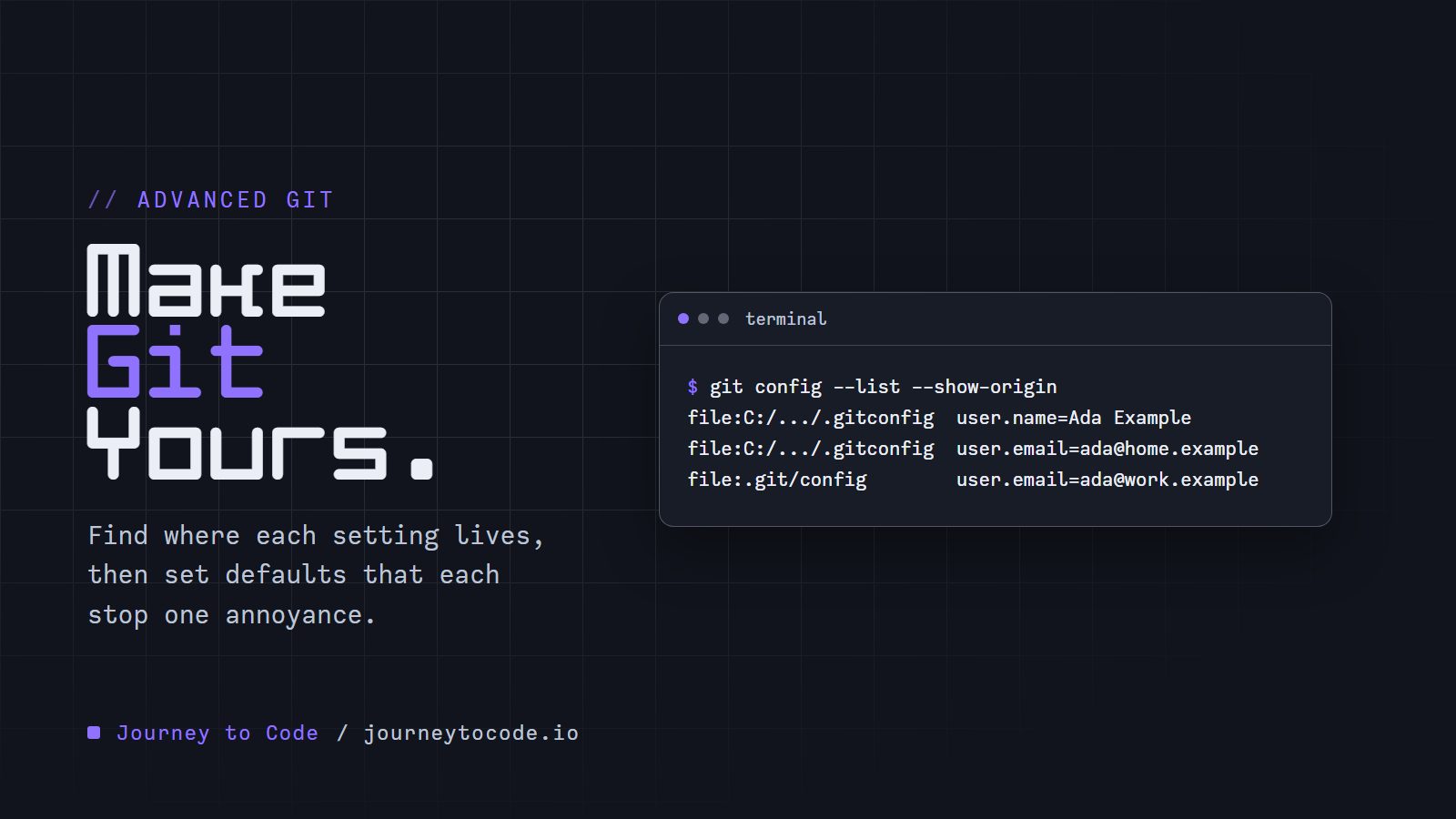
git config --list --show-origin
We will also write a few aliases and decide which ones are safe to keep.
Where a setting lives#
Git reads settings from several files and layers them. The ones you will touch are these:
| Scope | Flag | File | Applies to |
|---|---|---|---|
| system | --system | etc/gitconfig inside the Git install | every user on the machine |
| global | --global | .gitconfig in your home folder | every repository you use |
| local | --local (the default when you write) | .git/config in the repository | that repository only |
When the same setting appears in more than one file, the narrower scope wins.
To see that without touching your real settings, point Git at a throwaway global file. In Git Bash:
export GIT_CONFIG_GLOBAL="$PWD/.gitconfig"
export GIT_CONFIG_NOSYSTEM=1
GIT_CONFIG_GLOBAL replaces your global file for this terminal window only. GIT_CONFIG_NOSYSTEM=1 ignores the system file. Close the window and your own settings are back.
Now set an email twice, once globally and once in a repository:
git config --global user.name "Ada Example"
git config --global user.email "ada@home.example"
git init -q demo && cd demo
git config user.email "ada@work.example"
Ask Git for everything it knows, and where it learned it. I left out the core.* lines that git init writes into .git/config:
$ git config --list --show-origin
file:C:/.../.gitconfig	user.name=Ada Example
file:C:/.../.gitconfig	user.email=ada@home.example
file:.git/config	user.email=ada@work.example
The left column is the file and the right column is the setting. The email appears twice, once from each file.
Ask for the one that counts:
$ git config user.email
ada@work.example

$ git config --show-scope --show-origin user.email
local	file:.git/config	ada@work.example
The local file won. --show-scope adds the scope name, so you do not have to guess from the path.
If a setting behaves strangely, this is the first command to run. A value you forgot you set three years ago shows up here with its file name next to it.
Two more commands finish the picture. git config --global --edit opens the global file in your editor, and git config --global --unset user.email removes one setting.
Six defaults that each stop one annoyance#
Every default below has a message it answers. We ran each one against a pretend remote, origin.git, with two clones standing in for two people.
pull.ff: stop guessing on a divergent pull#
Alice pushes a commit. Bob commits locally without pulling first, then runs git pull. Here is Bob's screen, with the hints cut out:
$ git pull
From .../origin
   9afce9f..d953b3d  main       -> origin/main
...
fatal: Need to specify how to reconcile divergent branches.
Git will not pick between a merge and a rebase for you. The hint lists three ways to answer. Two of them are useful defaults:
$ git -c pull.ff=only pull
fatal: Not possible to fast-forward, aborting.

$ git -c pull.rebase=true pull
Successfully rebased and updated refs/heads/main.
-c name=value applies a setting to one command and nothing else, which is a safe way to try a default before keeping it.
pull.ff only pulls only when the pull is a straight line, and stops otherwise. You then choose to merge or rebase yourself. pull.rebase true always replays your local commits on top of what arrived, which gave Bob this history:
* 751c288 bob change
* d953b3d alice change
* 9afce9f start
Either one removes the surprise. Pick one, and set it with --global:
git config --global pull.ff only
push.autoSetupRemote: stop typing --set-upstream#
A new branch has no upstream yet, so the first plain git push fails:
$ git push
fatal: The current branch feature/x has no upstream branch.
To push the current branch and set the remote as upstream, use

    git push --set-upstream origin feature/x
Turn on the setting, and the same command works:
$ git config --global push.autoSetupRemote true
$ git push
branch 'feature/x' set up to track 'origin/feature/x'.
 * [new branch]      feature/x -> feature/x
The branch is now tracking origin/feature/x, so git status -sb starts with ## feature/x...origin/feature/x. This setting needs Git 2.37 or newer. It assumes the branch keeps the same name on the remote, which is the usual case on GitHub.
fetch.prune: stop seeing branches that are gone#
When a branch is deleted on GitHub, your copy of its pointer, origin/feature/x, stays behind. Alice's list after Bob deleted feature/x on the remote:
$ git fetch
$ git branch -r
  origin/feature/x
  origin/main
A plain fetch does not remove it. With --prune, it does:
$ git fetch --prune
 - [deleted]         (none)     -> origin/feature/x
$ git branch -r
  origin/main
fetch.prune true makes every fetch behave that way. It only removes those remote pointers. A local branch of the same name stays, and Git marks it:
$ git branch -vv
* main d953b3d [origin/main] alice change
  y    ea11253 [origin/y: gone] y
gone is your cue that the branch was merged or deleted upstream.
rebase.autoSquash: fixups land where they belong#
git commit --fixup <commit> creates a commit titled fixup! <that commit's title>. Without help, an interactive rebase leaves it at the end:
$ git rebase -i main
$ git log --oneline
3bb5134 fixup! Add b
8ae88bd Add c
d42c68b Add b
c5773f4 Add a
With rebase.autoSquash on, the same command folds it into its target:
$ git config --global rebase.autoSquash true
$ git rebase -i main
$ git log --oneline
4b423fe Add c
883a054 Add b
c5773f4 Add a
The Git manual says this setting applies to interactive mode. The full workflow is in Interactive Rebase, Done Properly.
rebase.updateRefs: stacked branches move together#
Say step2 is built on step1, and main moves. Rebase step2 onto main and step1 is left behind:
$ git rebase main
$ git log --oneline --graph --all --decorate
* c628fd7 (HEAD -> step2) step 2
* 2477d66 step 1
* 2f96efb (main) main moves
| * 545b7ce (step1) step 1
|/
* 2502ebe Add a
With rebase.updateRefs true, the same rebase also moves step1:
Successfully rebased and updated refs/heads/step2.
Updated the following refs with --update-refs:
	refs/heads/step1
This needs Git 2.38 or newer. On 2.45.2 it worked for a plain git rebase main, not only with -i.
merge.conflictStyle: a conflict that shows more#
git config --global merge.conflictStyle zdiff3
This adds the original text to conflict markers and trims lines both sides share. It needs Git 2.35 or newer.
Aliases#
An alias is a short name for a longer command, stored in config. They live in the same files, so --show-origin lists them too.
git config --global alias.st "status -sb"
git config --global alias.lg "log --oneline --graph --decorate"
git config --global alias.cm "commit -m"
git config --global alias.unstage "restore --staged"
They behave like built-in commands:
$ git st
## main
M  a.txt

$ git lg
* 80e12e5 (HEAD -> main) two
* 69ce328 one

$ git config --get-regexp '^alias\.'
alias.st status -sb
alias.lg log --oneline --graph --decorate
alias.cm commit -m
alias.unstage restore --staged
What an alias cannot do#
Git does not let an alias replace a command it already has. We set one anyway:
$ git config --global alias.status "log --oneline"
$ git status
On branch main
nothing to commit, working tree clean
The built-in git status still ran. So an alias cannot hide a real command, and a new name is always safe to try.
A shell alias#
A leading ! runs the rest as a shell command:
$ git config --global alias.who '!git config user.name'
$ git who
Ada Example
On Windows that shell is the one bundled with Git. Anything you put after ! is a script you maintain, so keep those few.
Aliases to think twice about#
The danger in an alias is not what it does. It is that it hides what it does, at the exact moment you stop reading.
$ git config --global alias.undo "reset --hard HEAD~1"
$ git undo
HEAD is now at 69ce328 one
That discarded the commit named two. It was recoverable only because the reflog remembers it:
$ git reflog
69ce328 HEAD@{0}: reset: moving to HEAD~1
80e12e5 HEAD@{1}: commit: two
git reset --hard 80e12e5 printed HEAD is now at 80e12e5 two and the commit was back. The lesson is about hiding --hard behind a friendly word.
The same goes for alias.pushf "push --force". It works, and git help pushf politely says 'pushf' is aliased to 'push --force'. A name that sounds routine makes a force-push routine.
If you want one, alias --force-with-lease instead. We amended a commit in one clone while someone else pushed to the same branch from another. The lease noticed:
$ git push --force-with-lease origin main
 ! [rejected]        main -> main (stale info)
A plain git push --force in the same spot went through (+ c3c5e08...2606a78 main -> main (forced update)) and replaced the other person's commit.
A fair rule: alias commands that read (status, log, diff) freely, and think twice before aliasing anything that deletes or overwrites.
On Windows: line endings and sign-in#
Two settings already sit in the system file. We can ask Git where they came from. These are from the Git for Windows install on this machine:
$ git config --system --show-origin --list
file:.../Git/etc/gitconfig	core.autocrlf=true
file:.../Git/etc/gitconfig	core.symlinks=true
file:.../Git/etc/gitconfig	credential.helper=manager
I filtered that to three lines.
core.autocrlf=true converts line endings in both directions: files get Windows endings (CRLF) in your folder and Unix endings (LF) in the repository. You see it as a warning:
$ git -c core.autocrlf=true add notes.txt
warning: in the working copy of 'notes.txt', LF will be replaced by CRLF the next time Git touches it
With core.autocrlf=input or false, the same git add prints nothing.
To see what is really stored, git ls-files --eol lists the line endings in the index (i/) and in your folder (w/). For a Windows-style file in a repository that has a .gitattributes file containing * text=auto:
$ git ls-files --eol win.txt
i/lf    w/crlf  attr/text=auto        	win.txt
The index holds LF, the folder holds CRLF. A .gitattributes file is committed with the repository, so every clone sees the same rule. A config setting exists only on the machine that has it.
credential.helper=manager is Git Credential Manager, the helper that Git for Windows sets up, and it is what remembers your sign-in for HTTPS remotes. On this machine git credential-manager --version printed 2.5.0+d34930736e131ad80e5690e5634ced1808aff3e2. If a push asks for a password every time, check this setting first, with --show-origin so you know which file overrides it.
Try it#
Here is the tour in seven commands. Type them one at a time.
Type these commands in order, in a practice folder:
- List every setting and the file it comes from. Try
git config --list --show-origin. The left column is the file; where a name repeats, the narrower scope wins. - Find out where the user.email in effect comes from. Try
git config --show-origin user.email. It prints the local file,.git/config. - Make the first push of a new branch set its upstream. Try
git config --global push.autoSetupRemote true. - Remove remote branches that no longer exist on every fetch. Try
git config --global fetch.prune true. - Make a divergent pull stop instead of guessing. Try
git config --global pull.ff only;git config --global pull.rebase trueandgit config --global pull.rebase false(merge) also answer Git's question. - Add an alias named lg for
log --oneline --graph --decorate. Trygit config --global alias.lg "log --oneline --graph --decorate". - Remove that alias again. Try
git config --global --unset alias.lg.
Two things worth trying: ask for a hint, and answer step 5 with the rebase setting.
Challenge: find where it lives
Inside any repository, set pull.rebase for that repository only, then find out which file holds it.
Expected result:
$ git config --show-origin pull.rebase
file:.git/config	true
If it printed a path outside .git, you set it with --global.
What we learned#
- Settings live in system, global and local files. The narrower scope wins.
git config --list --show-originshows every setting and the file behind it.--show-scopenames the scope.-c name=valuetries a setting for one command only.pull.ff onlyorpull.rebase trueends the divergent pull error.push.autoSetupRemote(2.37) sets upstream on the first push.fetch.pruneremoves pointers to deleted remote branches.rebase.autoSquashplaces fixups.rebase.updateRefs(2.38) moves stacked branches.merge.conflictStyle zdiff3(2.35) shows the original text inside a conflict.- An alias can add a name but cannot replace a command. Be careful with aliases that hide
--hardor--force. - On Windows,
core.autocrlfandcredential.helpercome from the install..gitattributesis the team's rule.
git config --list --show-origin now tells us where every setting lives, and which one wins.
Comments require JavaScript.