
Native Browser APIs for Dynamic User Interfaces
Modern DOM Manipulation
Native APIs for High-Performance Web Interfaces
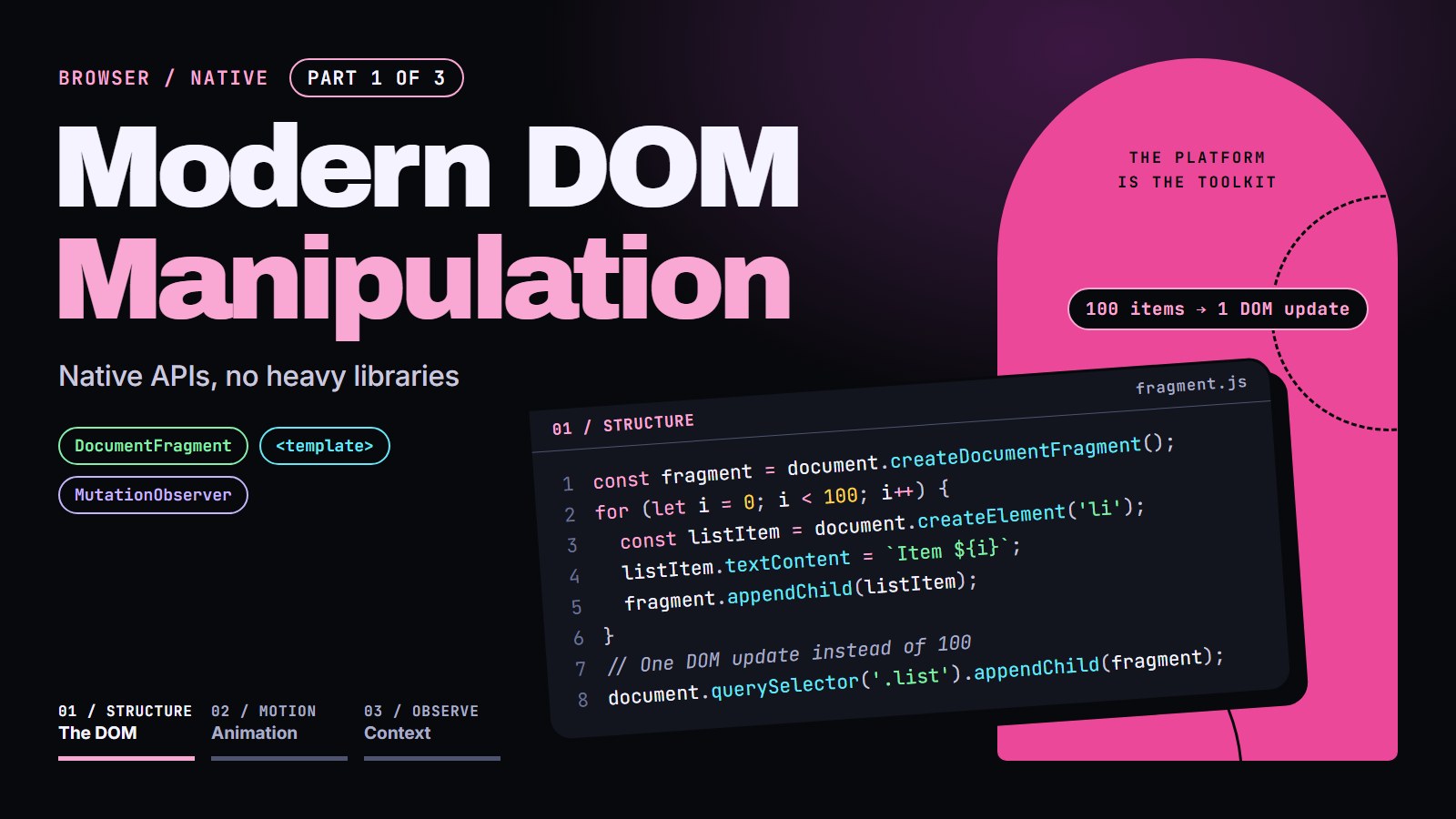
The DOM (Document Object Model) is the live tree of objects the browser builds from your HTML. Every tag becomes a node you can find, change, add, or remove from JavaScript, and the page redraws to match. Every interactive page you have used is doing this.
In this article, we are going to find an element and ask where it sits in the page, add thousands of items without freezing the tab, stamp out repeated cards from an HTML template, and get told when something in the page changes. By the end, one click listener can serve a whole menu.
You only need two things from earlier: document.querySelector('.x') returns the first element with class x, and el.textContent = 'hi' replaces that element's text. Everything else is introduced as we go.
Do you still need jQuery?#
If you have read older code you have seen $('.x'). jQuery was a library that smoothed over differences between browsers and gave a short way to find and change elements. Browsers have since agreed on built-in tools for the same job:
// jQuery
$('.content-paragraph').text('Updated content');
// Built in
document.querySelectorAll('.content-paragraph')
  .forEach(el => el.textContent = 'Updated content');
Same result, a little longer, and nothing to download. You will see claims that the built-in version is "2-3x faster". That number is not sourced here, and for one call on one page the difference is far too small to notice, so do not choose for speed. Choose it because it ships with the browser. The one place speed really matters in this post is adding many elements at once, and we will measure that in a moment.
Finding your way around: closest(), matches() and contains()#
Finding an element by selector is half the job. Often you already hold one element and need to ask about its surroundings. Here is some HTML to point at:
<ul class="menu">
  <li class="item"><a class="link" href="/docs">Docs</a></li>
  <li class="item"><a class="link" href="/blog">Blog</a></li>
</ul>
And four questions about the first link:
const link = document.querySelector('.link');  // the "Docs" <a>
const menu = document.querySelector('.menu');  // the <ul>

link.closest('.item');   // the <li> around it
link.matches('.link');   // true
link.matches('.item');   // false: the link is not an .item, its parent is
menu.contains(link);     // true
closest(selector)checks the element itself, then its parent, then its grandparent, and so on, and returns the first one that matches the selector (ornullif none does).matches(selector)asks one yes-or-no question: does this element match the selector?contains(other)asks whetherotheris anywhere inside this element (an element also contains itself).
Why you will reach for these quickly: you want one click listener on the whole menu instead of one per link. The first attempt looks right and silently does nothing:
menu.addEventListener('click', event => {
  if (event.target.matches('.item')) {
    console.log('clicked an item');   // never runs when you click the link text
  }
});
event.target is the innermost element under the pointer, which here is the <a>, not the <li>. The fix is to walk up from it:
menu.addEventListener('click', event => {
  const item = event.target.closest('.item');
  if (!item) return;   // the click landed on the <ul>, not on an item
  console.log('clicked', item.textContent);
});
contains() earns its place the other way around, for "was that click outside my dropdown?": if (!dropdown.contains(event.target)) closeDropdown();.
In the demo, click the Expand, Dismiss, and Continue buttons and read the log: each click uses matches() to recognize an action button and closest('.card') to find which card it belongs to.
---html
<div class="container">
    <h1>Modern DOM Traversal and Selection</h1>
    <p>This example demonstrates modern DOM traversal methods including <code>closest()</code>, <code>matches()</code>, and <code>contains()</code>.</p>

    <div class="card" id="card1" data-category="info">
      <h2 class="card-title">Card 1: Information</h2>
      <p>This is a simple information card.</p>
      <div class="nested">
        <p class="content-paragraph">This is nested content.</p>
        <button class="action-button" data-action="expand">Expand</button>
      </div>
    </div>

    <div class="card" id="card2" data-category="alert">
      <h2 class="card-title">Card 2: Alert</h2>
      <p>This is an alert card with important information.</p>
      <div class="nested">
        <p class="content-paragraph">This is nested alert content.</p>
        <button class="action-button" data-action="dismiss">Dismiss</button>
      </div>
    </div>

    <div class="card" id="card3" data-category="success">
      <h2 class="card-title">Card 3: Success</h2>
      <p>Operation completed successfully.</p>
      <div class="nested">
        <p class="content-paragraph">This is nested success content.</p>
        <button class="action-button" data-action="continue">Continue</button>
      </div>
    </div>

    <div class="actions">
      <button id="select-all">Select All Paragraphs</button>
      <button id="select-buttons">Select All Buttons</button>
      <button id="select-alert">Select Alert Cards</button>
      <button id="reset">Reset Selections</button>
    </div>

    <div id="log">
      <div class="log-entry">DOM manipulation events will appear here...</div>
    </div>
  </div>
---css
/* Dark mode based on system preference */
    :root {
      color-scheme: light dark;
      --primary-color: #4a6fa5;
      --background: #ffffff;
      --text: #333333;
      --card-bg: #f5f5f5;
      --highlight: #e3f2fd;
      --border: #dddddd;
    }

    @media (prefers-color-scheme: dark) {
      :root {
        --primary-color: #81a1d4;
        --background: #1e1e1e;
        --text: #e0e0e0;
        --card-bg: #2d2d2d;
        --highlight: #2c3e50;
        --border: #444444;
      }
    }

    body {
      font-family: system-ui, -apple-system, BlinkMacSystemFont, 'Segoe UI', Roboto, sans-serif;
      line-height: 1.6;
      margin: 0;
      padding: 20px;
      background-color: var(--background);
      color: var(--text);
      transition: background-color 0.3s, color 0.3s;
    }

    .container {
      max-width: 800px;
      margin: 0 auto;
    }

    .card {
      padding: 20px;
      border-radius: 8px;
      background: var(--card-bg);
      margin-bottom: 20px;
      border: 1px solid var(--border);
    }

    .card.active {
      background: var(--highlight);
      border-color: var(--primary-color);
    }

    .card-title {
      font-size: 1.2rem;
      font-weight: bold;
      margin-top: 0;
      color: var(--primary-color);
    }

    .nested {
      margin-left: 20px;
      padding-left: 15px;
      border-left: 2px solid var(--primary-color);
    }

    button {
      background: var(--primary-color);
      color: white;
      border: none;
      padding: 8px 15px;
      border-radius: 4px;
      cursor: pointer;
      margin: 5px;
      font-size: 14px;
    }

    button:hover {
      opacity: 0.9;
    }

    #log {
      margin-top: 20px;
      padding: 15px;
      background: var(--card-bg);
      border-radius: 8px;
      border: 1px solid var(--border);
      height: 200px;
      overflow-y: auto;
    }

    .log-entry {
      margin-bottom: 8px;
      padding-bottom: 8px;
      border-bottom: 1px solid var(--border);
    }

    .highlight {
      color: var(--primary-color);
      font-weight: bold;
    }
---js
// Helper function to add to log
function addToLog(message) {
  const log = document.getElementById('log');
  const entry = document.createElement('div');
  entry.className = 'log-entry';
  entry.innerHTML = message;
  log.appendChild(entry);
  log.scrollTop = log.scrollHeight;
}

// Reset all card states
function resetCards() {
  document.querySelectorAll('.card').forEach(card => {
    card.classList.remove('active');
  });

  document.querySelectorAll('.content-paragraph').forEach(p => {
    p.style.fontWeight = 'normal';
  });

  addToLog('All selections reset');
}

// Event delegation for all buttons using event.target.matches()
document.addEventListener('click', function (event) {
  // Check if clicked element is an action button
  if (event.target.matches('.action-button')) {
    const action = event.target.dataset.action;
    const card = event.target.closest('.card'); // Using closest() to find parent card

    addToLog(`Button <span class="highlight">${action}</span> clicked in <span class="highlight">${card.querySelector('.card-title').textContent}</span>`);

    // Toggle active state on the card
    card.classList.toggle('active');
  }
});

// Select all paragraphs with querySelectorAll
document.getElementById('select-all').addEventListener('click', function () {
  resetCards();

  // Using querySelectorAll to get all paragraphs with specific class
  const paragraphs = document.querySelectorAll('.content-paragraph');

  paragraphs.forEach(p => {
    p.style.fontWeight = 'bold';
  });

  addToLog(`Selected <span class="highlight">${paragraphs.length}</span> paragraphs using querySelectorAll`);
});

// Select all buttons
document.getElementById('select-buttons').addEventListener('click', function () {
  resetCards();

  // Using getElementsByClassName for comparison
  const buttons = document.getElementsByClassName('action-button');

  // Converting HTMLCollection to Array for easier manipulation
  Array.from(buttons).forEach(button => {
    const parentCard = button.closest('.card');
    parentCard.classList.add('active');
  });

  addToLog(`Selected <span class="highlight">${buttons.length}</span> buttons using getElementsByClassName`);
});

// Select cards by attribute
document.getElementById('select-alert').addEventListener('click', function () {
  resetCards();

  // Using attribute selector
  const alertCards = document.querySelectorAll('.card[data-category="alert"]');

  alertCards.forEach(card => {
    card.classList.add('active');

    // Check if card contains specific elements using contains()
    const hasActionButton = card.contains(card.querySelector('.action-button'));

    if (hasActionButton) {
      addToLog(`Alert card contains an action button: <span class="highlight">${card.querySelector('.action-button').dataset.action}</span>`);
    }
  });

  addToLog(`Selected <span class="highlight">${alertCards.length}</span> alert cards using attribute selector`);
});

// Reset button
document.getElementById('reset').addEventListener('click', resetCards);

// Initial log entry
addToLog('Interact with the buttons above to see modern DOM traversal in action');
Adding lots of elements: DocumentFragment#
Now the other direction: putting many new elements on the page. A DocumentFragment is a lightweight container that lives outside the page. You build elements inside it, then append the fragment, and its children move into the page in one step:
const list = document.querySelector('.list');
const fragment = document.createDocumentFragment();

for (let i = 0; i < 100; i++) {
  const listItem = document.createElement('li');
  listItem.textContent = `Item ${i}`;
  fragment.appendChild(listItem);
}

list.appendChild(fragment);   // one insertion into the live page
You will often read that this is faster because "the page updates once instead of 100 times". Be careful with that. The browser already waits until your JavaScript finishes before it works out layout and draws, so a plain loop that appends 100 items directly does not redraw 100 times either. What a fragment gives you is fewer operations on the live page, and it keeps you out of the trap below.
The failure: measuring inside the loop#
Layout is the browser working out the size and position of every element. If your loop asks for a measurement after each insert (offsetHeight, getBoundingClientRect()), the browser has to finish layout right then to give a correct answer, again and again:
for (let i = 0; i < 5000; i++) {
  const li = document.createElement('li');
  li.textContent = `Item ${i}`;
  list.appendChild(li);
  list.offsetHeight;   // forces a full layout, 5,000 times
}
A test run in desktop Chrome while revising this post gave about 2 ms for 5,000 plain appends, about 2 ms for 5,000 items through a fragment, and several seconds (between three and six across runs) for the loop that reads offsetHeight every time. Your numbers will differ, but the shape should hold: the first two are close and the third is not. Build the elements first, then measure once at the end.
The demo below runs 200 items each way. Do not be surprised if the two timings are close or the ratio changes from run to run; that is the honest result.
---html
<div class="container">
    <h1>DocumentFragment Performance Demo</h1>
    <p>This demonstration compares the performance of direct DOM insertion versus DocumentFragment for creating multiple elements.</p>

    <div class="panel">
      <h2>Benchmark</h2>
      <p>Create list items using different DOM manipulation techniques:</p>

      <div class="button-group">
        <button id="run-direct" class="primary">Run Direct Method</button>
        <button id="run-fragment" class="primary">Run Fragment Method</button>
        <button id="clear" class="secondary">Clear All</button>
      </div>

      <div class="loading" id="loading">
        <div class="spinner"></div>
        <p>Processing...</p>
      </div>

      <div class="benchmark">
        <h3>Performance Results</h3>
        <div class="results">
          <div class="result-card">
            <h3>Direct DOM</h3>
            <div class="time" id="direct-time">-</div>
            <div>milliseconds</div>
          </div>
          <div class="result-card">
            <h3>DocumentFragment</h3>
            <div class="time" id="fragment-time">-</div>
            <div>milliseconds</div>
            <div class="speedup" id="speedup">-</div>
          </div>
        </div>
      </div>
    </div>

    <div class="panel">
      <h2>Visualization</h2>
      <p>Compare the visual result of both methods (they should look identical; the timings may be close, because the browser does its layout work after your script finishes):</p>

      <div>
        <h3>Direct Method</h3>
        <div class="list-container" id="direct-container"></div>
      </div>

      <div>
        <h3>Fragment Method</h3>
        <div class="list-container" id="fragment-container"></div>
      </div>
    </div>
  </div>
---css
/* Dark mode based on system preference */
    :root {
      color-scheme: light dark;
      --primary-color: #4ac18e;
      --secondary-color: #4a6fa5;
      --background: #ffffff;
      --text: #333333;
      --card-bg: #f5f5f5;
      --highlight: #e3f2fd;
      --border: #dddddd;
      --shadow: rgba(0, 0, 0, 0.1);
    }

    @media (prefers-color-scheme: dark) {
      :root {
        --primary-color: #5de0ab;
        --secondary-color: #81a1d4;
        --background: #1e1e1e;
        --text: #e0e0e0;
        --card-bg: #2d2d2d;
        --highlight: #2c3e50;
        --border: #444444;
        --shadow: rgba(0, 0, 0, 0.5);
      }
    }

    body {
      font-family: system-ui, -apple-system, BlinkMacSystemFont, 'Segoe UI', Roboto, sans-serif;
      line-height: 1.6;
      margin: 0;
      padding: 20px;
      background-color: var(--background);
      color: var(--text);
      transition: background-color 0.3s, color 0.3s;
    }

    .container {
      max-width: 800px;
      margin: 0 auto;
    }

    .panel {
      background: var(--card-bg);
      border-radius: 8px;
      padding: 20px;
      margin-bottom: 20px;
      box-shadow: 0 2px 8px var(--shadow);
    }

    h1, h2, h3 {
      color: var(--primary-color);
    }

    .button-group {
      display: flex;
      flex-wrap: wrap;
      gap: 10px;
      margin: 20px 0;
    }

    button {
      padding: 10px 15px;
      border: none;
      border-radius: 4px;
      font-size: 14px;
      cursor: pointer;
      transition: all 0.2s;
    }

    button.primary {
      background-color: var(--primary-color);
      color: white;
    }

    button.secondary {
      background-color: var(--secondary-color);
      color: white;
    }

    button:hover {
      opacity: 0.9;
      transform: translateY(-2px);
    }

    button:disabled {
      opacity: 0.5;
      cursor: not-allowed;
      transform: none;
    }

    .list-container {
      display: grid;
      grid-template-columns: repeat(auto-fill, minmax(200px, 1fr));
      gap: 15px;
      margin-top: 20px;
    }

    .item {
      padding: 15px;
      background-color: var(--highlight);
      border-radius: 6px;
      border-left: 3px solid var(--primary-color);
    }

    .benchmark {
      margin-top: 20px;
      padding: 15px;
      background: var(--card-bg);
      border-radius: 6px;
    }

    .results {
      display: flex;
      margin-top: 15px;
    }

    .result-card {
      flex: 1;
      padding: 15px;
      margin: 0 10px;
      border-radius: 6px;
      background: var(--highlight);
      text-align: center;
    }

    .result-card h3 {
      margin-top: 0;
    }

    .time {
      font-size: 24px;
      font-weight: bold;
      color: var(--primary-color);
    }

    .speedup {
      margin-top: 10px;
      color: var(--primary-color);
      font-weight: bold;
    }

    .loading {
      display: none;
      margin: 20px 0;
      text-align: center;
    }

    .spinner {
      border: 4px solid rgba(0, 0, 0, 0.1);
      border-radius: 50%;
      border-top: 4px solid var(--primary-color);
      width: 30px;
      height: 30px;
      animation: spin 1s linear infinite;
      margin: 0 auto;
    }

    @keyframes spin {
      0% { transform: rotate(0deg); }
      100% { transform: rotate(360deg); }
    }

    code {
      background-color: rgba(0, 0, 0, 0.1);
      padding: 2px 4px;
      border-radius: 3px;
      font-family: monospace;
    }
---js
// Element references
const directContainer = document.getElementById('direct-container');
const fragmentContainer = document.getElementById('fragment-container');
const directTimeDisplay = document.getElementById('direct-time');
const fragmentTimeDisplay = document.getElementById('fragment-time');
const speedupDisplay = document.getElementById('speedup');
const loadingIndicator = document.getElementById('loading');

// Buttons
const runDirectBtn = document.getElementById('run-direct');
const runFragmentBtn = document.getElementById('run-fragment');
const clearBtn = document.getElementById('clear');

// Number of items to create
const NUM_ITEMS = 200;

// Sample data
const sampleData = [
'Task Item', 'Product', 'Note', 'Reminder', 'Alert',
'Message', 'Notification', 'Update', 'News', 'Event'];


// Generate random sample text
function getRandomText() {
  const index = Math.floor(Math.random() * sampleData.length);
  return `${sampleData[index]} ${Math.floor(Math.random() * 1000)}`;
}

// Create item element
function createItemElement(index) {
  const item = document.createElement('div');
  item.className = 'item';
  item.textContent = `${getRandomText()}`;
  return item;
}

// Direct DOM insertion method
function directMethod() {
  // Clear previous items
  directContainer.innerHTML = '';

  const startTime = performance.now();

  // Directly append items to the container
  for (let i = 0; i < NUM_ITEMS; i++) {
    const item = createItemElement(i);
    directContainer.appendChild(item);
  }

  const endTime = performance.now();
  const duration = endTime - startTime;

  // Display results
  directTimeDisplay.textContent = duration.toFixed(2);

  return duration;
}

// DocumentFragment method
function fragmentMethod() {
  // Clear previous items
  fragmentContainer.innerHTML = '';

  const startTime = performance.now();

  // Create a document fragment
  const fragment = document.createDocumentFragment();

  // Append items to the fragment (off-DOM)
  for (let i = 0; i < NUM_ITEMS; i++) {
    const item = createItemElement(i);
    fragment.appendChild(item);
  }

  // One single DOM update
fragmentContainer.appendChild(fragment);

  const endTime = performance.now();
  const duration = endTime - startTime;

  // Display results
  fragmentTimeDisplay.textContent = duration.toFixed(2);

  return duration;
}

// Calculate and display the speedup
function calculateSpeedup(directTime, fragmentTime) {
  if (directTime > 0 && fragmentTime > 0) {
    const speedup = directTime / fragmentTime;
    speedupDisplay.textContent = `Direct took ${speedup.toFixed(2)}x as long as the fragment`;
  }
}

// Event listeners
runDirectBtn.addEventListener('click', function () {
  // Disable buttons during execution
  runDirectBtn.disabled = true;
  loadingIndicator.style.display = 'block';

  // Use setTimeout to allow the UI to update before running the intensive operation
  setTimeout(() => {
    const directTime = directMethod();

    if (fragmentTimeDisplay.textContent !== '-') {
      const fragmentTime = parseFloat(fragmentTimeDisplay.textContent);
      calculateSpeedup(directTime, fragmentTime);
    }

    // Re-enable buttons
    runDirectBtn.disabled = false;
    loadingIndicator.style.display = 'none';
  }, 50);
});

runFragmentBtn.addEventListener('click', function () {
  // Disable buttons during execution
  runFragmentBtn.disabled = true;
  loadingIndicator.style.display = 'block';

  // Use setTimeout to allow the UI to update before running the intensive operation
  setTimeout(() => {
    const fragmentTime = fragmentMethod();

    if (directTimeDisplay.textContent !== '-') {
      const directTime = parseFloat(directTimeDisplay.textContent);
      calculateSpeedup(directTime, fragmentTime);
    }

    // Re-enable buttons
    runFragmentBtn.disabled = false;
    loadingIndicator.style.display = 'none';
  }, 50);
});

clearBtn.addEventListener('click', function () {
  // Clear containers
  directContainer.innerHTML = '';
  fragmentContainer.innerHTML = '';

  // Reset time displays
  directTimeDisplay.textContent = '-';
  fragmentTimeDisplay.textContent = '-';
  speedupDisplay.textContent = '-';
});
Challenge: 10 items, then 5,000#
Run the starter. Press Add 10 and Add 5,000. The fragment function is empty, so its time is near zero; that is your TODO.
- Fill in
withFragmentso it builds the same list through aDocumentFragmentand appends it once. Compare the two timings at 10 and at 5,000. Expect them to be close at both sizes. - Now add
list.offsetHeight;inside the loop inindividuallyand press Add 5,000 again. The tab freezes for a moment, then the time is far larger than before. That is the real cost. - Move the
offsetHeightread to after the loop. The time falls back down.
---html
<button id="small">Add 10</button>
<button id="big">Add 5,000</button>
<pre id="out">Press a button.</pre>
<ul id="list"></ul>
---css
ul { height: 80px; overflow: auto; }
pre { margin: 0.5rem 0; }
---js
const list = document.querySelector('#list');
const out = document.querySelector('#out');

function individually(n) {
  list.innerHTML = '';
  const start = performance.now();
  for (let i = 0; i < n; i++) {
    const li = document.createElement('li');
    li.textContent = 'Item ' + i;
    list.appendChild(li);
    // STEP 2: add  list.offsetHeight;  here and run 5,000 again
  }
  return performance.now() - start;
}

function withFragment(n) {
  list.innerHTML = '';
  const start = performance.now();
  // STEP 1 TODO: build the <li> elements inside a DocumentFragment,
  // then append the fragment to the list once.
  return performance.now() - start;
}

function compare(n) {
  const a = individually(n);
  const b = withFragment(n);
  out.textContent = `${n} items\nindividually: ${a.toFixed(1)} ms\nfragment: ${b.toFixed(1)} ms`;
}

document.querySelector('#small').onclick = () => compare(10);
document.querySelector('#big').onclick = () => compare(5000);
The hidden gem: the template element#
Repeated pieces of interface, such as a user card, are awkward to build one element at a time:
const card = document.createElement('div');
card.className = 'user-card';
const name = document.createElement('h3');
name.className = 'name';
card.appendChild(name);
// ...and eight more lines like these for the avatar, the role, the details
You cannot see the shape of the card in that code. HTML5's <template> element lets you write the shape as HTML instead. Its contents are parsed but inert: nothing is displayed, images do not load, scripts do not run, until you copy them into the page.
<template id="user-card">
  <div class="user-card">
    <img class="avatar" src="" alt="User avatar">
    <div class="details">
      <h3 class="name"></h3>
      <p class="role"></p>
    </div>
  </div>
</template>
function createUserCard(user) {
  // template.content is a DocumentFragment holding the markup above
  const template = document.getElementById('user-card');
  // cloneNode(true) copies it and everything inside it
  const userCard = template.content.cloneNode(true);

  // Fill the copy with this user's data
  userCard.querySelector('.avatar').src = user.avatarUrl;
  userCard.querySelector('.name').textContent = user.name;
  userCard.querySelector('.role').textContent = user.role;

  return userCard;
}
Two details matter. template.content is the same kind of fragment as in the last section. And you clone it with cloneNode(true), where true means "copy everything inside too": appending the original would move its children out of the template and you could only use it once. This approach keeps the shape in HTML and leaves JavaScript to do one job, filling in data.
The demo below uses exactly this, with a form to add users. Add a few and notice that every card is a separate copy.
---html
<!-- Template for user cards -->
<template id="user-card-template">
<div class="user-card">
<div class="header">
<img class="avatar" src="" alt="User avatar">
<div>
<h3 class="name"></h3>
<p class="role"></p>
</div>
</div>
<div class="details">
<div class="tags"></div>
<div class="bio"></div>
<div class="stats">
<div class="stat">
<span class="value projects"></span> projects
</div>
<div class="stat">
<span class="value followers"></span> followers
</div>
</div>
</div>
</div>
</template>
<div class="container">
<h1>Template Element Demo</h1>
<p>This example demonstrates how to use the HTML5 <code><template></code> element to create reusable components with pure JavaScript.</p>
<div class="template-code">
<code><template id="user-card-template">
<div class="user-card">
<div class="header">
<img class="avatar" src="" alt="User avatar">
<div>
<h3 class="name"></h3>
<p class="role"></p>
</div>
</div>
<div class="details">
<div class="tags"></div>
<div class="bio"></div>
<div class="stats">
<div class="stat">
<span class="value projects"></span> projects
</div>
<div class="stat">
<span class="value followers"></span> followers
</div>
</div>
</div>
</div>
</template></code>
</div>
<div class="form-container">
<h2>Add New User</h2>
<form id="user-form">
<div class="form-group">
<label for="name">Name</label>
<input type="text" id="name" required>
</div>
<div class="form-group">
<label for="role">Role</label>
<input type="text" id="role" required>
</div>
<div class="form-group">
<label for="avatar">Avatar URL</label>
<input type="text" id="avatar" value="https://i.pravatar.cc/150?img=">
</div>
<div class="form-group">
<label for="bio">Bio</label>
<input type="text" id="bio">
</div>
<div class="form-group">
<label for="projects">Projects</label>
<input type="number" id="projects" min="0" value="0">
</div>
<div class="form-group">
<label for="followers">Followers</label>
<input type="number" id="followers" min="0" value="0">
</div>
<div class="form-group">
<label>Tags</label>
<div class="tag-selection">
<input type="checkbox" id="tag-development" class="tag-checkbox">
<label for="tag-development" class="tag-label development">Development</label>
<input type="checkbox" id="tag-design" class="tag-checkbox">
<label for="tag-design" class="tag-label design">Design</label>
<input type="checkbox" id="tag-marketing" class="tag-checkbox">
<label for="tag-marketing" class="tag-label marketing">Marketing</label>
<input type="checkbox" id="tag-management" class="tag-checkbox">
<label for="tag-management" class="tag-label management">Management</label>
</div>
</div>
<div class="actions">
<button type="button" id="add-random" class="secondary">Add Random User</button>
<button type="submit" class="primary">Add User</button>
</div>
</form>
</div>
<h2>User Cards</h2>
<div class="user-card-container" id="user-container"></div>
</div>
---css
/* Dark mode based on system preference */
:root {
color-scheme: light dark;
--primary-color: #9c27b0;
--secondary-color: #673ab7;
--success-color: #4caf50;
--warning-color: #ff9800;
--error-color: #f44336;
--background: #ffffff;
--text: #333333;
--card-bg: #f5f5f5;
--highlight: #f3e5f5;
--border: #dddddd;
--shadow: rgba(0, 0, 0, 0.1);
}
@media (prefers-color-scheme: dark) {
:root {
--primary-color: #ce93d8;
--secondary-color: #b39ddb;
--success-color: #81c784;
--warning-color: #ffb74d;
--error-color: #e57373;
--background: #1e1e1e;
--text: #e0e0e0;
--card-bg: #2d2d2d;
--highlight: #4a148c;
--border: #444444;
--shadow: rgba(0, 0, 0, 0.5);
}
}
body {
font-family: system-ui, -apple-system, BlinkMacSystemFont, 'Segoe UI', Roboto, sans-serif;
line-height: 1.6;
margin: 0;
padding: 20px;
background-color: var(--background);
color: var(--text);
transition: background-color 0.3s, color 0.3s;
}
.container {
max-width: 800px;
margin: 0 auto;
}
h1, h2, h3 {
color: var(--primary-color);
}
.user-card-container {
display: grid;
grid-template-columns: repeat(auto-fit, minmax(300px, 1fr));
gap: 20px;
margin: 30px 0;
}
.user-card {
background-color: var(--card-bg);
border-radius: 8px;
box-shadow: 0 4px 8px var(--shadow);
overflow: hidden;
transition: transform 0.3s, box-shadow 0.3s;
}
.user-card:hover {
transform: translateY(-5px);
box-shadow: 0 8px 16px var(--shadow);
}
.user-card .header {
padding: 20px;
background-color: var(--primary-color);
color: white;
display: flex;
align-items: center;
gap: 15px;
}
.user-card .avatar {
width: 60px;
height: 60px;
border-radius: 50%;
background-color: white;
object-fit: cover;
border: 2px solid white;
}
.user-card .details {
padding: 20px;
}
.user-card .name {
font-size: 1.4rem;
margin: 0;
padding: 0;
}
.user-card .role {
color: rgba(255, 255, 255, 0.8);
margin: 5px 0 0 0;
}
.user-card .tag {
display: inline-block;
padding: 5px 10px;
border-radius: 15px;
font-size: 0.8rem;
margin-right: 5px;
margin-bottom: 5px;
color: white;
}
.user-card .tag.development {
background-color: var(--secondary-color);
}
.user-card .tag.design {
background-color: var(--success-color);
}
.user-card .tag.marketing {
background-color: var(--warning-color);
}
.user-card .tag.management {
background-color: var(--error-color);
}
.stat {
display: inline-block;
margin-right: 15px;
font-size: 0.9rem;
color: var(--text);
}
.stat .value {
font-weight: bold;
color: var(--primary-color);
}
.form-container {
background-color: var(--card-bg);
padding: 20px;
border-radius: 8px;
margin-bottom: 30px;
}
.form-group {
margin-bottom: 15px;
}
label {
display: block;
margin-bottom: 5px;
font-weight: bold;
color: var(--primary-color);
}
input, select {
width: 100%;
padding: 10px;
border: 1px solid var(--border);
border-radius: 4px;
background-color: var(--background);
color: var(--text);
}
input:focus, select:focus {
outline: none;
border-color: var(--primary-color);
}
.tag-selection {
display: flex;
flex-wrap: wrap;
gap: 10px;
margin-top: 10px;
}
.tag-checkbox {
display: none;
}
.tag-label {
display: inline-block;
padding: 5px 10px;
border-radius: 15px;
font-size: 0.8rem;
cursor: pointer;
opacity: 0.6;
transition: opacity 0.3s;
}
.tag-checkbox:checked + .tag-label {
opacity: 1;
}
.actions {
display: flex;
justify-content: flex-end;
gap: 10px;
margin-top: 20px;
}
button {
padding: 10px 15px;
border: none;
border-radius: 4px;
cursor: pointer;
transition: background-color 0.3s, transform 0.3s;
}
button.primary {
background-color: var(--primary-color);
color: white;
}
button.secondary {
background-color: var(--card-bg);
border: 1px solid var(--border);
color: var(--text);
}
button:hover {
opacity: 0.9;
transform: translateY(-2px);
}
.template-code {
background-color: var(--card-bg);
padding: 15px;
border-radius: 8px;
margin: 20px 0;
overflow-x: auto;
border-left: 3px solid var(--primary-color);
}
code {
font-family: monospace;
white-space: pre;
color: var(--primary-color);
}
---js
// DOM Elements
const userContainer = document.getElementById('user-container');
const userForm = document.getElementById('user-form');
const randomButton = document.getElementById('add-random');
// Random data for demo
const randomNames = [
'Alex Johnson', 'Sam Taylor', 'Jamie Williams', 'Jordan Brown',
'Casey Miller', 'Morgan Davis', 'Riley Wilson', 'Taylor Moore'];
const randomRoles = [
'Frontend Developer', 'UX Designer', 'Product Manager', 'DevOps Engineer',
'UI Designer', 'Full Stack Developer', 'Marketing Specialist', 'Project Manager'];
const randomBios = [
'Passionate about creating intuitive user experiences.',
'Loves solving complex problems with elegant solutions.',
'Specializes in optimizing development workflows.',
'Focused on creating accessible and inclusive designs.',
'Expert in translating business needs into technical solutions.',
'Enthusiastic about mentoring junior team members.',
'Dedicated to data-driven decision making.'];
// User factory function
function createUserCard(userData) {
// Get the template
const template = document.getElementById('user-card-template');
// Clone the template content (true for deep clone)
const userCard = template.content.cloneNode(true);
// Populate the card with user data
userCard.querySelector('.name').textContent = userData.name;
userCard.querySelector('.role').textContent = userData.role;
userCard.querySelector('.avatar').src = userData.avatar;
userCard.querySelector('.bio').textContent = userData.bio;
userCard.querySelector('.projects').textContent = userData.projects;
userCard.querySelector('.followers').textContent = userData.followers;
// Clear and add tags
const tagsContainer = userCard.querySelector('.tags');
tagsContainer.innerHTML = '';
userData.tags.forEach(tag => {
const tagElement = document.createElement('span');
tagElement.className = `tag ${tag.toLowerCase()}`;
tagElement.textContent = tag;
tagsContainer.appendChild(tagElement);
});
return userCard;
}
// Add user from form data
function addUserFromForm(event) {
event.preventDefault();
// Get selected tags
const selectedTags = [];
document.querySelectorAll('.tag-checkbox:checked').forEach(checkbox => {
selectedTags.push(checkbox.id.replace('tag-', ''));
});
// Create user data object
const userData = {
name: document.getElementById('name').value,
role: document.getElementById('role').value,
avatar: document.getElementById('avatar').value,
bio: document.getElementById('bio').value,
projects: document.getElementById('projects').value,
followers: document.getElementById('followers').value,
tags: selectedTags };
// Create and add the user card
const userCard = createUserCard(userData);
userContainer.appendChild(userCard);
// Reset form
userForm.reset();
document.querySelectorAll('.tag-checkbox').forEach(checkbox => {
checkbox.checked = false;
});
}
// Add random user
function addRandomUser() {
// Generate random avatar number (1-70)
const avatarNum = Math.floor(Math.random() * 70) + 1;
// Get random tags (1-3)
const allTags = ['development', 'design', 'marketing', 'management'];
const shuffled = allTags.sort(() => 0.5 - Math.random());
const randomTags = shuffled.slice(0, Math.floor(Math.random() * 3) + 1);
// Create random user data
const userData = {
name: randomNames[Math.floor(Math.random() * randomNames.length)],
role: randomRoles[Math.floor(Math.random() * randomRoles.length)],
avatar: `https://i.pravatar.cc/150?img=${avatarNum}`,
bio: randomBios[Math.floor(Math.random() * randomBios.length)],
projects: Math.floor(Math.random() * 20),
followers: Math.floor(Math.random() * 500),
tags: randomTags };
// Create and add the user card
const userCard = createUserCard(userData);
userContainer.appendChild(userCard);
}
// Add a few random users on page load
for (let i = 0; i < 3; i++) {
addRandomUser();
}
// Event listeners
userForm.addEventListener('submit', addUserFromForm);
randomButton.addEventListener('click', addRandomUser);
// Tag label styling
document.querySelectorAll('.tag-label').forEach(label => {
const type = label.classList[1];
label.style.backgroundColor = `var(--${type}-color)`;
label.style.color = 'white';
});
Challenge: add a bio#
The demo above already shows a bio. Here is a smaller template without one. Add a bio to every card.
- Add a
<p class="bio"></p>to the template. - In
makeCard, set itstextContentfromperson.bio.
Expected: each card shows a name, a role, and a bio line underneath. If you do step 2 before step 1, open the Console panel: querySelector returned null because the element does not exist yet, and setting textContent on null throws.
---html
<template id="card">
  <article class="card">
    <h3 class="name"></h3>
    <p class="role"></p>
    <!-- STEP 1 TODO: add <p class="bio"></p> here -->
  </article>
</template>
<div id="cards"></div>
---css
.card { border: 1px solid #888; border-radius: 6px; padding: 0.5rem 1rem; margin: 0.5rem 0; }
.name, .role { margin: 0; }
---js
const people = [
  { name: 'Sam', role: 'Designer', bio: 'Likes small, clear screens.' },
  { name: 'Riley', role: 'Engineer', bio: 'Likes small, clear functions.' },
];

function makeCard(person) {
  const card = document.querySelector('#card').content.cloneNode(true);
  card.querySelector('.name').textContent = person.name;
  card.querySelector('.role').textContent = person.role;
  // STEP 2 TODO: fill the .bio paragraph from person.bio
  return card;
}

const fragment = document.createDocumentFragment();
people.forEach(person => fragment.appendChild(makeCard(person)));
document.querySelector('#cards').appendChild(fragment);
Watching for changes: MutationObserver#
So far your own code made every change, so it always knew when something changed. Sometimes something else changes the page: another script, a third-party widget, a browser extension. A MutationObserver tells you. You hand it a function and say what to watch:
const targetNode = document.querySelector('#notes');   // the element to watch

const observer = new MutationObserver(mutations => {
  for (const mutation of mutations) {
    if (mutation.type === 'childList') {
      console.log('Child nodes have changed!');
    } else if (mutation.type === 'attributes') {
      console.log(`The ${mutation.attributeName} attribute was modified.`);
    }
  }
});

observer.observe(targetNode, {
  attributes: true,   // attribute changes on the node
  childList: true,    // nodes added or removed directly inside it
  subtree: true       // ...and the same for everything below it
});
The function receives a list of mutation records. They are delivered after the current JavaScript finishes, in one batch, not one callback per change. One warning: if the callback changes the node you are watching, it triggers itself again, so be deliberate about what it touches.
A MutationObserver reports what happened. It does not keep data and screen in sync; frameworks do that with their own state. In the demo below, plain event listeners copy your edits into the card, and the observer reacts to the card changing by recounting characters and words.
---html
<div class="container">
    <h1>Reactive UI with MutationObserver</h1>
    <p>This example demonstrates how to create reactive user interfaces using the MutationObserver API without frameworks.</p>

    <div class="dashboard">
      <div class="main-content">
        <div class="main-panel">
          <div id="card-element" class="card-preview">
            <h2 id="card-title-display" class="card-title">Card Title</h2>
            <p id="card-content-display" class="card-content">This is a sample card component that updates reactively whenever you make changes in the editor.</p>
          </div>

          <div class="mini-dashboard">
            <div class="metric-card">
              <p class="metric-label">Character Count</p>
              <div id="char-count" class="metric-value">0</div>
            </div>
            <div class="metric-card">
              <p class="metric-label">Word Count</p>
              <div id="word-count" class="metric-value">0</div>
            </div>
            <div class="metric-card">
              <p class="metric-label">Updates</p>
              <div id="update-count" class="metric-value">0</div>
            </div>
          </div>
        </div>

        <div class="debug-panel">
          <div class="header-with-count">
            <h3 class="debug-title">MutationObserver Log</h3>
            <div id="mutation-counter" class="mutation-count">0</div>
          </div>
          <div id="mutation-log" class="mutation-log"></div>
        </div>
      </div>

      <div class="editor-panel">
        <div class="panel">
          <h3>Edit Content</h3>
          <div class="form-group">
            <label for="card-title">Card Title</label>
            <input type="text" id="card-title" value="Card Title">
          </div>

          <div class="form-group">
            <label for="card-content">Card Content</label>
            <textarea id="card-content">This is a sample card component that updates reactively whenever you make changes in the editor.</textarea>
          </div>

          <div class="form-group">
            <label>Card Color</label>
            <div class="color-picker">
              <div class="color-option selected" style="background-color: var(--primary-color);" data-color="primary"></div>
              <div class="color-option" style="background-color: var(--secondary-color);" data-color="secondary"></div>
              <div class="color-option" style="background-color: var(--tertiary-color);" data-color="tertiary"></div>
              <div class="color-option" style="background-color: var(--success-color);" data-color="success"></div>
              <div class="color-option" style="background-color: var(--warning-color);" data-color="warning"></div>
              <div class="color-option" style="background-color: var(--error-color);" data-color="error"></div>
            </div>
          </div>
        </div>

        <div class="panel">
          <h3>About MutationObserver</h3>
          <p>The <code>MutationObserver</code> API allows you to watch for changes in the DOM. In this example:</p>
          <ul>
            <li>We're observing changes to the card's content and attributes</li>
            <li>Any edits in the form automatically update the preview</li>
            <li>The observer logs each change type and details</li>
            <li>Statistics are calculated reactively based on content changes</li>
          </ul>
          <p>This demonstrates how you can create reactive interfaces without heavy frameworks.</p>
        </div>
      </div>
    </div>
  </div>
---css
/* Dark mode based on system preference */
    :root {
      color-scheme: light dark;
      --primary-color: #2196f3;
      --secondary-color: #03a9f4;
      --tertiary-color: #00bcd4;
      --success-color: #4caf50;
      --warning-color: #ff9800;
      --error-color: #f44336;
      --background: #ffffff;
      --text: #333333;
      --card-bg: #f5f5f5;
      --highlight: #e3f2fd;
      --border: #dddddd;
      --shadow: rgba(0, 0, 0, 0.1);
      --input-bg: #ffffff;
    }

    @media (prefers-color-scheme: dark) {
      :root {
        --primary-color: #64b5f6;
        --secondary-color: #4fc3f7;
        --tertiary-color: #4dd0e1;
        --success-color: #81c784;
        --warning-color: #ffb74d;
        --error-color: #e57373;
        --background: #1e1e1e;
        --text: #e0e0e0;
        --card-bg: #2d2d2d;
        --highlight: #01579b;
        --border: #444444;
        --shadow: rgba(0, 0, 0, 0.5);
        --input-bg: #333333;
      }
    }

    body {
      font-family: system-ui, -apple-system, BlinkMacSystemFont, 'Segoe UI', Roboto, sans-serif;
      line-height: 1.6;
      margin: 0;
      padding: 20px;
      background-color: var(--background);
      color: var(--text);
      transition: background-color 0.3s, color 0.3s;
    }

    .container {
      max-width: 1000px;
      margin: 0 auto;
    }

    h1, h2, h3 {
      color: var(--primary-color);
    }

    .dashboard {
      display: grid;
      grid-template-columns: 1fr 300px;
      gap: 20px;
      margin-top: 20px;
    }

    @media (max-width: 768px) {
      .dashboard {
        grid-template-columns: 1fr;
      }
    }

    .main-panel {
      background-color: var(--card-bg);
      border-radius: 8px;
      padding: 20px;
      box-shadow: 0 4px 6px var(--shadow);
    }

    .editor-panel {
      display: flex;
      flex-direction: column;
      gap: 15px;
    }

    .panel {
      background-color: var(--card-bg);
      border-radius: 8px;
      padding: 20px;
      box-shadow: 0 4px 6px var(--shadow);
    }

    .form-group {
      margin-bottom: 15px;
    }

    label {
      display: block;
      margin-bottom: 5px;
      font-weight: bold;
      color: var(--primary-color);
    }

    input, select, textarea {
      width: 100%;
      padding: 10px;
      border: 1px solid var(--border);
      border-radius: 4px;
      background-color: var(--input-bg);
      color: var(--text);
      box-sizing: border-box;
    }

    input:focus, select:focus, textarea:focus {
      outline: none;
      border-color: var(--primary-color);
    }

    textarea {
      min-height: 100px;
      resize: vertical;
    }

    .color-picker {
      display: flex;
      gap: 10px;
      flex-wrap: wrap;
      margin-top: 10px;
    }

    .color-option {
      width: 30px;
      height: 30px;
      border-radius: 50%;
      cursor: pointer;
      border: 2px solid transparent;
      transition: transform 0.2s, border-color 0.2s;
    }

    .color-option:hover {
      transform: scale(1.1);
    }

    .color-option.selected {
      border-color: var(--text);
      transform: scale(1.1);
    }

    .card-preview {
      background-color: var(--primary-color);
      border-radius: 8px;
      padding: 20px;
      margin-bottom: 20px;
      color: white;
      box-shadow: 0 4px 6px var(--shadow);
      transition: background-color 0.3s;
    }

    .card-title {
      font-size: 1.5rem;
      margin-top: 0;
      margin-bottom: 10px;
    }

    .card-content {
      margin: 0;
    }

    .mini-dashboard {
      display: grid;
      grid-template-columns: repeat(auto-fit, minmax(200px, 1fr));
      gap: 15px;
      margin-top: 20px;
    }

    .metric-card {
      background-color: var(--highlight);
      border-radius: 8px;
      padding: 15px;
      text-align: center;
      border-top: 3px solid var(--primary-color);
      transition: border-color 0.3s;
    }

    .metric-value {
      font-size: 2rem;
      font-weight: bold;
      margin: 10px 0;
      color: var(--primary-color);
      transition: color 0.3s;
    }

    .metric-label {
      font-size: 0.9rem;
      color: var(--text);
      margin: 0;
    }

    .debug-panel {
      background-color: var(--card-bg);
      border-radius: 8px;
      padding: 15px;
      margin-top: 20px;
      border-left: 3px solid var(--secondary-color);
    }

    .debug-title {
      font-weight: bold;
      color: var(--secondary-color);
      margin-top: 0;
    }

    .mutation-log {
      height: 200px;
      overflow-y: auto;
      font-family: monospace;
      background-color: var(--background);
      border: 1px solid var(--border);
      padding: 10px;
      border-radius: 4px;
      font-size: 0.9rem;
    }

    .log-entry {
      margin-bottom: 6px;
      padding-bottom: 6px;
      border-bottom: 1px solid var(--border);
    }

    .log-time {
      color: var(--secondary-color);
    }

    .log-type {
      color: var(--tertiary-color);
      font-weight: bold;
    }

    .log-content {
      color: var(--text);
    }

    code {
      background-color: rgba(0, 0, 0, 0.1);
      padding: 2px 4px;
      border-radius: 3px;
      font-family: monospace;
    }

    .mutation-count {
      background-color: var(--primary-color);
      color: white;
      border-radius: 50%;
      width: 24px;
      height: 24px;
      display: flex;
      align-items: center;
      justify-content: center;
      font-size: 0.8rem;
      margin-left: 10px;
      font-weight: bold;
    }

    .header-with-count {
      display: flex;
      align-items: center;
    }
---js
// DOM Elements
const cardElement = document.getElementById('card-element');
const cardTitleDisplay = document.getElementById('card-title-display');
const cardContentDisplay = document.getElementById('card-content-display');
const charCountElement = document.getElementById('char-count');
const wordCountElement = document.getElementById('word-count');
const updateCountElement = document.getElementById('update-count');
const mutationLogElement = document.getElementById('mutation-log');
const mutationCounterElement = document.getElementById('mutation-counter');

// Form Elements
const cardTitleInput = document.getElementById('card-title');
const cardContentInput = document.getElementById('card-content');
const colorOptions = document.querySelectorAll('.color-option');

// Counters
let updateCount = 0;
let mutationCount = 0;

// Update the card content from form inputs
function updateCardContent() {
  cardTitleDisplay.textContent = cardTitleInput.value;
  cardContentDisplay.textContent = cardContentInput.value;
  updateCount++;
  updateCountElement.textContent = updateCount;
}

// Update the card color
function updateCardColor(color) {
  cardElement.style.backgroundColor = `var(--${color}-color)`;

  // Update the selected color indicator
  colorOptions.forEach(option => {
    option.classList.remove('selected');
    if (option.dataset.color === color) {
      option.classList.add('selected');
    }
  });
}

// Calculate statistics
function updateStatistics() {
  const text = cardContentDisplay.textContent;
  const charCount = text.length;
  const wordCount = text.trim().split(/\s+/).filter(word => word.length > 0).length;

  charCountElement.textContent = charCount;
  wordCountElement.textContent = wordCount;
}

// Log a mutation to the debug panel
function logMutation(type, detail) {
  const logEntry = document.createElement('div');
  logEntry.className = 'log-entry';

  const now = new Date();
  const timeString = now.toLocaleTimeString([], { hour: '2-digit', minute: '2-digit', second: '2-digit' });

  logEntry.innerHTML = `
        <span class="log-time">[${timeString}]</span>
        <span class="log-type">${type}:</span>
        <span class="log-content">${detail}</span>
      `;

  mutationLogElement.appendChild(logEntry);
  mutationLogElement.scrollTop = mutationLogElement.scrollHeight;

  // Update mutation counter
  mutationCount++;
  mutationCounterElement.textContent = mutationCount;
}

// Set up MutationObserver to watch for changes
const observer = new MutationObserver(mutations => {
  for (const mutation of mutations) {
    if (mutation.type === 'childList') {
      // Handle text content changes
      logMutation('childList', `${mutation.target.nodeName.toLowerCase()} content changed`);
      updateStatistics();
    } else if (mutation.type === 'attributes') {
      // Handle attribute changes
      logMutation('attributes', `${mutation.attributeName} changed on ${mutation.target.nodeName.toLowerCase()}`);
    }
  }
});

// Initial update
updateCardContent();
updateStatistics();

// Start observing the target nodes
observer.observe(cardTitleDisplay, {
  childList: true, // observe text content changes
  characterData: true, // observe text changes
  subtree: true // observe children
});

observer.observe(cardContentDisplay, {
  childList: true,
  characterData: true,
  subtree: true });


observer.observe(cardElement, {
  attributes: true // observe attribute changes like style
});

// Event listeners
cardTitleInput.addEventListener('input', updateCardContent);
cardContentInput.addEventListener('input', updateCardContent);

// Color picker event delegation
document.querySelector('.color-picker').addEventListener('click', event => {
  if (event.target.classList.contains('color-option')) {
    const color = event.target.dataset.color;
    updateCardColor(color);
  }
});

// Log initial state
logMutation('init', 'MutationObserver started watching for changes');
Challenge: count the changes#
Put the last three sections together. Each click on Add 1,000 appends items to the list. Your job is to report how many mutation records the observer received.
- Create a
MutationObserverwhose callback writes`${mutations.length} records, ${list.children.length} items`intoreadout, and callobserve(list, { childList: true }). Click the button. Expected:1000 records, 1000 items, from a single callback. - Change
addAllto build the items in aDocumentFragmentand append it once. Press Run to restart the preview and click again. Expected:1 records, 1000 items. The list holds the same 1,000 items, but the browser reports one insertion instead of 1,000.
---html
<button id="add">Add 1,000</button>
<p id="readout">Nothing observed yet.</p>
<ul id="list" style="height: 60px; overflow: auto"></ul>
---js
const list = document.querySelector('#list');
const readout = document.querySelector('#readout');

// STEP 1 TODO: create a MutationObserver that writes
//   `${mutations.length} records, ${list.children.length} items`
// into readout, then observe(list, { childList: true }).

function addAll() {
  for (let i = 0; i < 1000; i++) {
    const li = document.createElement('li');
    li.textContent = 'Item ' + i;
    list.appendChild(li);   // STEP 2 TODO: append to a fragment instead
  }
  // STEP 2 TODO: append the fragment to the list here, once
}

document.querySelector('#add').onclick = addAll;
What you can do now#
You can find an element and ask where it sits with querySelector, closest(), matches() and contains(). You can add thousands of elements without making the browser lay the page out over and over. You can stamp out repeated markup from a <template>, and you can react to changes you did not make with a MutationObserver.
Comments require JavaScript.