
Commit to Success: Mastering Git From Init to Push
Advanced Git Features
Stash, Amend, Squash and Cherry-pick
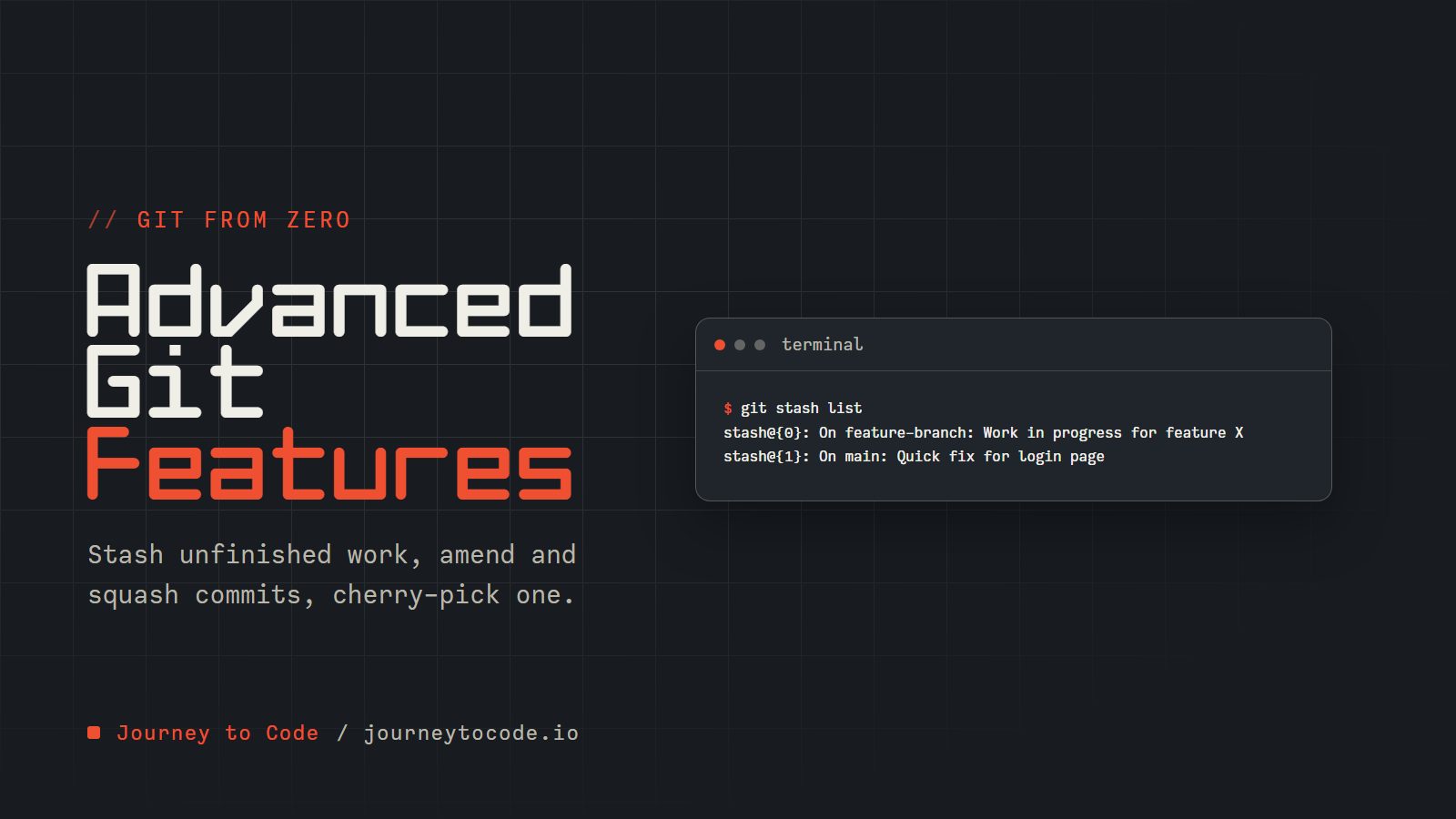
In plain words: this article is about tidying up. You will learn to park unfinished work without committing it, fix or combine your own recent commits before anyone sees them, and copy a single commit from one branch to another. It assumes you can already make commits and branches, and that you know how to take a commit back (see Undo Mistakes Safely).
The second half (hooks, submodules, and subtrees) is optional reading that you can skip until a project needs it.
Stashing Changes: A Safe Place for Work in Progress#
Have you ever been in the middle of implementing a feature when an urgent bug report comes in? You're not ready to commit your half-finished work, but you need a clean working directory to fix the bug. That is what git stash is for.
Temporarily Storing Changes#
The git stash command takes your uncommitted changes (both staged and unstaged) and saves them on a stack of unfinished changes that you can reapply at any time.
# Stash your changes, with a label so you can recognize them later
git stash push -m "Work in progress for feature X"
You will see older tutorials use git stash save "message". It still works, but it is deprecated in favor of git stash push, which does the same job and accepts more options.
By default a stash holds only files Git already tracks. Brand-new files you have not added stay where they are; add -u (--include-untracked) to stash them too. After running this command, your working directory will be clean, matching the state of the HEAD commit. You're now free to switch branches, fix bugs, or perform other operations without losing your work.
Managing Multiple Stashes#
Each time you run git stash, Git creates a new stash entry and adds it to your stash stack. You can view all your stashes with:
git stash list
This will display something like:
$ git stash list
stash@{0}: On feature-branch: Work in progress for feature X
stash@{1}: On main: Quick fix for login page
You can reference specific stashes using their index, for example, stash@{1}.
Applying Stashed Changes#
When you're ready to continue working on your stashed changes, you have three options:
# Apply the most recent stash but keep it in the stash list
git stash apply

# Apply a specific stash
git stash apply stash@{1}

# Apply the most recent stash and remove it from the stash list
git stash pop
If you no longer need a particular stash, you can remove it:
git stash drop stash@{1}
Or clear all stashes at once:
git stash clear
You are halfway through an edit when a teammate needs you on another branch. A stash parks the unfinished work so you can leave with a clean directory.
Type these commands in order, in a terminal inside a practice folder:
- Park your uncommitted changes. Try
git stash. The directory now matches your last commit again.git stash push -m "message"labels it. - List what you have stashed. Try
git stash list. Newest first. stash@{0} is the most recent. - Bring the work back. Pop (restore and drop) or apply (restore and keep) both count. Try
git stash pop.popapplies and removes.applywould keep a copy in the list.
A stash lives outside any branch, so you can pop it back wherever you need to keep working.
Interactive Operations: Fine-Grained Control#
Git offers interactive modes for several operations, giving you precise control over what gets included in your commits and how your history is shaped.
Interactive Staging#
Rather than staging entire files with git add, interactive staging allows you to select specific portions of files to include in your next commit:
git add -i
This opens an interactive menu where you can:
-
Stage specific files
-
Unstage files
-
View differences
-
Stage parts of files (patches)
The patch option lets you stage or unstage part of a file, so one commit can hold one idea.
Interactive Rebase#
Interactive rebase lets you edit your own commit history:
git rebase -i HEAD~5
This command opens an editor showing the last five commits, where you can:
-
Reorder commits by changing their order in the list
-
Edit commit messages
-
Combine multiple commits into one (squash)
-
Split a commit into multiple commits
-
Delete commits entirely
-
Pause during rebasing to modify files
Use it to clean up your commits before you push them.
The editor lists the commits oldest first (the opposite of git log), each starting with the word pick. You change that first word to say what should happen to the commit:
| Word | What it does |
|---|---|
pick | Keep the commit as it is. |
reword | Keep the changes but let you write a new message. |
squash | Merge the commit into the one above it, and let you combine both messages. |
fixup | Merge the commit into the one above it and throw away this commit's message. |
drop | Remove the commit and its changes entirely. |
Challenge: tidy this history
You have made four commits on top of "Start project" and want a clean history before sharing it. Running git rebase -i HEAD~4 opens this list:
pick 8d80121 Add login form
pick d8addfd Fix typo in login form
pick a8c640b wip
pick 9bd35fb Add logout buton
Edit the first word of three lines, without touching the first one:
- TODO 1: the typo fix belongs inside "Add login form", and its message is not worth keeping.
- TODO 2: "wip" was a scratch commit that should disappear.
- TODO 3: "Add logout buton" is the right change with a misspelled message.
Expected result: after you save and close the editor (and type the corrected message when Git asks), git log --oneline shows exactly three commits: "Add logout button", "Add login form", "Start project".
Check your answer
pick 8d80121 Add login form
fixup d8addfd Fix typo in login form
drop a8c640b wip
reword 9bd35fb Add logout buton
Rewriting commits creates new ones, so only do this to commits you have not pushed (the next section explains why).
Cherry-Picking Commits#
Cherry-picking applies the changes from one commit to your current branch:
git cherry-pick 7300a6f
This is useful when you want to:
-
Apply a bug fix from another branch without merging the entire branch
-
Select specific features from a development branch to release
-
Restore changes that were accidentally reverted
History Rewriting: Perfecting Your Timeline#
Rewriting history keeps it readable, and it is how teammates end up with commits that no longer match yours. The rule is the same each time: only rewrite commits nobody else has.
Amending Commits#
You met git commit --amend in Undo Mistakes Safely: it adds a forgotten file or fixes a message in your most recent commit. Here is what it does to history.
Why does the hash change? A commit's hash (its ID) is computed from everything in it: the files, the message, the author, the time, and the parent commit. Change any of that and you get a different hash, so the amended commit is a different commit from the one it replaced. Git then moves the branch to the new commit. The old one is not deleted at once; it lingers in the reflog (Git's diary of where your branch tips have been) for a while. Anyone who already pulled the old commit now has one that no longer matches yours, which is why you only amend commits that have not been pushed.
Squashing Commits#
While interactive rebase offers a way to squash commits, you might also use the --squash option when merging:
git merge --squash feature-branch
This takes all the changes from the feature branch and stages them, allowing you to create a single commit representing the entire feature.
Force Pushing and Its Dangers#
After rewriting history, you may need to force push your changes:
git push --force
But beware: force pushing rewrites the remote history, which can cause problems for collaborators who have based their work on the old history. Instead, consider using:
git push --force-with-lease
This safer alternative checks if the remote branch has been updated since you last fetched, preventing you from overwriting others' work.
Two rewrites you will reach for often: add a forgotten file to the last commit, and copy a single commit from another branch.
Type these commands in order, in a terminal inside a practice folder:
- You forgot notes.md. Stage it. Try
git add notes.md. It is staged, but it is not in the last commit yet. - Fold it into the last commit. Keeping the message or writing a new one both count. Try
git commit --amend --no-edit. The hash changed (8c9d0e1) because the commit is a new object.git commit --amend -m "new message"rewrites the message too. - Copy commit a1b2c3d from another branch onto this one. Try
git cherry-pick a1b2c3d. Cherry-pick makes a new commit with the same change and a new hash.
Amending replaces the last commit with a new one, so only amend commits you have not pushed.
Optional: Git Hooks: Automating Your Workflow#
You can skip hooks and the next section until a project asks for them.
Git hooks are scripts that Git executes before or after certain events, such as committing, pushing, or receiving changes.
Introduction to Git Hooks#
Hooks reside in the .git/hooks directory of your repository. Sample hooks are provided with the .sample extension. To activate a hook, rename it to remove the extension and make it executable.
Pre-commit and Post-commit Hooks#
A pre-commit hook runs before a commit is created, useful for:
-
Running tests
-
Checking code style
-
Preventing commits with debugging code
-
Validating commit messages
Here's a simple pre-commit hook that blocks a commit when it adds a debugging statement. It looks only at lines being added (they start with + in the diff), so removing a console.log is still allowed:
#!/bin/sh

if git diff --cached -U0 | grep -v '^+++' | grep -E '^\+.*(console\.log|debugger)'; then
  echo "Error: debugging statements detected"
  exit 1
fi
Searching every line of the diff instead would also block a commit that deletes a console.log, because removed lines contain the same text. To skip a hook once, run git commit --no-verify.
Post-commit hooks run after a commit is created, useful for:
-
Sending notifications
-
Triggering continuous integration
-
Updating documentation
Creating Custom Hooks#
To create a custom hook:
-
Navigate to the
.git/hooksdirectory -
Create a new file with the appropriate name (e.g.,
pre-commit) -
Make it executable:
chmod +x pre-commit -
Write your script in any language, just make sure the shebang line points to the correct interpreter
Optional: Submodules and Subtrees: Managing Project Dependencies#
For projects that depend on external code, Git provides two approaches: submodules and subtrees.
Submodules#
Submodules allow you to keep a Git repository as a subdirectory of another Git repository:
# Add a submodule
git submodule add https://github.com/example/library lib

# Initialize and update submodules (after cloning a repository with submodules)
git submodule init
git submodule update
Submodules store a reference to a specific commit in the external repository, ensuring your project uses a consistent version of dependencies.
Subtrees#
Git subtrees merge the history of one repository into a subdirectory of another:
# Add a subtree
git subtree add --prefix=lib https://github.com/example/library main --squash

# Update a subtree
git subtree pull --prefix=lib https://github.com/example/library main --squash
Unlike submodules, subtrees include the entire code directly in your repository, making it easier for collaborators to work with the code without additional steps.
Choosing Between Submodules and Subtrees#
Choose submodules when:
-
You need precise version control over dependencies
-
The dependency is large and you don't want to include its entire history
-
Multiple projects share the same dependency
Choose subtrees when:
-
You want to simplify the workflow for collaborators
-
You need to modify the dependent code frequently
-
You want to maintain a standalone repository
Advanced Logging and Diffing#
Two more things log and diff can do: save a log format, and compare branches.
Custom Log Formats#
Part 1 showed --pretty=format:. Once you have a format you like, save it as an alias:
git config --global alias.lg "log --color --graph --pretty=format:'%Cred%h%Creset -%C(yellow)%d%Creset %s %Cgreen(%cr) %C(bold blue)<%an>%Creset' --abbrev-commit"
Now you can simply use git lg for a visually appealing log.
Advanced Diff Operations#
Compare branches, tags, or specific commits:
# Compare two branches
git diff main..feature-branch

# Show changes in a branch that will be applied when merging
git diff main...feature-branch

# Show changes across multiple commits
git diff HEAD~3..HEAD

# Show only the names of changed files
git diff --name-only main..feature-branch
What we learned#
git stashparks unfinished work, andpopbrings it back.git rebase -i,--amend, andmerge --squashrewrite commits, so use them on commits nobody else has.git cherry-pickcopies one commit to the branch you are on.--force-with-leaseis the safer force push after a rewrite.- Hooks, submodules, and subtrees are there when a project needs them.
Every team ends up deciding which of these it allows. Git Best Practices and Workflows, part 8, compares the common workflows, then covers commit messages that tools can read, and tagging a release.
Comments require JavaScript.