
Commit to Success: Mastering Git From Init to Push
Undo Mistakes Safely
Restore, Amend, Revert and Reflog
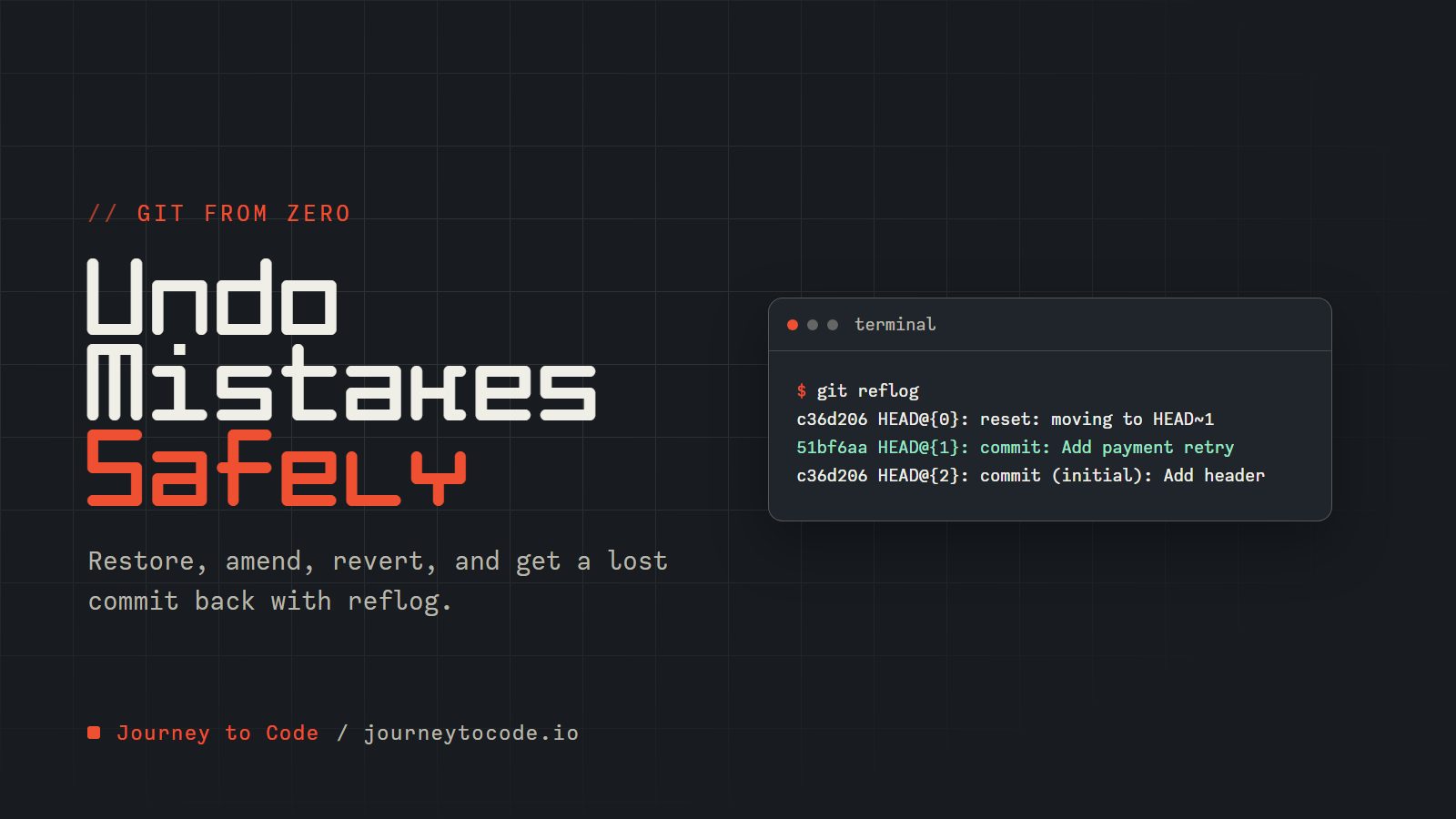
In plain words: everyone makes Git mistakes. This article shows you how to look at what happened, undo a change safely, and get back a commit you thought you had lost. The rule to carry with you: work you have committed is almost always recoverable, and work you never committed is not.
You have made a few commits with status, add, commit, diff, and log. That is enough to need this article. If those are new, Getting Started with Git comes first.
One limit up front. Git can only bring back what it was told about. Edits you never staged or committed leave no record, so git restore and git reset --hard on them are permanent. Keep that in mind through every section below.
Look before you fix#
Before you undo anything, find out where you are. These are commands you already know:
# Which files changed, and which are staged
git status

# The last few commits
git log --oneline
Then there is one you have not met: the reflog.
Using git reflog#
git log shows the commit history of your branch. git reflog records every place HEAD and your branch tips have been in your own copy of the repository, in order, even after commands like git reset that seem to erase history.
# View reflog for HEAD
git reflog

# View reflog for a specific branch
git reflog show branch-name
It lives only on your machine (it is not pushed), and it records commits, not unsaved edits. Of everything in this article, it is what turns "I lost it" into "where did I leave it?"
Fixing Common Mistakes#
Undoing Uncommitted Changes#
If you've made changes to your working directory that you want to discard, git restore puts a file back to how it was in the last commit (Git 2.23 or newer):
# Discard changes in a specific file
git restore file-name

# Discard all changes to tracked files
git restore .

# Unstage a file but keep your edits
git restore --staged file-name
Older tutorials use git checkout -- file-name for the first job. It does the same thing; restore is the newer command that was added so checkout did not have to do so many different jobs. To throw away all changes to tracked files at once you can also run git reset --hard.
Be cautious with all of these. They permanently discard uncommitted work: Git has no copy of edits that were never committed, and the reflog (below) will not help.
Fixing the Last Commit#
Made a mistake in your last commit? Here's how to fix it:
# Change the commit message
git commit --amend -m "New commit message"

# Add forgotten files to the last commit
git add forgotten-file
git commit --amend --no-edit
The --amend option allows you to modify your most recent commit without creating a new one. The --no-edit flag preserves the existing commit message. Amending builds a replacement commit with a new hash, so it is for commits nobody else has yet. Advanced Git Features explains why the hash changes.
Reverting Committed Changes#
To undo changes that have already been committed:
# Create a new commit that undoes a previous commit
git revert commit-hash

# Undo several commits in a row (older..newer does NOT include older itself)
git revert older-commit-hash..newer-commit-hash

# Include the older commit too
git revert older-commit-hash^..newer-commit-hash
The range older..newer means "everything after older, up to and including newer". In a test with four commits, git revert HEAD~2..HEAD reverted only the newest two. Adding ^ after the older hash brings that commit into the range. Git creates one revert commit per commit, newest first.
Unlike reset, revert creates a new commit that undoes the changes from specified commits. History stays as it was, so once other people have your commits, revert is the safe way to take one back.
Recovering Deleted Branches#
You met git branch -d and -D in part 1. If you deleted a branch you still needed, the reflog has its last commit:
# Find the commit hash of the deleted branch tip
git reflog

# Recreate the branch at that commit
git branch branch-name commit-hash
The reflog entry is kept for a limited time. By default Git expires reflog entries after 90 days when the commit is still reachable from a branch, and after 30 days when it is not (a deleted branch's commits are no longer reachable, so 30 days is the number to remember). Recover early rather than late. git branch -D also prints the branch's last commit hash when it deletes ("Deleted branch topic (was 1cf603f)"), so keep that line if you are unsure.
A merge that went wrong#
Merging two branches can stop halfway with a conflict. If you would rather not deal with it right now, git merge --abort puts everything back the way it was before the merge. Part 5, Branching and Merging Strategies, covers merging and conflicts properly.
Recovering Lost Commits#
If commits disappear after a git reset --hard (or later, after a rebase), the reflog still has them:
# Find the lost commit in the reflog
git reflog

# Create a new branch pointing to the lost commit
git branch recovery-branch commit-hash
This works even after operations that seem to erase history, like git reset --hard.
A worked example: lose a commit, then get it back#
Here is the whole rescue, run for real. We have two commits, then reset away the second one with --hard, which moves the branch back and rewrites your files to match:
$ git log --oneline
51bf6aa Add payment retry
c36d206 Add header
$ git reset --hard HEAD~1
HEAD is now at c36d206 Add header
"Add payment retry" is no longer in the log. It is not gone. The reflog still remembers where HEAD was:
$ git reflog
c36d206 HEAD@{0}: reset: moving to HEAD~1
51bf6aa HEAD@{1}: commit: Add payment retry
c36d206 HEAD@{2}: commit (initial): Add header
The second line is our lost commit. Give it a branch name so it stays reachable:
$ git branch rescue 51bf6aa
$ git log --oneline rescue
51bf6aa Add payment retry
c36d206 Add header
Now the contrast. Suppose we had also edited header.css and never committed it, then run git reset --hard. The edit is gone, and git reflog shows only reset: moving to HEAD with no commit to point at. The reflog remembers commits, not unsaved work.
Which tool?#
| Situation | Use |
|---|---|
| Edits you have not committed, and want to discard | git restore <file> (permanent) |
| The last local commit has a typo or a missing file | git commit --amend |
Committed locally, then lost it with reset | git reflog, then git branch rescue <hash> |
| Other people already have the bad commit | git revert <commit>, then share the new commit |
Four small rescues, in order of how scary they feel. Each one is a command you will be glad to have typed before. Where Git has two ways to do the same rescue, either works here. Step 2 calls the commit "already pushed". Pushing is covered in Remote Repositories and Collaboration; for now read it as "other people already have this commit".
Type these commands in order, in a terminal inside a practice folder:
- You broke app.js with uncommitted edits. Throw the edits away. Try
git restore app.js. The file is back to its last committed state. Uncommitted work cannot be recovered after this.git checkout -- app.jsis the older spelling. - The latest commit introduced a bug but is already pushed. Undo it by adding a new commit. Try
git revert HEAD. Revert never rewrites history, which is why it is safe on shared branches. - Different day: you ran git reset --hard and lost a commit. Look at where HEAD has been. Try
git reflog. The lost commit, 7c3d9e2, is still there.git log -greads the same diary. - Get the lost commit 7c3d9e2 back. A new branch pointing at it (call it rescue) is the safest way; reset or cherry-pick also work. Try
git branch rescue 7c3d9e2. A branch pointing at the commit keeps it reachable, so garbage collection will not remove it.
The reflog is Git's own diary of where HEAD has been. As long as a commit is in it, you can usually get back.
Two things that are harder to undo#
A committed secret#
If you accidentally commit a password, token, or private key, rotate the secret first: revoke it and issue a new one before you do anything else. Deleting it from Git history does not make it safe. Anyone who cloned or forked the repository in the meantime has a copy, and a leaked key may already have been used.
Then clean the history. The tool Git itself recommends is git filter-repo (a separate program you install; the older git filter-branch is slow and its own manual warns of pitfalls). Run it on a fresh clone:
# Remove a file from every commit in the history
git filter-repo --invert-paths --path path/to/secret-file
BFG Repo-Cleaner is another well-known tool for the same job. After rewriting, you must force-push, and every collaborator must re-clone or carefully reset, because the commit hashes have all changed. Only a cleaned history plus a rotated secret closes the hole.
A damaged repository#
Real corruption is rare. If you suspect it, start with the check that only reads:
# Check for corruption (read-only)
git fsck
If fsck reports missing or damaged objects, the simplest repair is to clone a fresh copy from a remote and copy your uncommitted files across. Avoid running git prune or git gc --prune=now while you are trying to recover something: they permanently delete objects that no branch points to, and those are exactly the ones recovery depends on.
Take a backup first#
Before anything risky, a bundle is a single file that holds your repository's commits and branches:
# Create a full backup of your repository
git bundle create repo-backup.bundle --all

# Restore from a bundle
git clone repo-backup.bundle restored-repo
Don't add -b master to the clone: it fails with Remote branch master not found unless your branch is actually called master. Without -b, Git checks out whichever branch the bundle names as its default.
What we learned#
git statusandgit log --onelinefirst.git reflogshows where HEAD has been.git restorethrows away uncommitted edits for good. The reflog cannot bring them back.git commit --amendfixes the last commit.git revertundoes any commit by adding a new one.git branch rescue <hash>makes a lost commit reachable again.
Work you have committed can almost always be found again. Work you never committed cannot. Commit early.
Now that we can take things back, we can afford to experiment. Part 5, Branching and Merging Strategies, is how: try the risky change on its own branch and leave main alone.
Resources for Continued Learning#
-
Official Git documentation: git-scm.com/doc
-
Pro Git book: git-scm.com/book
-
Git Flight Rules: github.com/k88hudson/git-flight-rules
-
Oh Shit, Git!: ohshitgit.com
Comments require JavaScript.