
Commit to Success: Mastering Git From Init to Push
Git Out of Your Comfort Zone
Navigating The Daily Development Routine
In plain words: Git remembers every saved version of your project, so you can look back, compare, and undo. By the end of this article you will be able to start or copy a project, read its history, see exactly what you changed, and make, rename, and delete branches (named lines of work).
What Git Is For#
Before we type anything, we should know what the program is for. Git is a Distributed Version Control System (DVCS). Think of a time machine for our code: a version control system lets us travel back through the history of our project, which saves us from the dreaded 'What did I change?' moment. "Distributed" just means every copy of the project carries its whole history with it, so we can work offline and nobody has to wait on a central server.
Git is built to be fast, so creating branches and merging code is cheap. We can create branches to work on new features or bug fixes independently without interrupting the main codebase. As changes are completed we can merge the new branch with a production or development branch. That works for a small side project and for a big team.
It is open source, so it is free to use, and a large community looks after it. Honestly it is the only version control system that I have ever used.
Enough definitions. The rest of this article is commands you can type.
Downloading && Installing Git#
If we don't have Git installed locally, that comes first. We can typically download and install Git from the official Git website or use a package manager specific to our operating system (e.g., apt for Ubuntu, Homebrew for macOS). Once Git is installed, we can proceed with initializing a Git repository (a project folder that Git is tracking) in our project directory.
One Tip When Installing Git For The First Time#
Avoid the default setting of using VIM as our text editor of choice unless we explicitly want it. Its keyboard shortcuts may not match what we are used to, and it is easy to get stuck in it. If we mess this up it is ok there is a fix: we can change the editor with one terminal command, which Git Ready to Branch Out shows in its setup lesson.
If you are unfortunately stuck within VIM without knowledge of escape then you will have to use your keyboard to evade its grasp. First press Esc, and then type :wq and press enter. You could also learn to love the keyboard shortcuts its truly a user preference.
As our repository grows in size and complexity, more and more commits (saved snapshots) are created. In addition to this, branches are created and merged or pushed to a remote repository (a copy of the project hosted on another computer, such as GitHub). Naturally, we will want to look at all of that in the terminal. When a command prints more than fits on the screen, Git hands the output to a tool called less, which is a pager: a program that shows long text one screen at a time. We can scroll and search inside it. To leave it, press the letter q.
Git Commands#
There are far more than a dozen git commands available to us. We do not need to memorize them all. We will only use a handful on the regular.
Init vs. Clone#
If we are just starting a project, one of the very first steps we should take as a developer is to enable git tracking by typing git init into the terminal. There will be other times when we are working on an existing project and can use git clone <url> to download the remote repository to our local machine.
| Command | Description |
|---|---|
git init | Initialize a new Git repository in the current directory. |
git clone <url> | Clones a repository from a specified URL, creating a local copy on your machine. |
Logs, Diffs, and Branches#
Each of these commands will open up less to paginate the data returned if it is extends the length of the screen.
We can look through a crystal ball through time using the git log command. Depending on how many commits that our repository has it could be dozens of pages worth of commits. By default, without any arguments it returns information about each commit including the commit hash (a long ID of letters and digits that names that one commit), the author's name and email, and the date, time of the commit, along with the commit message. We can actually do something really neat by copying that long hash: other commands accept it to point at that exact moment in history.
If we want we can provide an option of --graph to view a graphical representation of the commit history, showing branch and merge relationships. You can also provide the --oneline option to condense each commit into a single line making it easier to scan through commits.
git log supports various options for filtering the commit history:
-
git log -<n>: Show only the last<n>commits. -
git log --since=<date>: Show commits more recent than the specified date. -
git log --author=<name>: Show commits authored by the specified name. -
git log <branch>: Show commits reachable from the specified branch.
Two more options worth knowing:
-
Custom formatting with
--pretty. For example,git log --pretty=format:"%h - %an, %ar : %s"will display each commit's abbreviated hash, author name, relative commit date, and commit message. -
File changes with
--stat, which adds a summary of the number of insertions and deletions per file for each commit.
While less is open, a few keys help us move around:
-
j(or the down arrow): Move down one line. -
k(or the up arrow): Move up one line. -
Space: Move down one screen.bmoves back one screen. -
q: Quit the log view.
Often times we want to see a list of all branches that we have available to us. This can be done using the git branch command. Typing this into the terminal without any arguments will emit a list of all branches on our local machine. The currently checked out branch is marked with an asterisk. Very often times we have more branches remotely than locally. Sometimes we have branches locally but not remotely. In order to view all branches, we can use the option of -a or --all with the command such as: git branch -a or git branch --all. This provides us with a list of all branches within a repository. By using other options like -r or --remote we can view only the remote branches (Git's copies of them, as of the last time we talked to the remote). We can create new branches by simply adding the branch name after branch such as: git branch testing. We can also rename branches using the -m option and also providing the old name and a new name like this: git branch -m testing testing2. We can delete branches using the -d <branch-name> option. For example, if we wanted to remove the branched we renamed to testing2 we could type git branch -d testing2 into the terminal.
To recap we went over the git branch command and the options that we can provide and the syntax we can follow to do different things.
| Option | Description |
|---|---|
git branch (no arguments) | Lists the local branches. The one marked with * is the branch you are on. |
git branch -a or --all | Displays both local and remote branches. |
git branch -r or --remote | Displays remote branches. |
git branch <branch-name> | Creates a new local branch with specified title. It does not switch to it. |
git branch -m <old-branch-name> <new-branch-name> | We can even rename branches using this syntax. |
git branch -d <branch-name> or -D for Force | Removes a branch. -d refuses if the branch has work that is not merged yet; -D deletes it anyway. |
Reading about git log and git branch only goes so far. Below is a practice repository with three commits. Type each command yourself, one at a time; the terminal tells you what the command did and why. There is usually more than one right way, and any of them counts.
Type these commands in order, in a terminal inside a practice folder:
- See the history, one line per commit. Try
git log --oneline.--onelinesqueezes each commit to a short hash plus its message. If Git ever opens a pager, press q to leave.git log --oneline --graphand--pretty=onelinework too. - List the branches in this repository. Try
git branch. The asterisk marks the branch you are on.git branch --list,-aand-vlist them too. - Create a branch named testing. Creating it and switching to it in one go is fine too. Try
git branch testing. A branch is a new label on the current commit. Plaingit branchleaves you on main.git switch -c testingorgit checkout -b testingcreate it and move onto it. - Rename testing to testing2. Try
git branch -m testing testing2.-mmeans move (rename): old name first, then the new one. If you are already standing on testing, the old name can be left out. From the testing branch,git branch -m testing2works too. - Delete the testing2 branch. (Git will not delete the branch you are standing on.) Try
git branch -d testing2.-dis the safe delete: it refuses if the branch holds work that is not merged anywhere.-Dforces it.-Dand--deletework too.
Notice what git branch testing did not do: it made a label but left you on main. Moving onto the new branch is a separate step, which part 5 of this series, Branching and Merging Strategies, takes on.
Seeing What Changed with git diff#
git log looks at commits that already exist. git diff looks at the work you have not committed yet, and it is the command to run before you write a commit message.
There are two different questions it can answer, because Git keeps your changes in two waiting places before they become a commit: the working tree (your files as they are on disk right now) and the staging area (the changes you have picked with git add for the next commit).
| Command | What it compares |
|---|---|
git diff | Your working tree against the staging area: edits you have made but not yet staged. Before you stage anything, that means "what changed since the last commit". |
git diff --staged | The staging area against the last commit: exactly what the next commit will contain. --cached is the same option. |
git diff <filename.ext> | The same as git diff, limited to one file or folder. For instance, git diff index.html shows the unstaged edits to your local index.html. |
git diff <commit1> <commit2> | Two commits, branches, or tags, for example git diff main testing. |
Git prints the result in the Unified Diff format: added lines start with + and removed lines with -. To compare two plain files that Git is not comparing for you, add --no-index: git diff --no-index old.txt new.txt. Without it, two filenames inside a repository are treated as a filter, not as the two things to compare, and you get no output at all.
Here is the part that surprises people. Suppose notes.txt already has the line one committed. We add two and stage it with git add notes.txt, then add three and do not stage it. This is a real run:
$ git status -s
MM notes.txt
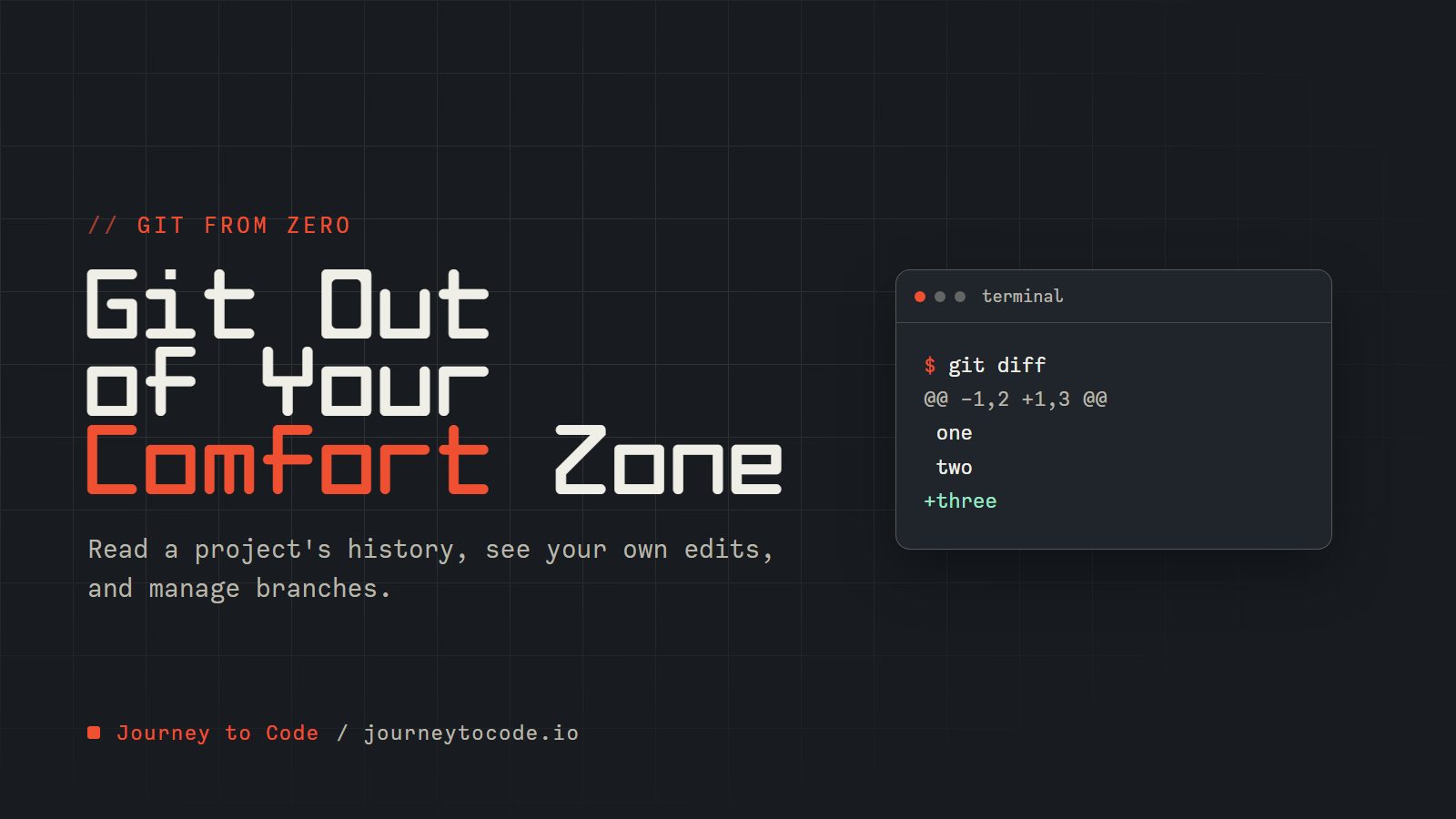
$ git diff
@@ -1,2 +1,3 @@
 one
 two
+three
$ git diff --staged
@@ -1 +1,2 @@
 one
+two
The two M letters mean "modified in both places": the first column is the staged change, the second is the unstaged one. git diff shows only three, because two has already moved to the staging area. git diff --staged shows only two. A git commit now would save two and leave three behind. (Output trimmed to the interesting lines.)
Challenge: stage one edit, leave one behind
Run this in an empty scratch folder outside any other project. The two TODOs are yours.
mkdir diff-practice && cd diff-practice
git init
echo "one" > notes.txt
git add notes.txt
git commit -m "Add notes"
echo "two" >> notes.txt
# TODO 1: stage the change, so "two" is waiting for the next commit
echo "three" >> notes.txt
# TODO 2: run the command that shows only the line "three"
Expected result: git status -s prints MM notes.txt, and your command from TODO 2 prints a diff whose only added line is +three. Then run git diff --staged and check that its only added line is +two.
You can now read history, see your own changes, and manage branches. What Git still does not know is who you are: part 2, Git Ready to Branch Out, sets your name, email, and editor so your commits carry them.
Comments require JavaScript.