
Commit to Success: Mastering Git From Init to Push
Getting Started with Git
Git Basics: Your First Steps
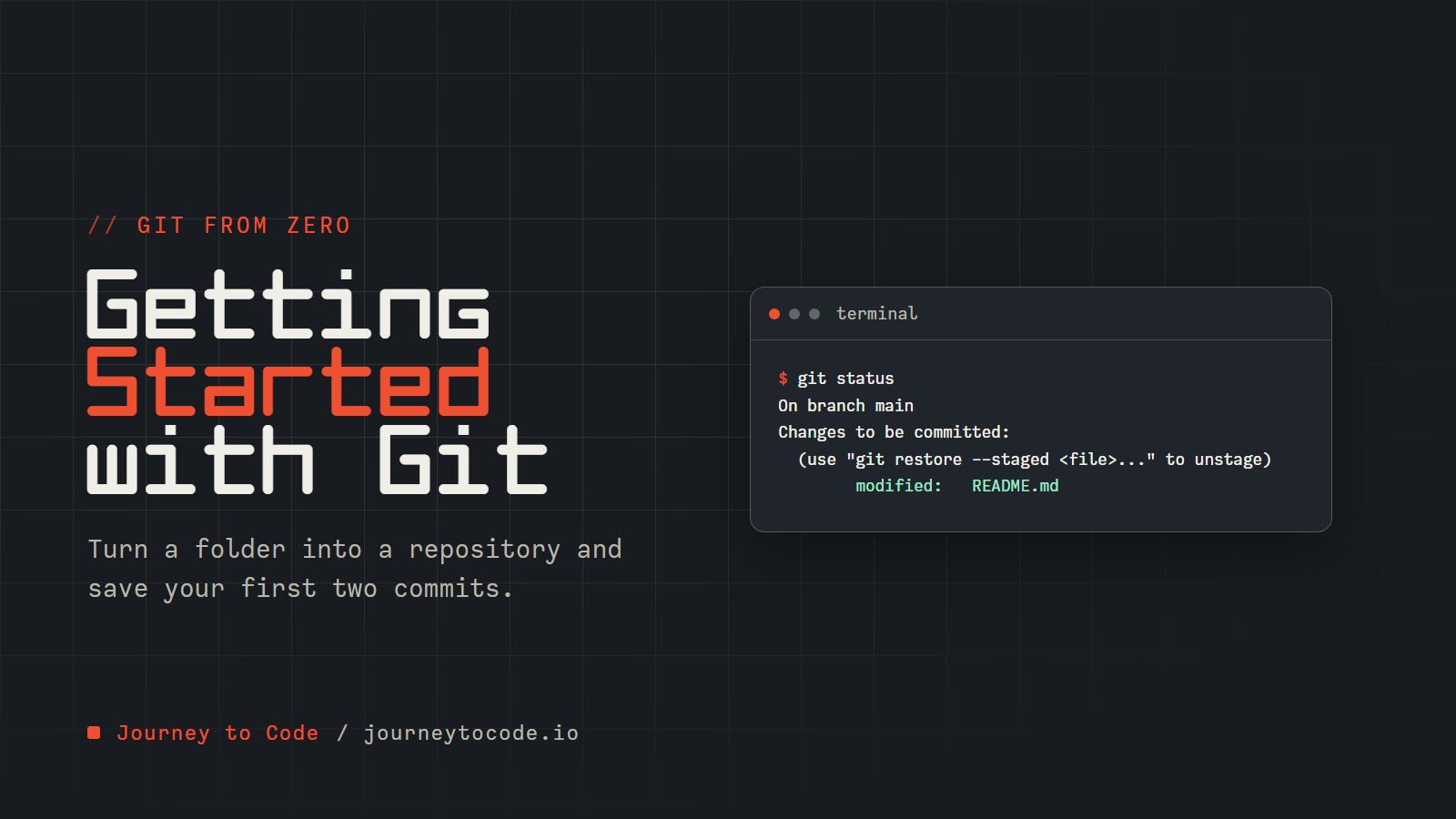
In plain words: Git keeps a saved history of your project. In this article you will turn a folder into a Git repository, save your first two snapshots (commits), and check exactly what the next snapshot will contain before you take it.
Why Version Control Matters#
Have you ever found yourself with folders named "Project_Final," "Project_Final_v2," and the inevitable "Project_Final_FINAL"? That is the problem version control solves. It gives us one folder and a saved history of every change, instead of a pile of copies.
Git was created by Linus Torvalds, who also started Linux, in 2005. Older systems such as Subversion keep the history on one central server. Git is distributed: every copy of the project is a repository (the project plus its whole history), so we can work offline and commit whenever we like. Nearly every team we will meet uses it.
Here we cover the part we use every day: a repository, the staging area, and commits.
Before you start#
We need Git installed and told who we are. Both are one-time jobs with their own lessons: Git Out of Your Comfort Zone covers installing Git, and Git Ready to Branch Out sets your name, email, and editor. git --version prints a version number when Git is installed. Until the second is done, your commits will not carry your name.
If a commit ever opens an editor you cannot escape, that is VIM: press Esc, type :wq, and press Enter.
Core Concepts: Understanding Git's Foundation#
Before we type commands, three ideas: what a repository is, where a change waits before it is saved, and what a commit holds.
Repositories Explained#
A Git repository (or "repo") is essentially a database containing all the versions of your project's files, along with metadata about who changed what and when. The repository includes the entire history of changes, making it possible to revert to any previous state.
There are two types of repositories:
-
Local repository: Lives on your computer
-
Remote repository: Hosted on a server (like GitHub, GitLab, or Bitbucket)
Your local repository is your own workspace. The remote is the copy your team shares. For now we only need the local one.
The Three States: Working Directory, Staging Area, Repository#
Git manages your files through three distinct states:
-
Working Directory: This is where you edit your files. These changes are local and haven't been saved to Git yet.
-
Staging Area (Index): After making changes, you select which modifications should be included in your next commit. This intermediate step gives you fine-grained control over what changes get recorded.
-
Repository (Commit History): Once changes are committed, they become a permanent part of your repository's history, each with a unique identifier.
The middle step is what lets us make a precise commit instead of saving everything at once.
Understanding Commits as Snapshots#
Unlike some version control systems that store differences between files, Git takes a snapshot of all your files at each commit. That makes branching and merging cheap, which we get to later in the series.
Each commit contains:
-
A unique identifier, called a hash: a 40-character ID of letters and digits that Git computes from the commit's contents (Git usually shows just the first seven)
-
Author information
-
Timestamp
-
Commit message
-
Pointer to the previous commit (parent)
-
Snapshot of all tracked files
These commits form a chain, creating a complete history of your project. This design means Git can reconstruct any version of your project at any point in time.
Basic Operations: Essential Git Commands#
Now the commands we will use every day.
Initializing a Repository (git init)#
To start tracking a project with Git, navigate to your project folder and run:
git init
This creates a hidden .git directory that stores all the version control information. Your project is now a Git repository, ready for tracking changes.
Cloning Existing Repositories (git clone)#
git clone <repository-url> copies an existing repository, history included. Part 1 covers it next to git init, and the remotes lesson shows what the URL looks like.
Checking Status (git status)#
To see which files have been modified, which are staged, and which are untracked:
git status
Run it often. It costs nothing and tells us where we stand.
Staging Changes (git add)#
After making changes, you need to stage them before committing:
git add <filename>    # Stage a specific file
git add .             # Stage all changes
git add *.js          # Stage JavaScript files in the current folder
The *.js is a glob, a wildcard pattern. Your shell expands it before Git sees it, so it matches only the .js files in the folder you are standing in, not files in subfolders. To let Git match .js files at every level, quote the pattern so the shell leaves it alone: git add '*.js'.
The staging area lets you commit only some changes while keeping others for a later commit, helping you create logically grouped commits.
Committing Changes (git commit)#
Once your changes are staged, commit them to the repository:
git commit -m "Brief description of changes"
The -m flag allows you to provide a commit message directly in the command. Without it, Git opens your configured text editor for a more detailed message.
For small changes, you can skip the staging area with:
git commit -am "Message here"
This stages and commits all modified tracked files in one step (but doesn't include new files).
Check: what will the next commit contain?#
Before you commit, ask git status. It separates what is staged (going into the next commit) from what is only modified (staying behind). Here README.md was edited and staged with git add, then app.js was edited but not staged:
$ git status
On branch main
Changes to be committed:
  (use "git restore --staged <file>..." to unstage)
	modified:   README.md

Changes not staged for commit:
  (use "git add <file>..." to update what will be committed)
  (use "git restore <file>..." to discard changes in working directory)
	modified:   app.js
Run git commit -m "..." now and the commit contains README.md only. app.js keeps its edits on disk and waits for a later commit. Read the heading above each file, not the filename.
Viewing History (git log)#
git log lists the commits, newest first. Part 1 covers its options. After a commit, git log --oneline is the quick check that it landed.
Good Commit Practices#
A history is only useful if the next person, usually us, can read it.
Writing Meaningful Commit Messages#
A good commit message does a few things:
-
Use the imperative mood: "Add feature" not "Added feature"
-
Keep the first line under 50 characters
-
Provide more details in the body if needed (separated by a blank line)
-
Explain why you made the change, not just what changed
A well-structured commit message looks like:
Add user authentication system

- Implement login form with validation
- Set up JWT token generation
- Create protected routes middleware

This addresses security requirements outlined in ticket #123
Atomic Commits#
An "atomic" commit contains changes related to a single task or fix. Benefits include:
-
Easier code reviews
-
Simpler debugging (
git bisect, a tool that hunts for the commit that introduced a bug, works best when each commit is small) -
Cleaner history
-
Ability to revert specific changes without affecting others
Instead of one massive commit containing multiple features, break your work into logical, self-contained pieces.
When to Commit#
Finding the right frequency for commits is a balance:
-
Too infrequent: Large, unwieldy commits that mix unrelated changes
-
Too frequent: Fragmented history with incomplete implementations
Good times to commit include:
-
After completing a logical unit of work
-
Before trying something experimental
-
When implementation of a feature component is complete
-
After fixing a bug
-
Before making major changes to existing code
Your First Git Workflow#
Here is the whole loop on a tiny project.
Step 1: Initialize a new project#
mkdir my-project
cd my-project
git init
Step 2: Create some files#
echo "# My Awesome Project" > README.md
Step 3: Check status#
git status
You'll see README.md listed as an untracked file.
Step 4: Stage your changes#
git add README.md
Step 5: Commit your changes#
git commit -m "Initial commit with README"
Step 6: Make more changes#
echo "This project demonstrates how to use Git." >> README.md
Step 7: Review what's changed#
git diff
This shows the new line you added to README.md. With nothing staged yet, git diff compares your files on disk with the staging area, so it lists every edit you have not staged. After you stage, use git diff --staged to see what the next commit will hold.
Step 8: Stage and commit again#
git add README.md
git commit -m "Update README with project description"
Step 9: View your history#
git log
You'll see your two commits, with the most recent at the top.
This simple workflow—making changes, staging, and committing—forms the foundation of your daily interactions with Git.
Now do the whole workflow above with your own hands. Pretend you are in a fresh my-project folder. The terminal checks each command, shows realistic output, and explains the step before moving on. Where Git offers a shortcut or a second spelling, that works too.
Type these commands in order, in a terminal inside a practice folder:
- Turn this folder into a Git repository. Try
git init.git initcreates the hidden .git folder where all history lives.git init -b mainnames the first branch as it creates it. - Create README.md containing a title. (echo, printf or touch all work.) Try
echo "# My Awesome Project" > README.md.>writes the text into a new file.touchwould make it empty.touch README.mdcreates it empty. - Ask Git what it sees. Try
git status. Untracked means Git sees the file but is not recording it yet.git status -sgives the short form. - Stage README.md. Try
git add README.md. Staging chooses what goes into the next snapshot. Nothing is saved yet.git add .stages everything in the folder. - Commit with a message in quotes. Try
git commit -m "Initial commit with README". That is your first snapshot, with a hash that names it.--messageis the long form of-m. - Add a second line to README.md (append with >>). Try
echo "This project demonstrates Git." >> README.md.>>appends. A single>would have replaced the file. - Review the change before staging it. Try
git diff. Lines starting with + were added; lines with - were removed.git diff README.mdlimits it to one file. - Stage the change. (Or skip ahead:
git commit -amstages and commits in one go.) Trygit add README.md. The edit moves from the working directory into the staging area.git commit -am "message"stages tracked files and commits in one go. - Commit it with a message in quotes. Try
git commit -m "Update README with description". Second snapshot saved. - Show the history. Any of the log formats counts. Try
git log --oneline. Newest on top. Both of your commits are there. (A long log opens in a pager: q quits it.) Plaingit logshows the long form with author and date.
You just made two commits by hand. The loop you practiced (edit, git add, git commit) is what most days with Git look like.
A mistake worth making once: .gitignore after the fact#
A .gitignore file lists files Git should not track, such as secrets and build output. It only affects files Git is not already tracking. Suppose .env (holding a password) was committed by accident, and only then you add it to .gitignore:
$ echo ".env" > .gitignore
$ echo "API_KEY=abc" >> .env
$ git status -s
 M .env
?? .gitignore
The ignore rule changed nothing: .env still shows as modified, so Git is still tracking it. To make Git stop tracking the file without deleting it from your disk, use git rm --cached:
$ git rm --cached .env
$ git status -s
D  .env
?? .gitignore
Now the next commit removes .env from the project going forward. If it held a real secret, it is still in the earlier commits, and the only safe fix is to change the secret. Undo Mistakes Safely, the next part of this series, says what to do first.
What we learned#
- A repository is a project plus its history, and a commit is a snapshot in it.
- A change moves from the working directory to the staging area to the repository.
init,status,add,commit, anddiffare the daily loop.- Small commits with a plain message make the history readable later.
You will make a mistake with those commands sooner than you think. A wrong git add, a typo in a message, a commit that should not exist. Undo Mistakes Safely is the next part, and it is about how to take any of that back.
Comments require JavaScript.