
Commit to Success: Mastering Git From Init to Push
Git Best Practices and Workflows
Pick a Workflow, Write Messages Tools Can Read, Tag a Release
In plain words: a workflow is a team's agreed rules for branches, commit messages, and releases. In this article you will compare the common workflows, write commit messages that tools can read, and tag a release. By the end you can tell which workflow suits a solo web app and which suits a team that ships a few times a year.
Why teams agree on a workflow#
Have you ever joined a project where everyone seemed to be committing code in their own way? Or tried to find where a change was made across dozens of haphazardly named branches? A workflow fixes that. It is a pattern for how changes move from idea to production: when to branch, when to merge, how to release.
With a pattern, people spend less time figuring out how to contribute, and new teammates get productive sooner. This part assumes branching and merging and remotes.
Git Flow#
The best known Git workflow is Git Flow, created by Vincent Driessen. It is a strict branching model built around releases.
Main Branches: The Foundation#
Git Flow revolves around two main branches with infinite lifetimes:
-
main/master: Contains production-ready code only. Every commit on this branch represents a new production release.
-
develop: Serves as the integration branch for features. This is where completed features converge before being released.
Think of the main branch as the public face of your project—always stable, always deployable. The develop branch, meanwhile, is where the latest delivered development changes are gathered, preparing for the next release.
Supporting Branches: Where the Work Happens#
Beyond the main branches, Git Flow defines several types of supporting branches:
-
feature branches: For developing new features
-
release branches: For preparing a new production release
-
hotfix branches: For addressing urgent issues in production
Here is how one feature moves through it:
-
A developer creates a new feature branch from
develop:git checkout develop git checkout -b feature/user-authentication -
They implement the feature, making regular commits along the way.
-
Once complete, they merge back into
develop(possibly via a pull request):git checkout develop git merge --no-ff -m "Merge feature/user-authentication" feature/user-authentication git push origin develop--no-ffforces a merge commit even when Git could simply move the branch forward, so the feature stays visible in history. Without-m, Git opens your editor to ask for the merge message. -
When it's time for a release, a release branch is created from
develop:git checkout develop git checkout -b release/1.2.0 -
Only bug fixes and release preparations happen on this branch.
-
When the release is ready, it's merged into both
mainanddevelop, then tagged:git checkout main git merge --no-ff -m "Merge release/1.2.0" release/1.2.0 git tag -a v1.2.0 -m "Release 1.2.0" git checkout develop git merge --no-ff -m "Merge release/1.2.0 into develop" release/1.2.0 git branch -d release/1.2.0 -
If critical bugs appear in production, a hotfix branch is created from
main:git checkout main git checkout -b hotfix/1.2.1 -
After fixing the issue, it's merged into both
mainanddevelop:git checkout main git merge --no-ff -m "Merge hotfix/1.2.1" hotfix/1.2.1 git tag -a v1.2.1 -m "Hotfix 1.2.1" git checkout develop git merge --no-ff -m "Merge hotfix/1.2.1 into develop" hotfix/1.2.1 git branch -d hotfix/1.2.1
It suits projects with scheduled releases. Its complexity is overkill for smaller projects or teams practicing continuous delivery (releasing small changes as soon as they are ready).
Alternative Workflows Worth Knowing#
Git Flow is not the only option.
GitHub Flow: Simplicity First#
GitHub Flow cuts Git Flow down to feature branches and pull requests:
-
Create a branch from
mainfor your feature or fix -
Add commits to your branch
-
Open a pull request to initiate discussion
-
Review and iterate on your changes
-
Deploy and test from your branch (often automated)
-
Merge to
mainwhen everything checks out
It fits continuous delivery and web applications, and it is easy for a new team to follow.
GitLab Flow: A Middle Ground#
GitLab Flow takes the simplicity of GitHub Flow and adds elements to accommodate different release strategies:
-
Like GitHub Flow, all features start as branches from
main -
Merge requests (GitLab's term for pull requests) bring changes into
main -
Production branches (like
productionorstable) represent deployed code -
Changes flow from
mainto production branches when ready for release
For environments needing more control over deployments, GitLab Flow also introduces environment branches (staging, pre-production, etc.) where code progressively moves through validation steps.
Trunk-Based Development: Speed Through Simplicity#
For teams focused on continuous integration, trunk-based development offers an even more streamlined approach:
-
Developers make small, frequent commits directly to the trunk (
mainbranch) -
For larger changes, short-lived feature branches are used but merged back frequently (at least daily)
-
Feature flags/toggles (switches that turn an unfinished feature on or off without a new deploy) control which functionality is enabled in production
This approach minimizes merge conflicts and keeps everyone working with the most recent code, though it requires excellent test coverage and a mature CI/CD pipeline (automatic build, test, and deploy steps).
Crafting Clear, Meaningful Commits#
Whichever workflow you pick, the commits are what people read later.
Conventional Commits: A Specification#
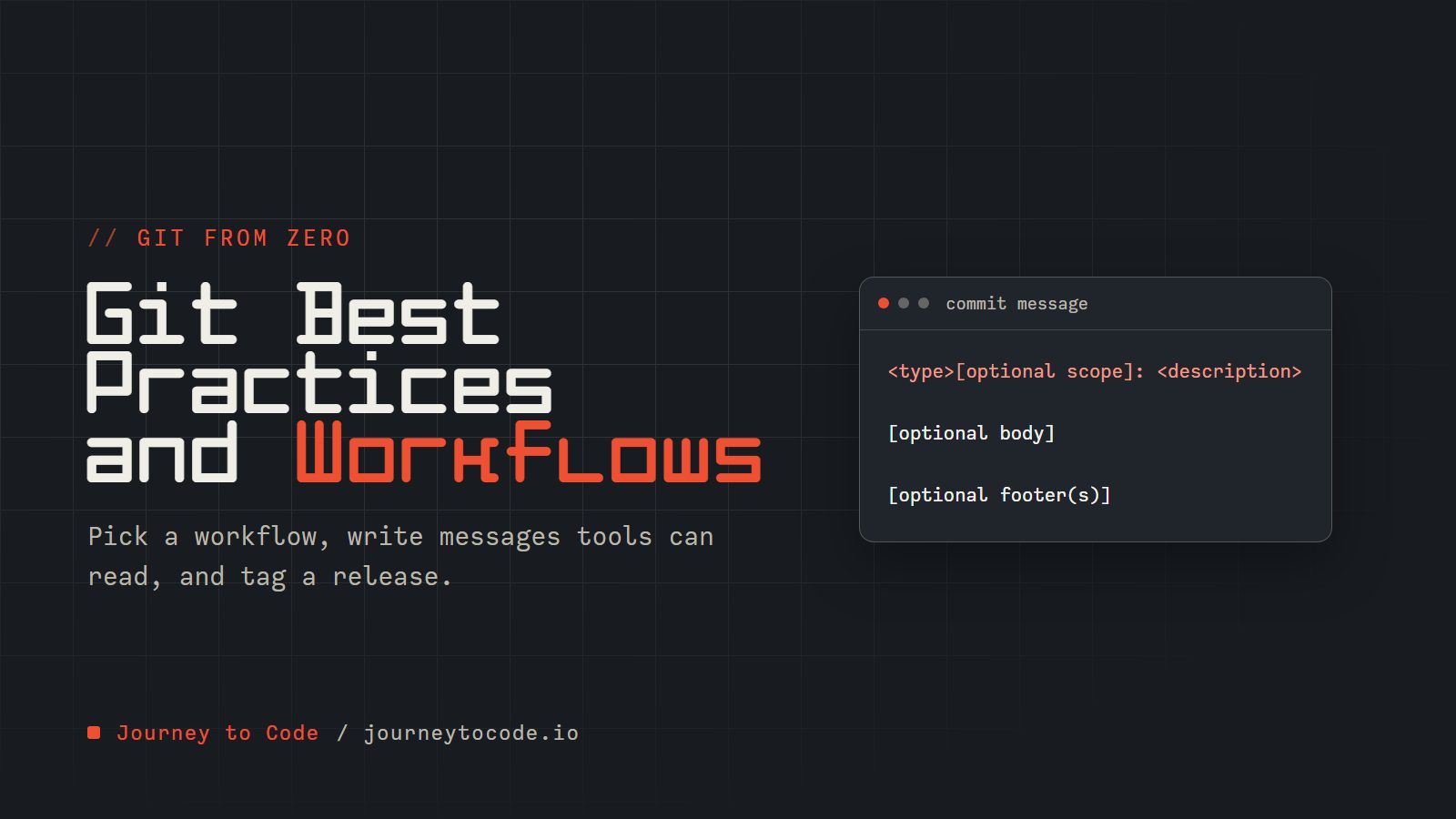
Conventional Commits is a small convention for commit messages. A message looks like this:
<type>[optional scope]: <description>

[optional body]

[optional footer(s)]
Compare two messages for the same change. The vague one tells a future reader nothing and a tool nothing; the second says what kind of change it is and what it did:
Fixed stuff in cart
fix(cart): stop negative quantities
Types typically include:
-
feat: A new feature -
fix: A bug fix -
docs: Documentation changes -
style: Changes that don't affect code functionality -
refactor: Code changes that neither fix bugs nor add features -
test: Adding or correcting tests -
chore: Changes to the build process or auxiliary tools
For example:
feat(authentication): implement JWT-based login system

This adds support for JWT tokens in the authentication process,
replacing the older cookie-based system.

BREAKING CHANGE: Client applications must now pass auth token in header
Semantic Versioning Integration#
Because every message starts with a type, tools can work out the next Semantic Versioning (SemVer) number from the commits alone:
-
fix:commits correspond to PATCH releases (1.0.1) -
feat:commits correspond to MINOR releases (1.1.0) -
Commits with
BREAKING CHANGE:in the footer correspond to MAJOR releases (2.0.0)
Automating Changelog Generation#
With structured messages, a changelog can be generated. Tools like standard-version or semantic-release can parse your commit history and automatically:
-
Determine the next version number
-
Generate a detailed changelog grouped by type
-
Create a tagged release
-
Optionally publish to npm or other platforms
Guarding Code Quality#
A workflow also needs checks that stop bad code before it lands.
Pre-Commit Checks#
Client-side hooks can catch issues before they even enter your codebase:
-
Linting: Enforce coding standards automatically
-
Formatting: Ensure consistent code style
-
Testing: Run relevant tests for changed files
-
Type checking: Verify type correctness in typed languages
Tools like Husky set up Git hooks that run these checks before a commit is made.
Continuous Integration#
CI (continuous integration) is the second line of defense. It runs checks in a clean environment:
-
Full test suite execution
-
Static code analysis
-
Security vulnerability scanning
-
Build verification
-
Performance benchmarks
Popular CI platforms like GitHub Actions, GitLab CI, and Jenkins can be configured to automatically evaluate every pushed commit or open pull request.
Protecting Branches#
Branch protection rules enforce the workflow on the server:
-
Require pull request reviews before merging
-
Require status checks to pass before merging
-
Restrict who can push to certain branches
-
Prevent force pushes that could rewrite history
GitHub, GitLab, and other platforms offer them.
Conventional commits start with a type, an optional scope in brackets, a colon, then a short summary. Practice writing two in your own words, then tag the release they produce. This practice repository already has a v1.0.0 tag and a remote called origin.
Type these commands in order, in a terminal inside a practice folder:
- Commit a new feature. Start the message with the type feat, then a colon. A scope in brackets is optional. Try
git commit -m "feat(auth): add login form". feat tells tools this adds a feature, so it can bump the minor version. - Commit a bug fix. Use the type fix, with or without a scope. Try
git commit -m "fix(cart): stop negative quantities". fix marks a patch-level change. - Tag this release v1.1.0. A feature plus a fix is a minor bump from 1.0.0. An annotated tag (-a with a message) is best, but a plain tag works. Try
git tag -a v1.1.0 -m "Release 1.1.0". An annotated tag stores who tagged it, when, and why. - Push that tag to origin. Try
git push origin v1.1.0. Tags are not pushed with branches by default. You send them by name, or all at once with --tags. - List all tags. Try
git tag. Your new tag sits beside the existing v1.0.0, listed alphabetically.
A new feature plus a fix bumps the minor version under semantic versioning, so the tag was v1.1.0. A breaking change would have meant v2.0.0.
Challenge: rewrite the messages
Rewrite each message in Conventional Commits form (type(scope): description, scope optional). Use feat for something new and fix for a bug.
- TODO 1:
added dark mode toggle - TODO 2:
stop crash when the cart is empty
Expected result: two lines that each start with a type and a colon, with the first one using feat and the second using fix.
Check your answer
feat: add dark mode toggle (or feat(ui): add dark mode toggle) and fix: stop crash when the cart is empty (or fix(cart): stop crash when the cart is empty). Any scope you choose is fine.
Release Management Done Right#
A release is a commit we promise to keep findable.
Tagging Releases#
A tag is a name for one commit, which makes it the right way to mark a release. An annotated tag (-a) stores who tagged, when, and why; the -m supplies that message. Leave -m off and Git opens your editor to ask for it, and refuses to tag if the editor does not return a message. Tags are not sent by an ordinary push, so push them by name:
git tag -a v1.2.3 -m "Release version 1.2.3"
git push origin v1.2.3
Beyond simple version numbers, consider including additional context in your tag messages:
git tag -a v1.2.3 -m "Release v1.2.3: Shopping cart redesign and payment gateway integration"
Semantic Versioning Explained#
Semantic Versioning (SemVer) provides a clear contract with your users about what changes to expect:
-
Major version (X.0.0): Contains breaking changes
-
Minor version (0.X.0): Adds functionality in a backward-compatible manner
-
Patch version (0.0.X): Makes backward-compatible bug fixes
Following this convention helps users understand the risk involved in updating to a new version.
Creating Release Notes#
Release notes are the human-readable history of a release:
-
Group changes by type (New features, Bug fixes, Performance improvements)
-
Link to relevant issues or pull requests
-
Highlight breaking changes and migration steps
-
Acknowledge contributors
-
Include upgrade instructions when necessary
Platforms like GitHub and GitLab provide release creation interfaces that combine tags with markdown-formatted notes and optional binary attachments.
Advanced Collaboration Techniques#
Three things that matter more as a team grows.
Code Review Best Practices#
Effective code reviews improve quality while spreading knowledge:
-
Focus on design, logic, and potential issues rather than style
-
Be explicit about what kind of feedback you're looking for
-
Keep reviews reasonably sized (under 400 lines when possible)
-
Use automated tools to catch style issues before human review
-
Provide context in your PR/MR description
Remember that code reviews are conversations—approach them with a collaborative mindset.
Managing Long-Lived Feature Branches#
When features require extended development time:
-
Regularly merge from the parent branch to prevent divergence
-
Consider feature flags to merge incomplete work without activating it
-
Break the feature into smaller, independently valuable pieces
-
Use task branches that merge into the feature branch
That avoids a painful merge at the end.
Dealing with Large Repositories#
As repositories grow, performance can become an issue:
-
Consider Git LFS (Large File Storage) for binary assets such as images and videos
-
Implement shallow clones (clones with only the recent history) for CI systems
-
Use sparse checkouts (only some folders on disk) for monorepos, where one repository holds many projects
-
Archive old branches that are no longer relevant
-
Run occasional maintenance (
git gc) on heavily used repositories
None of these is needed on day one.
Choosing a workflow#
Which one fits your team?
Consider these factors:
-
Team size and expertise: More complex workflows require more Git knowledge
-
Release frequency: Continuous delivery favors simpler workflows
-
Project type: Product vs. service, monolith vs. microservices
-
Organizational requirements: Compliance, review processes, deployment constraints
A workflow should serve the team, not the other way around. Take the parts that work and drop the rest. The best workflow is the one the team actually follows, so start simple and add rules only when something goes wrong.
What we learned#
- Git Flow suits scheduled releases. GitHub Flow and trunk-based development suit shipping often.
- A Conventional Commits message starts with a type, and tools use the type to pick the next version.
- A release is an annotated tag, pushed by name.
- The best workflow is the simplest one the team will actually follow.
When something goes wrong in any of these workflows, Undo Mistakes Safely is the part to reread.
Comments require JavaScript.