
Journey to Web Components: From Fundamentals to Advanced UI Architecture
Advanced CSS: Optimization & Best Practices
Enhancing Performance and Maintainability in Modern Web Design
Introduction#
Once a site has a lot of CSS, two things go wrong: the files get big, and nobody remembers what a rule is for. This post is about keeping CSS small and keeping it understandable. The second part matters most for components, because one that exposes a few named CSS variables can be re-themed without anyone editing its insides.
Where we are: the last two posts covered CSS selectors and specificity (the more specific selector wins, ties go to the later rule) and responsive layout. Here we make that CSS easier to maintain.
A stylesheet that was fine at ten rules turns slow and confusing at a thousand. This article looks at keeping CSS fast to load, easy to maintain, and easy to extend, and it covers:
-
Performance Optimization: Strategies to enhance load times and rendering efficiency.
-
Code Maintainability: Organizing and structuring CSS for scalability and ease of updates.
-
Advanced Techniques: Using modern CSS features and tools to streamline development.
Performance Optimization#
Minification and Compression#
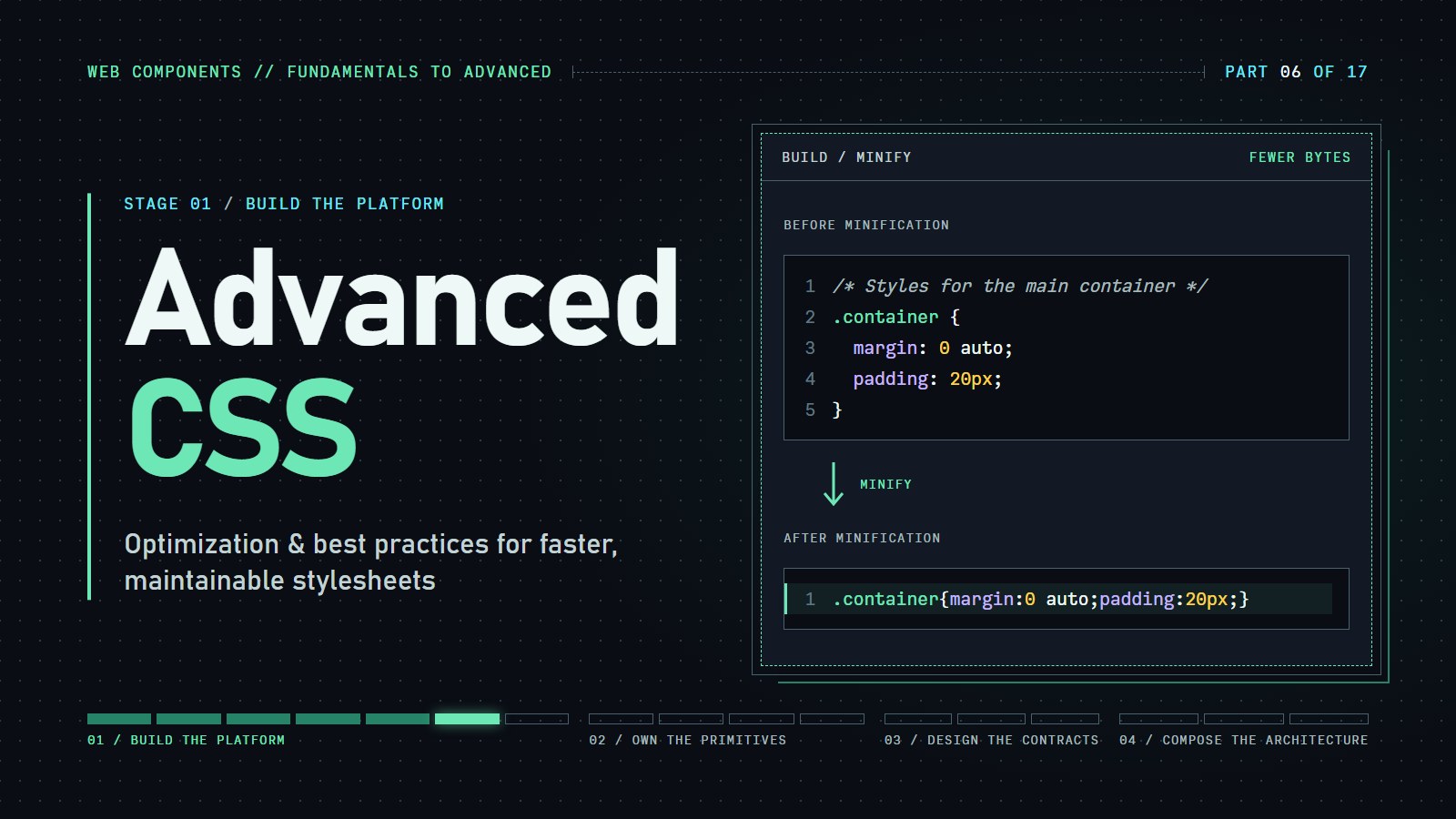
Reducing the size of CSS files is a straightforward method to improve load times. Minification involves removing unnecessary characters, such as whitespace and comments, without affecting functionality. Tools like CSSNano and csso can automate this process.
Example:
Before minification:
/* Styles for the main container */
.container {
  margin: 0 auto;
  padding: 20px;
}
After minification:
.container{margin:0 auto;padding:20px;}
Browsers read both versions identically; only the byte count changes. Minifiers are command-line programs you run on a file (they need Node.js). One way, using PostCSS with CSSNano:
npm install --save-dev postcss postcss-cli cssnano
npx postcss styles.css --use cssnano --output styles.min.css
Then point your <link> at styles.min.css and keep editing styles.css. Never edit the minified file by hand. Most frameworks and bundlers (Vite, webpack, and similar) run a minifier for you in their production build, so you may never type this yourself. If your site is a handful of small CSS files, skip this step.
Combining CSS Files#
Multiple CSS files can lead to numerous HTTP requests, slowing down page load times. Combining them into a single file reduces these requests, enhancing performance. This practice is especially beneficial when used alongside minification. (Over HTTP/2 and HTTP/3, which most servers now use, extra requests cost much less than they once did, so the gain is smaller than it used to be. Bundlers do this step automatically.)
Example:
Instead of:
<link rel="stylesheet" href="reset.css">
<link rel="stylesheet" href="layout.css">
<link rel="stylesheet" href="theme.css">
Combine into:
<link rel="stylesheet" href="styles.min.css">
Critical CSS#
Critical CSS refers to the styles necessary to render the above-the-fold content of a webpage. By inlining these critical styles directly into the HTML <head>, we can speed up the initial render. Non-critical CSS can be loaded asynchronously to prevent render-blocking.
Example:
<head>
  <style>
    /* Critical CSS */
    body { margin: 0; font-family: Arial, sans-serif; }
    .header { background: #333; color: #fff; padding: 10px; }
  </style>
  <link rel="stylesheet" href="styles.css" media="print" onload="this.media='all'">
  <noscript><link rel="stylesheet" href="styles.css"></noscript>
</head>
What does the <link> line do? media="print" says "use this stylesheet only when printing". The browser still downloads it, but it does not hold up the first paint of the screen. When the file has finished loading, the onload handler runs this.media='all', which changes the stylesheet to apply on screen, so the full styles switch on a moment later. The <noscript> line is the safety net for visitors with JavaScript off: without it, onload never runs and styles.css would never apply on screen. Finding which rules are "critical" is the hard part, and it is usually done by a tool (for example the critical npm package) rather than by hand. For a small site, a normal <link rel="stylesheet"> is fine.
---html
<header>
<h1>Critical CSS Loading Comparison</h1>
</header>
<critical-css-demo></critical-css-demo>
---css
body {
font-family: -apple-system, BlinkMacSystemFont, "Segoe UI", Roboto, sans-serif;
margin: 0;
padding: 20px;
background-color: #f5f5f5;
}
.container {
max-width: 1200px;
margin: 0 auto;
background-color: white;
border-radius: 8px;
box-shadow: 0 2px 10px rgba(0, 0, 0, 0.1);
overflow: hidden;
}
header {
background-color: #1a202c;
color: white;
padding: 20px;
text-align: center;
}
h1 {
margin: 0;
}
footer {
text-align: center;
margin-top: 20px;
color: #718096;
font-size: 0.875rem;
}
---js
class CriticalCSSDemo extends HTMLElement {
constructor() {
super();
this.attachShadow({ mode: 'open' });
// Initial state
this.loading = false;
this.withCriticalCSS = true;
// CSS for the component itself
const componentStyles = `
:host {
display: block;
font-family: -apple-system, BlinkMacSystemFont, "Segoe UI", Roboto, sans-serif;
}
.p-4 { padding: 1rem; }
.mb-4 { margin-bottom: 1rem; }
.mb-2 { margin-bottom: 0.5rem; }
.mr-4 { margin-right: 1rem; }
.mr-2 { margin-right: 0.5rem; }
.text-xl { font-size: 1.25rem; }
.font-bold { font-weight: bold; }
.text-sm { font-size: 0.875rem; }
.text-xs { font-size: 0.75rem; }
.flex { display: flex; }
.justify-between { justify-content: space-between; }
.items-center { align-items: center; }
.inline-flex { display: inline-flex; }
.grid { display: grid; }
.grid-cols-1 { grid-template-columns: repeat(1, minmax(0, 1fr)); }
@media (min-width: 768px) {
.md\\:grid-cols-2 { grid-template-columns: repeat(2, minmax(0, 1fr)); }
}
.gap-4 { gap: 1rem; }
.border { border: 1px solid #e2e8f0; }
.rounded-md { border-radius: 0.375rem; }
.overflow-hidden { overflow: hidden; }
.overflow-auto { overflow: auto; }
.bg-gray-800 { background-color: #1f2937; }
.bg-gray-100 { background-color: #f3f4f6; }
.bg-blue-500 { background-color: #3b82f6; }
.bg-blue-50 { background-color: #eff6ff; }
.hover\\:bg-blue-600:hover { background-color: #2563eb; }
.bg-yellow-400 { background-color: #fbbf24; }
.text-white { color: white; }
.border-blue-200 { border-color: #bfdbfe; }
.p-1 { padding: 0.25rem; }
.p-2 { padding: 0.5rem; }
.p-3 { padding: 0.75rem; }
.px-4 { padding-left: 1rem; padding-right: 1rem; }
.py-2 { padding-top: 0.5rem; padding-bottom: 0.5rem; }
.rounded { border-radius: 0.25rem; }
.h-48 { height: 12rem; }
.relative { position: relative; }
.absolute { position: absolute; }
.top-0 { top: 0; }
.right-0 { right: 0; }
button {
cursor: pointer;
}
button:disabled {
background-color: #9ca3af;
cursor: default;
}
pre {
margin: 0;
white-space: pre-wrap;
}
`;
// Normal CSS (loaded after delay)
this.fullCSS = `
.page-container {
max-width: 500px;
margin: 0 auto;
}
.header {
background-color: #2c3e50;
color: white;
padding: 20px;
text-align: center;
}
.nav {
display: flex;
justify-content: space-around;
background-color: #34495e;
padding: 10px;
}
.nav-link {
color: white;
text-decoration: none;
}
.content {
padding: 20px;
border: 1px solid #ddd;
}
.image-container {
margin: 20px 0;
height: 150px;
background-color: #bdc3c7;
}
.footer {
background-color: #2c3e50;
color: white;
padding: 15px;
text-align: center;
margin-top: 20px;
}
`;
// Critical CSS (only what's needed for above-the-fold)
this.criticalCSS = `
.page-container {
max-width: 500px;
margin: 0 auto;
}
.header {
background-color: #2c3e50;
color: white;
padding: 20px;
text-align: center;
}
.nav {
display: flex;
justify-content: space-around;
background-color: #34495e;
padding: 10px;
}
.nav-link {
color: white;
text-decoration: none;
}
`;
this.render();
}
// Simulate page load stages
simulatePageLoad() {
this.loading = true;
this.updateLoadingState();
setTimeout(() => {
this.loading = false;
this.updateLoadingState();
}, 3000);
}
// Update the DOM based on loading state
updateLoadingState() {
const button = this.shadowRoot.querySelector('button');
if (this.loading) {
button.textContent = 'Loading...';
button.disabled = true;
this.renderLoadingState();
} else {
button.textContent = 'Simulate Page Load';
button.disabled = false;
this.renderLoadedState();
}
}
// Toggle critical CSS mode
toggleCriticalCSS(useIt) {
this.withCriticalCSS = useIt;
this.render();
}
renderLoadingState() {
const container = this.shadowRoot.querySelector('.rendered-output');
container.innerHTML = '';
// Page with only critical CSS or no CSS
const pageEl = document.createElement('div');
pageEl.style.transition = 'all 0.3s ease';
const pageContainer = document.createElement('div');
pageContainer.className = 'page-container';
pageContainer.style.maxWidth = '500px';
pageContainer.style.margin = '0 auto';
const header = document.createElement('div');
header.className = 'header';
if (this.withCriticalCSS) {
header.style.backgroundColor = '#2c3e50';
header.style.color = 'white';
header.style.padding = '20px';
header.style.textAlign = 'center';
}
const headerTitle = document.createElement('h1');
headerTitle.textContent = 'My Website';
header.appendChild(headerTitle);
const nav = document.createElement('div');
nav.className = 'nav';
if (this.withCriticalCSS) {
nav.style.display = 'flex';
nav.style.justifyContent = 'space-around';
nav.style.backgroundColor = '#34495e';
nav.style.padding = '10px';
}
['Home', 'About', 'Contact'].forEach(linkText => {
const link = document.createElement('a');
link.href = '#';
link.className = 'nav-link';
link.textContent = linkText;
if (this.withCriticalCSS) {
link.style.color = 'white';
link.style.textDecoration = 'none';
}
nav.appendChild(link);
});
const content = document.createElement('div');
content.className = 'content';
content.innerHTML = `
<h2>Welcome to My Site</h2>
<p>This is above-the-fold content...</p>
<div class="image-container"></div>
<p>This is below-the-fold content...</p>
`;
const footer = document.createElement('div');
footer.className = 'footer';
footer.textContent = '© 2025 My Website';
pageContainer.appendChild(header);
pageContainer.appendChild(nav);
pageContainer.appendChild(content);
pageContainer.appendChild(footer);
pageEl.appendChild(pageContainer);
// Loading indicator
const loadingIndicator = document.createElement('div');
loadingIndicator.className = 'absolute top-0 right-0 bg-yellow-400 text-xs p-1';
loadingIndicator.textContent = 'CSS still loading...';
container.appendChild(pageEl);
container.appendChild(loadingIndicator);
}
renderLoadedState() {
const container = this.shadowRoot.querySelector('.rendered-output');
container.innerHTML = '';
const pageContainer = document.createElement('div');
pageContainer.className = 'page-container';
pageContainer.style.maxWidth = '500px';
pageContainer.style.margin = '0 auto';
const header = document.createElement('div');
header.className = 'header';
header.style.backgroundColor = '#2c3e50';
header.style.color = 'white';
header.style.padding = '20px';
header.style.textAlign = 'center';
header.innerHTML = '<h1>My Website</h1>';
const nav = document.createElement('div');
nav.className = 'nav';
nav.style.display = 'flex';
nav.style.justifyContent = 'space-around';
nav.style.backgroundColor = '#34495e';
nav.style.padding = '10px';
['Home', 'About', 'Contact'].forEach(linkText => {
const link = document.createElement('a');
link.href = '#';
link.className = 'nav-link';
link.textContent = linkText;
link.style.color = 'white';
link.style.textDecoration = 'none';
nav.appendChild(link);
});
const content = document.createElement('div');
content.className = 'content';
content.style.padding = '20px';
content.style.border = '1px solid #ddd';
content.innerHTML = `
<h2>Welcome to My Site</h2>
<p>This is above-the-fold content...</p>
<div class="image-container" style="margin: 20px 0; height: 150px; background-color: #bdc3c7;"></div>
<p>This is below-the-fold content...</p>
`;
const footer = document.createElement('div');
footer.className = 'footer';
footer.style.backgroundColor = '#2c3e50';
footer.style.color = 'white';
footer.style.padding = '15px';
footer.style.textAlign = 'center';
footer.style.marginTop = '20px';
footer.textContent = '© 2025 My Website';
pageContainer.appendChild(header);
pageContainer.appendChild(nav);
pageContainer.appendChild(content);
pageContainer.appendChild(footer);
container.appendChild(pageContainer);
}
createHtmlPreview() {
return `<!DOCTYPE html>
<html>
<head>
<meta charset="UTF-8">
<title>My Website</title>
${this.withCriticalCSS ?
`
<!-- Critical CSS inlined -->
<style>
${this.criticalCSS}
</style>
` : ''}
<!-- Full CSS loaded asynchronously -->
<link rel="stylesheet" href="styles.css" ${this.withCriticalCSS ? 'media="print" onload="this.media=\'all\'"' : ''}>
</head>
<body>
<div class="page-container">
<header class="header">
<h1>My Website</h1>
</header>
<nav class="nav">
<a href="#" class="nav-link">Home</a>
<a href="#" class="nav-link">About</a>
<a href="#" class="nav-link">Contact</a>
</nav>
<main class="content">
<h2>Welcome to My Site</h2>
<p>This is above-the-fold content...</p>
<div class="image-container">
<!-- Large image -->
</div>
<p>This is below-the-fold content...</p>
</main>
<footer class="footer">
© 2025 My Website
</footer>
</div>
</body>
</html>`;
}
render() {
const styles = document.createElement('style');
styles.textContent = `
:host {
display: block;
font-family: -apple-system, BlinkMacSystemFont, "Segoe UI", Roboto, sans-serif;
}
.p-4 { padding: 1rem; }
.mb-4 { margin-bottom: 1rem; }
.mb-2 { margin-bottom: 0.5rem; }
.mr-4 { margin-right: 1rem; }
.mr-2 { margin-right: 0.5rem; }
.text-xl { font-size: 1.25rem; }
.font-bold { font-weight: bold; }
.text-sm { font-size: 0.875rem; }
.text-xs { font-size: 0.75rem; }
.flex { display: flex; }
.justify-between { justify-content: space-between; }
.items-center { align-items: center; }
.inline-flex { display: inline-flex; }
.grid { display: grid; }
.grid-cols-1 { grid-template-columns: repeat(1, minmax(0, 1fr)); }
@media (min-width: 768px) {
.md\\:grid-cols-2 { grid-template-columns: repeat(2, minmax(0, 1fr)); }
}
.gap-4 { gap: 1rem; }
.border { border: 1px solid #e2e8f0; }
.rounded-md { border-radius: 0.375rem; }
.overflow-hidden { overflow: hidden; }
.overflow-auto { overflow: auto; }
.bg-gray-800 { background-color: #1f2937; }
.bg-gray-100 { background-color: #f3f4f6; }
.bg-blue-500 { background-color: #3b82f6; }
.bg-blue-50 { background-color: #eff6ff; }
.hover\\:bg-blue-600:hover { background-color: #2563eb; }
.bg-yellow-400 { background-color: #fbbf24; }
.text-white { color: white; }
.border-blue-200 { border-color: #bfdbfe; }
.p-1 { padding: 0.25rem; }
.p-2 { padding: 0.5rem; }
.p-3 { padding: 0.75rem; }
.px-4 { padding-left: 1rem; padding-right: 1rem; }
.py-2 { padding-top: 0.5rem; padding-bottom: 0.5rem; }
.rounded { border-radius: 0.25rem; }
.h-48 { height: 12rem; }
.relative { position: relative; }
.absolute { position: absolute; }
.top-0 { top: 0; }
.right-0 { right: 0; }
button {
cursor: pointer;
}
button:disabled {
background-color: #9ca3af;
cursor: default;
}
pre {
margin: 0;
white-space: pre-wrap;
}
`;
this.shadowRoot.innerHTML = '';
this.shadowRoot.appendChild(styles);
const template = document.createElement('template');
template.innerHTML = `
<div class="p-4">
<h3 class="text-xl font-bold mb-4">Critical CSS Loading Simulator</h3>
<div class="flex justify-between items-center mb-4">
<div>
<label class="inline-flex items-center mr-4">
<input type="radio" name="cssMode" value="with" class="mr-2" ${this.withCriticalCSS ? 'checked' : ''}>
With Critical CSS
</label>
<label class="inline-flex items-center">
<input type="radio" name="cssMode" value="without" class="mr-2" ${!this.withCriticalCSS ? 'checked' : ''}>
Without Critical CSS
</label>
</div>
<button class="px-4 py-2 bg-blue-500 text-white rounded hover:bg-blue-600">
Simulate Page Load
</button>
</div>
<div class="grid grid-cols-1 md:grid-cols-2 gap-4 mb-4">
<div class="border rounded-md overflow-hidden">
<div class="bg-gray-800 text-white p-2 text-sm">HTML Structure</div>
<pre class="bg-gray-100 p-3 text-xs h-48 overflow-auto"></pre>
</div>
<div class="border rounded-md overflow-hidden">
<div class="bg-gray-800 text-white p-2 text-sm">Rendered Output</div>
<div class="rendered-output h-48 overflow-auto relative"></div>
</div>
</div>
<div class="bg-blue-50 p-4 rounded-md border border-blue-200">
<h4 class="font-bold mb-2">How It Works</h4>
<p class="text-sm mb-2">
<strong>With Critical CSS:</strong> The above-the-fold content (header and navigation) styles are inlined in the HTML, allowing them to render immediately while the rest of the CSS loads asynchronously.
</p>
<p class="text-sm">
<strong>Without Critical CSS:</strong> All styles load from an external stylesheet, causing the page to appear unstyled until the CSS is fully downloaded and parsed.
</p>
</div>
</div>
`;
this.shadowRoot.appendChild(template.content.cloneNode(true));
// Add HTML preview
const htmlPreview = this.createHtmlPreview();
this.shadowRoot.querySelector('pre').textContent = htmlPreview;
// Set initial render state
if (this.loading) {
this.renderLoadingState();
} else {
this.renderLoadedState();
}
// Add event listeners
this.shadowRoot.querySelector('button').addEventListener('click', () => {
this.simulatePageLoad();
});
this.shadowRoot.querySelectorAll('input[type="radio"]').forEach(radio => {
radio.addEventListener('change', e => {
this.toggleCriticalCSS(e.target.value === 'with');
});
});
}
connectedCallback() {
// Component is added to the DOM
}
disconnectedCallback() {
// Component is removed from the DOM
}}
// Register the custom element
customElements.define('critical-css-demo', CriticalCSSDemo);
Efficient Selectors#
Browsers match selectors right-to-left: for ul li a span they find every span first, then check whether it sits inside an a, and so on up the chain. Simpler, more direct selectors do less of that work. In practice the speed difference is tiny on ordinary pages; the bigger payoff is that a single class is easier to read and has low specificity, so it is easy to override. Treat this as a maintainability habit more than a speed trick.
Inefficient Selector:
/* Descendant selector */
ul li a span {
  color: blue;
}
Efficient Selector:
/* Class selector */
.nav-link {
  color: blue;
}
By assigning a class directly to the target element, the browser has less to check. Note that the two rules are not identical: the first styles every span in a link in a list, the second only elements you gave the class to.
---html
<div class="container efficient" id="demo-container">
<h2>Selector Performance Comparison</h2>
<p class="description">
Browsers read CSS selectors <strong>right-to-left</strong>. Simpler, more direct selectors improve
rendering performance. Toggle between the efficient and inefficient selectors to see the difference:
</p>
<div class="toggle-container">
<span class="label label-inefficient">Inefficient</span>
<label class="toggle">
<input type="checkbox" id="selector-toggle" checked>
<span class="slider"></span>
</label>
<span class="label label-efficient">Efficient</span>
</div>
<div class="selector-display">
<div class="selector-inefficient">
<span class="code-comment">/* Inefficient: Browser must check every span inside every a inside every li inside every ul */</span><br>
<span class="highlight">ul li a span</span> {<br>
color: blue;<br>
}
</div>
<div class="selector-efficient">
<span class="code-comment">/* Efficient: Browser directly targets elements with this class */</span><br>
<span class="highlight">.nav-link</span> {<br>
color: blue;<br>
}
</div>
</div>
<div class="elements-simulation">
<div class="simulation-bar"></div>
</div>
<div class="results">
<div class="result-card inefficient-result">
<h3>Inefficient Selector Impact</h3>
<p>The browser must evaluate <strong>every span</strong> to check if it's inside an <a> inside a <li> inside a <ul> - potentially checking hundreds of elements unnecessarily.</p>
</div>
<div class="vs">VS</div>
<div class="result-card efficient-result">
<h3>Efficient Selector Impact</h3>
<p>The browser can immediately identify elements with the <strong>.nav-link</strong> class without checking parent-child relationships, resulting in faster rendering.</p>
</div>
</div>
</div>
---css
* {
box-sizing: border-box;
margin: 0;
padding: 0;
font-family: system-ui, -apple-system, BlinkMacSystemFont, "Segoe UI", Roboto,
Arial, sans-serif;
}
body {
padding: 20px;
background-color: #f0f4f8;
}
.container {
max-width: 700px;
margin: 0 auto;
background: white;
border-radius: 8px;
box-shadow: 0 2px 10px rgba(0, 0, 0, 0.1);
padding: 25px;
}
h2 {
color: #333;
margin-bottom: 15px;
}
.description {
margin-bottom: 20px;
line-height: 1.5;
color: #555;
}
.toggle-container {
display: flex;
align-items: center;
margin-bottom: 20px;
}
.toggle {
position: relative;
display: inline-block;
width: 60px;
height: 30px;
margin: 0 10px;
}
.toggle input {
opacity: 0;
width: 0;
height: 0;
}
.slider {
position: absolute;
cursor: pointer;
top: 0;
left: 0;
right: 0;
bottom: 0;
background-color: #ccc;
transition: 0.4s;
border-radius: 30px;
}
.slider:before {
position: absolute;
content: "";
height: 22px;
width: 22px;
left: 4px;
bottom: 4px;
background-color: white;
transition: 0.4s;
border-radius: 50%;
}
input:checked + .slider {
background-color: #4caf50;
}
input:checked + .slider:before {
transform: translateX(30px);
}
.selector-display {
background-color: #f5f5f5;
border-radius: 6px;
padding: 15px;
margin-bottom: 20px;
font-family: monospace;
transition: background-color 0.3s;
}
.inefficient .selector-inefficient {
display: block;
border-left: 4px solid #ff5555;
padding-left: 10px;
}
.inefficient .selector-efficient {
display: none;
}
.efficient .selector-inefficient {
display: none;
}
.efficient .selector-efficient {
display: block;
border-left: 4px solid #4caf50;
padding-left: 10px;
}
.results {
display: flex;
margin-top: 30px;
justify-content: space-between;
}
.result-card {
flex: 1;
padding: 15px;
border-radius: 6px;
transition: transform 0.3s, box-shadow 0.3s;
}
.result-card h3 {
margin-bottom: 10px;
font-size: 18px;
}
.result-card p {
color: #666;
font-size: 14px;
line-height: 1.4;
}
.inefficient-result {
margin-right: 10px;
background-color: #ffeeee;
border: 1px solid #ffcccc;
}
.efficient-result {
margin-left: 10px;
background-color: #eeffee;
border: 1px solid #ccffcc;
}
.result-card:hover {
transform: translateY(-5px);
box-shadow: 0 5px 15px rgba(0, 0, 0, 0.1);
}
.highlight {
background-color: yellow;
padding: 0 3px;
}
.code-comment {
color: #888;
font-style: italic;
}
.vs {
display: flex;
align-items: center;
justify-content: center;
font-weight: bold;
margin: 0 10px;
}
/* Simulating elements that would be impacted by selector performance */
.elements-simulation {
height: 20px;
width: 100%;
background-image: linear-gradient(to right, #eee 0%, #eee 100%);
margin: 20px 0;
position: relative;
border-radius: 10px;
overflow: hidden;
}
.simulation-bar {
height: 100%;
width: 30%;
background-color: #4caf50;
border-radius: 10px;
transition: width 0.5s ease-in-out;
}
.inefficient .simulation-bar {
width: 80%;
background-color: #ff5555;
}
.label {
display: inline-block;
padding: 5px 10px;
border-radius: 4px;
font-weight: bold;
}
.label-inefficient {
background-color: #ffeeee;
color: #ff5555;
}
.label-efficient {
background-color: #eeffee;
color: #4caf50;
}
---js
const toggle = document.getElementById("selector-toggle");
const container = document.getElementById("demo-container");
toggle.addEventListener("change", function () {
if (this.checked) {
container.classList.add("efficient");
container.classList.remove("inefficient");
} else {
container.classList.add("inefficient");
container.classList.remove("efficient");
}
});
Code Maintainability#
Modular CSS#
Breaking down CSS into modular components promotes reusability and simplifies maintenance. This approach often involves creating separate files for different components or sections of a site and then combining them during the build process.
Example:
-
header.cssfor header styles -
footer.cssfor footer styles -
buttons.cssfor button styles
These can be combined into a single stylesheet for production.
Naming Conventions#
Consistent naming conventions, such as BEM (Block Element Modifier), make CSS more readable and maintainable.
Example:
/* BEM Naming Convention */
.button { /* Block */ }
.button__icon { /* Element */ }
.button--primary { /* Modifier */ }
This structure clearly defines the relationship between components, enhancing clarity. BEM stands for Block, Element, Modifier: the block is the standalone component (button), an element is a part that only makes sense inside it (button__icon, after a double underscore), and a modifier is a variant or state (button--primary, after a double hyphen). Because every rule is a single class, they all have the same low specificity, so later rules override earlier ones predictably, the cascade rule from the last two posts.
---html
<div class="container">
<h1>BEM CSS Methodology Visualizer</h1>
<div class="demo-section">
<h2>What is BEM?</h2>
<p>
BEM (Block Element Modifier) is a naming convention for CSS classes
that helps create reusable components. It gives your CSS clear
structure and improves readability and maintainability.
</p>
<div class="bem-anatomy">
<div>
<h3>B - Block</h3>
<p>
A standalone component that is meaningful on its own (e.g.,
<code>.card</code>, <code>.button</code>, <code>.header</code>).
</p>
</div>
<div>
<h3>E - Element</h3>
<p>
A part of a block that has no standalone meaning (e.g.,
<code>.card__title</code>, <code>.card__image</code>).
</p>
</div>
<div>
<h3>M - Modifier</h3>
<p>
A flag on a block or element used to change appearance or behavior
(e.g., <code>.card--featured</code>, <code>.button--large</code>).
</p>
</div>
</div>
<div class="color-code">
<div class="color-code-item">
<div class="color-code-bullet color-block"></div>
<span>Block</span>
</div>
<div class="color-code-item">
<div class="color-code-bullet color-element"></div>
<span>Element</span>
</div>
<div class="color-code-item">
<div class="color-code-bullet color-modifier"></div>
<span>Block Modifier</span>
</div>
<div class="color-code-item">
<div class="color-code-bullet color-element-modifier"></div>
<span>Element Modifier</span>
</div>
</div>
</div>
<div class="demo-section">
<!-- CSS-only tabs implementation with :has() selector -->
<div class="tab-control">
<input type="radio" name="tabs" id="tab-block" class="tab-input" checked />
<label for="tab-block" class="tab-label">Block</label>
<input type="radio" name="tabs" id="tab-element" class="tab-input" />
<label for="tab-element" class="tab-label">Element</label>
<input type="radio" name="tabs" id="tab-block-modifier" class="tab-input" />
<label for="tab-block-modifier" class="tab-label">Block Modifier</label>
<input type="radio" name="tabs" id="tab-element-modifier" class="tab-input" />
<label for="tab-element-modifier" class="tab-label">Element Modifier</label>
</div>
<div class="tab-content" id="block-content">
<h3>Block: <code>.card</code></h3>
<p>
A block is a standalone entity that is meaningful on its own. The
block name describes its purpose.
</p>
<div class="preview highlight-block">
<div class="card">
<img class="card__image" src="https://picsum.photos/400/200?random=1" alt="Random Image" />
<div class="card__content">
<h2 class="card__title">Card Block</h2>
<p class="card__description">
This entire card is a block - a standalone component with its
own meaning.
</p>
<button class="card__button">Learn More</button>
</div>
</div>
</div>
<div class="bem-notation">
<div class="bem-notation-item">
<span>.card</span> - A standalone block component
</div>
</div>
<div class="code-example">
<pre class="code-html"><span class="code-tag"><div</span> <span class="code-attr">class</span>=<span class="code-value">"card"</span><span class="code-tag">></span>
<span class="code-tag"><img</span> <span class="code-attr">class</span>=<span class="code-value">"card__image"</span> <span class="code-attr">src</span>=<span class="code-value">"..."</span><span class="code-tag">></span>
<span class="code-tag"><div</span> <span class="code-attr">class</span>=<span class="code-value">"card__content"</span><span class="code-tag">></span>
<span class="code-tag"><h2</span> <span class="code-attr">class</span>=<span class="code-value">"card__title"</span><span class="code-tag">></span>Card Block<span class="code-tag"></h2></span>
<span class="code-tag"><p</span> <span class="code-attr">class</span>=<span class="code-value">"card__description"</span><span class="code-tag">></span>Description<span class="code-tag"></p></span>
<span class="code-tag"><button</span> <span class="code-attr">class</span>=<span class="code-value">"card__button"</span><span class="code-tag">></span>Learn More<span class="code-tag"></button></span>
<span class="code-tag"></div></span>
<span class="code-tag"></div></span></pre>
</div>
</div>
<div class="tab-content" id="element-content">
<h3>Element: <code>.card__title</code></h3>
<p>
An element is a part of a block that has no standalone meaning.
Elements are denoted by double underscores.
</p>
<div class="preview highlight-element">
<div class="card">
<img class="card__image" src="https://picsum.photos/400/200?random=1" alt="Random Image" />
<div class="card__content">
<h2 class="card__title">Card Title Element</h2>
<p class="card__description">
This title is an element of the card block. It has no meaning
outside of the card.
</p>
<button class="card__button">Learn More</button>
</div>
</div>
</div>
<div class="bem-notation">
<div class="bem-notation-item">
<span>.card__title</span> - An element that is part of the card
block
</div>
<div class="bem-notation-item">
<span>.card__image</span> - Another element of the card block
</div>
<div class="bem-notation-item">
<span>.card__description</span> - Another element of the card
block
</div>
<div class="bem-notation-item">
<span>.card__button</span> - Another element of the card block
</div>
</div>
<div class="code-example">
<pre class="code-html"><span class="code-tag"><div</span> <span class="code-attr">class</span>=<span class="code-value">"card"</span><span class="code-tag">></span>
<span class="code-tag"><div</span> <span class="code-attr">class</span>=<span class="code-value">"card__content"</span><span class="code-tag">></span>
<span class="code-tag"><h2</span> <span class="code-attr">class</span>=<span class="code-value">"card__title"</span><span class="code-tag">></span>Card Title Element<span class="code-tag"></h2></span>
<span class="code-tag"></div></span>
<span class="code-tag"></div></span></pre>
</div>
</div>
<div class="tab-content" id="block-modifier-content">
<h3>Block Modifier: <code>.card--featured</code></h3>
<p>
A modifier is a flag on a block or element that changes its
appearance or behavior. Block modifiers are denoted by double
hyphens.
</p>
<div class="preview highlight-modifier">
<div class="card card--featured">
<img class="card__image" src="https://picsum.photos/400/200?random=2" alt="Random Image" />
<div class="card__content">
<h2 class="card__title">Featured Card</h2>
<p class="card__description">
This card has a 'featured' modifier which changes its
appearance with a gold border and enhanced shadow.
</p>
<button class="card__button">Learn More</button>
</div>
</div>
</div>
<div class="bem-notation">
<div class="bem-notation-item">
<span>.card--featured</span> - A modifier that changes the
appearance of the card block
</div>
</div>
<div class="code-example">
<pre class="code-html"><span class="code-tag"><div</span> <span class="code-attr">class</span>=<span class="code-value">"card card--featured"</span><span class="code-tag">></span>
<span class="code-tag"><img</span> <span class="code-attr">class</span>=<span class="code-value">"card__image"</span> <span class="code-attr">src</span>=<span class="code-value">"..."</span><span class="code-tag">></span>
<span class="code-tag"><div</span> <span class="code-attr">class</span>=<span class="code-value">"card__content"</span><span class="code-tag">></span>
<span class="code-tag"><h2</span> <span class="code-attr">class</span>=<span class="code-value">"card__title"</span><span class="code-tag">></span>Featured Card<span class="code-tag"></h2></span>
<span class="code-tag"><p</span> <span class="code-attr">class</span>=<span class="code-value">"card__description"</span><span class="code-tag">></span>Description<span class="code-tag"></p></span>
<span class="code-tag"><button</span> <span class="code-attr">class</span>=<span class="code-value">"card__button"</span><span class="code-tag">></span>Learn More<span class="code-tag"></button></span>
<span class="code-tag"></div></span>
<span class="code-tag"></div></span></pre>
</div>
</div>
<div class="tab-content" id="element-modifier-content">
<h3>Element Modifier: <code>.card__button--secondary</code></h3>
<p>
An element modifier changes the appearance or behavior of a specific
element. Element modifiers are also denoted by double hyphens.
</p>
<div class="preview highlight-element-modifier">
<div class="card">
<img class="card__image" src="https://picsum.photos/400/200?random=3" alt="Random Image" />
<div class="card__content">
<h2 class="card__title">Card with Button Variants</h2>
<p class="card__description">
This card has buttons with modifiers that change their
appearance.
</p>
<button class="card__button">Primary</button>
<button class="card__button card__button--secondary">
Secondary
</button>
</div>
</div>
</div>
<div class="bem-notation">
<div class="bem-notation-item">
<span>.card__button--secondary</span> - A modifier that changes
the appearance of the button element
</div>
</div>
<div class="code-example">
<pre class="code-html"><span class="code-tag"><div</span> <span class="code-attr">class</span>=<span class="code-value">"card"</span><span class="code-tag">></span>
<span class="code-tag"><div</span> <span class="code-attr">class</span>=<span class="code-value">"card__content"</span><span class="code-tag">></span>
<span class="code-tag"><button</span> <span class="code-attr">class</span>=<span class="code-value">"card__button"</span><span class="code-tag">></span>Primary<span class="code-tag"></button></span>
<span class="code-tag"><button</span> <span class="code-attr">class</span>=<span class="code-value">"card__button card__button--secondary"</span><span class="code-tag">></span>Secondary<span class="code-tag"></button></span>
<span class="code-tag"></div></span>
<span class="code-tag"></div></span></pre>
</div>
</div>
</div>
<div class="demo-section">
<h2>Complete Example</h2>
<p>
Here's a complete example showing all BEM concepts applied together:
</p>
<div class="preview">
<div style="
display: grid;
grid-template-columns: repeat(auto-fit, minmax(300px, 1fr));
gap: 2rem;
">
<!-- Standard Card -->
<div class="card">
<img class="card__image" src="https://picsum.photos/400/200?random=1" alt="Random Image" />
<div class="card__content">
<h2 class="card__title">Standard Card</h2>
<p class="card__description">
This is a standard card component built using the BEM
methodology.
</p>
<button class="card__button">Learn More</button>
</div>
</div>
<!-- Featured Card (with block modifier) -->
<div class="card card--featured">
<img class="card__image" src="https://picsum.photos/400/200?random=2" alt="Random Image" />
<div class="card__content">
<h2 class="card__title">Featured Card</h2>
<p class="card__description">
This card has the 'featured' modifier which gives it a gold
border and enhanced shadow.
</p>
<button class="card__button">Primary</button>
<button class="card__button card__button--secondary">
Secondary
</button>
</div>
</div>
<!-- Dark Card (with block modifier) -->
<div class="card card--dark">
<img class="card__image" src="https://picsum.photos/400/200?random=3" alt="Random Image" />
<div class="card__content">
<h2 class="card__title">Dark Themed Card</h2>
<p class="card__description">
This card uses the 'dark' modifier which changes its color
scheme to a dark theme.
</p>
<button class="card__button card__button--outline">
Outline Button
</button>
</div>
</div>
</div>
</div>
<h3>BEM Advantages</h3>
<ul style="margin-left: 2rem">
<li>
<strong>Modularity:</strong> Components can be reused across your
project
</li>
<li>
<strong>Structure:</strong> CSS has a clear, consistent organization
</li>
<li>
<strong>Readability:</strong> Class names clearly communicate their
purpose
</li>
<li>
<strong>Maintainability:</strong> Makes CSS easier to update and
debug
</li>
<li>
<strong>Flat hierarchy:</strong> Avoids deep CSS nesting and
specificity issues
</li>
</ul>
</div>
</div>
---css
/* Reset and base styles */
* {
margin: 0;
padding: 0;
box-sizing: border-box;
}
body {
font-family: Arial, sans-serif;
background-color: #f5f5f5;
color: #333;
padding: 2rem;
line-height: 1.6;
}
h1 {
text-align: center;
margin-bottom: 2rem;
color: #333;
}
/* Containers */
.container {
max-width: 1200px;
margin: 0 auto;
}
.demo-section {
margin-bottom: 4rem;
background-color: white;
border-radius: 8px;
padding: 2rem;
box-shadow: 0 2px 8px rgba(0, 0, 0, 0.1);
}
.bem-anatomy {
display: flex;
flex-direction: column;
gap: 1.5rem;
margin-bottom: 3rem;
}
.preview {
margin-bottom: 2rem;
}
/* Card component using BEM methodology */
/* Block */
.card {
background-color: white;
border-radius: 8px;
box-shadow: 0 2px 8px rgba(0, 0, 0, 0.1);
overflow: hidden;
max-width: 400px;
margin: 0 auto 2rem;
transition: all 0.3s ease;
}
/* Elements */
.card__image {
width: 100%;
height: 200px;
object-fit: cover;
}
.card__content {
padding: 1.5rem;
}
.card__title {
font-size: 1.5rem;
margin-bottom: 0.5rem;
color: #222;
}
.card__description {
color: #666;
margin-bottom: 1rem;
}
.card__button {
display: inline-block;
padding: 0.5rem 1rem;
background-color: #4caf50;
color: white;
border: none;
border-radius: 4px;
text-decoration: none;
font-weight: bold;
cursor: pointer;
transition: background-color 0.3s ease;
}
/* Modifiers */
.card--featured {
border: 2px solid #ffd700;
box-shadow: 0 4px 12px rgba(0, 0, 0, 0.15);
transform: scale(1.02);
}
.card--dark {
background-color: #333;
color: white;
}
.card--dark .card__title {
color: #fff;
}
.card--dark .card__description {
color: #ccc;
}
.card__button--secondary {
background-color: #ff9800;
margin-left: 0.5rem;
}
.card__button--outline {
background-color: transparent;
border: 2px solid #4caf50;
color: #4caf50;
}
/* BEM notation visualization */
.bem-notation {
margin-top: 1rem;
padding: 1rem;
background-color: #f8f9fa;
border-radius: 6px;
border-left: 4px solid #4caf50;
}
.bem-notation-item {
margin-bottom: 0.5rem;
display: flex;
align-items: flex-start;
}
.bem-notation-item span {
font-family: monospace;
background-color: #eee;
padding: 0.2rem 0.4rem;
border-radius: 3px;
margin-right: 0.5rem;
}
/* Code visualization */
.code-example {
background-color: #1e1e1e;
color: #fff;
padding: 1.5rem;
border-radius: 6px;
font-family: "Courier New", monospace;
overflow-x: auto;
margin-top: 1rem;
}
.code-html {
color: #e6e6e6;
}
.code-tag {
color: #6a9955;
}
.code-attr {
color: #9cdcfe;
}
.code-value {
color: #ce9178;
}
/* Interactive highlight */
.highlight-block .card {
border: 2px dashed #4caf50;
}
.highlight-element .card__title {
border: 2px dashed #2196f3;
background-color: rgba(33, 150, 243, 0.1);
}
.highlight-modifier .card--featured {
border: 2px dashed #ff5722;
}
.highlight-element-modifier .card__button--secondary {
border: 2px dashed #9c27b0;
background-color: rgba(156, 39, 176, 0.8);
}
/* Tabs - CSS-only implementation */
.tabs {
display: flex;
margin-bottom: 1rem;
border-bottom: 1px solid #ddd;
}
/* Hide inputs and set the position */
.tab-input {
position: absolute;
opacity: 0;
}
/* Style tab labels */
.tab-label {
padding: 0.75rem 1.5rem;
cursor: pointer;
border: 1px solid transparent;
border-bottom: none;
border-radius: 4px 4px 0 0;
background-color: #f8f9fa;
font-weight: bold;
position: relative;
bottom: -1px;
margin-right: 4px;
}
/* Style the active tab */
.tab-control:has(#tab-block:checked) .tab-label[for="tab-block"],
.tab-control:has(#tab-element:checked) .tab-label[for="tab-element"],
.tab-control:has(#tab-block-modifier:checked)
.tab-label[for="tab-block-modifier"],
.tab-control:has(#tab-element-modifier:checked)
.tab-label[for="tab-element-modifier"] {
background-color: white;
border-color: #ddd;
border-bottom: 1px solid white;
}
/* Hide all tab content by default */
.tab-content {
display: none;
padding-top: 1rem;
}
/* Show the selected tab content */
.tab-control:has(#tab-block:checked) ~ #block-content,
.tab-control:has(#tab-element:checked) ~ #element-content,
.tab-control:has(#tab-block-modifier:checked) ~ #block-modifier-content,
.tab-control:has(#tab-element-modifier:checked) ~ #element-modifier-content {
display: block;
}
/* Color code explanation */
.color-code {
display: flex;
flex-wrap: wrap;
gap: 1rem;
margin-top: 1rem;
}
.color-code-item {
display: flex;
align-items: center;
margin-right: 1rem;
}
.color-code-bullet {
width: 16px;
height: 16px;
border-radius: 50%;
margin-right: 8px;
}
.color-block {
background-color: #4caf50;
}
.color-element {
background-color: #2196f3;
}
.color-modifier {
background-color: #ff5722;
}
.color-element-modifier {
background-color: #9c27b0;
}
---js
// Simple tab functionality achieved using only CSS and html
// document.querySelectorAll(".tab").forEach((tab) => {
// tab.addEventListener("click", () => {
// // Remove active class from all tabs
// document.querySelectorAll(".tab").forEach((t) => {
// t.classList.remove("active");
// });
// // Add active class to clicked tab
// tab.classList.add("active");
// // Hide all tab content
// document.querySelectorAll(".tab-content").forEach((content) => {
// content.classList.remove("active");
// });
// // Show the corresponding tab content
// const tabName = tab.getAttribute("data-tab");
// document.getElementById(tabName + "-content").classList.add("active");
// });
// });
Avoiding Inline Styles#
Inline styles can lead to redundancy and are harder to maintain. Keeping styles within external stylesheets or <style> blocks ensures a centralized and manageable codebase.
Instead of:
<button style="background-color: blue; color: white;">Click Me</button>
Use:
<button class="btn btn--primary">Click Me</button>
And in your CSS:
.btn--primary {
  background-color: blue;
  color: white;
}
Advanced Techniques#
CSS Preprocessors#
Tools like Sass or Less introduce features like variables, nesting, and mixins, enabling more dynamic and maintainable CSS. A preprocessor is a compiler: you write .scss files, run a command (for Sass, npx sass styles.scss styles.css after npm install --save-dev sass), and link the plain .css it produces. Browsers have since gained native variables (below) and nesting, so you can often skip this step on a new project.
Example with Sass:
$primary-color: #3498db;

.button {
  background-color: $primary-color;
  &:hover {
    background-color: darken($primary-color, 10%);
  }
}
This approach promotes reusability and simplifies complex styles.
PostCSS and Autoprefixing#
PostCSS is a tool that processes CSS through plugins and can add vendor prefixes (browser-specific spellings of a property, such as -webkit-) automatically. It runs the same way as the minifier above (npx postcss …), with plugins named in a config file or on the command line.
Example:
Using the Autoprefixer plugin, you can write:
.flex-container {
  display: flex;
}
And it will output:
.flex-container {
  display: -webkit-box;
  display: -ms-flexbox;
  display: flex;
}
That output is what the plugin produces only if you tell it to support very old browsers (through the browserslist setting). For current browsers, flexbox needs no prefixes at all and Autoprefixer leaves the line alone, so today this tool matters mainly for newer properties that some browsers still ship with a prefix.
CSS Variables (Custom Properties)#
CSS variables allow for the definition of reusable values, making it easier to manage and update styles.
Example:
:root {
  --main-bg-color: #f0f0f0;
}

body {
  background-color: var(--main-bg-color);
}
Changing --main-bg-color in one place updates the background color wherever it's used, streamlining theme management. A custom property is inherited like color is, so a variable set on body is visible to every element inside it, and a more specific rule can set it again for just one part of the page. That is how a dark theme works without touching any other rule, and it is also how a web component will let page authors restyle it later in this series.
Coding challenge: A dark theme in three lines
Every color in the page below comes from three variables. Run it, press the button, and notice that nothing changes yet.
Expected result: after you fill in the body.dark block, pressing the button gives a near-black background, light text and a lighter blue button. You should not need to edit any rule other than body.dark.
---html
<h2>Dark mode by variables</h2>
<p>Every colour here comes from three variables.</p>
<button id="toggle">Toggle dark theme</button>
---css
:root {
  --bg: #ffffff;
  --text: #1a1a1a;
  --accent: #0056b3;
}
body { background: var(--bg); color: var(--text); font-family: system-ui, sans-serif; padding: 1rem; }
button { background: var(--accent); color: var(--bg); border: none; padding: 0.75rem 1.5rem; font-size: 1rem; }

body.dark {
  /* TODO: override all three variables with dark values */
  --bg: #ffffff;
  --text: #1a1a1a;
  --accent: #0056b3;
}
---js
document.querySelector("#toggle").onclick = () => document.body.classList.toggle("dark");
---html
<div class="container">
    <h1>CSS Variables (Custom Properties) Demo</h1>

    <p class="description">
      CSS Variables (Custom Properties) allow you to define reusable values that can be easily updated throughout your stylesheet. This makes theme management and design system implementation much more maintainable.
    </p>

    <div class="theme-switcher">
      <button class="theme-btn active" data-theme="light">Light Theme</button>
      <button class="theme-btn" data-theme="dark">Dark Theme</button>
      <button class="theme-btn" data-theme="colorful">Colorful Theme</button>
    </div>

    <h2>Current Theme Colors</h2>

    <div class="color-sample">
      <div class="color-box primary-color" data-color="var(--primary-color)"></div>
      <div class="color-box secondary-color" data-color="var(--secondary-color)"></div>
      <div class="color-box bg-color" data-color="var(--main-bg-color)"></div>
      <div class="color-box text-color" data-color="var(--text-color)"></div>
      <div class="color-box heading-color" data-color="var(--heading-color)"></div>
    </div>

    <div class="demo-elements">
      <div class="demo-card">
        <h3>Card Title</h3>
        <p>This card uses CSS variables for its styles.</p>
        <button class="btn">Action Button</button>
      </div>

      <div class="demo-card">
        <h3>How It Works</h3>
        <p>Instead of hard-coding colors, we use variables:</p>
        <div class="variable-example">var(--primary-color)</div>
        <div class="variable-example">var(--text-color)</div>
        <div class="variable-example">var(--border-radius)</div>
      </div>
    </div>

    <div class="code-view">
      <div class="code-title">CSS Variables Definition</div>
      <code>:root {
  /* Theme colors */
  --main-bg-color: #f0f4f8;
  --card-bg-color: #ffffff;
  --text-color: #333333;
  --heading-color: #2c3e50;
  --primary-color: #3498db;
  --secondary-color: #2ecc71;

  /* Spacing and layout */
  --border-radius: 8px;
  --spacing-sm: 10px;
  --spacing-md: 20px;
  --spacing-lg: 30px;
}</code>
    </div>

    <div class="code-view">
      <div class="code-title">CSS Variables Usage</div>
      <code>.btn {
  <span class="highlight">background-color: var(--primary-color);</span>
  color: white;
  border-radius: <span class="highlight">var(--border-radius);</span>
  padding: <span class="highlight">var(--spacing-sm)</span> <span class="highlight">var(--spacing-md)</span>;
}

.btn:hover {
  <span class="highlight">background-color: var(--secondary-color);</span>
}</code>
    </div>

    <div class="reset-section">
      <h3>Benefits of CSS Variables</h3>
      <ul>
        <li>Easy theme switching without duplicating CSS rules</li>
        <li>Values can be updated dynamically with JavaScript</li>
        <li>Creates a single source of truth for design tokens</li>
        <li>Reduces repetition and improves maintainability</li>
      </ul>
    </div>
  </div>
---css
/* Base styles with CSS variables defined in the :root */
:root {
	/* Default theme (light) */
	--main-bg-color: #f0f4f8;
	--card-bg-color: #ffffff;
	--text-color: #333333;
	--heading-color: #2c3e50;
	--primary-color: #3498db;
	--secondary-color: #2ecc71;
	--border-color: #e1e1e1;
	--shadow-color: rgba(0, 0, 0, 0.1);
	--font-family: system-ui, -apple-system, BlinkMacSystemFont, "Segoe UI", Roboto,
		Arial, sans-serif;
	--border-radius: 8px;
	--spacing-sm: 10px;
	--spacing-md: 20px;
	--spacing-lg: 30px;
}

/* Dark theme variables */
.theme-dark {
	--main-bg-color: #1a1a2e;
	--card-bg-color: #16213e;
	--text-color: #e1e1e1;
	--heading-color: #9faecd;
	--primary-color: #4895ef;
	--secondary-color: #4cc9a4;
	--border-color: #335277;
	--shadow-color: rgba(0, 0, 0, 0.4);
}

/* Colorful theme variables */
.theme-colorful {
	--main-bg-color: #ffefd5;
	--card-bg-color: #ffffff;
	--text-color: #6a4c93;
	--heading-color: #ff7b9c;
	--primary-color: #ff9671;
	--secondary-color: #7be495;
	--border-color: #ffc75f;
	--shadow-color: rgba(255, 123, 156, 0.2);
}

* {
	box-sizing: border-box;
	margin: 0;
	padding: 0;
	font-family: var(--font-family);
}

body {
	background-color: var(--main-bg-color);
	color: var(--text-color);
	padding: var(--spacing-md);
	line-height: 1.6;
	transition: background-color 0.3s ease;
}

.container {
	max-width: 800px;
	margin: 0 auto;
	background-color: var(--card-bg-color);
	border-radius: var(--border-radius);
	box-shadow: 0 4px 15px var(--shadow-color);
	padding: var(--spacing-lg);
	transition: all 0.3s ease;
}

h1,
h2,
h3 {
	color: var(--heading-color);
	margin-bottom: var(--spacing-md);
	transition: color 0.3s ease;
}

p {
	margin-bottom: var(--spacing-md);
}

.description {
	margin-bottom: var(--spacing-lg);
}

.theme-switcher {
	display: flex;
	gap: var(--spacing-md);
	margin-bottom: var(--spacing-lg);
	flex-wrap: wrap;
}

.theme-btn {
	padding: 10px 15px;
	background-color: var(--primary-color);
	color: white;
	border: none;
	border-radius: var(--border-radius);
	cursor: pointer;
	transition: transform 0.2s, background-color 0.3s;
	font-weight: bold;
}

.theme-btn:hover {
	transform: translateY(-3px);
}

.theme-btn.active {
	background-color: var(--secondary-color);
	box-shadow: 0 0 0 3px rgba(46, 204, 113, 0.3);
}

.demo-elements {
	display: grid;
	grid-template-columns: 1fr 1fr;
	gap: var(--spacing-md);
}

@media (max-width: 600px) {
	.demo-elements {
		grid-template-columns: 1fr;
	}
}

.demo-card {
	border: 1px solid var(--border-color);
	border-radius: var(--border-radius);
	padding: var(--spacing-md);
	transition: all 0.3s ease;
}

.demo-card h3 {
	border-bottom: 2px solid var(--primary-color);
	padding-bottom: var(--spacing-sm);
	margin-bottom: var(--spacing-md);
	transition: border-color 0.3s ease;
}

.btn {
	display: inline-block;
	padding: 8px 16px;
	background-color: var(--primary-color);
	color: white;
	border: none;
	border-radius: 4px;
	cursor: pointer;
	transition: background-color 0.3s;
}

.btn:hover {
	background-color: var(--secondary-color);
}

.code-view {
	background-color: rgba(0, 0, 0, 0.05);
	border-radius: var(--border-radius);
	padding: var(--spacing-md);
	margin-top: var(--spacing-lg);
	font-family: monospace;
	white-space: pre-wrap;
	line-height: 1.4;
	font-size: 14px;
	position: relative;
	overflow: auto;
	transition: background-color 0.3s;
}

.code-view code {
	color: var(--text-color);
	transition: color 0.3s;
}

.code-title {
	position: absolute;
	top: 0;
	right: 0;
	background-color: var(--primary-color);
	color: white;
	padding: 3px 8px;
	font-size: 12px;
	border-radius: 0 var(--border-radius) 0 var(--border-radius);
}

.highlight {
	color: var(--primary-color);
	font-weight: bold;
	transition: color 0.3s;
}

.variable-example {
	display: inline-block;
	margin-right: 10px;
	margin-bottom: 5px;
	padding: 2px 8px;
	border-radius: 4px;
	font-family: monospace;
	font-size: 14px;
	background-color: rgba(0, 0, 0, 0.05);
}

.reset-section {
	margin-top: var(--spacing-lg);
	padding-top: var(--spacing-md);
	border-top: 1px solid var(--border-color);
	transition: border-color 0.3s;
}

.color-sample {
	display: flex;
	flex-wrap: wrap;
	gap: 10px;
	margin-top: var(--spacing-md);
}

.color-box {
	width: 80px;
	height: 40px;
	border-radius: 4px;
	display: flex;
	flex-direction: column;
	align-items: center;
	justify-content: center;
	font-size: 12px;
	position: relative;
	overflow: hidden;
	border: 1px solid var(--border-color);
}

.color-box::after {
	content: attr(data-color);
	position: absolute;
	bottom: 0;
	left: 0;
	right: 0;
	background-color: rgba(0, 0, 0, 0.7);
	color: white;
	text-align: center;
	padding: 2px 0;
	font-family: monospace;
	font-size: 10px;
	opacity: 0;
	transition: opacity 0.3s;
}

.color-box:hover::after {
	opacity: 1;
}

.primary-color {
	background-color: var(--primary-color);
}

.secondary-color {
	background-color: var(--secondary-color);
}

.bg-color {
	background-color: var(--main-bg-color);
}

.text-color {
	background-color: var(--text-color);
}

.heading-color {
	background-color: var(--heading-color);
}
---js
// Theme switching functionality
const themeButtons = document.querySelectorAll(".theme-btn");
const body = document.documentElement; // Use HTML element as it contains the :root

themeButtons.forEach(button => {
  button.addEventListener("click", () => {
    // Remove active class from all buttons
    themeButtons.forEach(btn => btn.classList.remove("active"));

    // Add active class to clicked button
    button.classList.add("active");

    // Remove all theme classes
    body.classList.remove("theme-light", "theme-dark", "theme-colorful");

    // Add the selected theme class
    const theme = button.getAttribute("data-theme");
    if (theme !== "light") {
      // Light is the default
      body.classList.add(`theme-${theme}`);
    }
  });
});
Conclusion#
Small files, consistent names and a measured approach to performance keep a stylesheet manageable as it grows. Preprocessors can help, but measure before you add one.
Comments require JavaScript.