
Journey to Web Components: From Fundamentals to Advanced UI Architecture
CSS Fundamentals for Accessible Design
Inclusive Web Design: CSS Techniques for Accessibility, Responsiveness, and Usability
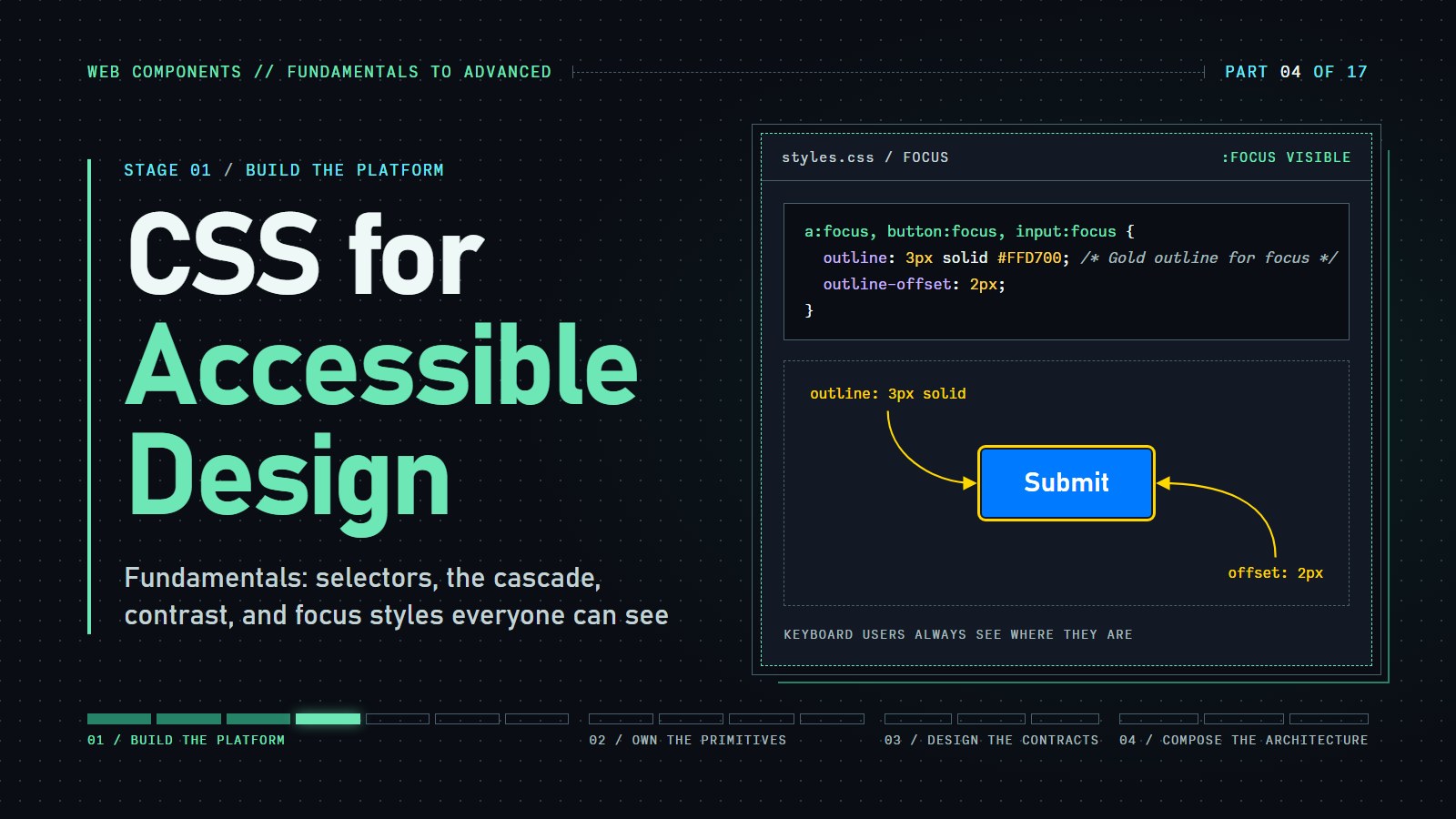
Designing a beautiful website goes hand-in-hand with making sure that it is usable by everyone. With CSS, we have the power not only to style pages but also to enhance accessibility. In this article, we will explore the core concepts of CSS while focusing on best practices for accessible design.
Introduction#
HTML says what things are, and CSS says how they look. A few CSS habits decide whether someone with low vision, a keyboard instead of a mouse, or a screen reader can use the page. A web component is HTML plus the CSS that styles it, so these are the rules every component later in the series depends on.
Where we are: the first three posts built a page from semantic HTML elements and ARIA, so the page already has meaning (buttons are buttons, headings are headings). This post adds the look without breaking that meaning.
Here is the same button twice. The left one is what we often write first. The right one is what we will build in this post. Tab to each one and compare.
---html
<p><button class="before">Submit</button> Before</p>
<p><button class="after">Submit</button> After</p>
---css
body { font-family: system-ui, sans-serif; padding: 1rem; }
.before {
  background: #007bff; color: #fff;
  border: none; padding: 6px 12px; font-size: 12px;
  outline: none;               /* removes the focus ring */
}
.after {
  background: #0056b3; color: #fff;
  border: none; padding: 0.75rem 1.5rem; font-size: 1rem;
  border-radius: 4px;
}
.after:focus { outline: 3px solid #1a1a1a; outline-offset: 2px; }
The left button has three problems: white on #007bff is a ratio of about 4.0:1 (below the 4.5:1 minimum for body-size text), outline: none hides where keyboard focus is, and 12px ignores the reader's text-size setting. The sections below explain each fix.
In this article, we’ll cover:
-
CSS Fundamentals: Selectors, properties, cascade, and specificity.
-
Accessible Design Principles: Techniques to ensure that our designs are inclusive.
-
Practical Tips & Examples: How to implement accessible styles into our projects.
Understanding CSS Fundamentals#
Before diving into accessible design, it is essential to grasp the basics of CSS.
Selectors & Properties#
-
Selectors: These are patterns used to select the elements we want to style. For example:
/* Selects all paragraphs */ p { font-size: 1rem; } /* Selects elements with the class "button" */ .button { background-color: #007BFF; } -
Properties: Each CSS rule is made up of properties and values. For example,
font-size: 1rem;sets the font size of an element to a relative unit that adapts based on the user’s settings.
The Cascade & Specificity#
-
Cascade: When multiple rules apply to the same element, the cascade determines which rules take precedence.
-
Specificity: More specific selectors override more general ones. Understanding this helps in writing predictable, maintainable CSS.
How does the browser decide? When two rules set the same property on the same element, it compares them in this order:
- Importance: a declaration marked
!importantbeats one that is not. Avoid it; it makes later changes harder. - Specificity: an ID selector (
#buy) beats a class, attribute or pseudo-class selector (.btn,:hover), which beats a type selector (button). Specificity is counted as three columns, IDs then classes then types, compared left to right:buttonis (0,0,1),.btnis (0,1,0),button.btnis (0,1,1),#buyis (1,0,0). One ID beats any number of classes. - Order: if specificity is tied, the rule written later wins.
Inline style="…" attributes beat all of these selectors. Here are two rules aimed at one button:
.cta    { background: seagreen; }   /* (0,1,0) */
button  { background: tomato; }     /* (0,0,1), written later */
The button is seagreen. button comes later, but order only matters when specificity ties, and a class outranks a type selector.
Coding challenge: Change the winner
Two rules target the same button. Run it and predict the color before you look: it is seagreen. Then change the winner.
Expected result: the button is tomato, and you did it by editing only the selector of the second rule (no !important, no change to the HTML).
---html
<button class="cta">Buy now</button>
---css
.cta {
  background: seagreen;
  color: #fff;
  padding: 0.75rem 1.5rem;
  border: none;
}

/* TODO: this rule loses today. Change only its selector so it wins. */
button {
  background: tomato;
}
Best Practices for Accessible CSS Design#
While CSS controls how content looks, it can also affect how accessible a website is. Here are some best practices:
1. Use Relative Units#
-
Flexibility for Users: Use relative units like
em,rem,%, andvh/vwto ensure that a layout adjusts to user preferences, such as larger text sizes or different display settings.html { font-size: 100%; /* the reader's own default, usually 16px */ } h1 { font-size: 2.5rem; /* 2.5 times that default */ }remmeans "root em": a multiple of the<html>element's font size. If a reader raises their browser's default text size, everyremvalue grows with it. A fixed16pxwould ignore that setting, which is why the example uses100%rather than pixels.
Resize your browser window to see how relative units adapt text and elements to different screen sizes, ensuring readability across devices.
---html
<div class="responsive-type-demo">
  <div class="fixed-units-example">
    <h3>Fixed Pixels (Not Accessible)</h3>
    <h4 class="fixed-heading">This heading is 24px</h4>
    <p class="fixed-text">This paragraph uses fixed pixel sizes that don't adapt to user preferences. The text size remains the same regardless of the parent container or user's browser settings.</p>
    <div class="fixed-card">
      <h5>Fixed Card</h5>
      <p>Content with fixed dimensions</p>
    </div>
  </div>

  <div class="relative-units-example">
    <h3>Relative Units (Accessible)</h3>
    <h4 class="relative-heading">This heading uses rem</h4>
    <p class="relative-text">This paragraph uses relative units (rem for font size, em for spacing) that adapt to user preferences. The text will scale if the user changes their browser settings.</p>
    <div class="relative-card">
      <h5>Responsive Card</h5>
      <p>Content with relative dimensions</p>
    </div>
  </div>
</div>
---css
.responsive-type-demo {
  display: flex;
  flex-direction: column;
  gap: 20px;
  max-width: 800px;
  margin: 30px auto;
}

.fixed-units-example, .relative-units-example {
  padding: 20px;
  border: 1px solid #ddd;
  border-radius: 8px;
}

/* Fixed example */
.fixed-heading {
  font-size: 24px;
  margin-bottom: 12px;
}

.fixed-text {
  font-size: 16px;
  line-height: 24px;
  margin-bottom: 16px;
}

.fixed-card {
  background-color: #f5f5f5;
  width: 300px;
  padding: 20px;
  border-radius: 8px;
}

.fixed-card h5 {
  font-size: 18px;
  margin-bottom: 8px;
}

.fixed-card p {
  font-size: 14px;
}

/* Relative example */
.relative-heading {
  font-size: 1.5rem; /* Relative to root element */
  margin-bottom: 0.75rem;
}

.relative-text {
  font-size: 1rem;
  line-height: 1.5;
  margin-bottom: 1rem;
}

.relative-card {
  background-color: #f5f5f5;
  width: 100%;
  max-width: 18.75rem;
  padding: 1.25rem;
  border-radius: 0.5rem;
}

.relative-card h5 {
  font-size: 1.125rem;
  margin-bottom: 0.5rem;
}

.relative-card p {
  font-size: 0.875rem;
}

@media (min-width: 768px) {
  .responsive-type-demo {
    flex-direction: row;
  }

  .fixed-units-example, .relative-units-example {
    flex: 1;
  }
}

@media (max-width: 600px) {
  .fixed-card {
    width: 100%; /* Still not fully responsive */
  }
}
2. Ensure Sufficient Color Contrast#
-
Legibility: The contrast between text and background should meet WCAG guidelines (at least 4.5:1 for normal text). Tools like the WebAIM Contrast Checker can help us evaluate our colors.
  body {
    background-color: #ffffff;
    color: #333333;
  }
A contrast ratio compares how bright two colors are, from 1:1 (identical) to 21:1 (black on white). WCAG level AA asks for at least 4.5:1 for normal text and 3:1 for large text (roughly 24px, or about 19px and bold) and for interface parts such as button borders and focus rings. The
#333333on white above is about 12.6:1. Many pretty-looking pairs fall short:#007bffon white is about 4.0:1, and#777777on white about 4.48:1, just under the line.
Experience first-hand how color contrast affects readability with this interactive example. Try the different color combinations to see which ones meet WCAG accessibility standards.
---html
<div class="contrast-demo">
  <div class="contrast-option good-contrast">
    <h3>Good Contrast (7:1 ratio)</h3>
    <p>This text has sufficient contrast against its background, making it easy to read for most users, including those with visual impairments.</p>
  </div>

  <div class="contrast-option medium-contrast">
    <h3>Borderline Contrast (4.5:1 ratio)</h3>
    <p>This text meets the minimum WCAG AA standard for normal text, but may still be difficult for some users with visual impairments.</p>
  </div>

  <div class="contrast-option poor-contrast">
    <h3>Poor Contrast (2.5:1 ratio)</h3>
    <p>This text has insufficient contrast against its background, making it difficult to read for many users, especially those with visual impairments.</p>
  </div>
</div>
---css
.contrast-demo {
  display: flex;
  flex-direction: column;
  gap: 20px;
  max-width: 800px;
  margin: 30px auto;
}

.contrast-option {
  padding: 20px;
  border-radius: 8px;
}

.good-contrast {
  background-color: #ffffff;
  color: #333333; /* Approximately 7:1 contrast ratio */
}

.medium-contrast {
  background-color: #ffffff;
  color: #767676; /* Approximately 4.5:1 contrast ratio */
}

.poor-contrast {
  background-color: #ffffff;
  color: #aaaaaa; /* Approximately 2.5:1 contrast ratio */
}

@media (min-width: 768px) {
  .contrast-demo {
    flex-direction: row;
  }

  .contrast-option {
    flex: 1;
  }
}
Coding challenge: Pass the contrast check
The sample below prints its own contrast ratio. The gray text starts at about 2.85:1, which fails.
Expected result: the page reports a ratio of 4.5 or more and the verdict says "Passes AA". Change only --fg, and use a six-digit hex color.
---html
<p id="sample">The quick brown fox jumps over the lazy dog.</p>
<p id="report"></p>
---css
:root {
  --bg: #ffffff;
  --fg: #999999; /* TODO: pick a darker gray that reaches 4.5:1 */
}
body { background: var(--bg); font: 1.25rem system-ui, sans-serif; padding: 1rem; }
#sample { color: var(--fg); }
---js
const lum = hex => {
  const [r, g, b] = [1, 3, 5].map(i => parseInt(hex.slice(i, i + 2), 16) / 255)
    .map(v => v <= 0.03928 ? v / 12.92 : ((v + 0.055) / 1.055) ** 2.4);
  return 0.2126 * r + 0.7152 * g + 0.0722 * b;
};
const css = getComputedStyle(document.documentElement);
const fg = css.getPropertyValue("--fg").trim();
const bg = css.getPropertyValue("--bg").trim();
const [hi, lo] = [lum(fg), lum(bg)].sort((a, b) => b - a);
const ratio = (hi + 0.05) / (lo + 0.05);
document.querySelector("#report").textContent =
  ratio.toFixed(2) + ":1 " + (ratio >= 4.5 ? "Passes AA" : "Fails AA");
3. Visible & Consistent Focus Styles#
-
Keyboard Navigation: Make sure interactive elements (links, buttons, form controls) have clear focus styles. This helps keyboard users see which element is active.
  a:focus, button:focus, input:focus {
    outline: 3px solid #FFD700; /* Gold outline for focus */
    outline-offset: 2px;
  }
An
outlineis a line drawn around an element without taking up layout space, andoutline-offsetpushes it outward by that many pixels so it does not touch the element's own edge. Never writeoutline: nonewithout putting a replacement in its place. One caution: gold is only about 1.4:1 against a white page, below the 3:1 that WCAG expects for focus indicators, so gold works on dark backgrounds, while on a light page a dark outline such as#1a1a1ais the safer pick.
Navigate through these interactive elements using your Tab key to experience different focus states and understand why clear focus indicators are essential for keyboard users.
---html
<div class="focus-demo">
  <div class="focus-example">
    <h3>Default Browser Focus</h3>
    <button class="default-focus">Default Focus</button>
    <a href="#" class="default-focus">Default Link</a>
  </div>

  <div class="focus-example">
    <h3>Enhanced Focus Style</h3>
    <button class="enhanced-focus">Enhanced Focus</button>
    <a href="#" class="enhanced-focus">Enhanced Link</a>
  </div>

  <div class="focus-example">
    <h3>High Contrast Focus</h3>
    <button class="high-contrast-focus">High Contrast</button>
    <a href="#" class="high-contrast-focus">High Contrast Link</a>
  </div>
</div>
---css
.focus-demo {
  display: flex;
  flex-direction: column;
  gap: 30px;
  max-width: 800px;
  margin: 30px auto;
}

.focus-example {
  padding: 20px;
  border: 1px solid #ddd;
  border-radius: 8px;
  display: flex;
  flex-direction: column;
  gap: 10px;
}

button, a {
  margin: 5px 0;
  padding: 10px 15px;
  border-radius: 4px;
  font-size: 16px;
  cursor: pointer;
}

button {
  background-color: #4a90e2;
  color: white;
  border: none;
}

a {
  display: inline-block;
  background-color: transparent;
  color: #4a90e2;
  text-decoration: none;
}

/* Default focus remains browser default */

/* Enhanced focus style */
.enhanced-focus:focus {
  outline: 3px solid #4a90e2;
  outline-offset: 2px;
}

/* High contrast focus for better visibility */
.high-contrast-focus:focus {
  outline: 3px solid #FFD700;
  outline-offset: 3px;
  box-shadow: 0 0 0 1px black;
}

@media (min-width: 768px) {
  .focus-demo {
    flex-direction: row;
  }

  .focus-example {
    flex: 1;
  }
}
4. Responsive Design#
-
Adaptability: Use media queries to adjust layouts for different devices. A responsive design ensures that our content remains accessible on everything from mobile phones to large desktop screens.
  @media (max-width: 600px) {
    .container {
      padding: 1rem;
    }
  }
5. Use CSS to Enhance, Not Replace, HTML Semantics#
- Complementary Roles: CSS should work hand-in-hand with semantic HTML. For example, instead of visually styling a
<div>to look like a button, use a<button>element and style it. This maintains native behaviors and accessibility support.
6. Create a Visually Hidden Utility Class#
-
For Screen Readers: Sometimes, we need to hide content visually while still making it available for screen readers. A classic solution is the “visually-hidden” class: it shrinks the element to a one-pixel box and clips it away, so nothing shows on screen, but the text stays in the page for assistive technology. (
display: nonewould hide it from screen readers too.).visually-hidden { position: absolute; clip: rect(0, 0, 0, 0); clip-path: inset(50%); height: 1px; width: 1px; overflow: hidden; white-space: nowrap; }
---html
<div class="screen-reader-demo">
  <h3>Visually Hidden Content for Screen Readers</h3>

  <div class="demo-item">
    <h4>Without Screen Reader Text</h4>
    <nav aria-label="Primary">
      <ul class="nav-list">
        <li><a href="#">Home</a></li>
        <li><a href="#">Products</a></li>
        <li><a href="#">About</a></li>
        <li><a href="#">Contact</a></li>
      </ul>
    </nav>
  </div>

  <div class="demo-item">
    <h4>With Screen Reader Text</h4>
    <nav aria-label="Secondary">
      <ul class="nav-list">
        <li>
          <a href="#">
            Home
            <span class="visually-hidden">(current page)</span>
          </a>
        </li>
        <li>
          <a href="#">
            Products
            <span class="visually-hidden">- view our catalog</span>
          </a>
        </li>
        <li>
          <a href="#">
            About
            <span class="visually-hidden">- learn about our company</span>
          </a>
        </li>
        <li>
          <a href="#">
            Contact
            <span class="visually-hidden">- get in touch with our team</span>
          </a>
        </li>
      </ul>
    </nav>

    <div class="note">
      <p>Note: The additional context is visually hidden but available to screen readers. Use a screen reader to hear the difference between the two navigation examples.</p>
      <p>The "visually-hidden" content provides extra context that helps screen reader users without cluttering the visual interface.</p>
    </div>
  </div>
</div>
---css
.screen-reader-demo {
  max-width: 800px;
  margin: 30px auto;
  padding: 20px;
  border: 1px solid #ddd;
  border-radius: 8px;
}

.demo-item {
  margin-bottom: 30px;
  padding: 15px;
  background-color: #f9f9f9;
  border-radius: 4px;
}

.nav-list {
  display: flex;
  list-style: none;
  padding: 0;
  gap: 20px;
  margin: 15px 0;
}

.nav-list a {
  color: #0066cc;
  text-decoration: none;
  padding: 5px 10px;
  border-radius: 4px;
}

.nav-list a:hover, .nav-list a:focus {
  background-color: #e6f0ff;
  outline: 2px solid #0066cc;
}

.visually-hidden {
  position: absolute;
  clip: rect(0, 0, 0, 0);
  clip-path: inset(50%);
  height: 1px;
  width: 1px;
  margin: -1px;
  overflow: hidden;
  white-space: nowrap;
}

.note {
  margin-top: 20px;
  padding: 10px;
  background-color: #fff3cd;
  border-left: 4px solid #ffc107;
  font-size: 0.9rem;
}

@media (max-width: 600px) {
  .nav-list {
    flex-direction: column;
    gap: 10px;
  }
}
Practical Example: Accessible Button Styling#
Below is an example of styling a button to ensure it’s both attractive and accessible:
<button class="accessible-button">
  Submit
</button>
.accessible-button {
  background-color: #0056b3;
  color: #ffffff;
  border: none;
  padding: 0.75rem 1.5rem;
  font-size: 1rem;
  cursor: pointer;
  border-radius: 4px;
  transition: background-color 0.3s ease;
}

.accessible-button:hover {
  background-color: #003d80;
}

.accessible-button:focus {
  outline: 3px solid #1a1a1a;
  outline-offset: 2px;
}
This example demonstrates:
-
A clear focus style for keyboard users (a dark outline, since it sits on a light page).
-
Relative units (
rem) so the button grows with the reader's text size. -
High contrast between text and background: white on
#0056b3is about 7:1, and the earlier#007BFFwould have been about 4.0:1.
Accessibility in Practice#
Interactive components often rely heavily on JavaScript, but with clever use of CSS selectors like :target, we can create accessible, interactive elements with minimal code. This CSS-only accordion demonstrates how proper HTML structure combined with thoughtful styling can create intuitive user experiences for everyone. Notice how the component maintains keyboard navigability, provides clear visual feedback, and works even without JavaScript enabled—proving that accessibility and interactivity can coexist beautifully with just HTML and CSS.
---html
<div class="container">
	<h1>Accessible Focus Styles</h1>

	<div class="intro">
		<h2>Why Focus Styles Matter</h2>
		<p>Focus indicators are essential for keyboard users, including people with motor disabilities, screen reader users, and power users who prefer keyboard navigation. A good focus style should be highly visible and provide clear feedback about the current interactive element.</p>
	</div>

	<div class="keyboard-instruction">
		<strong>Try it yourself:</strong> Press Tab to navigate through the interactive elements on this page and see the different focus styles in action.
	</div>

	<div class="focus-section">
		<h2>Poor vs. Better Focus Styles for Buttons</h2>
		<p>Compare these examples to see how different focus styles affect usability:</p>

		<div class="focus-demo">
			<button class="btn poor-focus no-focus-outline">No Focus Outline</button>
			<button class="btn poor-focus low-contrast-focus">Low Contrast Focus</button>
			<button class="btn better-focus high-contrast-outline">High Contrast Outline</button>
			<button class="btn better-focus custom-focus-style">Custom Focus Style</button>
		</div>

		<p>Notice how the first button has no visible focus indicator, making it impossible for keyboard users to know when it's focused. The second has such low contrast that it's difficult to see. The third and fourth provide clear, visible focus indicators.</p>
	</div>

	<div class="columns">
		<div class="focus-section">
			<h2>Link Focus Styles</h2>
			<p>Links are fundamental navigation elements that need clear focus states:</p>

			<div class="links-demo">
				<a href="#" class="link poor-link-focus">Poor link focus - No outline</a>
				<a href="#" class="link better-link-focus">Better link focus - Clear outline</a>
			</div>
		</div>

		<div class="focus-section">
			<h2>Form Control Focus</h2>
			<p>Form controls need clear focus indicators to guide users through forms:</p>

			<div class="form-controls">
				<div class="form-group">
					<label for="poor-input">Poor Input Focus:</label>
					<input type="text" id="poor-input" class="poor-input-focus" placeholder="No focus outline">
				</div>

				<div class="form-group">
					<label for="better-input">Better Input Focus:</label>
					<input type="text" id="better-input" class="better-input-focus" placeholder="Clear focus outline">
				</div>
			</div>
		</div>
	</div>

	<div class="focus-section">
		<h2>:focus-visible - The Modern Solution</h2>
		<p>The <code>:focus-visible</code> pseudo-class allows browsers to show focus styles only when they're needed (e.g., when navigating via keyboard, but not when clicking with a mouse):</p>

		<div class="focus-demo">
			<button class="btn better-focus focus-visible-demo">Try clicking and tabbing to me</button>
		</div>

		<p>Click the button first (no focus ring should appear), then try tabbing to it to see the focus ring appear. This provides the best of both worlds - keyboard accessibility without visually distracting mouse users.</p>
	</div>

	<div class="focus-section contrast-section">
		<h2>Color Contrast for Focus Indicators</h2>
		<p>Focus indicators must have sufficient contrast against various backgrounds:</p>

		<div class="contrast-examples">
			<div class="contrast-card light-bg">
				<h3>Light Background</h3>
				<button class="btn poor-focus poor-contrast-focus">Poor Contrast Focus</button>
				<button class="btn poor-focus good-contrast-focus">Good Contrast Focus</button>
			</div>

			<div class="contrast-card dark-bg">
				<h3>Dark Background</h3>
				<button class="btn poor-focus poor-contrast-focus">Poor Contrast Focus</button>
				<button class="btn poor-focus good-contrast-focus">Good Contrast Focus</button>
			</div>
		</div>

		<p>Focus indicators should maintain their visibility across different background colors. WCAG recommends a contrast ratio of at least 3:1 between the focus indicator and the background.</p>
	</div>
</div>
---css
* {
	box-sizing: border-box;
	margin: 0;
	padding: 0;
}

body {
	font-family: "Segoe UI", Tahoma, Geneva, Verdana, sans-serif;
	line-height: 1.6;
	color: #333;
	padding: 20px;
	background-color: #f8f9fa;
}

.container {
	max-width: 800px;
	margin: 0 auto;
}

h1 {
	color: #2d3748;
	margin-bottom: 1rem;
	text-align: center;
}

.intro {
	background-color: #ebf8ff;
	padding: 1.5rem;
	border-radius: 8px;
	margin-bottom: 2rem;
	border-left: 5px solid #4299e1;
}

.intro h2 {
	color: #2b6cb0;
	margin-bottom: 0.5rem;
}

.focus-section {
	background-color: white;
	padding: 2rem;
	border-radius: 8px;
	box-shadow: 0 4px 6px rgba(0, 0, 0, 0.1);
	margin-bottom: 2rem;
}

.focus-section h2 {
	margin-bottom: 1rem;
	color: #2d3748;
	border-bottom: 2px solid #e2e8f0;
	padding-bottom: 0.5rem;
}

.focus-demo {
	display: flex;
	flex-wrap: wrap;
	gap: 1.5rem;
	margin: 1.5rem 0;
}

.keyboard-instruction {
	background-color: #fffaf0;
	padding: 1rem;
	border-radius: 8px;
	margin-bottom: 1rem;
	border-left: 5px solid #ed8936;
}

.columns {
	display: grid;
	grid-template-columns: 1fr;
	gap: 1.5rem;
}

@media (min-width: 768px) {
	.columns {
		grid-template-columns: 1fr 1fr;
	}
}

/* Default Button Styles */
.btn {
	padding: 0.75rem 1.5rem;
	border-radius: 4px;
	font-size: 1rem;
	cursor: pointer;
	transition: all 0.2s ease;
}

/* Poor Focus Examples */
.poor-focus {
	border: 1px solid #a0aec0;
	background-color: white;
	color: #4a5568;
}

.poor-focus:hover {
	background-color: #f7fafc;
}

.no-focus-outline:focus {
	outline: none;
}

.low-contrast-focus:focus {
	outline: 1px dotted #cbd5e0;
}

/* Better Focus Examples */
.better-focus {
	border: none;
	background-color: #4299e1;
	color: white;
}

.better-focus:hover {
	background-color: #3182ce;
}

.high-contrast-outline:focus {
	outline: 3px solid #f6ad55;
	outline-offset: 2px;
}

.custom-focus-style:focus {
	outline: none;
	box-shadow: 0 0 0 3px rgba(66, 153, 225, 0.6);
}

.focus-visible-demo:focus {
	outline: none;
}

.focus-visible-demo:focus-visible {
	outline: 3px solid #f6ad55;
	outline-offset: 2px;
}

/* Link Examples */
.links-demo {
	display: flex;
	flex-direction: column;
	gap: 1rem;
}

.link {
	color: #3182ce;
	text-decoration: underline;
	padding: 0.5rem;
	border-radius: 4px;
	display: inline-block;
}

.poor-link-focus:focus {
	outline: none;
}

.better-link-focus:focus {
	outline: 3px solid #f6ad55;
	outline-offset: 3px;
	text-decoration: none;
}

/* Form Controls */
.form-controls {
	display: flex;
	flex-direction: column;
	gap: 1.5rem;
}

.form-group {
	display: flex;
	flex-direction: column;
	gap: 0.5rem;
}

label {
	font-weight: bold;
	color: #4a5568;
}

input,
select {
	padding: 0.75rem;
	border-radius: 4px;
	border: 1px solid #cbd5e0;
	font-size: 1rem;
}

.poor-input-focus:focus {
	outline: none;
}

.better-input-focus:focus {
	outline: 3px solid #4299e1;
	outline-offset: 1px;
	border-color: #4299e1;
}

/* Color contrast for focus */
.contrast-section {
	margin-top: 2rem;
}

.contrast-examples {
	display: grid;
	grid-template-columns: 1fr;
	gap: 1rem;
	margin-top: 1rem;
}

@media (min-width: 768px) {
	.contrast-examples {
		grid-template-columns: 1fr 1fr;
	}
}

.contrast-card {
	padding: 1.5rem;
	border-radius: 8px;
	display: flex;
	flex-direction: column;
	gap: 1rem;
}

.light-bg {
	background-color: #f7fafc;
}

.dark-bg {
	background-color: #2d3748;
	color: white;
}

.poor-contrast-focus:focus {
	outline: 2px solid rgba(160, 174, 192, 0.5);
}

.good-contrast-focus:focus {
	outline: 3px solid #f6ad55;
	outline-offset: 2px;
}
Bringing It All Together#
Accessible design isn't achieved through isolated techniques but through a systematic approach that considers diverse user needs. In this section, we'll explore how the various accessibility principles we've discussed—from proper color contrast to responsive layouts, focus styles to semantic enhancement—can work in harmony. By implementing these strategies cohesively, we create experiences that are not only visually pleasing but also genuinely inclusive. This example demonstrates several accessibility principles applied to form elements—combining proper contrast, focus states, responsive design, and clear error messaging.
---html
<div class="accessible-form-demo">
  <h3>Accessible Form Styling</h3>

  <form class="a11y-form" novalidate>
    <p class="form-description">This form demonstrates accessible validation using only CSS and HTML attributes. Try submitting with empty fields or invalid formats to see accessible error states.</p>

    <div class="form-group">
      <label for="name">Full Name <span class="required">*</span></label>
      <input type="text" id="name" class="form-control" required pattern="^[A-Za-z ]+$" placeholder="Enter your name">
      <div class="error-message" aria-live="polite">
        <span class="error-empty">Name is required</span>
        <span class="error-invalid">Please use only letters and spaces</span>
      </div>
    </div>

    <div class="form-group">
      <label for="email">Email Address <span class="required">*</span></label>
      <input type="email" id="email" class="form-control" required placeholder="example@domain.com">
      <div class="error-message" aria-live="polite">
        <span class="error-empty">Email address is required</span>
        <span class="error-invalid">Please enter a valid email address</span>
      </div>
    </div>

    <div class="form-group">
      <label for="phone">Phone Number</label>
      <input type="tel" id="phone" class="form-control" pattern="^[0-9]{10,}$" placeholder="Enter your phone number (optional)">
      <div class="error-message" aria-live="polite">
        <span class="error-invalid">Please enter at least 10 digits</span>
      </div>
    </div>

    <div class="form-group">
      <fieldset>
        <legend>Preferred Contact Method <span class="required">*</span></legend>
        <div class="radio-group">
          <div class="radio-option">
            <input type="radio" id="contact-email" name="contact" value="email" required>
            <label for="contact-email">Email</label>
          </div>
          <div class="radio-option">
            <input type="radio" id="contact-phone" name="contact" value="phone">
            <label for="contact-phone">Phone</label>
          </div>
          <div class="error-message" aria-live="polite">
            <span class="error-empty">Please select a contact method</span>
          </div>
        </div>
      </fieldset>
    </div>

    <div class="form-group">
      <label for="message">Your Message <span class="required">*</span></label>
      <textarea id="message" class="form-control" required rows="4" placeholder="Enter your message"></textarea>
      <div class="error-message" aria-live="polite">
        <span class="error-empty">Message is required</span>
      </div>
    </div>

    <div class="form-actions">
      <button type="submit" class="submit-button">Submit</button>
      <button type="reset" class="reset-button">Reset Form</button>
    </div>

    <div class="form-success" aria-live="polite">
      <div class="success-icon" aria-hidden="true">✓</div>
      <p>Form submitted successfully! In a real application, this would send your data to the server.</p>
    </div>
  </form>
</div>
---css
.accessible-form-demo {
  max-width: 600px;
  margin: 30px auto;
  padding: 25px;
  border: 1px solid #ddd;
  border-radius: 8px;
  background-color: #f9f9f9;
  font-family: system-ui, -apple-system, BlinkMacSystemFont, sans-serif;
}

.form-description {
  line-height: 1.5;
  margin-bottom: 20px;
  color: #555;
}

.a11y-form {
  display: flex;
  flex-direction: column;
  gap: 1.25rem;
}

.form-group {
  display: flex;
  flex-direction: column;
  gap: 0.5rem;
}

label, legend {
  font-weight: bold;
  font-size: 1rem;
  color: #333;
}

.required {
  color: #d32f2f;
}

.form-control {
  padding: 0.75rem;
  border: 2px solid #ccc;
  border-radius: 4px;
  font-size: 1rem;
  width: 100%;
  transition: border-color 0.2s, box-shadow 0.2s;
  box-sizing: border-box;
}

.form-control:focus {
  border-color: #4a90e2;
  outline: none;
  box-shadow: 0 0 0 3px rgba(74, 144, 226, 0.3);
}

/* Accessible error styles */
.form-control:invalid {
  border-color: #d32f2f;
}

/* Only show error when user has interacted with the field */
.form-control:placeholder-shown:invalid {
  border-color: #ccc;
}

.error-message {
  display: none;
  color: #d32f2f;
  font-size: 0.875rem;
  font-weight: 500;
}

/* Show appropriate error message based on validation state */
.form-control:invalid:not(:placeholder-shown) + .error-message .error-invalid,
.form-control:invalid:focus:not(:placeholder-shown) + .error-message .error-invalid {
  display: block;
}

.form-control:invalid:not(:focus):not(:placeholder-shown) + .error-message .error-invalid {
  display: block;
}

/* Radio buttons error handling */
.radio-group:has(input:invalid) .error-message .error-empty {
  display: block;
}

/* Radio buttons */
.radio-group {
  display: flex;
  flex-wrap: wrap;
  gap: 1.5rem;
  margin-top: 0.5rem;
}

.radio-option {
  display: flex;
  align-items: center;
  gap: 0.5rem;
}

.radio-option input[type="radio"] {
  width: 1.25rem;
  height: 1.25rem;
}

/* Form submission behavior using the :valid/:invalid form state */
.a11y-form:invalid .form-success {
  display: none;
}

.a11y-form:valid .form-success {
  display: flex;
  padding: 15px;
  background-color: #e8f5e9;
  border: 1px solid #81c784;
  border-radius: 4px;
  margin-top: 20px;
  align-items: center;
  gap: 10px;
}

.success-icon {
  display: flex;
  justify-content: center;
  align-items: center;
  width: 24px;
  height: 24px;
  background-color: #4caf50;
  color: white;
  border-radius: 50%;
  font-weight: bold;
}

/* Action buttons */
.form-actions {
  display: flex;
  gap: 15px;
  margin-top: 10px;
}

.submit-button, .reset-button {
  padding: 0.75rem 1.5rem;
  border-radius: 4px;
  font-size: 1rem;
  cursor: pointer;
  transition: background-color 0.2s, transform 0.1s;
}

.submit-button {
  background-color: #4a90e2;
  color: white;
  border: none;
  flex: 1;
}

.reset-button {
  background-color: #f1f1f1;
  color: #333;
  border: 1px solid #ccc;
}

.submit-button:hover {
  background-color: #3a7bc8;
}

.reset-button:hover {
  background-color: #e5e5e5;
}

.submit-button:focus, .reset-button:focus {
  outline: 3px solid #FFD700;
  outline-offset: 2px;
}

.submit-button:active, .reset-button:active {
  transform: translateY(1px);
}

/* Custom focus states for keyboard navigation */
input:focus-visible,
textarea:focus-visible,
button:focus-visible,
select:focus-visible {
  outline: 3px solid #FFD700;
  outline-offset: 2px;
  border-color: #4a90e2;
}

@media (max-width: 600px) {
  .radio-group {
    flex-direction: column;
    gap: 0.75rem;
  }

  .form-actions {
    flex-direction: column;
  }
}
Accommodating user preferences is a cornerstone of accessible design. This example demonstrates how CSS custom properties (variables) enable theme switching, allowing users with light sensitivity or visual impairments to choose a display mode that works best for them.
---html
<div class="theme-demo">
  <input type="radio" id="light-theme" name="theme" class="theme-input" checked>
  <input type="radio" id="dark-theme" name="theme" class="theme-input">
  <input type="radio" id="high-contrast" name="theme" class="theme-input">

  <div class="theme-controls">
    <label for="light-theme" class="theme-toggle light-theme-btn">Light Theme</label>
    <label for="dark-theme" class="theme-toggle dark-theme-btn">Dark Theme</label>
    <label for="high-contrast" class="theme-toggle high-contrast-btn">High Contrast</label>
  </div>

  <div class="theme-example">
    <header class="demo-header">
      <h3>Theme Preference Example</h3>
    </header>

    <main class="demo-main">
      <h4>Why Theme Options Matter</h4>
      <p>Providing theme options helps users with photosensitivity, contrast needs, or those who simply prefer different color schemes. Many users find dark themes less straining on the eyes, especially in low-light environments.</p>

      <div class="demo-card">
        <h5>Key Benefits</h5>
        <ul>
          <li>Reduces eye strain in different lighting conditions</li>
          <li>Accommodates users with light sensitivity</li>
          <li>Provides options for those with contrast perception needs</li>
          <li>Respects user preferences for a more comfortable experience</li>
        </ul>
      </div>

      <p class="note">Try selecting each theme option above to see how colors and contrast change while maintaining readability. Notice how each theme provides different benefits for different user needs.</p>
    </main>

    <footer class="demo-footer">
      <p>Theme preferences should be remembered between sessions for the best user experience.</p>
    </footer>
  </div>
</div>
---css
/* Base container styles */
.theme-demo {
  max-width: 800px;
  margin: 30px auto;
  border-radius: 8px;
  overflow: hidden;
}

/* Theme Input (Hidden) */
.theme-input {
  position: absolute;
  opacity: 0;
  width: 0;
  height: 0;
}

/* Theme Controls */
.theme-controls {
  display: flex;
  justify-content: center;
  gap: 10px;
  padding: 15px;
  background-color: #f0f0f0;
  border: 1px solid #ddd;
  border-radius: 8px 8px 0 0;
}

.theme-toggle {
  padding: 8px 16px;
  border: 2px solid transparent;
  border-radius: 4px;
  background-color: #e0e0e0;
  font-weight: bold;
  cursor: pointer;
  text-align: center;
}

/* Light Theme (Default) */
.theme-example {
  background-color: #ffffff;
  color: #333333;
  border: 1px solid #dddddd;
  border-top: none;
  border-radius: 0 0 8px 8px;
  transition: all 0.3s ease;
}

.demo-header {
  background-color: #4a90e2;
  color: white;
  padding: 20px;
}

.demo-header h3 {
  margin: 0;
}

.demo-main {
  padding: 20px;
}

.demo-main h4 {
  color: #4a90e2;
  margin-top: 0;
}

.demo-card {
  background-color: #f5f5f5;
  border: 1px solid #dddddd;
  border-radius: 4px;
  padding: 15px;
  margin-bottom: 20px;
}

.demo-card h5 {
  color: #4a90e2;
  margin-top: 0;
}

.demo-card ul {
  color: #666666;
  padding-left: 20px;
}

.demo-card li {
  margin-bottom: 8px;
}

.note {
  color: #666666;
  font-style: italic;
  border-left: 3px solid #4a90e2;
  padding-left: 15px;
}

.demo-footer {
  background-color: #f5f5f5;
  color: #666666;
  padding: 15px 20px;
  font-size: 0.9rem;
  border-top: 1px solid #dddddd;
}

/* Light Theme (Active State) */
#light-theme:checked ~ .theme-controls .light-theme-btn {
  background-color: #ffffff;
  border-color: #333333;
}

/* Dark Theme */
#dark-theme:checked ~ .theme-example {
  background-color: #222222;
  color: #ffffff;
  border-color: #444444;
}

#dark-theme:checked ~ .theme-example .demo-header {
  background-color: #5fa9ff;
}

#dark-theme:checked ~ .theme-example .demo-main h4 {
  color: #5fa9ff;
}

#dark-theme:checked ~ .theme-example .demo-card {
  background-color: #333333;
  border-color: #444444;
}

#dark-theme:checked ~ .theme-example .demo-card h5 {
  color: #5fa9ff;
}

#dark-theme:checked ~ .theme-example .demo-card ul {
  color: #cccccc;
}

#dark-theme:checked ~ .theme-example .note {
  color: #cccccc;
  border-left-color: #5fa9ff;
}

#dark-theme:checked ~ .theme-example .demo-footer {
  background-color: #333333;
  color: #cccccc;
  border-top-color: #444444;
}

#dark-theme:checked ~ .theme-controls .dark-theme-btn {
  background-color: #333333;
  color: #ffffff;
  border-color: #ffffff;
}

/* High Contrast Theme */
#high-contrast:checked ~ .theme-example {
  background-color: #000000;
  color: #ffffff;
  border-color: #ffffff;
}

#high-contrast:checked ~ .theme-example .demo-header {
  background-color: #ffff00;
  color: #000000;
}

#high-contrast:checked ~ .theme-example .demo-main h4 {
  color: #ffff00;
}

#high-contrast:checked ~ .theme-example .demo-card {
  background-color: #1a1a1a;
  border-color: #ffffff;
}

#high-contrast:checked ~ .theme-example .demo-card h5 {
  color: #ffff00;
}

#high-contrast:checked ~ .theme-example .demo-card ul {
  color: #ffffff;
}

#high-contrast:checked ~ .theme-example .note {
  color: #ffffff;
  border-left-color: #ffff00;
}

#high-contrast:checked ~ .theme-example .demo-footer {
  background-color: #1a1a1a;
  color: #ffffff;
  border-top-color: #ffffff;
}

#high-contrast:checked ~ .theme-controls .high-contrast-btn {
  background-color: #000000;
  color: #ffff00;
  border-color: #ffff00;
}

/* Focus styles for keyboard users */
.theme-toggle:focus-visible {
  outline: 3px solid #FFD700;
  outline-offset: 2px;
}

/* Hover styles */
.light-theme-btn:hover {
  background-color: #f8f8f8;
}

.dark-theme-btn:hover {
  background-color: #444444;
  color: #ffffff;
}

.high-contrast-btn:hover {
  background-color: #222222;
  color: #ffff00;
}

@media (max-width: 600px) {
  .theme-controls {
    flex-direction: column;
    align-items: stretch;
  }
}
A complete approach to accessibility means integrating multiple principles into cohesive, intuitive user experiences. This interactive form demonstrates several accessibility features working together: proper focus states, error messaging, color contrast, responsive design, and ARIA live regions. Try interacting with the form by tabbing through fields, submitting with errors, and correcting them to experience how accessible design works for all users—regardless of how they navigate your content.
Conclusion#
CSS is much more than a tool for making websites look pretty—it’s a critical component in building an accessible web. By understanding CSS fundamentals like selectors, the cascade, and specificity, and by applying best practices such as using relative units, ensuring proper color contrast, and defining clear focus states, we can create designs that are not only visually appealing but also inclusive.
Use these CSS fundamentals so that every user, regardless of ability, can use the page.
Comments require JavaScript.