
Journey to Web Components: From Fundamentals to Advanced UI Architecture
Implementing Accessibility Best Practices in HTML & ARIA Essentials
Building an Inclusive Web: From Semantic Markup to ARIA Mastery
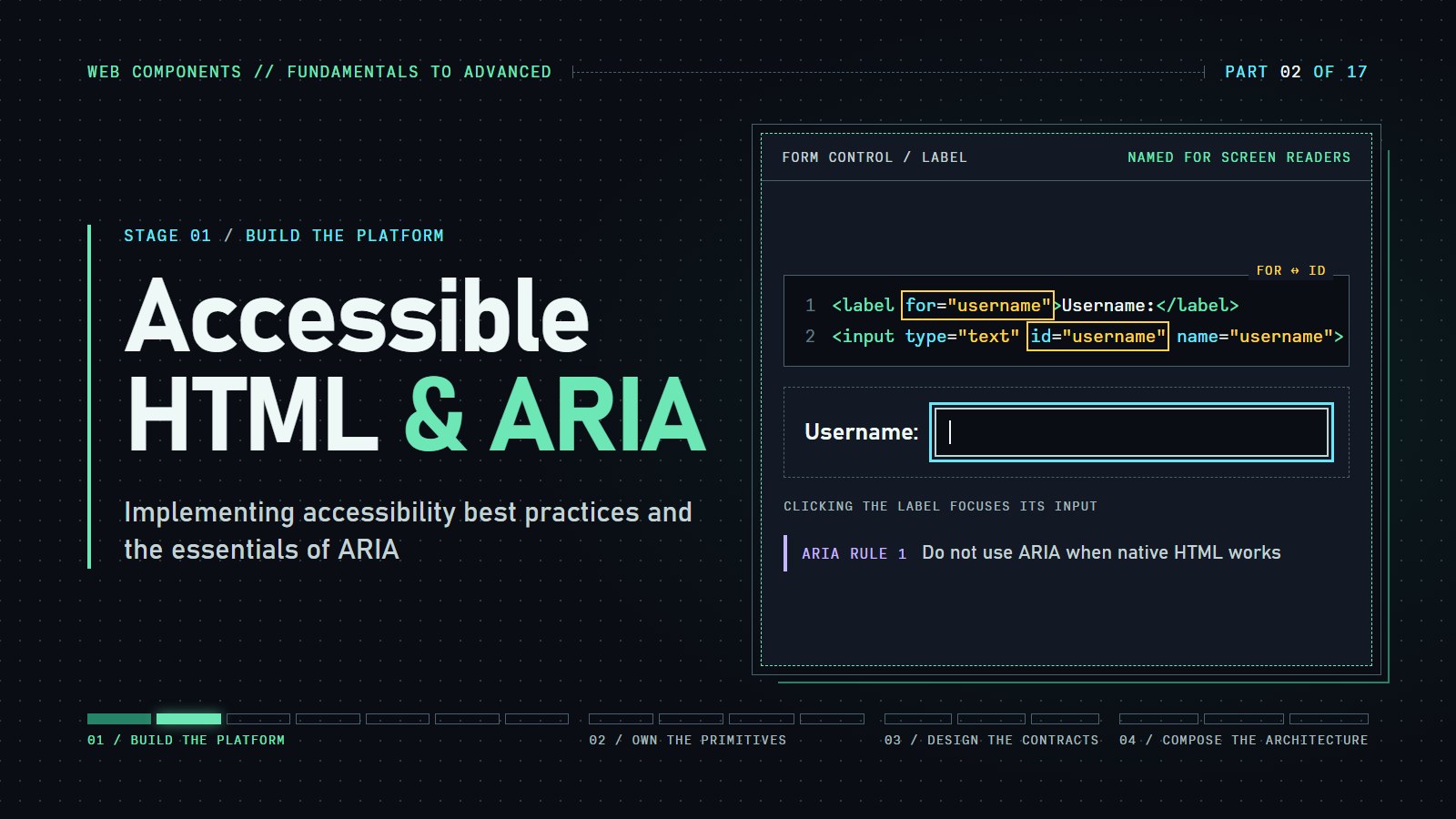
Accessibility here means a page that works for someone who listens to it through a screen reader or never touches a mouse. We start with the plain-HTML habits that do most of the work, then add ARIA for what plain HTML cannot say. Every custom element we build later has to carry its own labels and keyboard support, so we practice on ordinary HTML first.
Picture a person who cannot see the screen. A screen reader, software that reads the page aloud, reaches a text box with no label and typically announces only the kind of control, such as "edit text", not what to type in it. The page works for us and fails for them, and the fix is one line of HTML.
Recap from the last post: semantic HTML means using the tag that says what a part of a page is (<header>, <nav>, <main>). Here we make sure every control and image says what it is called as well.
Writing Accessible HTML#
Creating accessible HTML means using elements and attributes in a way that provides clear meaning and structure for both browsers and assistive technologies.
Proper Labels for Form Controls#
-
Label Elements: Always associate form controls with a
<label>. This ensures that screen readers announce what each control is for. For example:<label for="username">Username:</label> <input type="text" id="username" name="username"> -
Wrapping Technique: If we want to wrap the input, we can also do so by:
  <label>
    Email:
    <input type="email" name="email">
  </label>
See the difference proper label association makes for accessibility. In this example, try clicking on the labels in both examples and notice how only properly associated labels focus their corresponding input fields.
---html
<div class="comparison">
  <div class="example bad">
    <h3>Incorrect (No Association)</h3>
    <div>
      <label>First Name:</label>
      <input type="text">
    </div>
    <div>
      <label>Email:</label>
      <input type="email">
    </div>
    <p class="demo-instruction">Try clicking the labels - notice nothing happens</p>
  </div>

  <div class="example good">
    <h3>Correct (Proper Association)</h3>
    <div>
      <label for="first-name">First Name:</label>
      <input id="first-name" type="text">
    </div>
    <div>
      <label for="email">Email:</label>
      <input id="email" type="email">
    </div>
    <p class="demo-instruction">Try clicking the labels - the inputs get focused</p>
  </div>

  <div class="example good">
    <h3>Correct (Wrapping Technique)</h3>
    <div>
      <label>
        First Name:
        <input type="text" name="first-name">
      </label>
    </div>
    <div>
      <label>
        Email:
        <input type="email" name="email">
      </label>
    </div>
    <p class="demo-instruction">Try clicking anywhere in the label area - the input gets focused</p>
  </div>
</div>
---css
.comparison {
    display: flex;
    gap: 20px;
    margin: 20px 0;
  }
  .example {
    padding: 15px;
    border: 1px solid #ddd;
    border-radius: 5px;
    flex: 1;
  }
  .bad {
    background-color: #ffeeee;
    border-color: #ffcccc;
  }
  .good {
    background-color: #eeffee;
    border-color: #ccffcc;
  }
  .demo-instruction {
    font-size: 0.9em;
    color: #666;
    font-style: italic;
    margin-top: 10px;
  }
  label {
    cursor: pointer;
    display: block;
    margin: 5px 0;
    padding: 5px;
  }
  .good label:hover {
    background-color: #e6ffe6;
  }
  input {
    margin-left: 5px;
    padding: 5px;
  }
Alt Text for Images#
-
Descriptive Alt Text: For meaningful images, include a clear
altattribute:<img src="team-photo.jpg" alt="Our team celebrating the product launch"> -
Decorative Images: If an image is purely decorative, use an empty alt attribute to ensure it is skipped by screen readers:
<img src="decorative-pattern.jpg" alt="">
This interactive demo simulates how a screen reader interprets images with and without proper alt text. Click on each image to hear what would be announced to screen reader users.
---html
<div class="screen-reader-sim">
  <div class="image-container">
    <img src="https://picsum.photos/200/100?random=1" alt="A colorful data chart showing quarterly sales growth">
    <button class="hear-button">Hear screen reader</button>
    <div class="announcement">Announced: "A colorful data chart showing quarterly sales growth"</div>
  </div>

  <div class="image-container">
    <img src="https://picsum.photos/200/100?random=2" alt="">
    <button class="hear-button">Hear screen reader</button>
    <div class="announcement">Announced: [Image ignored by screen reader]</div>
  </div>

  <div class="image-container">
    <img src="https://picsum.photos/200/100?random=3">
    <button class="hear-button">Hear screen reader</button>
    <div class="announcement">Announced: "Image, 200 by 100 pixels"</div>
  </div>
</div>
---css
.disabled-button {
  cursor: not-allowed;
  opacity: 0.6;
}

.active {
  background-color: rgba(255, 255, 0, 0.5);
  transition: background-color 0.3s;
}

.image-container {
  margin-bottom: 20px;
  border: 1px solid #ddd;
  padding: 10px;
  max-width: 200px;
}
---js
document.addEventListener('DOMContentLoaded', function () {
  const hearButtons = document.querySelectorAll('.hear-button');
  const synth = window.speechSynthesis;

  function speak(text) {
    if (synth.speaking) synth.cancel();
    const utterance = new SpeechSynthesisUtterance(text);
    synth.speak(utterance);
  }

  hearButtons.forEach(button => {
    const container = button.closest('.image-container');
    const img = container.querySelector('img');
    const announcement = container.querySelector('.announcement');

    // Disable button if image has empty alt or no alt
    if (!img.hasAttribute('alt') || img.alt.trim() === '') {
      button.disabled = true;
      button.textContent = "No alt text to announce";
      button.classList.add('disabled-button');
      return;
    }

    button.addEventListener('click', function () {
      const textToSpeak = announcement.textContent.
      replace('Announced: ', '').
      replace(/"/g, '').
      replace(/\[.*\]/, ''); // Remove [bracketed text]

      speak(textToSpeak);

      // Visual feedback
      announcement.classList.add('active');
      setTimeout(() => announcement.classList.remove('active'), 1000);
    });
  });
});
Headings & Document Structure#
-
Hierarchical Headings: Use headings (
<h1>to<h6>) in order to create a clear document outline. For instance, a single<h1>should represent the page title, followed by<h2>for major sections,<h3>for subsections, and so on.<h1>About Our Company</h1> <h2>Our Mission</h2> <h3>Our History</h3> -
Consistency is Key: Avoid skipping heading levels to ensure that users can navigate the page easily via their assistive technology.
Experience how screen reader users navigate through a page using headings. This simulation shows how proper heading hierarchy creates an accessible document outline.
---html
<div class="heading-navigator">
  <div class="controls">
    <button id="next-heading">Next Heading</button>
    <button id="prev-heading">Previous Heading</button>
    <select id="heading-level">
      <option value="all">All Headings</option>
      <option value="h1">H1 Only</option>
      <option value="h2">H2 Only</option>
      <option value="h3">H3 Only</option>
    </select>
  </div>

  <div class="document-outline">
    <h1>About Our Company</h1>
    <p>Some introductory text about the company...</p>

    <h2>Our Mission</h2>
    <p>Our company aims to provide the best services...</p>

    <h3>Core Values</h3>
    <p>We believe in integrity, innovation, and customer satisfaction...</p>

    <h2>Our Team</h2>
    <p>Meet the dedicated professionals behind our success...</p>

    <h3>Leadership</h3>
    <p>Our experienced leadership team guides our vision...</p>

    <h3>Departments</h3>
    <p>Our specialized departments work together...</p>

    <h2>Contact Us</h2>
    <p>Get in touch with us to learn more about our services...</p>
  </div>

  <div class="navigation-preview">
    <p>Current position: <span id="current-heading">Heading 1: About Our Company</span></p>
  </div>
</div>
---css
.highlighted {
  background-color: #fffde7;
  outline: 2px solid #ffd600;
  transition: background-color 0.3s ease;
}

.controls {
  margin-bottom: 1rem;
  display: flex;
  gap: 1rem;
  align-items: center;
}

.navigation-preview {
  margin-top: 1rem;
  padding: 0.5rem;
  background-color: #f5f5f5;
  border-radius: 4px;
}
---js
document.addEventListener('DOMContentLoaded', function () {
  const nextBtn = document.getElementById('next-heading');
  const prevBtn = document.getElementById('prev-heading');
  const levelSelect = document.getElementById('heading-level');
  const currentHeadingDisplay = document.getElementById('current-heading');
  const documentOutline = document.querySelector('.document-outline');

  let currentIndex = 0;
  let headings = Array.from(documentOutline.querySelectorAll('h1, h2, h3'));
  let filteredHeadings = [...headings];

  // Initialize
  updateCurrentHeading();

  // Update heading list when level changes
  levelSelect.addEventListener('change', function () {
    const level = this.value;
    if (level === 'all') {
      filteredHeadings = [...headings];
    } else {
      filteredHeadings = headings.filter(heading => heading.tagName.toLowerCase() === level);
    }

    // Reset to first heading if current heading is no longer in filtered list
    if (!filteredHeadings.includes(headings[currentIndex])) {
      currentIndex = headings.indexOf(filteredHeadings[0]);
      if (currentIndex === -1) currentIndex = 0;
    }

    updateCurrentHeading();
  });

  // Next heading button
  nextBtn.addEventListener('click', function () {
    const currentHeadingInFiltered = filteredHeadings.indexOf(headings[currentIndex]);
    if (currentHeadingInFiltered < filteredHeadings.length - 1) {
      currentIndex = headings.indexOf(filteredHeadings[currentHeadingInFiltered + 1]);
      updateCurrentHeading();
    }
  });

  // Previous heading button
  prevBtn.addEventListener('click', function () {
    const currentHeadingInFiltered = filteredHeadings.indexOf(headings[currentIndex]);
    if (currentHeadingInFiltered > 0) {
      currentIndex = headings.indexOf(filteredHeadings[currentHeadingInFiltered - 1]);
      updateCurrentHeading();
    }
  });

  // Update UI and scroll to current heading
  function updateCurrentHeading() {
    if (headings.length === 0) return;

    // Clear previous highlights
    headings.forEach(heading => {
      heading.classList.remove('highlighted');
    });

    // Highlight current heading
    const currentHeading = headings[currentIndex];
    currentHeading.classList.add('highlighted');

    // Update display
    currentHeadingDisplay.textContent = `${currentHeading.tagName}: ${currentHeading.textContent}`;

    // Scroll to heading
    currentHeading.scrollIntoView({ behavior: 'smooth', block: 'nearest' });
  }

  // Add keyboard navigation
  document.addEventListener('keydown', function (e) {
    if (e.key === 'ArrowRight') {
      nextBtn.click();
    } else if (e.key === 'ArrowLeft') {
      prevBtn.click();
    }
  });
});
Coding challenge: Name the unnamed
An accessible name is the text a screen reader announces for a control. It comes from a <label>, from an alt attribute on an image, from the element's own text, or from aria-label / aria-labelledby (which points at another element's id and borrows its text). This input and this image have none. The readout under the page uses a simplified version of how browsers work out names.
Expected result: at first both lines end in NO ACCESSIBLE NAME. After your fixes and a press of Run they read input: Email address (or your label text) and img: followed by your alt text.
---html
<main>
  <p>Email address</p>
  <!-- TODO 1: give this input an accessible name
       (a <label for="email"> or an aria-label) -->
  <input id="email" type="email">

  <!-- TODO 2: this image carries meaning, so give it alt text -->
  <img id="logo" width="48" height="48" style="background:#cde">
</main>
<h2>Accessible names</h2>
<ul id="names"></ul>
---js
function nameOf(el) {
  const by = el.getAttribute("aria-labelledby");
  if (by) return by.split(" ").map(id => document.getElementById(id)?.textContent.trim()).join(" ");
  if (el.getAttribute("aria-label")) return el.getAttribute("aria-label");
  if (el.labels && el.labels.length) return [...el.labels].map(l => l.textContent.trim()).join(" ");
  if (el.tagName === "IMG" && el.hasAttribute("alt")) return el.alt || "(empty alt: decorative)";
  return "";
}
function show() {
  const list = document.querySelector("#names");
  list.textContent = "";
  for (const el of document.querySelectorAll("main input, main img")) {
    const li = document.createElement("li");
    li.textContent = el.tagName.toLowerCase() + ": " + (nameOf(el) || "NO ACCESSIBLE NAME");
    list.append(li);
  }
}
if (document.readyState === "loading") document.addEventListener("DOMContentLoaded", show);
else show();
Introduction to ARIA#
ARIA is a set of extra attributes that tell assistive technology three things: what an element is (role), what it is doing right now (states such as aria-expanded), and what it is called (aria-label, aria-labelledby). It changes only what assistive technology is told. It adds no behavior and no styling. Here is the failure to remember:
<div role="button">Save</div>
A screen reader now announces "Save, button". But press Tab and the div is skipped, because it cannot take focus, and Enter or Space do nothing, because role does not add behavior. The native element does both for free:
<button>Save</button>
When to Use ARIA#
-
Supplement, Don’t Replace: ARIA should be used to enhance the semantics of non-standard UI components or dynamic content that isn’t easily expressed using native HTML. For example, if we wanted to build a custom dropdown menu with
<div>elements, we should add ARIA attributes to indicate its role and state.<label for="city">City</label> <input id="city" type="text" role="combobox" aria-expanded="false" aria-controls="city-list" aria-autocomplete="list"> <ul id="city-list" role="listbox" hidden>...</ul> -
Fallback First: Always use native HTML elements with built-in accessibility features first. Use ARIA only when there’s no alternative.
This interactive example demonstrates how ARIA roles affect screen reader announcements. Toggle between the native HTML elements and non-semantic elements with ARIA roles to understand the difference.
---html
<div class="aria-demo">
  <div class="toggle-container">
    <label>
      <input type="checkbox" id="use-aria">
      Show DIV with ARIA (instead of native button)
    </label>
  </div>

  <div class="example-container">
    <div id="native-element">
      <button>Submit Form</button>
    </div>

    <div id="aria-element" style="display:none;">
      <div role="button" tabindex="0">Submit Form</div>
    </div>
  </div>

  <div class="announcement-box">
    <h4>Screen Reader Would Announce:</h4>
    <p id="announcement">"Button, Submit Form"</p>
  </div>

  <div class="explanation-box">
    <p>Native elements have built-in accessibility. When using non-semantic elements like DIVs, ARIA roles can help provide semantics to assistive technologies, but require additional JavaScript to handle keyboard events and maintain states.</p>
  </div>
</div>
---css
/* Add to your existing styles */
[role="button"] {
  display: inline-block;
  padding: 8px 16px;
  background-color: #0078d4;
  color: white;
  border-radius: 4px;
  cursor: pointer;
  text-align: center;
  user-select: none;
}

[role="button"]:hover {
  background-color: #106ebe;
}

[role="button"].focused {
  outline: 2px solid #000;
  outline-offset: 2px;
}

[role="button"].active {
  background-color: #005a9e;
  transform: translateY(1px);
}

.example-container {
  margin: 20px 0;
  padding: 20px;
  border: 1px solid #ddd;
  border-radius: 4px;
}

.announcement-box {
  background-color: #f3f3f3;
  padding: 15px;
  border-radius: 4px;
  margin-top: 20px;
}

.toggle-container {
  margin-bottom: 15px;
}
---js
document.addEventListener('DOMContentLoaded', function () {
  const useAriaCheckbox = document.getElementById('use-aria');
  const nativeElement = document.getElementById('native-element');
  const ariaElement = document.getElementById('aria-element');
  const announcement = document.getElementById('announcement');
  const ariaButton = ariaElement.querySelector('[role="button"]');

  // Toggle between native and ARIA button
  useAriaCheckbox.addEventListener('change', function () {
    if (this.checked) {
      nativeElement.style.display = 'none';
      ariaElement.style.display = 'block';
      announcement.textContent = '"Button, Submit Form (custom button)"';
    } else {
      nativeElement.style.display = 'block';
      ariaElement.style.display = 'none';
      announcement.textContent = '"Button, Submit Form"';
    }
  });

  // Add click handler for ARIA button
  ariaButton.addEventListener('click', function () {
    alert('Form submitted! (ARIA button)');
  });

  // Add keyboard support for ARIA button
  ariaButton.addEventListener('keydown', function (e) {
    // Handle Space or Enter key (standard button behavior)
    if (e.key === ' ' || e.key === 'Enter') {
      e.preventDefault(); // Prevent scrolling on Space
      if (e.key === ' ') {
        // Add pressed state for Space key
        this.classList.add('active');
      }
      this.click();
    }
  });

  ariaButton.addEventListener('keyup', function (e) {
    if (e.key === ' ') {
      this.classList.remove('active');
    }
  });

  // Add click handler for native button
  nativeElement.querySelector('button').addEventListener('click', function () {
    alert('Form submitted! (Native button)');
  });

  // Add visual styles for keyboard focus
  ariaButton.addEventListener('focus', function () {
    this.classList.add('focused');
  });

  ariaButton.addEventListener('blur', function () {
    this.classList.remove('focused');
    this.classList.remove('active');
  });
});
The 5 Rules of ARIA#
-
Do Not Use ARIA When Native HTML Works: If an HTML element already has the semantics we need, don’t override it. For instance, use a
<button>instead of a<div>withrole="button". -
Do not change native semantics: Avoid overriding default behaviors. For example, we should not change a
<button>into a heading by addingrole="heading". -
Ensure Keyboard Usability: All interactive elements enhanced with ARIA must be fully operable via the keyboard.
-
Avoid Hiding Focusable Elements: Never use
aria-hidden="true"orrole="presentation"on elements that must remain focusable. -
Provide an Accessible Name: Every interactive element should have an accessible name using text content,
aria-label, oraria-labelledby.
Common ARIA Pitfalls#
-
Overusing ARIA: Adding ARIA roles and properties to elements that already have native semantics can confuse assistive technologies.
-
Incorrect Role Assignments: Ensure that the ARIA role we assign matches the behavior we want to implement. For example, using
role="button"on a non-interactive element without keyboard event handlers can lead to a broken experience. -
Dynamic State Management: When updating interactive elements (e.g., toggling
aria-expanded), make sure the changes are kept in sync with the visual state.
Check the rules before moving on.
Worked example: a custom dropdown#
Rule 1 says a native <select> is better than any dropdown we build. We build this one anyway to see every part of the pattern. The role values (listbox, option) say what each piece is, aria-expanded says whether the list is open right now, and the script keeps aria-expanded in step with what the eye sees while handling the arrow keys, Enter and Escape.
This custom dropdown demonstrates how to make complex interactive components accessible using ARIA attributes and keyboard interaction patterns.
---html
<div class="custom-dropdown-demo">
    <h3>Select a Color Theme</h3>

    <div class="dropdown-container">
      <button id="dropdown-button" aria-haspopup="listbox" aria-expanded="false">
        Select a theme
        <span class="dropdown-arrow">▼</span>
      </button>

      <ul id="dropdown-list" role="listbox" aria-labelledby="dropdown-button" class="hidden">
        <li id="option-1" role="option" tabindex="-1">Light Theme</li>
        <li id="option-2" role="option" tabindex="-1">Dark Theme</li>
        <li id="option-3" role="option" tabindex="-1">High Contrast</li>
        <li id="option-4" role="option" tabindex="-1">Sepia Mode</li>
      </ul>
    </div>

    <div class="interaction-info">
      <div class="keyboard-controls">
        <h4>Keyboard Controls:</h4>
        <ul>
          <li><kbd>Enter</kbd> or <kbd>Space</kbd>: Open/close dropdown</li>
          <li><kbd>↑</kbd> <kbd>↓</kbd>: Navigate options</li>
          <li><kbd>Enter</kbd>: Select option</li>
          <li><kbd>Esc</kbd>: Close dropdown</li>
        </ul>
      </div>

      <div class="aria-state">
        <h4>Current ARIA States:</h4>
        <dl>
          <dt>aria-expanded:</dt>
          <dd id="aria-expanded-value">false</dd>
          <dt>aria-activedescendant:</dt>
          <dd id="aria-activedescendant-value">none</dd>
        </dl>
      </div>
    </div>
  </div>
---css
/* Base styles */
    body {
      font-family: -apple-system, BlinkMacSystemFont, 'Segoe UI', Roboto, Oxygen, Ubuntu, Cantarell, 'Open Sans', 'Helvetica Neue', sans-serif;
      line-height: 1.6;
      color: #333;
      padding: 20px;
      max-width: 600px;
      margin: 0 auto;
    }

    h3 {
      margin-top: 0;
      color: #2c3e50;
    }

    /* Dropdown styles */
    .dropdown-container {
      position: relative;
      width: 100%;
      max-width: 300px;
      margin-bottom: 20px;
    }

    #dropdown-button {
      width: 100%;
      padding: 10px 15px;
      background-color: #fff;
      border: 2px solid #ddd;
      border-radius: 4px;
      font-size: 16px;
      text-align: left;
      cursor: pointer;
      display: flex;
      justify-content: space-between;
      align-items: center;
      transition: border-color 0.2s, box-shadow 0.2s;
    }

    #dropdown-button:hover {
      border-color: #aaa;
    }

    #dropdown-button:focus {
      outline: none;
      border-color: #4a90e2;
      box-shadow: 0 0 0 3px rgba(74, 144, 226, 0.3);
    }

    .dropdown-arrow {
      font-size: 12px;
      transition: transform 0.2s;
    }

    #dropdown-button[aria-expanded="true"] .dropdown-arrow {
      transform: rotate(180deg);
    }

    #dropdown-list {
      position: absolute;
      top: 100%;
      left: 0;
      right: 0;
      margin: 0;
      padding: 0;
      list-style: none;
      background-color: #fff;
      border: 2px solid #ddd;
      border-radius: 0 0 4px 4px;
      border-top: none;
      z-index: 10;
      max-height: 200px;
      overflow-y: auto;
    }

    #dropdown-list.hidden {
      display: none;
    }

    #dropdown-list li {
      padding: 10px 15px;
      cursor: pointer;
    }

    #dropdown-list li:hover,
    #dropdown-list li:focus,
    #dropdown-list li[aria-selected="true"] {
      background-color: #f0f7ff;
      outline: none;
    }

    #dropdown-list li:focus {
      outline: 2px solid #4a90e2;
      outline-offset: -2px;
    }

    /* Interaction info styles */
    .interaction-info {
      display: flex;
      margin-top: 30px;
      background-color: #f8f9fa;
      padding: 15px;
      border-radius: 5px;
      border: 1px solid #e9ecef;
    }

    .keyboard-controls {
      flex: 1;
    }

    .keyboard-controls h4,
    .aria-state h4 {
      margin-top: 0;
      font-size: 16px;
      color: #2c3e50;
    }

    .keyboard-controls ul {
      padding-left: 20px;
      margin: 0;
    }

    kbd {
      background-color: #eee;
      border-radius: 3px;
      border: 1px solid #b4b4b4;
      box-shadow: 0 1px 1px rgba(0, 0, 0, 0.2);
      color: #333;
      display: inline-block;
      font-size: 0.85em;
      font-weight: 700;
      line-height: 1;
      padding: 2px 4px;
      white-space: nowrap;
    }

    .aria-state {
      flex: 1;
      margin-left: 20px;
    }

    .aria-state dl {
      margin: 0;
    }

    .aria-state dt {
      font-weight: bold;
      margin-bottom: 5px;
      color: #666;
    }

    .aria-state dd {
      margin-left: 0;
      margin-bottom: 10px;
      font-family: monospace;
      background-color: #e9ecef;
      padding: 4px 8px;
      border-radius: 3px;
    }
---js
document.addEventListener('DOMContentLoaded', function () {
  const dropdownButton = document.getElementById('dropdown-button');
  const dropdownList = document.getElementById('dropdown-list');
  const options = Array.from(dropdownList.querySelectorAll('[role="option"]'));
  const ariaExpandedValue = document.getElementById('aria-expanded-value');
  const ariaActiveDescendantValue = document.getElementById('aria-activedescendant-value');

  let selectedIndex = -1;

  // Toggle dropdown visibility
  function toggleDropdown() {
    const isExpanded = dropdownButton.getAttribute('aria-expanded') === 'true';
    dropdownButton.setAttribute('aria-expanded', !isExpanded);
    ariaExpandedValue.textContent = !isExpanded;

    if (!isExpanded) {
      dropdownList.classList.remove('hidden');
      if (selectedIndex >= 0) {
        options[selectedIndex].focus();
      } else {
        options[0].focus();
        selectedIndex = 0;
      }
    } else {
      dropdownList.classList.add('hidden');
      dropdownButton.focus();
    }
  }

  // Select an option
  function selectOption(index) {
    // Update selected state and button text
    options.forEach(option => option.removeAttribute('aria-selected'));

    if (index >= 0 && index < options.length) {
      selectedIndex = index;
      const selectedOption = options[selectedIndex];
      selectedOption.setAttribute('aria-selected', 'true');
      dropdownButton.textContent = selectedOption.textContent;
      dropdownButton.appendChild(document.createElement('span')).className = 'dropdown-arrow';
      document.querySelector('.dropdown-arrow').textContent = '▼';
    }

    // Close the dropdown
    dropdownList.classList.add('hidden');
    dropdownButton.setAttribute('aria-expanded', 'false');
    ariaExpandedValue.textContent = 'false';
    ariaActiveDescendantValue.textContent = 'none';
    dropdownButton.focus();
  }

  // Navigate options with keyboard
  function navigateOptions(direction) {
    let newIndex = selectedIndex + direction;

    // Loop back to the beginning/end if needed
    if (newIndex < 0) newIndex = options.length - 1;
    if (newIndex >= options.length) newIndex = 0;

    // Update focus and active descendant
    options[newIndex].focus();
    selectedIndex = newIndex;
    dropdownButton.setAttribute('aria-activedescendant', options[newIndex].id);
    ariaActiveDescendantValue.textContent = options[newIndex].id;
  }

  // Button click event
  dropdownButton.addEventListener('click', toggleDropdown);

  // Button keyboard events
  dropdownButton.addEventListener('keydown', function (e) {
    switch (e.key) {
      case 'Enter':
      case ' ':
        e.preventDefault();
        toggleDropdown();
        break;
      case 'ArrowDown':
        e.preventDefault();
        if (dropdownList.classList.contains('hidden')) {
          toggleDropdown();
        } else {
          navigateOptions(1);
        }
        break;
      case 'ArrowUp':
        e.preventDefault();
        if (dropdownList.classList.contains('hidden')) {
          toggleDropdown();
          // Start at the end when opening with up arrow
          selectedIndex = options.length;
          navigateOptions(-1);
        } else {
          navigateOptions(-1);
        }
        break;
      case 'Escape':
        if (!dropdownList.classList.contains('hidden')) {
          e.preventDefault();
          dropdownList.classList.add('hidden');
          dropdownButton.setAttribute('aria-expanded', 'false');
          ariaExpandedValue.textContent = 'false';
        }
        break;}

  });

  // Option click events
  options.forEach((option, index) => {
    option.addEventListener('click', function () {
      selectOption(index);
    });

    // Option keyboard events
    option.addEventListener('keydown', function (e) {
      switch (e.key) {
        case 'Enter':
        case ' ':
          e.preventDefault();
          selectOption(index);
          break;
        case 'ArrowDown':
          e.preventDefault();
          navigateOptions(1);
          break;
        case 'ArrowUp':
          e.preventDefault();
          navigateOptions(-1);
          break;
        case 'Escape':
          e.preventDefault();
          dropdownList.classList.add('hidden');
          dropdownButton.setAttribute('aria-expanded', 'false');
          ariaExpandedValue.textContent = 'false';
          ariaActiveDescendantValue.textContent = 'none';
          dropdownButton.focus();
          break;
        case 'Tab':
          // Let tab work normally, but close the dropdown
          dropdownList.classList.add('hidden');
          dropdownButton.setAttribute('aria-expanded', 'false');
          ariaExpandedValue.textContent = 'false';
          break;}

    });
  });

  // Close dropdown when clicking outside
  document.addEventListener('click', function (e) {
    if (!dropdownButton.contains(e.target) && !dropdownList.contains(e.target)) {
      dropdownList.classList.add('hidden');
      dropdownButton.setAttribute('aria-expanded', 'false');
      ariaExpandedValue.textContent = 'false';
    }
  });
});
Best Practices for Linking, Forms, and Landmarks#
Accessible Links#
-
Descriptive Link Text: Avoid generic text like “click here.” Instead, describe the destination or action:
<a href="/about-us">Learn more about our company</a> -
Indicating External Links: If a link opens in a new tab, inform users with additional text or an ARIA attribute. We can do this by providing an ARIA attribute of
aria-popper="new-tab". This attribute informs assistive technologies like screen readers that clicking the link will open it in a new tab or window. -
Next, we should provide an ARIA label like this:
aria-label="Link to external site (opens in new tab)".This provides text information, telling users both where the link leads and how it behaves. <a href="/about-us" aria-label="Link to external site (opens in new tab)" aria-popper="new-tab"> External Link (opens in new tab) </a>
Compare generic link text with descriptive alternatives. This example shows how screen reader users experience different approaches to link text.
---html
<div class="link-text-comparison">
  <div class="page-context">
    <p>Context: This is a webpage about cloud storage services.</p>
  </div>

  <div class="example poor">
    <h4>Poor Practice</h4>
    <p>Our premium plan offers 2TB of storage, advanced sharing options, and automatic backups. <a href="#premium" class="demo-link" data-text="Click here">Click here</a> to learn more.</p>
    <div class="screen-reader-experience">
      <p>Screen reader announces: <span class="announcement">"Click here, link"</span></p>
      <p class="note">Out of context, this link's purpose is unclear.</p>
    </div>
    <button class="hear-btn">Hear Screen Reader Announcement</button>
  </div>

  <div class="example good">
    <h4>Good Practice</h4>
    <p>Our premium plan offers 2TB of storage, advanced sharing options, and automatic backups. <a href="#premium" class="demo-link" data-text="Learn more about our Premium Plan">Learn more about our Premium Plan</a>.</p>
    <div class="screen-reader-experience">
      <p>Screen reader announces: <span class="announcement">"Learn more about our Premium Plan, link"</span></p>
      <p class="note">The purpose is clear even without surrounding context.</p>
    </div>
    <button class="hear-btn">Hear Screen Reader Announcement</button>
  </div>
</div>
---css
.link-text-comparison {
  font-family: Arial, sans-serif;
  max-width: 800px;
  margin: 20px auto;
  padding: 20px;
  border: 1px solid #eee;
  border-radius: 8px;
}

.page-context {
  background-color: #f5f5f5;
  padding: 10px;
  border-radius: 4px;
  margin-bottom: 20px;
}

.example {
  padding: 15px;
  margin-bottom: 20px;
  border-radius: 4px;
  transition: box-shadow 0.3s ease;
}

.example.poor {
  border-left: 4px solid #f44336;
  background-color: #ffebee;
}

.example.good {
  border-left: 4px solid #4caf50;
  background-color: #e8f5e9;
}

.screen-reader-experience {
  background-color: #f8f9fa;
  padding: 10px;
  margin-top: 10px;
  border-radius: 4px;
}

.note {
  font-style: italic;
  color: #666;
}

.hear-btn {
  margin-top: 10px;
  padding: 8px 16px;
  background-color: #2196f3;
  color: white;
  border: none;
  border-radius: 4px;
  cursor: pointer;
  transition: background-color 0.2s;
}

.hear-btn:hover {
  background-color: #0d8aee;
}

.demo-link {
  color: #1976d2;
  text-decoration: underline;
  cursor: pointer;
}

.demo-link:hover {
  text-decoration: none;
}
---js
document.addEventListener('DOMContentLoaded', function () {
  // Initialize speech synthesis
  const synth = window.speechSynthesis;

  // Function to speak text
  function speak(text) {
    if (synth.speaking) synth.cancel();
    const utterance = new SpeechSynthesisUtterance(text);
    utterance.rate = 0.9; // Slightly slower than normal
    synth.speak(utterance);
  }

  // Add click handlers to all "Hear" buttons
  document.querySelectorAll('.hear-btn').forEach(button => {
    button.addEventListener('click', function () {
      const announcement = this.closest('.example').querySelector('.announcement').textContent;
      speak(announcement.replace(/"/g, ''));

      // Visual feedback
      const example = this.closest('.example');
      example.style.boxShadow = '0 0 0 2px #0078d4';
      setTimeout(() => {
        example.style.boxShadow = 'none';
      }, 1000);
    });
  });

  // Add interactive link highlighting
  document.querySelectorAll('.demo-link').forEach(link => {
    link.addEventListener('focus', function () {
      this.style.outline = '2px solid #ff9800';
      this.style.outlineOffset = '2px';
      this.style.borderRadius = '2px';
    });

    link.addEventListener('blur', function () {
      this.style.outline = 'none';
    });

    // Optional: Show tooltip on hover with the announcement text
    link.addEventListener('mouseenter', function () {
      const announcement = this.closest('.example').querySelector('.announcement').textContent;
      this.setAttribute('title', announcement.replace(/"/g, ''));
    });
  });
});
Accessible Forms#
-
Labels and Fieldsets: Use
<label>elements for inputs and group related form controls with<fieldset>and<legend>.<fieldset> <legend>Personal Information</legend> <label for="fname">First Name:</label> <input id="fname" type="text"> </fieldset> -
Error Handling: When a form error occurs, provide clear feedback. Use ARIA attributes like
aria-invalidandaria-describedbyto connect error messages to their corresponding fields. -
To implement clear feedback for form errors using ARIA attributes, follow these steps:
-
Add Required Attribute: Include
requiredin each form element that needs validation. -
Validation Handling: Use JavaScript or server-side processing to trigger validation and check if fields are filled correctly. (We will cover this in a later article)
-
Mark Invalid Fields: For each invalid field, set the
aria-invalidattribute to "true" on the corresponding<input>element. -
Place Error Messages: Position error messages immediately after their respective fields for easy association.
-
ARIA Descriptions: Use
aria-describedbyon error messages to associate them with their corresponding form fields. Set thearia-describedbyattribute's value to theidof the field it describes.Here is an example:
-
       <div class="form-group">
         <input type="text" id="name" name="name" required aria-invalid="true">
         <div class="error-message" aria-describedby="name">Name is required.</div>
       </div>

       <div class="form-group">
         <input type="email" id="email" name="email" required aria-invalid="false">
         <div class="error-message" aria-describedby="email">Please enter a valid email address.</div>
       </div>
Experience how proper error handling improves accessibility. This example demonstrates accessible form validation techniques using ARIA attributes.
---html
<div class="form-validation-demo">
  <form id="accessible-form">
    <div class="form-group">
      <label for="demo-name">Name:</label>
      <input type="text" id="demo-name" required aria-describedby="name-error">
      <div id="name-error" class="error-message hidden" aria-live="polite">Name is required</div>
    </div>

    <div class="form-group">
      <label for="demo-email">Email:</label>
      <input type="email" id="demo-email" required aria-describedby="email-error">
      <div id="email-error" class="error-message hidden" aria-live="polite">Please enter a valid email address</div>
    </div>

    <button type="submit">Submit</button>
  </form>

  <div class="controls">
    <button id="validate-accessible">Validate (Accessible Way)</button>
    <button id="validate-inaccessible">Validate (Inaccessible Way)</button>
    <button id="reset-form">Reset Form</button>
  </div>

  <div class="screen-reader-output">
    <h4>Screen Reader Announcements:</h4>
    <div id="sr-announcement" aria-live="polite"></div>
  </div>
</div>
---css
.form-validation-demo {
  font-family: Arial, sans-serif;
  max-width: 500px;
  margin: 20px auto;
  padding: 20px;
  border: 1px solid #ddd;
  border-radius: 8px;
  background-color: #f9f9f9;
}

.form-group {
  margin-bottom: 15px;
}

label {
  display: block;
  margin-bottom: 5px;
  font-weight: bold;
}

input {
  width: 100%;
  padding: 8px;
  border: 1px solid #ddd;
  border-radius: 4px;
  box-sizing: border-box;
}

input.error {
  border-color: #d32f2f;
  background-color: #ffebee;
}

.error-message {
  color: #d32f2f;
  margin-top: 5px;
  font-size: 0.9em;
}

.error-message.hidden {
  display: none;
}

button {
  padding: 8px 16px;
  margin-right: 10px;
  background-color: #2196f3;
  color: white;
  border: none;
  border-radius: 4px;
  cursor: pointer;
}

button:hover {
  background-color: #0d8aee;
}

.controls {
  margin: 20px 0;
}

.screen-reader-output {
  margin-top: 20px;
  padding: 15px;
  background-color: #f0f0f0;
  border-radius: 4px;
}

.screen-reader-output h4 {
  margin-top: 0;
}

#sr-announcement p {
  margin: 5px 0;
  padding: 5px;
  background-color: #e0e0e0;
  border-radius: 3px;
}
---js
document.addEventListener('DOMContentLoaded', function () {
  const form = document.getElementById('accessible-form');
  const nameInput = document.getElementById('demo-name');
  const emailInput = document.getElementById('demo-email');
  const nameError = document.getElementById('name-error');
  const emailError = document.getElementById('email-error');
  const srAnnouncement = document.getElementById('sr-announcement');

  // Accessible validation
  document.getElementById('validate-accessible').addEventListener('click', function (e) {
    e.preventDefault();
    validateForm(true);
  });

  // Inaccessible validation (bad practice)
  document.getElementById('validate-inaccessible').addEventListener('click', function (e) {
    e.preventDefault();
    validateForm(false);
  });

  // Reset form
  document.getElementById('reset-form').addEventListener('click', function (e) {
    e.preventDefault();
    resetForm();
  });

  function validateForm(accessible) {
    resetErrors();
    let isValid = true;

    // Validate name
    if (nameInput.value.trim() === '') {
      showError(nameInput, nameError, accessible);
      isValid = false;
    }

    // Validate email
    if (!isValidEmail(emailInput.value)) {
      showError(emailInput, emailError, accessible);
      isValid = false;
    }

    if (isValid) {
      srAnnouncement.textContent = 'Form submitted successfully!';
      announce('Form submitted successfully!');
    } else {
      srAnnouncement.textContent = 'Form has errors. Please correct them.';
      if (accessible) {
        announce('Form has errors. Please correct them.');
        // Move focus to first error for accessible version
        const firstError = document.querySelector('.error-message:not(.hidden)');
        if (firstError) {
          const inputId = firstError.id.replace('-error', '');
          document.getElementById(inputId).focus();
        }
      } else {
        // Inaccessible version just shows alert
        alert('Form has errors!');
      }
    }
  }

  function showError(input, errorElement, accessible) {
    input.classList.add('error');
    errorElement.classList.remove('hidden');

    if (accessible) {
      // Accessible attributes
      input.setAttribute('aria-invalid', 'true');
      announce(errorElement.textContent);
    } else {
      // Inaccessible - just visual change
      input.classList.add('error');
    }
  }

  function resetErrors() {
    // Clear all errors
    document.querySelectorAll('.error-message').forEach(el => {
      el.classList.add('hidden');
    });

    document.querySelectorAll('input').forEach(input => {
      input.classList.remove('error');
      input.removeAttribute('aria-invalid');
    });

    srAnnouncement.textContent = '';
  }

  function resetForm() {
    form.reset();
    resetErrors();
    announce('Form has been reset');
  }

  function isValidEmail(email) {
    return /^[^\s@]+@[^\s@]+\.[^\s@]+$/.test(email);
  }

  function announce(message) {
    // For demo purposes, we'll just update the screen reader output div
    // In a real implementation, you might use aria-live or the Web Speech API
    const announcement = document.createElement('p');
    announcement.textContent = `[Screen reader would announce]: "${message}"`;
    srAnnouncement.appendChild(announcement);

    // Scroll to show the announcement
    announcement.scrollIntoView({ behavior: 'smooth', block: 'nearest' });
  }

  // Live validation on blur for better UX
  nameInput.addEventListener('blur', function () {
    if (this.value.trim() === '') {
      showError(this, nameError, true);
    }
  });

  emailInput.addEventListener('blur', function () {
    if (this.value.trim() !== '' && !isValidEmail(this.value)) {
      showError(this, emailError, true);
    }
  });

  // Clear errors when typing
  nameInput.addEventListener('input', function () {
    if (this.value.trim() !== '') {
      this.classList.remove('error');
      this.removeAttribute('aria-invalid');
      nameError.classList.add('hidden');
    }
  });

  emailInput.addEventListener('input', function () {
    if (isValidEmail(this.value)) {
      this.classList.remove('error');
      this.removeAttribute('aria-invalid');
      emailError.classList.add('hidden');
    }
  });
});
Accessible Landmarks#
-
Use HTML5 Landmark Elements: Elements like
<header>,<nav>,<main>,<aside>and<footer>create natural navigation landmarks for screen readers. A<header>or<footer>counts as a page-level landmark (banner, contentinfo) only when it belongs to the page itself, not when it sits inside an<article>or<section>. -
ARIA Landmark Roles: If we must use non-semantic elements (like
<div>), we should assign them landmark roles such asrole="navigation"orrole="main". However, native elements are preferred.<div role="navigation"> <!-- navigation links --> </div> -
Consistent Structure: Ensure that landmarks are used consistently across our site to provide a predictable structure for users.
Keyboard Focus Management#
Keyboard access is a core accessibility feature, not only a convenience for power users. It helps people who cannot use a precise pointer, and anyone who prefers the keyboard. Two things matter: the Tab order and any shortcuts we add.
Pressing Tab moves focus through links, buttons and form controls in page order. Add tabindex="0" to put a custom element into that order, or tabindex="-1" to make it focusable from script only. Avoid positive values, which rearrange the order and confuse everyone.
The demo below adds three letter shortcuts for stepping through the landmarks of a mock page: D (next), U (previous) and T (cycle the filter). Each one also has an on-screen button, so the mouse works too.
---html
<div class="landmark-navigator">
  <div class="controls">
    <button id="next-landmark">Next Landmark (D)</button>
    <button id="prev-landmark">Previous Landmark (U)</button>
    <select id="landmark-type">
      <option value="all">All Landmarks</option>
      <option value="banner">Header (banner)</option>
      <option value="navigation">Navigation</option>
      <option value="main">Main</option>
      <option value="complementary">Aside (complementary)</option>
      <option value="contentinfo">Footer (contentinfo)</option>
    </select>
    <button id="cycle-type">Cycle Type (T)</button>
  </div>

  <div class="page-preview">
    <div id="landmark-header" class="landmark active" role="banner">
      <h3>Header (banner)</h3>
      <p>Site logo and top navigation</p>
    </div>

    <div id="landmark-nav" class="landmark" role="navigation">
      <h3>Navigation</h3>
      <p>Main site navigation menu</p>
    </div>

    <div id="landmark-main" class="landmark" role="main">
      <h3>Main Content</h3>
      <p>The primary content of the page</p>
    </div>

    <div id="landmark-aside" class="landmark" role="complementary">
      <h3>Aside (Complementary)</h3>
      <p>Related information, sidebar content</p>
    </div>

    <div id="landmark-footer" class="landmark" role="contentinfo">
      <h3>Footer (contentinfo)</h3>
      <p>Copyright information, secondary links</p>
    </div>
  </div>

  <div class="navigation-info">
    <p>Current landmark: <span id="current-landmark">Header (banner)</span></p>
    <p class="note">Screen reader users can press specific keys to jump between landmarks, making navigation much faster.</p>
    <div class="keyboard-info">
      <h4>Keyboard Shortcuts:</h4>
      <ul>
        <li><kbd>D</kbd> - Next landmark</li>
        <li><kbd>U</kbd> - Previous landmark</li>
        <li><kbd>T</kbd> - Cycle landmark type</li>
      </ul>
    </div>
    <div id="keyboard-feedback" class="feedback"></div>
  </div>
</div>
---css
.landmark-navigator {
  font-family: 'Segoe UI', Tahoma, Geneva, Verdana, sans-serif;
  max-width: 800px;
  margin: 2rem auto;
  padding: 1.5rem;
  border-radius: 8px;
  background-color: #f8f9fa;
  box-shadow: 0 2px 10px rgba(0, 0, 0, 0.1);
}

.controls {
  display: flex;
  gap: 1rem;
  align-items: center;
  margin-bottom: 1.5rem;
  flex-wrap: wrap;
}

.controls button {
  padding: 0.75rem 1.25rem;
  background-color: #4285f4;
  color: white;
  border: none;
  border-radius: 4px;
  font-size: 1rem;
  cursor: pointer;
  transition: background-color 0.2s;
}

.controls button:hover {
  background-color: #3367d6;
}

.controls select {
  padding: 0.75rem;
  border: 1px solid #dfe1e5;
  border-radius: 4px;
  font-size: 1rem;
  min-width: 200px;
}

.page-preview {
  position: relative;
  min-height: 400px;
  border: 1px solid #dfe1e5;
  border-radius: 8px;
  background-color: white;
  padding: 1rem;
  margin-bottom: 1.5rem;
}

.landmark {
  position: absolute;
  padding: 1.5rem;
  border-radius: 4px;
  background-color: white;
  box-shadow: 0 1px 3px rgba(0, 0, 0, 0.1);
  transition: all 0.3s ease;
  opacity: 0.7;
  transform: scale(0.95);
}

.landmark.active {
  opacity: 1;
  transform: scale(1);
  z-index: 10;
  box-shadow: 0 4px 12px rgba(0, 0, 0, 0.15);
  outline: 3px solid #4285f4;
}

#landmark-header {
  top: 1rem;
  left: 1rem;
  right: 1rem;
  height: 80px;
  background-color: #e8f0fe;
}

#landmark-nav {
  top: 6rem;
  left: 1rem;
  width: 200px;
  height: 300px;
  background-color: #e6f4ea;
}

#landmark-main {
  top: 6rem;
  left: 220px;
  right: 220px;
  height: 300px;
  background-color: #fef7e0;
}

#landmark-aside {
  top: 6rem;
  right: 1rem;
  width: 200px;
  height: 300px;
  background-color: #f3e8fd;
}

#landmark-footer {
  bottom: 1rem;
  left: 1rem;
  right: 1rem;
  height: 60px;
  background-color: #fce8e6;
}

.navigation-info {
  background-color: white;
  padding: 1.5rem;
  border-radius: 8px;
  box-shadow: 0 1px 3px rgba(0, 0, 0, 0.1);
}

.navigation-info p {
  margin: 0.5rem 0;
}

.note {
  color: #5f6368;
  font-style: italic;
  font-size: 0.9rem;
}

.keyboard-info {
  margin-top: 1rem;
  padding: 1rem;
  background-color: #f8f9fa;
  border-radius: 4px;
}

.keyboard-info h4 {
  margin: 0 0 0.5rem 0;
  font-size: 1rem;
}

.keyboard-info ul {
  margin: 0;
  padding-left: 1.5rem;
}

.keyboard-info kbd {
  display: inline-block;
  padding: 0.2rem 0.4rem;
  background-color: #f1f3f4;
  border: 1px solid #dadce0;
  border-radius: 3px;
  font-family: monospace;
  font-size: 0.85rem;
  box-shadow: 0 1px 1px rgba(0, 0, 0, 0.1);
}

.feedback {
  display: none;
  margin-top: 1rem;
  padding: 0.5rem;
  background-color: #e8f0fe;
  border-radius: 4px;
  color: #3367d6;
}

/* Focus styles */
:focus-visible {
  outline: 2px solid #4285f4;
  outline-offset: 2px;
}

button:focus-visible, select:focus-visible {
  outline: 2px solid #4285f4;
  outline-offset: 2px;
}
---js
document.addEventListener('DOMContentLoaded', function () {
  // Get DOM elements
  const nextBtn = document.getElementById('next-landmark');
  const prevBtn = document.getElementById('prev-landmark');
  const cycleTypeBtn = document.getElementById('cycle-type');
  const landmarkSelect = document.getElementById('landmark-type');
  const currentLandmarkDisplay = document.getElementById('current-landmark');
  const keyboardFeedback = document.getElementById('keyboard-feedback');
  const landmarks = Array.from(document.querySelectorAll('.landmark'));

  // Initialize variables
  let currentIndex = 0;
  let filteredLandmarks = [...landmarks];
  let currentFilter = 'all';

  // Initialize the navigator
  updateCurrentLandmark();

  // Update landmark list when type changes
  landmarkSelect.addEventListener('change', function () {
    currentFilter = this.value;
    updateFilteredLandmarks();
    updateCurrentLandmark();
    showFeedback(`Filtered to: ${this.options[this.selectedIndex].text}`);
  });

  // Next landmark button
  nextBtn.addEventListener('click', function () {
    navigateLandmark(1);
  });

  // Previous landmark button
  prevBtn.addEventListener('click', function () {
    navigateLandmark(-1);
  });

  // Cycle type button
  cycleTypeBtn.addEventListener('click', function () {
    cycleLandmarkType();
  });

  // Keyboard navigation
  document.addEventListener('keydown', function (e) {
    if (e.ctrlKey || e.metaKey || e.altKey || e.target.closest('select, input, textarea')) return;
    if (e.key.toLowerCase() === 'd') {
      navigateLandmark(1);
      e.preventDefault();
    } else if (e.key.toLowerCase() === 'u') {
      navigateLandmark(-1);
      e.preventDefault();
    } else if (e.key.toLowerCase() === 't') {
      cycleLandmarkType();
      e.preventDefault();
    }
  });

  function updateFilteredLandmarks() {
    if (currentFilter === 'all') {
      filteredLandmarks = [...landmarks];
    } else {
      filteredLandmarks = landmarks.filter((landmark) =>
      landmark.getAttribute('role') === currentFilter);

    }

    // Reset to first landmark if current is not in filtered list
    if (filteredLandmarks.length > 0 && !filteredLandmarks.includes(landmarks[currentIndex])) {
      currentIndex = landmarks.indexOf(filteredLandmarks[0]);
      if (currentIndex === -1) currentIndex = 0;
    }
  }

  function navigateLandmark(direction) {
    if (filteredLandmarks.length === 0) {
      showFeedback('No landmarks match current filter');
      return;
    }

    const currentInFiltered = filteredLandmarks.indexOf(landmarks[currentIndex]);
    let newIndex;

    if (currentInFiltered === -1) {
      newIndex = 0;
    } else if (direction > 0) {
      newIndex = (currentInFiltered + 1) % filteredLandmarks.length;
    } else {
      newIndex = (currentInFiltered - 1 + filteredLandmarks.length) % filteredLandmarks.length;
    }

    currentIndex = landmarks.indexOf(filteredLandmarks[newIndex]);
    updateCurrentLandmark();
    showFeedback(`Navigated to ${landmarks[currentIndex].querySelector('h3').textContent}`);
  }

  function cycleLandmarkType() {
    const options = landmarkSelect.options;
    const currentIndex = landmarkSelect.selectedIndex;
    const nextIndex = (currentIndex + 1) % options.length;

    landmarkSelect.selectedIndex = nextIndex;
    landmarkSelect.dispatchEvent(new Event('change'));
  }

  function updateCurrentLandmark() {
    landmarks.forEach(landmark => {
      landmark.classList.remove('active');
    });

    if (landmarks[currentIndex]) {
      const currentLandmark = landmarks[currentIndex];
      currentLandmark.classList.add('active');

      const role = currentLandmark.getAttribute('role');
      const name = currentLandmark.querySelector('h3').textContent;
      currentLandmarkDisplay.textContent = `${name} (${role})`;

      currentLandmark.scrollIntoView({ behavior: 'smooth', block: 'nearest' });
      announceLandmark(name, role);
    }
  }

  function announceLandmark(name, role) {
    const announcement = `${name} landmark, ${role} role`;
    // In a real implementation, use aria-live or Web Speech API
    console.log('Screen reader would announce:', announcement);
  }

  function showFeedback(message) {
    keyboardFeedback.textContent = message;
    keyboardFeedback.style.display = 'block';
    setTimeout(() => {
      keyboardFeedback.style.display = 'none';
    }, 2000);
  }
});
Conclusion#
Accessible design is about people being able to use what we build. Clear labels, descriptive alt text and a logical heading order do most of the work, and ARIA fills the gaps that plain HTML leaves, following its five rules. Next, the CSS posts make these pages look good without breaking any of it, and later in the series we will build custom elements that need every habit from this post: a name, a role, and keyboard support.
Comments require JavaScript.