
Journey to Web Components: From Fundamentals to Advanced UI Architecture
Establishing a Foundation of Semantic HTML
A key component for an accessible web
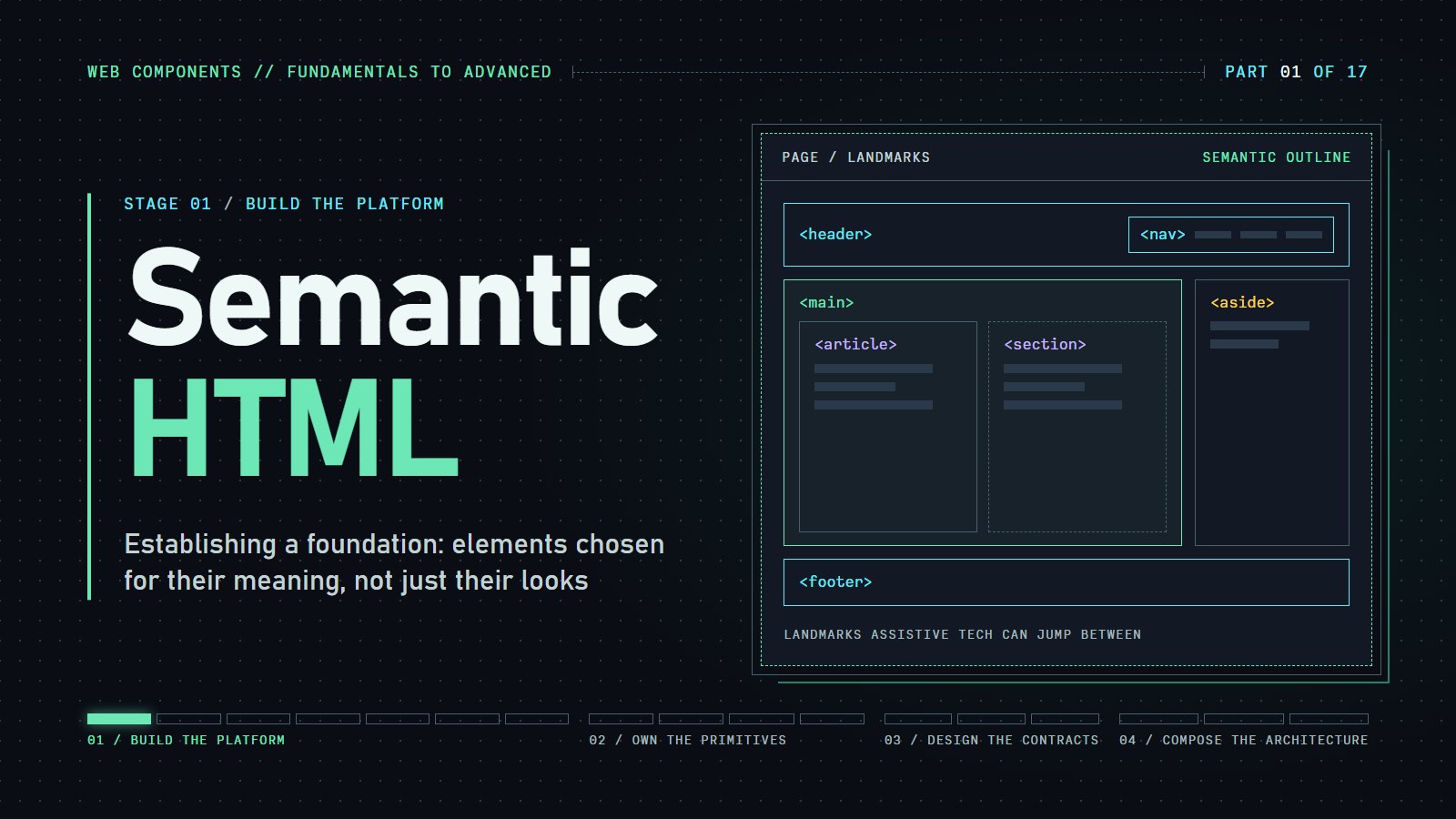
Semantic HTML means picking the tag that says what a part of a page is, not only how it looks. By the end, we can mark up a page so a visitor can jump straight to its navigation, its main content or its footer.
Introduction#
You only need to know that HTML is made of tags such as <p> and <a>, and that the browser draws them. Here is a page built only from <div>s:
<div class="top">Garden Notes <div class="links">Home | Posts</div></div>
<div class="content">Tomatoes in July ...</div>
<div class="side">Related: Basil</div>
<div class="bottom">© Garden Notes</div>
A browser draws it fine, but every box is just "a box". A screen reader (software that reads a page aloud for people who cannot see it) finds no navigation, no main content, and no footer to list, so the quick route past the header is gone. Swap the same boxes for <header>, <nav>, <main>, <aside> and <footer> and the reader can list those landmarks and jump between them. The page looks identical. Only the labels changed.
That swap is the whole idea of this post. Whether we build a personal blog or a large web app, it is the first habit to learn.
What Is Semantic HTML?#
Semantic HTML is about using HTML elements according to their intended purpose rather than relying on generic containers like <div> and <span>. We should use semantic elements such as <header>, <nav>, <main>, <article>, <section>, <aside>, and <footer> to clearly define the structure and meaning of our content. Properly utilizing these elements ensures that everyone, including those with disabilities who use screen readers, can easily access and understand the content. It also gives search engines clearer signals and makes our code easier to maintain.
The Role of Semantics in the Web#
-
Clarity for Developers: Using semantic elements makes it easier to understand the structure of a page when revisiting our code or collaborating with others.
-
Accessibility Benefits: Screen readers and assistive technologies rely on semantic markup to navigate and interpret content. Proper use of headings, landmarks, and content sections can greatly enhance the browsing experience for users with disabilities.
-
SEO Advantages: Search engines read the structure of our HTML to understand a page. Clear structure helps them find the important content, though tags alone never guarantee a ranking.
Key Semantic HTML Elements#
Here’s a quick overview of some of the most important semantic elements:
-
<header>: Typically contains the site’s branding, navigation, or introductory content. It’s usually placed at the top of a page or section. -
<nav>: Defines a set of navigation links. This makes it easier for both users and search engines to identify and navigate key parts of a web site. -
<main>: Represents the dominant content of our page. There should be only one<main>per document, which matters to screen reader users. -
<article>: Encloses self-contained content that could stand alone, such as a blog post, news article, or user comment. -
<section>: Used for grouping related content together under a thematic grouping, often with a heading. -
<aside>: Contains content indirectly related to the main content, such as sidebars or call-out boxes. -
<footer>: Typically includes information about the author, copyright information, or related documents.
Here is an interactive demo that helps us visualize these elements on a typical website.
---html
<!-- HEADER -->
<header data-highlight="header">
<span class="tag"><header></span>
<div class="tooltip">Contains introductory content, navigation, and branding for a page or section</div>
<div class="container">
<h1>Semantic HTML Demonstration</h1>
<p>Interactive examples of semantic HTML elements</p>
</div>
</header>
<!-- NAVIGATION -->
<nav data-highlight="nav">
<span class="tag"><nav></span>
<div class="tooltip">Contains main navigation links for a website</div>
<div class="container">
<ul>
<li><a href="#introduction">Introduction</a></li>
<li><a href="#examples">Examples</a></li>
<li><a href="#forms">Semantic Forms</a></li>
<li><a href="#resources">Resources</a></li>
</ul>
</div>
</nav>
<!-- MAIN CONTENT -->
<main data-highlight="main">
<span class="tag"><main></span>
<div class="tooltip">Contains the primary content of the page (only one per page)</div>
<div class="container">
<div class="control-panel">
<label for="element-select">Highlight element: </label>
<select id="element-select">
<option value="">None</option>
<option value="header">Header</option>
<option value="nav">Navigation</option>
<option value="main">Main</option>
<option value="article">Article</option>
<option value="section">Section</option>
<option value="aside">Aside</option>
<option value="footer">Footer</option>
</select>
<button id="show-all-tags">Show All Tags</button>
<button id="hide-all-tags">Hide All Tags</button>
</div>
<div class="content-wrapper">
<!-- ARTICLE -->
<article data-highlight="article">
<span class="tag"><article></span>
<div class="tooltip">Contains self-contained content that could stand alone</div>
<!-- SECTION 1 -->
<section id="introduction" data-highlight="section">
<span class="tag"><section></span>
<div class="tooltip">Represents a standalone section of content, usually with a heading</div>
<h2>Introduction to Semantic HTML</h2>
<p>Semantic HTML elements clearly describe their meaning to both the browser and the developer. Using semantic elements makes our code more accessible, SEO-friendly, and easier to maintain.</p>
<p>Hover over elements with a colored outline to see their tag names and descriptions.</p>
</section>
<!-- SECTION 2 -->
<section id="examples" data-highlight="section">
<span class="tag"><section></span>
<h2>Benefits of Semantic HTML</h2>
<ul>
<li><strong>Accessibility:</strong> Screen readers use semantic elements to help users navigate</li>
<li><strong>SEO:</strong> Search engines give more weight to important content in semantic elements</li>
<li><strong>Maintainability:</strong> Clearer code structure makes development easier</li>
<li><strong>Mobile-friendly:</strong> Semantic elements adapt better to different screen sizes</li>
</ul>
</section>
<!-- SECTION 3 (HIGHLIGHTED) -->
<section id="comparison" class="highlight" data-highlight="section">
<span class="tag"><section></span>
<h3>Before vs. After</h3>
<p>Compare these two code snippets:</p>
<h4>Non-semantic HTML:</h4>
<pre><code><div class="header">
<div class="title">My Website</div>
</div>
<div class="navigation">
<div class="nav-item">Home</div>
</div>
<div class="main-content">
<div class="article">
<div class="article-title">Article Title</div>
</div>
</div></code></pre>
<h4>Semantic HTML:</h4>
<pre><code><header>
<h1>My Website</h1>
</header>
<nav>
<ul>
<li><a href="#">Home</a></li>
</ul>
</nav>
<main>
<article>
<h2>Article Title</h2>
</article>
</main></code></pre>
</section>
<!-- SECTION 4 -->
<section id="forms" data-highlight="section">
<span class="tag"><section></span>
<h2>Semantic Forms</h2>
<p>Forms benefit greatly from semantic HTML elements. Compare the following example:</p>
<form data-highlight="form">
<span class="tag"><form></span>
<div class="tooltip">Creates an interactive form for user input</div>
<div>
<label for="name" data-highlight="label">
<span class="tag"><label></span>
<div class="tooltip">Defines a label for a form element</div>
Name:
</label>
<input type="text" id="name" name="name" data-highlight="input">
<span class="tag"><input></span>
<div class="tooltip">Creates an interactive control for web-based forms</div>
</div>
<div>
<label for="email">Email:</label>
<input type="email" id="email" name="email">
</div>
<div>
<label for="message">Message:</label>
<textarea id="message" name="message" rows="4" data-highlight="textarea">
<span class="tag"><textarea></span>
<div class="tooltip">Multi-line text input control</div>
</textarea>
</div>
<div>
<label for="topic">Topic:</label>
<select id="topic" name="topic" data-highlight="select">
<span class="tag"><select></span>
<div class="tooltip">Dropdown selection control</div>
<option value="general">General Inquiry</option>
<option value="support">Support</option>
<option value="feedback">Feedback</option>
</select>
</div>
<div>
<fieldset data-highlight="fieldset">
<span class="tag"><fieldset></span>
<div class="tooltip">Groups related form controls together</div>
<legend data-highlight="legend">
<span class="tag"><legend></span>
<div class="tooltip">Provides a caption for a fieldset</div>
Subscription Options
</legend>
<div>
<input type="radio" id="newsletter" name="subscription" value="newsletter">
<label for="newsletter">Newsletter</label>
</div>
<div>
<input type="radio" id="updates" name="subscription" value="updates">
<label for="updates">Product Updates</label>
</div>
</fieldset>
</div>
<button type="submit">Submit</button>
</form>
</section>
<section id="resources">
<h2>Additional Resources</h2>
<ul>
<li><a href="https://developer.mozilla.org/en-US/docs/Web/HTML/Element">MDN Web Docs: HTML Elements Reference</a></li>
<li><a href="https://www.w3.org/WAI/tutorials/">W3C Web Accessibility Tutorials</a></li>
<li><a href="https://html.spec.whatwg.org/">HTML Living Standard</a></li>
</ul>
</section>
</article>
<!-- ASIDE -->
<aside data-highlight="aside">
<span class="tag"><aside></span>
<div class="tooltip">Contains content tangentially related to the main content</div>
<h3 id="table-of-contents">Table of Contents</h3>
<ul>
<li><a href="#introduction">Introduction</a></li>
<li><a href="#examples">Benefits of Semantic HTML</a></li>
<li><a href="#comparison">Before vs. After</a></li>
<li><a href="#forms">Semantic Forms</a></li>
<li><a href="#resources">Additional Resources</a></li>
</ul>
<h3>Current Element:</h3>
<div id="element-description" class="element-description">
Hover over highlighted elements to see details.
</div>
<h3>Did You Know?</h3>
<p>HTML5 introduced many new semantic elements, including <code><article></code>, <code><section></code>, <code><nav></code>, and <code><aside></code>.</p>
</aside>
</div>
</div>
</main>
<!-- FOOTER -->
<footer data-highlight="footer">
<span class="tag"><footer></span>
<div class="tooltip">Contains footer information for a section or page</div>
<div class="container">
<p>© 2025 Semantic HTML Tutorial. All rights reserved.</p>
<p>This interactive demo highlights the importance of using semantic HTML elements.</p>
</div>
</footer>
---css
:root {
--primary-color: #3498db;
--secondary-color: #2ecc71;
--accent-color: #e74c3c;
--text-color: #333;
--light-bg: #f9f9f9;
--highlight: #fffde7;
}
* {
box-sizing: border-box;
margin: 0;
padding: 0;
}
body {
font-family: -apple-system, BlinkMacSystemFont, 'Segoe UI', Roboto, Oxygen, Ubuntu, Cantarell, 'Open Sans', 'Helvetica Neue', sans-serif;
line-height: 1.6;
color: var(--text-color);
padding: 0;
}
.container {
max-width: 1000px;
margin: 0 auto;
padding: 0 20px;
}
header {
background-color: var(--primary-color);
color: white;
padding: 1rem 0;
position: relative;
}
nav {
background-color: #2980b9;
padding: 0.5rem 0;
}
nav ul {
display: flex;
list-style: none;
justify-content: center;
}
nav li {
margin: 0 15px;
}
nav a {
color: white;
text-decoration: none;
font-weight: 500;
transition: color 0.3s;
}
nav a:hover {
color: #f0f0f0;
}
main {
padding: 2rem 0;
min-height: 60vh;
}
.content-wrapper {
display: flex;
gap: 2rem;
}
article {
flex: 2;
padding: 1.5rem;
background-color: white;
border-radius: 5px;
box-shadow: 0 2px 5px rgba(0,0,0,0.1);
}
section {
margin-bottom: 2rem;
padding-bottom: 1rem;
border-bottom: 1px solid #eee;
}
section.highlight {
background-color: var(--highlight);
padding: 1rem;
border-radius: 5px;
border-left: 4px solid var(--accent-color);
}
aside {
flex: 1;
padding: 1.5rem;
background-color: var(--light-bg);
border-radius: 5px;
align-self: flex-start;
position: sticky;
top: 20px;
}
footer {
background-color: #34495e;
color: white;
padding: 1.5rem 0;
text-align: center;
}
h1, h2, h3, h4, h5, h6 {
margin-bottom: 1rem;
line-height: 1.2;
}
p {
margin-bottom: 1rem;
}
.tag {
display: inline-block;
font-size: 0.8rem;
font-weight: bold;
color: white;
background-color: var(--primary-color);
padding: 2px 6px;
border-radius: 3px;
margin-right: 5px;
opacity: 0;
transition: opacity 0.3s;
}
[data-highlight]:hover .tag {
opacity: 1;
}
[data-highlight] {
position: relative;
cursor: help;
transition: background-color 0.3s;
}
[data-highlight]:hover {
background-color: rgba(52, 152, 219, 0.1);
}
.tooltip {
position: absolute;
bottom: 100%;
left: 50%;
transform: translateX(-50%);
background-color: #333;
color: white;
padding: 0.5rem;
border-radius: 4px;
font-size: 0.8rem;
opacity: 0;
pointer-events: none;
transition: opacity 0.3s;
width: max-content;
max-width: 200px;
text-align: center;
z-index: 10;
}
.tooltip::after {
content: '';
position: absolute;
top: 100%;
left: 50%;
transform: translateX(-50%);
border-width: 5px;
border-style: solid;
border-color: #333 transparent transparent transparent;
}
[data-highlight]:hover .tooltip {
opacity: 1;
}
form {
margin-top: 2rem;
padding: 1.5rem;
background-color: var(--light-bg);
border-radius: 5px;
}
form div {
margin-bottom: 1rem;
}
label {
display: block;
margin-bottom: 0.5rem;
font-weight: 500;
}
input, textarea, select {
width: 100%;
padding: 0.5rem;
border: 1px solid #ddd;
border-radius: 4px;
font-size: 1rem;
}
button {
background-color: var(--secondary-color);
color: white;
border: none;
padding: 0.5rem 1rem;
font-size: 1rem;
border-radius: 4px;
cursor: pointer;
transition: background-color 0.3s;
}
button:hover {
background-color: #27ae60;
}
.element-description {
display: none;
padding: 1rem;
background-color: var(--highlight);
border-radius: 4px;
margin-top: 1rem;
}
#table-of-contents {
margin-bottom: 2rem;
}
#table-of-contents ul {
list-style-type: none;
}
#table-of-contents a {
text-decoration: none;
color: var(--primary-color);
}
#table-of-contents a:hover {
text-decoration: underline;
}
.control-panel {
background-color: #f5f5f5;
padding: 1rem;
margin-bottom: 1rem;
border-radius: 5px;
display: flex;
flex-wrap: wrap;
gap: 0.5rem;
align-items: center;
}
.control-panel button {
background-color: #34495e;
margin-right: 0.5rem;
}
.control-panel button:hover {
background-color: #2c3e50;
}
.element-highlight {
outline: 2px dashed var(--accent-color);
padding: 2px;
position: relative;
}
---js
// Show element descriptions when hovering over highlighted elements
const highlightedElements = document.querySelectorAll("[data-highlight]");
const descriptionBox = document.getElementById("element-description");
highlightedElements.forEach(element => {
element.addEventListener("mouseover", () => {
const elementType = element.getAttribute("data-highlight");
let description = "";
switch (elementType) {
case "header":
description =
"<strong><header></strong>: Represents introductory content, typically a group containing the site logo, navigation, and other header elements.";
break;
case "nav":
description =
"<strong><nav></strong>: Defines a section of navigation links, helping users and assistive technologies identify navigation sections.";
break;
case "main":
description =
"<strong><main></strong>: Specifies the main content of a document. There should be only one per page.";
break;
case "article":
description =
"<strong><article></strong>: Represents a self-contained composition that could stand independently, like a blog post or news article.";
break;
case "section":
description =
"<strong><section></strong>: Defines a standalone section of content, typically with a heading, that groups related content together.";
break;
case "aside":
description =
"<strong><aside></strong>: Contains content tangentially related to the content around it, often presented as a sidebar.";
break;
case "footer":
description =
"<strong><footer></strong>: Contains footer information for a section or page, such as copyright info, related links, or author details.";
break;
case "form":
description =
"<strong><form></strong>: Creates an interactive section containing controls for submitting information.";
break;
case "label":
description =
"<strong><label></strong>: Associates text with a form input, improving accessibility and usability.";
break;
case "input":
description =
"<strong><input></strong>: Creates an interactive control for web-based forms to accept data from the user.";
break;
case "textarea":
description =
"<strong><textarea></strong>: Creates a multi-line text input control for longer text input.";
break;
case "select":
description =
"<strong><select></strong>: Creates a dropdown list of options for the user to select from.";
break;
case "fieldset":
description =
"<strong><fieldset></strong>: Groups related form controls together, often with a <legend> as its first child.";
break;
case "legend":
description =
"<strong><legend></strong>: Provides a caption or title for the content of a <fieldset>.";
break;
default:
description = "Hover over highlighted elements to see details.";}
descriptionBox.innerHTML = description;
descriptionBox.style.display = "block";
});
});
// Element selector functionality
const elementSelect = document.getElementById("element-select");
elementSelect.addEventListener("change", () => {
// First, clear any existing highlights
document.querySelectorAll(".element-highlight").forEach(el => {
el.classList.remove("element-highlight");
});
const selectedElement = elementSelect.value;
if (selectedElement) {
document.
querySelectorAll(`[data-highlight="${selectedElement}"]`).
forEach(el => {
el.classList.add("element-highlight");
});
}
});
// Show/Hide all tags
const showAllTagsBtn = document.getElementById("show-all-tags");
const hideAllTagsBtn = document.getElementById("hide-all-tags");
showAllTagsBtn.addEventListener("click", () => {
document.querySelectorAll(".tag").forEach(tag => {
tag.style.opacity = "1";
});
});
hideAllTagsBtn.addEventListener("click", () => {
document.querySelectorAll(".tag").forEach(tag => {
tag.style.opacity = "0";
});
});
// Prevent form submission
document.querySelector("form").addEventListener("submit", e => {
e.preventDefault();
alert("Form submission prevented in this demo.");
});
Coding challenge: Spot the divs
Every box in this page is a <div>, so the list below the page is empty: there are no landmarks to jump between. Replace the divs with <header>, <nav>, <main>, <aside> and <footer>.
Expected result: after you press Run, the list shows five lines: banner (<header>), navigation (<nav>), main (<main>), complementary (<aside>) and contentinfo (<footer>). The page looks the same as before, because only the meaning changed.
---html
<div id="page">
<!-- TODO: swap each div for the semantic tag that names its job:
header, nav, main, aside, footer -->
<div class="top">
<h1>Garden Notes</h1>
<div class="links"><a href="#">Home</a> <a href="#">Posts</a></div>
</div>
<div class="content">
<h2>Tomatoes in July</h2>
<p>Water early, before the sun is high.</p>
</div>
<div class="side">Related: Basil in pots</div>
<div class="bottom">© Garden Notes</div>
</div>
<h2>Landmarks a screen reader can jump to</h2>
<ul id="landmarks"></ul>
---js
const roles = { HEADER: "banner", NAV: "navigation", MAIN: "main",
ASIDE: "complementary", FOOTER: "contentinfo" };
function show() {
const list = document.querySelector("#landmarks");
const found = document.querySelectorAll(
"#page header, #page nav, #page main, #page aside, #page footer");
list.textContent = "";
if (!found.length) list.innerHTML = "<li>None. Nothing to jump to.</li>";
for (const el of found) {
const li = document.createElement("li");
li.textContent = roles[el.tagName] + " (<" + el.tagName.toLowerCase() + ">)";
list.append(li);
}
}
if (document.readyState === "loading") document.addEventListener("DOMContentLoaded", show);
else show();
Semantic Forms: Enhancing User Interaction and Accessibility#
Forms are essential components of most websites, allowing users to input data, make selections, and interact with web applications. However, poorly structured forms can create significant barriers for users, especially those relying on assistive technologies. Using semantic HTML for forms ensures that all users can effectively understand, navigate, and complete them.
Semantic form elements like <form>, <fieldset>, <legend>, and <label> provide structure and meaning, while proper input types guide users toward correct data entry. Additionally, ARIA attributes can enhance accessibility by providing additional context to assistive technologies. Let's explore how to build forms that are both semantic and accessible:
---html
<h1>Semantic Forms & Accessibility</h1>
<p>Forms are a core part of web interfaces, allowing users to input data and interact with websites. Using proper semantic HTML for forms ensures they are accessible to all users, including those relying on assistive technologies.</p>
<div class="info-box">
<h2>Key Semantic Form Elements</h2>
<ul>
<li><code class="tag-highlight"><form></code> - Container for all form elements</li>
<li><code class="tag-highlight"><fieldset></code> - Groups related form controls</li>
<li><code class="tag-highlight"><legend></code> - Provides a caption for a fieldset</li>
<li><code class="tag-highlight"><label></code> - Associates text with form controls</li>
<li><code class="tag-highlight"><input></code> - Creates various input fields based on the type attribute</li>
<li><code class="tag-highlight"><select></code> - Creates a dropdown list</li>
<li><code class="tag-highlight"><textarea></code> - Creates a multi-line text input field</li>
<li><code class="tag-highlight"><button></code> - Creates a clickable button</li>
</ul>
</div>
<!-- Example Semantic Form -->
<div class="form-container">
<form action="#" method="post" id="registration-form">
<fieldset>
<legend>Personal Information</legend>
<div class="form-group">
<label for="name" class="required">Full Name</label>
<input type="text" id="name" name="name" required aria-required="true">
<span class="error-message" id="name-error">Please enter your full name</span>
</div>
<div class="form-group">
<label for="email" class="required">Email Address</label>
<input type="email" id="email" name="email" required aria-required="true" aria-describedby="email-note">
<p class="form-note" id="email-note">We'll never share your email with anyone else.</p>
<span class="error-message" id="email-error">Please enter a valid email address</span>
</div>
<div class="form-group">
<label for="phone">Phone Number</label>
<input type="tel" id="phone" name="phone" aria-describedby="phone-format" pattern="[0-9]{3}-[0-9]{3}-[0-9]{4}">
<p class="form-note" id="phone-format">Format: 123-456-7890</p>
<span class="error-message" id="phone-error">Please use the format 123-456-7890</span>
</div>
</fieldset>
<fieldset>
<legend>Preferences</legend>
<div class="form-group">
<label for="topic">Preferred Topic</label>
<select id="topic" name="topic">
<option value="">Please select</option>
<option value="html">HTML</option>
<option value="css">CSS</option>
<option value="js">JavaScript</option>
<option value="accessibility">Accessibility</option>
</select>
</div>
<div class="form-group">
<p>How would you like to be contacted?</p>
<div class="radio-group">
<input type="radio" id="contact-email" name="contact-method" value="email">
<label for="contact-email">Email</label>
</div>
<div class="radio-group">
<input type="radio" id="contact-phone" name="contact-method" value="phone">
<label for="contact-phone">Phone</label>
</div>
</div>
<div class="form-group">
<p>Which resources are you interested in?</p>
<div class="checkbox-group">
<input type="checkbox" id="resource-newsletter" name="resources[]" value="newsletter">
<label for="resource-newsletter">Newsletter</label>
</div>
<div class="checkbox-group">
<input type="checkbox" id="resource-tutorials" name="resources[]" value="tutorials">
<label for="resource-tutorials">Tutorials</label>
</div>
<div class="checkbox-group">
<input type="checkbox" id="resource-webinars" name="resources[]" value="webinars">
<label for="resource-webinars">Webinars</label>
</div>
</div>
<div class="form-group">
<label for="message">Additional Comments</label>
<textarea id="message" name="message" rows="4"></textarea>
</div>
</fieldset>
<button type="submit">Submit</button>
</form>
</div>
<h2>Key Accessibility Features</h2>
<div class="info-box">
<h3>1. Proper Label Association</h3>
<p>Each form control should be associated with a label, either using the <code>for</code> attribute or by nesting the input inside the label.</p>
<div class="code-example">
<span class="tag-highlight"><label</span> <span class="attr-highlight">for="email"</span><span class="tag-highlight">></span>Email Address<span class="tag-highlight"></label></span>
<span class="tag-highlight"><input</span> type="email" <span class="attr-highlight">id="email"</span> name="email"<span class="tag-highlight">></span>
<!-- Alternatively (wrapping method): -->
<span class="tag-highlight"><label></span>
Email Address
<span class="tag-highlight"><input</span> type="email" name="email"<span class="tag-highlight">></span>
<span class="tag-highlight"></label></span>
</div>
</div>
<div class="info-box">
<h3>2. Fieldsets and Legends</h3>
<p>Group related form controls with <code><fieldset></code> and use <code><legend></code> to provide a caption.</p>
<div class="code-example">
<span class="tag-highlight"><fieldset></span>
<span class="tag-highlight"><legend></span>Contact Information<span class="tag-highlight"></legend></span>
<!-- Form controls here -->
<span class="tag-highlight"></fieldset></span>
</div>
</div>
<div class="info-box">
<h3>3. ARIA Attributes</h3>
<p>Use ARIA attributes to enhance accessibility when needed:</p>
<ul>
<li><code class="attr-highlight">aria-required="true"</code> - Indicates a required field</li>
<li><code class="attr-highlight">aria-describedby</code> - Associates descriptive text with the form control</li>
<li><code class="attr-highlight">aria-invalid</code> - Indicates validation state</li>
<li><code class="attr-highlight">aria-labelledby</code> - Associates a label with the form control when a <code>for</code> attribute isn't sufficient</li>
</ul>
<div class="code-example">
<span class="tag-highlight"><input</span> type="email" id="email" name="email" required
<span class="attr-highlight">aria-required="true"</span>
<span class="attr-highlight">aria-describedby="email-note"</span><span class="tag-highlight">></span>
<span class="tag-highlight"><p</span> <span class="attr-highlight">id="email-note"</span><span class="tag-highlight">></span>We'll never share your email.<span class="tag-highlight"></p></span>
</div>
</div>
<div class="info-box">
<h3>4. Input Types</h3>
<p>Use appropriate input types to provide better user experience and validation:</p>
<ul>
<li><code>type="email"</code> - For email addresses</li>
<li><code>type="tel"</code> - For telephone numbers</li>
<li><code>type="date"</code> - For date inputs</li>
<li><code>type="number"</code> - For numeric inputs</li>
<li><code>type="url"</code> - For website URLs</li>
</ul>
</div>
<div class="info-box">
<h3>5. Error Handling</h3>
<p>Provide clear error messages that are associated with their respective form controls:</p>
<div class="code-example">
<span class="tag-highlight"><input</span> type="email" id="email" name="email" required
<span class="attr-highlight">aria-invalid="true"</span>
<span class="attr-highlight">aria-errormessage="email-error"</span><span class="tag-highlight">></span>
<span class="tag-highlight"><span</span> <span class="attr-highlight">id="email-error"</span> class="error-message"<span class="tag-highlight">></span>
Please enter a valid email address
<span class="tag-highlight"></span></span>
</div>
</div>
<h2>Benefits of Semantic Forms</h2>
<ul>
<li><strong>Accessibility:</strong> Screen readers can properly announce form controls and their purpose</li>
<li><strong>Usability:</strong> Proper labeling and grouping makes forms easier for all users to understand</li>
<li><strong>Mobile Compatibility:</strong> Appropriate input types trigger the correct virtual keyboard on mobile devices</li>
<li><strong>Validation:</strong> Browsers can provide built-in validation for certain input types</li>
<li><strong>Developer Experience:</strong> Clearly structured forms are easier to maintain and debug</li>
</ul>
---css
body {
font-family: system-ui, -apple-system, BlinkMacSystemFont, 'Segoe UI', Roboto, 'Helvetica Neue', Arial, sans-serif;
line-height: 1.6;
color: #333;
max-width: 800px;
margin: 0 auto;
padding: 2rem 1rem;
}
h1, h2, h3 {
color: #2d3748;
}
h1 {
border-bottom: 2px solid #e2e8f0;
padding-bottom: 0.5rem;
}
.form-container {
background-color: #f9fafb;
padding: 1.5rem;
border-radius: 0.5rem;
box-shadow: 0 2px 4px rgba(0, 0, 0, 0.1);
margin: 2rem 0;
}
fieldset {
margin-bottom: 1.5rem;
border: 1px solid #d1d5db;
border-radius: 0.25rem;
padding: 1rem;
}
legend {
font-weight: bold;
padding: 0 0.5rem;
}
.form-group {
margin-bottom: 1rem;
}
label {
display: block;
margin-bottom: 0.5rem;
font-weight: 500;
}
input, select, textarea {
width: 100%;
padding: 0.5rem;
border: 1px solid #d1d5db;
border-radius: 0.25rem;
font-family: inherit;
font-size: 1rem;
box-sizing: border-box;
}
input:focus, select:focus, textarea:focus {
outline: none;
border-color: #3b82f6;
box-shadow: 0 0 0 3px rgba(59, 130, 246, 0.2);
}
.radio-group {
margin: 0.5rem 0;
}
.radio-group label {
display: inline;
margin-left: 0.5rem;
font-weight: normal;
}
.checkbox-group {
margin: 0.5rem 0;
}
.checkbox-group label {
display: inline;
margin-left: 0.5rem;
font-weight: normal;
}
button {
background-color: #2563eb;
color: white;
padding: 0.75rem 1.5rem;
border: none;
border-radius: 0.25rem;
font-size: 1rem;
cursor: pointer;
transition: background-color 0.2s;
}
button:hover {
background-color: #1d4ed8;
}
button:focus {
outline: none;
box-shadow: 0 0 0 3px rgba(59, 130, 246, 0.5);
}
.form-note {
color: #6b7280;
font-size: 0.875rem;
margin-top: 0.25rem;
}
.required::after {
content: "*";
color: #dc2626;
margin-left: 0.25rem;
}
.error-message {
color: #dc2626;
font-size: 0.875rem;
margin-top: 0.25rem;
display: none;
}
input:invalid:not(:focus) + .error-message {
display: block;
}
.info-box {
background-color: #e1f0ff;
border-left: 4px solid #3b82f6;
padding: 1rem;
margin: 1.5rem 0;
border-radius: 0 0.25rem 0.25rem 0;
}
.code-example {
background-color: #f8f9fa;
border: 1px solid #eaecef;
border-radius: 0.25rem;
padding: 1rem;
margin: 1.5rem 0;
font-family: 'SF Mono', 'Segoe UI Mono', 'Roboto Mono', monospace;
font-size: 0.9em;
white-space: pre-wrap;
overflow-x: auto;
}
.tag-highlight {
color: #3182ce;
font-weight: bold;
}
.attr-highlight {
color: #805ad5;
font-weight: bold;
}
Why Use Semantic HTML?#
Enhancing Accessibility#
Semantic elements act as landmarks that assistive technologies can use to help users quickly navigate to different parts of a page. For example, a screen reader can list all <nav> or <main> sections, allowing users to jump to the content they’re interested in without unnecessary clutter.
Improving SEO#
Search engines read the structure of a page to work out what it is about, so clear headings, a <main>, and labeled sections make that job easier. Tags alone do not decide a ranking, because many other things count, and nobody can promise one. What semantic HTML does is remove a reason for a crawler to misread your page.
Code Readability & Maintainability#
When we write semantic HTML, our code is easier to read, debug, and maintain. Future developers (or even ourself in a few months) will appreciate a clean, well-structured document where each element’s purpose is clear.
Understanding the Difference Between <section> and <article>#
Both tags group content, so they are easy to mix up. The difference is whether the piece could leave the page.
A <section> is one themed part of a larger document: "Features", "Benefits" or "FAQ" on the same page. Taken out of the page it would lose its meaning. It should have a heading, and only a section with an accessible name (a heading it is labeled by) shows up as a landmark for assistive technology.
An <article> is self-contained: a blog post, a news story, a user comment. It would still make sense copied to another site or a feed, so readers and tools can treat it as a unit.
They also nest. An <article> can hold several <section>s, and a <section> can hold several <article>s, like a list of posts under a "Latest" heading. Ask the question again at each level: could this piece stand alone?
---html
<h1>Article vs. Section Elements in Semantic HTML</h1>
<p>Understanding when to use <code><article></code> and <code><section></code> elements matters for writing meaningful semantic HTML. This example demonstrates the key differences and proper usage of each.</p>
<div class="info-box">
<h2>Key Difference:</h2>
<p>An <strong><code><article></code></strong> contains content that makes sense on its own and could be distributed independently (like a news article or blog post). A <strong><code><section></code></strong> groups related content that's part of a larger whole.</p>
</div>
<div class="comparison">
<!-- Article Example -->
<div>
<h2>Article Example</h2>
<article>
<h3>Getting Started with HTML</h3>
<div class="meta">Published: March 28, 2025 | By Jane Smith</div>
<p>HTML (HyperText Markup Language) is the standard markup language for documents designed to be displayed in a web browser. It defines the structure and content of web pages.</p>
<section>
<h4>Basic Structure</h4>
<p>Every HTML document starts with a DOCTYPE declaration and contains html, head, and body elements.</p>
</section>
<section>
<h4>Semantic Elements</h4>
<p>HTML5 introduced semantic elements like header, nav, main, article, section, aside, and footer.</p>
</section>
<div class="footer">
<p>Author: Jane Smith | <a href="#">2 Comments</a></p>
</div>
</article>
<div class="code-example">
<span class="tag-highlight"><article></span>
<h2>Getting Started with HTML</h2>
<p class="meta">Published: March 28, 2025</p>
<p>HTML is the standard markup language...</p>
<span class="tag-highlight"><section></span>
<h3>Basic Structure</h3>
<p>Every HTML document starts with...</p>
<span class="tag-highlight"></section></span>
<footer>
<p>Author: Jane Smith | <a>2 Comments</a></p>
</footer>
<span class="tag-highlight"></article></span>
</div>
<div class="info-box">
<h3>When to Use Article:</h3>
<ul>
<li>Blog posts</li>
<li>News stories</li>
<li>Forum posts</li>
<li>Product reviews</li>
<li>User comments</li>
</ul>
<p><strong>Key attribute:</strong> Content should make sense if distributed independently through RSS, email, or other channels.</p>
</div>
</div>
<!-- Section Example -->
<div>
<h2>Section Example</h2>
<section>
<h3>Product Features</h3>
<p>Our product includes the following features to enhance your experience:</p>
<div class="feature">
<h4>Easy Installation</h4>
<p>Set up in minutes with our simplified installation process.</p>
</div>
<div class="feature">
<h4>Cloud Sync</h4>
<p>Automatically sync your data across all your devices.</p>
</div>
<div class="feature">
<h4>Advanced Security</h4>
<p>End-to-end encryption ensures your data remains private.</p>
</div>
</section>
<div class="code-example">
<span class="tag-highlight"><section></span>
<h2>Product Features</h2>
<p>Our product includes the following features...</p>
<div class="feature">
<h3>Easy Installation</h3>
<p>Set up in minutes with our...</p>
</div>
<div class="feature">
<h3>Cloud Sync</h3>
<p>Automatically sync your data...</p>
</div>
<span class="tag-highlight"></section></span>
</div>
<div class="info-box">
<h3>When to Use Section:</h3>
<ul>
<li>Chapters in a book</li>
<li>Tabs in a tabbed interface</li>
<li>Feature lists on a product page</li>
<li>Different parts of a page (intro, contact info, etc.)</li>
<li>Themed content groupings</li>
</ul>
<p><strong>Key attribute:</strong> Content that forms part of a larger whole and makes most sense in context.</p>
</div>
</div>
</div>
<div class="info-box">
<h2>Important Relationships:</h2>
<ul>
<li>An <code><article></code> can contain multiple <code><section></code> elements (as shown in the blog post example)</li>
<li>A <code><section></code> can contain multiple <code><article></code> elements (e.g., a "Latest News" section with multiple news articles)</li>
<li>Both should typically have a heading element (<code><h1></code>-<code><h6></code>) as their first child to identify their content</li>
</ul>
</div>
<div class="info-box">
<h2>Accessibility & SEO Benefits:</h2>
<ul>
<li><strong>Screen Readers:</strong> Can identify and navigate through content sections more effectively</li>
<li><strong>Search Engines:</strong> Better understand content relationships and importance</li>
<li><strong>Structured Data:</strong> Easier to apply schema.org markup to well-structured content</li>
<li><strong>Document Outline:</strong> Creates a more meaningful document structure</li>
</ul>
</div>
---css
body {
font-family: system-ui, -apple-system, BlinkMacSystemFont, 'Segoe UI', Roboto, 'Helvetica Neue', Arial, sans-serif;
line-height: 1.6;
color: #333;
max-width: 1000px;
margin: 0 auto;
padding: 1rem;
}
h1 {
color: #2d3748;
border-bottom: 2px solid #e2e8f0;
padding-bottom: 0.5rem;
}
.comparison {
display: grid;
grid-template-columns: 1fr 1fr;
gap: 2rem;
margin: 2rem 0;
}
@media (max-width: 768px) {
.comparison {
grid-template-columns: 1fr;
}
}
article, section {
padding: 1.5rem;
border-radius: 0.5rem;
margin-bottom: 1.5rem;
}
article {
background-color: #e6f7ff;
border-left: 5px solid #1890ff;
}
section {
background-color: #f6ffed;
border-left: 5px solid #52c41a;
}
/* Nested sections inside article */
article section {
background-color: #f9f9f9;
border-left: 3px solid #d9d9d9;
margin: 1rem 0;
padding: 1rem;
}
.feature {
background-color: #f9f9f9;
border: 1px solid #d9d9d9;
border-radius: 0.25rem;
padding: 1rem;
margin-bottom: 1rem;
}
.info-box {
background-color: #fffbe6;
border: 1px solid #ffe58f;
border-radius: 0.25rem;
padding: 1rem;
margin: 2rem 0;
}
.info-box h2 {
margin-top: 0;
color: #d48806;
}
.code-example {
background-color: #f8f9fa;
border: 1px solid #eaecef;
border-radius: 0.25rem;
padding: 1rem;
margin: 1.5rem 0;
font-family: 'SF Mono', 'Segoe UI Mono', 'Roboto Mono', monospace;
font-size: 0.9em;
white-space: pre-wrap;
overflow-x: auto;
}
.tag-highlight {
color: #1890ff;
font-weight: bold;
}
.meta {
color: #8c8c8c;
font-size: 0.9em;
margin-bottom: 1rem;
}
.footer {
border-top: 1px solid #f0f0f0;
margin-top: 1.5rem;
padding-top: 1rem;
font-size: 0.9em;
color: #8c8c8c;
}
Best Practices for Writing Semantic HTML#
-
Choose the Right Element: Use native elements that best match the purpose of the content. Avoid overusing generic elements like
<div>unless absolutely necessary. -
Follow a Logical Structure: Organize the document using headings (
<h1>through<h6>) in a hierarchical manner. This not only aids navigation for screen readers but also helps establish a clear document outline. -
Keep Accessibility in Mind: Always consider how assistive technologies will interpret the markup. Use labels for form controls, alt attributes for images, and ensure interactive elements are properly structured.
-
Validate The Code: To validate our HTML, we can use online tools like W3C Markup Validator, built-in browser developer tools, or code editors with linting features. Regularly running validations ensures your code adheres to web standards and improves maintainability.
Examples in Action#
Below is a simple example demonstrating how to structure a basic webpage with semantic HTML:
<!DOCTYPE html>
<html lang="en">
<head>
<meta charset="UTF-8">
<title>Journey to Code - Semantic HTML</title>
</head>
<body>
<header>
<h1>Semantic HTML Example</h1>
<nav>
<ul>
<li><a href="#about">About</a></li>
<li><a href="#services">Services</a></li>
<li><a href="#contact">Contact</a></li>
</ul>
</nav>
</header>
<main>
<article id="about">
<h2>About Us</h2>
<section>
<h3>Our Mission</h3>
<p>To provide innovative solutions and services that meet the evolving needs of our clients.</p>
</section>
<section>
<h3>Our Vision</h3>
<p>To be a leader in delivering high-quality, customer-centric solutions across diverse industries.</p>
</section>
<section>
<h3>Our History</h3>
<p>A brief overview of our journey and milestones that have shaped who we are today.</p>
</section>
</article>
<section id="services">
<h2>Our Services</h2>
<section>
<h3>Service 1</h3>
<p>Detailed description of Service 1, including its features and benefits.</p>
</section>
<section>
<h3>Service 2</h3>
<p>Detailed description of Service 2, highlighting its unique aspects and value proposition.</p>
</section>
<section>
<h3>Service 3</h3>
<p>Detailed description of Service 3, focusing on its impact and deliverables.</p>
</section>
</section>
<aside>
<h2>Related Links</h2>
<ul>
<li><a href="https://example.com">Example Link</a></li>
</ul>
</aside>
</main>
<footer>
<p>© 2025 My Website. All rights reserved.</p>
</footer>
</body>
</html>
Creating Accessible Navigation with Semantic Headers#
The header section of a website typically contains the site identity and primary navigation, which matters for both user experience and accessibility. Using semantic elements like <header> and <nav> communicates the purpose of these areas to all users, including those using assistive technologies.
A well-structured navigation system helps users find their way around your website easily. The <nav> element specifically identifies navigation sections, allowing screen readers to offer shortcuts to these important areas. When combined with proper ARIA attributes, these semantic elements create navigation that is intuitive, usable, and accessible. Here's how to implement semantic headers and navigation effectively:
---html
<!-- Primary Navigation -->
<header class="main-header">
<div class="header-container">
<div class="logo">Semantic Site</div>
<button class="mobile-menu-button" aria-expanded="false" aria-controls="main-menu" aria-label="Toggle navigation menu">
☰
</button>
<nav class="main-nav" id="main-menu" aria-label="Main navigation">
<ul>
<li><a href="#" aria-current="page">Home</a></li>
<li><a href="#">About</a></li>
<li><a href="#">Services</a></li>
<li><a href="#">Portfolio</a></li>
<li><a href="#">Blog</a></li>
<li><a href="#">Contact</a></li>
</ul>
</nav>
</div>
</header>
<!-- Secondary Navigation -->
<div class="secondary-header">
<nav class="secondary-nav" aria-label="Secondary navigation">
<ul>
<li><a href="#">Support</a></li>
<li><a href="#">Documentation</a></li>
<li><a href="#">Resources</a></li>
<li><a href="#">Community</a></li>
<li><a href="#">FAQ</a></li>
</ul>
</nav>
</div>
<!-- Breadcrumb Navigation -->
<nav class="breadcrumbs" aria-label="Breadcrumb">
<ul>
<li><a href="#">Home</a></li>
<li><a href="#">Documentation</a></li>
<li><a href="#">Examples</a></li>
<li>Header & Navigation</li>
</ul>
</nav>
<main>
<h1>Semantic Header & Navigation</h1>
<p>This example demonstrates how to create semantic and accessible navigation structures with proper header elements. The page features three different types of navigation:</p>
<ol>
<li><strong>Main Navigation</strong> - Primary site navigation in the header</li>
<li><strong>Secondary Navigation</strong> - Additional links for supporting content</li>
<li><strong>Breadcrumb Navigation</strong> - Shows the user's current location in the site hierarchy</li>
</ol>
<div class="highlight">
<h2>Key Semantic Features:</h2>
<ul>
<li>Uses <code class="tag-highlight"><header></code> element to contain the site branding and navigation</li>
<li>Properly marks up navigation with <code class="tag-highlight"><nav></code> element</li>
<li>Adds <code class="attr-highlight">aria-label</code> to each nav to identify its purpose</li>
<li>Uses <code class="attr-highlight">aria-current="page"</code> to indicate the current page in the navigation</li>
<li>Navigation links organized in a list for proper structure</li>
<li>Mobile menu toggle button with <code class="attr-highlight">aria-expanded</code> and <code class="attr-highlight">aria-controls</code> attributes</li>
</ul>
</div>
<div class="code-example">
<span class="tag-highlight"><header></span>
<div class="header-container">
<div class="logo">Semantic Site</div>
<button class="mobile-menu-button" <span class="attr-highlight">aria-expanded="false"</span> <span class="attr-highlight">aria-controls="main-menu"</span> <span class="attr-highlight">aria-label="Toggle navigation menu"</span>>
☰
</button>
<span class="tag-highlight"><nav</span> class="main-nav" id="main-menu" <span class="attr-highlight">aria-label="Main navigation"</span><span class="tag-highlight">></span>
<ul>
<li><a href="#" <span class="attr-highlight">aria-current="page"</span>>Home</a></li>
<li><a href="#">About</a></li>
<li><a href="#">Services</a></li>
<li><a href="#">Contact</a></li>
</ul>
<span class="tag-highlight"></nav></span>
</div>
<span class="tag-highlight"></header></span>
<span class="tag-highlight"><nav</span> class="breadcrumbs" <span class="attr-highlight">aria-label="Breadcrumb"</span><span class="tag-highlight">></span>
<ul>
<li><a href="#">Home</a></li>
<li><a href="#">Documentation</a></li>
<li>Current Page</li>
</ul>
<span class="tag-highlight"></nav></span>
</div>
<h2>Accessibility Considerations</h2>
<div class="highlight">
<h3>ARIA Attributes for Navigation</h3>
<ul>
<li><code>aria-label</code> on each <code><nav></code> element helps screen readers identify its purpose</li>
<li><code>aria-current="page"</code> indicates which page in the navigation is currently active</li>
<li>Mobile menu toggle includes:
<ul>
<li><code>aria-expanded</code> indicates whether the menu is expanded or collapsed</li>
<li><code>aria-controls</code> associates the button with the menu it controls</li>
<li><code>aria-label</code> provides a descriptive label for the button</li>
</ul>
</li>
</ul>
</div>
<h2>Benefits of Semantic Navigation</h2>
<ul>
<li><strong>Screen Reader Navigation:</strong> Users can jump between navigation regions and understand their purpose</li>
<li><strong>Keyboard Navigation:</strong> Properly structured navigation supports keyboard users</li>
<li><strong>Search Engine Optimization:</strong> Search engines better understand your site structure</li>
<li><strong>Content Hierarchy:</strong> Clear indication of relationships between pages</li>
<li><strong>Mobile Usability:</strong> Proper semantic structure makes responsive designs more accessible</li>
</ul>
</main>
---css
body {
font-family: system-ui, -apple-system, BlinkMacSystemFont, 'Segoe UI', Roboto, 'Helvetica Neue', Arial, sans-serif;
line-height: 1.6;
color: #333;
max-width: 1000px;
margin: 0 auto;
padding: 0;
}
h1 {
color: #2d3748;
border-bottom: 2px solid #e2e8f0;
padding-bottom: 0.5rem;
margin: 2rem 1rem;
}
p {
margin: 1rem;
}
.main-header {
background-color: #1a365d;
color: white;
padding: 1rem;
}
.header-container {
display: flex;
justify-content: space-between;
align-items: center;
max-width: 1000px;
margin: 0 auto;
}
.logo {
font-size: 1.5rem;
font-weight: bold;
}
.main-nav ul {
display: flex;
list-style: none;
margin: 0;
padding: 0;
gap: 1.5rem;
}
.main-nav a {
color: white;
text-decoration: none;
padding: 0.5rem;
border-radius: 0.25rem;
transition: background-color 0.2s;
}
.main-nav a:hover,
.main-nav a:focus {
background-color: rgba(255, 255, 255, 0.2);
outline: none;
}
.main-nav a[aria-current="page"] {
background-color: rgba(255, 255, 255, 0.3);
font-weight: bold;
}
.secondary-header {
background-color: #f7fafc;
border-bottom: 1px solid #e2e8f0;
padding: 0.5rem 1rem;
}
.secondary-nav ul {
display: flex;
list-style: none;
margin: 0;
padding: 0;
gap: 1rem;
font-size: 0.875rem;
}
.secondary-nav a {
color: #4a5568;
text-decoration: none;
padding: 0.25rem;
}
.secondary-nav a:hover,
.secondary-nav a:focus {
color: #2b6cb0;
text-decoration: underline;
outline: none;
}
.breadcrumbs {
padding: 0.5rem 1rem;
background-color: #f9fafb;
border-bottom: 1px solid #e5e7eb;
}
.breadcrumbs ul {
display: flex;
list-style: none;
margin: 0;
padding: 0;
font-size: 0.875rem;
}
.breadcrumbs li:not(:last-child)::after {
content: "/";
margin: 0 0.5rem;
color: #9ca3af;
}
.breadcrumbs a {
color: #4b5563;
text-decoration: none;
}
.breadcrumbs a:hover {
text-decoration: underline;
}
.breadcrumbs li:last-child {
color: #6b7280;
font-weight: 500;
}
.highlight {
background-color: #ebf8ff;
border-left: 4px solid #3182ce;
padding: 1rem;
margin: 1.5rem 1rem;
}
.code-example {
background-color: #f8f9fa;
border: 1px solid #eaecef;
border-radius: 0.25rem;
padding: 1rem;
margin: 1.5rem 1rem;
font-family: 'SF Mono', 'Segoe UI Mono', 'Roboto Mono', monospace;
font-size: 0.9em;
white-space: pre-wrap;
overflow-x: auto;
}
.tag-highlight {
color: #3182ce;
font-weight: bold;
}
.attr-highlight {
color: #805ad5;
font-weight: bold;
}
.mobile-menu-button {
display: none;
background: none;
border: none;
color: white;
font-size: 1.5rem;
cursor: pointer;
}
@media (max-width: 768px) {
.header-container {
flex-wrap: wrap;
}
.logo {
flex: 1;
}
.mobile-menu-button {
display: block;
}
.main-nav {
display: none;
width: 100%;
margin-top: 1rem;
}
.main-nav.open {
display: block;
}
.main-nav ul {
flex-direction: column;
gap: 0.5rem;
}
.secondary-nav ul {
flex-wrap: wrap;
}
}
---js
// Simple script to demonstrate mobile menu toggle functionality
document.querySelector('.mobile-menu-button').addEventListener('click', function () {
const mainNav = document.querySelector('.main-nav');
const expanded = this.getAttribute('aria-expanded') === 'true';
this.setAttribute('aria-expanded', !expanded);
mainNav.classList.toggle('open');
});
Content Organization: Structuring Page Components#
Proper content organization matters for creating websites that are both intuitive for users and accessible to assistive technologies. The <main>, <aside>, and <footer> elements play vital roles in structuring page content in a semantic way.
The <main> element contains the primary content of your page, while <aside> holds related but non-essential content such as sidebars, pull quotes, or advertisements. The <footer> provides closure, typically containing copyright information, related links, and contact details. When used correctly, these elements create a clear content hierarchy that benefits all users. Let's see how these elements work together:
---html
<header>
<h1>Understanding Semantic Structure</h1>
</header>
<div class="content-wrapper">
<main>
<article>
<h2>The Importance of Semantic HTML Elements</h2>
<div class="article-meta">Published on March 28, 2025 | By Jane Smith</div>
<p>Semantic HTML elements provide meaning to the structure of web content, making it more accessible to users, search engines, and developers alike. By using these elements correctly, we create a clearer document structure.</p>
<h3>Benefits of Semantic HTML</h3>
<p>Using semantic elements offers numerous advantages including improved SEO, better accessibility, and easier-to-maintain code.</p>
<p>When structuring a page, remember that the <code><main></code> element should contain the primary content of your page. There should only be one <code><main></code> element per document, which matters to screen reader users.</p>
<div>
<span class="tag">HTML</span>
<span class="tag">Accessibility</span>
<span class="tag">Web Standards</span>
</div>
</article>
<div class="info-box">
<h2>Understanding <code><main></code>, <code><aside></code>, and <code><footer></code></h2>
<p>This example demonstrates the proper use of these semantic elements to organize content:</p>
<ul>
<li><strong><code class="tag-highlight"><main></code>:</strong> Contains the primary content of the page. There should be only one <code><main></code> element per page.</li>
<li><strong><code class="tag-highlight"><aside></code>:</strong> Contains content that is tangentially related to the content around it. This could be a sidebar with related links, advertisements, author information, etc.</li>
<li><strong><code class="tag-highlight"><footer></code>:</strong> Contains footer information for the nearest sectioning content or sectioning root element. Typically includes information about the author, copyright data, links to related documents, etc.</li>
</ul>
</div>
<div class="code-example">
<span class="tag-highlight"><main></span>
<article>
<h2>The Importance of Semantic HTML Elements</h2>
<p class="article-meta">Published on March 28, 2025</p>
<p>Semantic HTML elements provide meaning to the structure...</p>
</article>
<span class="tag-highlight"></main></span>
<span class="tag-highlight"><aside></span>
<h2>Related Content</h2>
<p>Supplementary content that relates to the main content.</p>
<div class="related-posts">
<div class="related-post">
<h3>CSS Best Practices</h3>
<a href="#">Read more</a>
</div>
</div>
<span class="tag-highlight"></aside></span>
<span class="tag-highlight"><footer></span>
<p>© 2025 Semantic HTML Examples</p>
<div class="footer-links">
<a href="#">Privacy Policy</a>
<a href="#">Terms of Service</a>
</div>
<span class="tag-highlight"></footer></span>
</div>
</main>
<aside>
<div class="aside-section">
<h2>Related Content</h2>
<p>Supplementary content that relates to the main content but could be considered separate.</p>
<div class="related-posts">
<div class="related-post">
<h3>CSS Best Practices</h3>
<p>Learn how to organize and structure your CSS for maintainability.</p>
<a href="#">Read more</a>
</div>
<div class="related-post">
<h3>JavaScript for Beginners</h3>
<p>Start your journey with JavaScript fundamentals.</p>
<a href="#">Read more</a>
</div>
</div>
</div>
<div class="aside-section">
<h2>About the Author</h2>
<p>Jane Smith is a frontend developer with 5 years of experience building accessible websites.</p>
</div>
<div class="aside-section">
<h2>Categories</h2>
<ul>
<li><a href="#">HTML</a></li>
<li><a href="#">CSS</a></li>
<li><a href="#">JavaScript</a></li>
<li><a href="#">Accessibility</a></li>
<li><a href="#">Web Performance</a></li>
</ul>
</div>
</aside>
</div>
<footer>
<div class="footer-content">
<div class="footer-section">
<h2>Navigation</h2>
<ul>
<li><a href="#">Home</a></li>
<li><a href="#">About</a></li>
<li><a href="#">Services</a></li>
<li><a href="#">Blog</a></li>
<li><a href="#">Contact</a></li>
</ul>
</div>
<div class="footer-section">
<h2>Resources</h2>
<ul>
<li><a href="#">Tutorials</a></li>
<li><a href="#">Documentation</a></li>
<li><a href="#">Downloads</a></li>
<li><a href="#">Community</a></li>
</ul>
</div>
<div class="footer-section">
<h2>Contact Us</h2>
<p>123 Web Dev Lane<br>
Internet City, HTML 12345</p>
<p>Email: info@example.com<br>
Phone: (555) 123-4567</p>
</div>
</div>
<div class="copyright">
<p>© 2025 Semantic HTML Examples. All rights reserved.</p>
</div>
</footer>
<div class="info-box" style="margin: 2rem auto; max-width: 1200px; padding: 0 1rem;">
<h2>Accessibility Benefits</h2>
<p>Using semantic elements for content organization provides significant accessibility advantages:</p>
<h3>For Screen Reader Users:</h3>
<ul>
<li>The <code><main></code> element helps users quickly navigate to the primary content</li>
<li>Screen readers can announce the <code><aside></code> element as complementary content</li>
<li>The <code><footer></code> element is recognized as containing footer information</li>
</ul>
<h3>For Keyboard Users:</h3>
<ul>
<li>Proper semantic structure improves tab navigation order</li>
<li>Landmark elements like <code><main></code> can be used as navigation points</li>
</ul>
<h3>For SEO:</h3>
<ul>
<li>Search engines better understand the relative importance of content on the page</li>
<li>Proper structure helps search engines create more accurate previews</li>
</ul>
<h3>For All Users:</h3>
<ul>
<li>Clearer visual separation of primary content, related content, and site information</li>
<li>More intuitive user experience across different devices</li>
<li>Better responsive design capabilities</li>
</ul>
</div>
---css
body {
font-family: system-ui, -apple-system, BlinkMacSystemFont, "Segoe UI", Roboto,
"Helvetica Neue", Arial, sans-serif;
line-height: 1.6;
color: #333;
margin: 0;
padding: 0;
min-height: 100vh;
display: grid;
grid-template-rows: auto 1fr auto;
}
/* Header styling */
header {
background-color: #1a365d;
color: white;
padding: 1.5rem 0;
text-align: center;
}
header h1 {
margin: 0;
}
/* Content area layout */
.content-wrapper {
max-width: 1200px;
margin: 0 auto;
padding: 2rem 1rem;
display: grid;
grid-template-columns: 1fr 300px;
gap: 2rem;
}
@media (max-width: 768px) {
.content-wrapper {
grid-template-columns: 1fr;
}
}
/* Main content styling */
main {
background-color: #fff;
border-radius: 0.5rem;
box-shadow: 0 1px 3px rgba(0, 0, 0, 0.1);
padding: 1.5rem;
}
article {
margin-bottom: 2rem;
}
article:last-child {
margin-bottom: 0;
}
.article-meta {
color: #6b7280;
font-size: 0.875rem;
margin-bottom: 1rem;
}
.tag {
display: inline-block;
background-color: #e5e7eb;
padding: 0.25rem 0.5rem;
border-radius: 9999px;
font-size: 0.75rem;
margin-right: 0.5rem;
margin-bottom: 0.5rem;
}
/* Aside styling */
aside {
background-color: #f8fafc;
border-radius: 0.5rem;
box-shadow: 0 1px 3px rgba(0, 0, 0, 0.1);
padding: 1.5rem;
border-left: 4px solid #3b82f6;
}
.aside-section {
margin-bottom: 2rem;
}
.aside-section:last-child {
margin-bottom: 0;
}
.aside-section h2 {
border-bottom: 1px solid #e5e7eb;
padding-bottom: 0.5rem;
font-size: 1.25rem;
}
.related-post {
margin-bottom: 1rem;
padding-bottom: 1rem;
border-bottom: 1px solid #e5e7eb;
}
.related-post:last-child {
margin-bottom: 0;
padding-bottom: 0;
border-bottom: none;
}
.related-post h3 {
margin: 0 0 0.5rem 0;
font-size: 1rem;
}
/* Footer styling */
footer {
background-color: #1e293b;
color: white;
padding: 2rem 0;
}
.footer-content {
max-width: 1200px;
margin: 0 auto;
padding: 0 1rem;
display: grid;
grid-template-columns: repeat(auto-fit, minmax(200px, 1fr));
gap: 2rem;
}
.footer-section h2 {
font-size: 1.25rem;
margin-top: 0;
border-bottom: 1px solid #4b5563;
padding-bottom: 0.5rem;
}
.footer-section ul {
list-style: none;
padding: 0;
margin: 0;
}
.footer-section li {
margin-bottom: 0.5rem;
}
.footer-section a {
color: #e5e7eb;
text-decoration: none;
}
.footer-section a:hover {
text-decoration: underline;
}
.copyright {
margin-top: 2rem;
text-align: center;
color: #9ca3af;
font-size: 0.875rem;
}
/* Info box styling */
.info-box {
background-color: #f0f9ff;
border: 1px solid #bae6fd;
border-radius: 0.5rem;
padding: 1.5rem;
margin: 2rem 0;
}
.info-box h2 {
margin-top: 0;
color: #0369a1;
}
.tag-highlight {
color: #3182ce;
font-weight: bold;
}
.code-example {
background-color: #f8f9fa;
border: 1px solid #eaecef;
border-radius: 0.25rem;
padding: 1rem;
margin: 1.5rem 0;
font-family: "SF Mono", "Segoe UI Mono", "Roboto Mono", monospace;
font-size: 0.9em;
white-space: pre-wrap;
overflow-x: auto;
}
Conclusion#
Semantic HTML is choosing, for each part of a page, the tag that says what that part is. That one habit gives screen reader users landmarks to jump between, gives search engines clearer signals, and gives the next developer a page they can read. The next post puts this to work for accessibility, with labels, alt text and ARIA. Later in the series we will package these labeled pieces as our own reusable tags, which is what web components are.
Comments require JavaScript.