
Journey to Web Components: From Fundamentals to Advanced UI Architecture
Introduction to Web Components
Building Reusable and Encapsulated Elements for Modern Web Applications
Introduction#
Web Components let you build your own reusable page pieces, like Lego bricks. You make a brick once, <info-card> say, and then drop it on any page with one line of HTML. Each brick carries its own look and its own behavior, so it does not break its neighbors.
By the end, a small card appears on the page from a tag the browser never shipped with, and we can see why styling that card cannot restyle the rest of the page, or the other way round. The key idea is Shadow DOM: a private room inside an element, where the element's own HTML and CSS live, hidden from the page's CSS.
You need to know what an HTML tag and a CSS rule are, and that JavaScript can create and change elements (select with querySelector, change with textContent). That is all the recap there is. This article gives you the rest, including the short piece of JavaScript called a class.
What Are Web Components?#
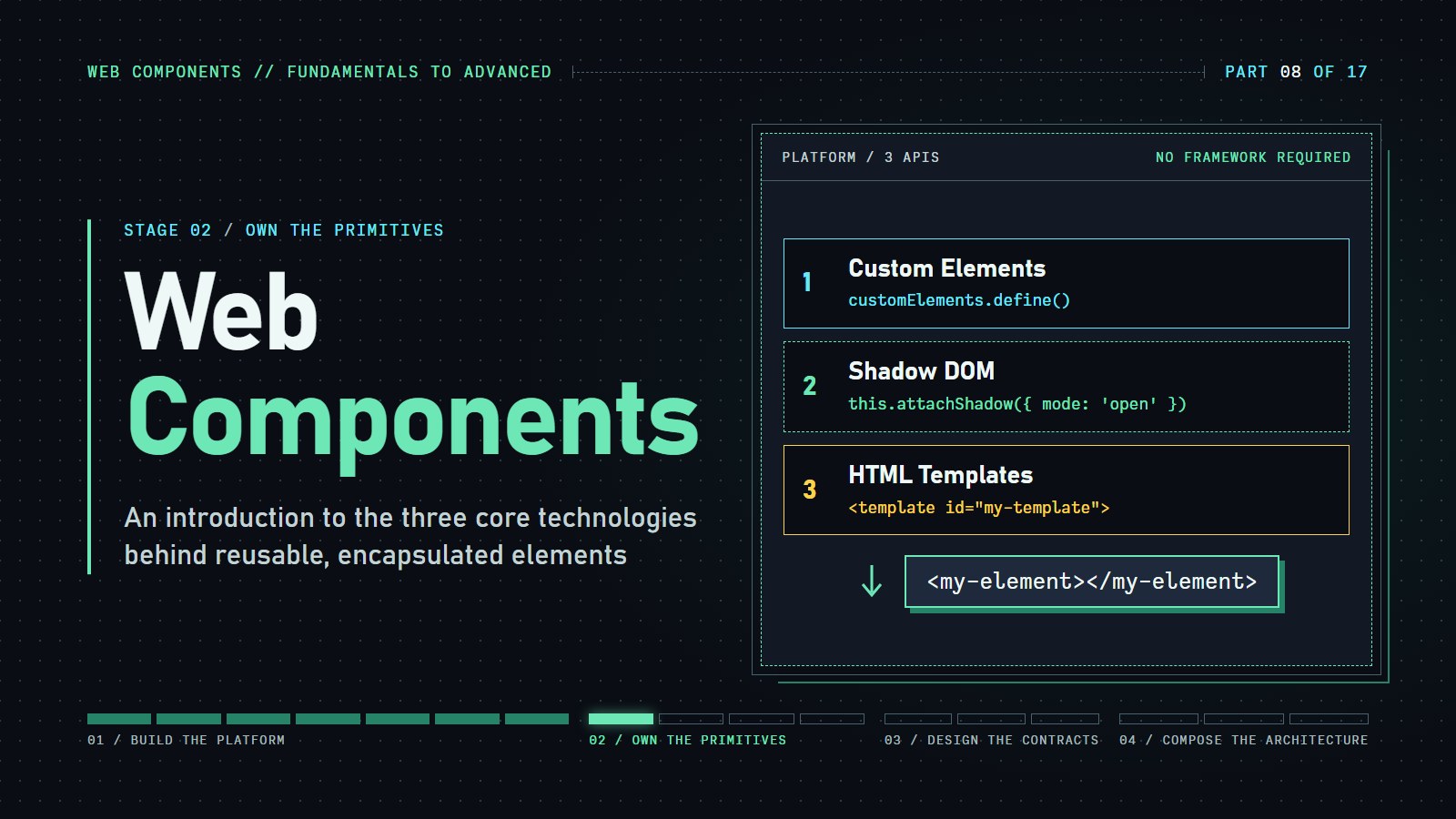
Web Components are a set of web platform APIs that allow developers to create custom, reusable, and encapsulated HTML elements. These elements can be used in web pages and applications, promoting code reuse and simplifying complex user interface (UI) development. The primary technologies that constitute Web Components include:
-
Custom Elements: APIs to define new HTML elements.
-
Shadow DOM: A private, encapsulated DOM tree for the element. Its styles do not leak out to the rest of the page, and the page's styles do not leak in. (The DOM is the browser's live tree of the page's elements.)
-
HTML Templates: HTML fragments that are not rendered until they are instantiated via JavaScript.
These technologies work in unison to enable developers to craft components that are self-contained and interoperable: to the browser, your <info-card> is just another element, so it sits next to <p> and <button>, and works with any framework that produces HTML.
You can poke the idea before reading any code. The lab below is a real custom element with a real shadow root.
Here is a card written as a tag of its own. The text inside it is passed in from the outside, and the attribute tone chooses its color:
<ob-lab-card tone="warning">Backups run nightly.</ob-lab-card>
Change tone to success and the card's color changes, because the element reads that attribute. Now add a page rule such as p { color: red; }. The paragraph text you slotted in turns red, since it still belongs to the page. The text the card draws for itself inside its shadow root does not, because the page's CSS cannot reach in there. The only doors in are CSS custom properties (--name) and parts the author exposes with ::part().
Try changing tone, collapsing the card, and switching the page-CSS toggles. Notice which text changes and which does not. That wall is Shadow DOM, and the rest of the article builds it piece by piece.
Next, a first custom element in action. This info card component demonstrates how to create a basic Web Component that encapsulates its styles and structure. A custom element is a tag you define yourself: you write a JavaScript class for it and register it under a name with a hyphen in it, like info-card. The card automatically adapts to light or dark mode based on the user's system preferences, showcasing how Web Components can respect accessibility preferences right out of the box. Try changing your system's theme to see it respond! The code uses a JavaScript class, and a short classes primer follows the demo, so skim the code now and read the explanation right after.
---html
<h1>Basic Custom Element</h1>
<p>This example demonstrates a simple custom element that responds to dark mode preferences.</p>

<info-card title="Web Components Introduction" icon="📖">
	Web Components provide a standard way to create reusable custom elements with encapsulated functionality.
</info-card>

<info-card title="Built with Custom Elements" icon="🔧">
	This card is a custom element that inherits system dark mode preferences.
</info-card>
---css
/* Global styles with automatic dark mode detection */
:root {
	--background-color: #ffffff;
	--text-color: #333333;
	--primary-color: #4285f4;
	--secondary-color: #0f9d58;
	--card-background: #f5f5f5;
	--card-border: #e0e0e0;
}

@media (prefers-color-scheme: dark) {
	:root {
		--background-color: #121212;
		--text-color: #e0e0e0;
		--primary-color: #5c9eff;
		--secondary-color: #34d399;
		--card-background: #1e1e1e;
		--card-border: #333333;
	}
}

body {
	font-family: system-ui, -apple-system, BlinkMacSystemFont, "Segoe UI", Roboto,
		Oxygen, Ubuntu, Cantarell, "Open Sans", "Helvetica Neue", sans-serif;
	background-color: var(--background-color);
	color: var(--text-color);
	line-height: 1.6;
	padding: 2rem;
	margin: 0;
	transition: background-color 0.3s, color 0.3s;
}

h1,
h2 {
	color: var(--primary-color);
}

button {
	background-color: var(--primary-color);
	color: white;
	border: none;
	padding: 8px 16px;
	border-radius: 4px;
	cursor: pointer;
	font-size: 16px;
}

button:hover {
	opacity: 0.9;
}
---js
class InfoCard extends HTMLElement {
  constructor() {
    super();
    // Create a shadow root
    this.attachShadow({ mode: "open" });

    // Get attribute values or provide defaults
    const title = this.getAttribute("title") || "Info Card";
    const icon = this.getAttribute("icon") || "ℹ️";

    // Create the component's HTML
    this.shadowRoot.innerHTML = `
          <style>
            /* Component styles that respect system theme */
            .card {
              background-color: var(--card-background, #f5f5f5);
              border: 1px solid var(--card-border, #e0e0e0);
              border-radius: 8px;
              padding: 16px;
              margin: 16px 0;
              box-shadow: 0 2px 4px rgba(0,0,0,0.1);
              transition: all 0.3s ease;
            }

            .card:hover {
              transform: translateY(-2px);
              box-shadow: 0 4px 8px rgba(0,0,0,0.15);
            }

            .card-header {
              display: flex;
              align-items: center;
              margin-bottom: 12px;
            }

            .icon {
              font-size: 1.5em;
              margin-right: 8px;
            }

            .title {
              margin: 0;
              color: var(--primary-color, #4285f4);
              font-size: 1.25em;
            }

            .content {
              color: var(--text-color, #333333);
            }
          </style>

          <div class="card">
            <div class="card-header">
              <span class="icon">${icon}</span>
              <h2 class="title">${title}</h2>
            </div>
            <div class="content">
              <slot></slot>
            </div>
          </div>
        `;
  }}


// Define the custom element
customElements.define("info-card", InfoCard);
Core Technologies of Web Components#
A five-line primer on classes#
The code in this article uses JavaScript classes. A class is a recipe for making objects. This one makes a dog:
class Dog {
  constructor(name) { this.name = name; }
  speak() { return `${this.name} says woof`; }
}

class Puppy extends Dog {
  constructor(name) { super(name); }
}

console.log(new Puppy('Rex').speak()); // Rex says woof
constructorruns once, when an object is created withnew.thisis the object being built (or used).this.name = namestores a value on it.extends Dogmeans "everything aDoghas, plus my own changes".super(...)calls the parent's constructor. A child class must do this first. Touchthisbeforesuper()and JavaScript throws "Must call super constructor in derived class before accessing 'this'".
For a custom element the parent is HTMLElement, the browser's class for every HTML element. So class InfoCard extends HTMLElement reads "an InfoCard is an HTML element with my changes", and super() is what makes it a real element. Whenever you see constructor() { super(); ... } in the demos, that is the whole story.
1. Custom Elements#
Custom Elements allow developers to define their own HTML tags, enhancing the semantics and reusability of web components. There are two types:
-
Autonomous Custom Elements: Standalone elements not based on existing HTML elements.
-
Customized Built-in Elements: Elements that extend native HTML elements.
Example of an Autonomous Custom Element:
class MyCustomElement extends HTMLElement {
  constructor() {
    super();
    // Element functionality goes here
  }
}

// Define the new element
customElements.define('my-custom-element', MyCustomElement);
In this example, a new custom element <my-custom-element> is defined, which can be used like any standard HTML tag. The name must contain a hyphen, so the browser can always tell your tags from its own (<p>, <button>). Until customElements.define runs, the tag is just an unknown element with no behavior.
(The second kind, customized built-ins, are written <button is="fancy-button">. Safari does not support them, so this series sticks to autonomous elements.)
2. Shadow DOM#
The Shadow DOM provides a way to encapsulate a component's internal DOM tree and styles, preventing them from affecting the rest of the page. This ensures that the component's implementation details are hidden and that a p { color: blue } inside a component cannot recolor every paragraph on the page. (Without it, CSS in a page is global: a rule applies to every matching element.)
Example of Attaching a Shadow DOM:
class MyShadowElement extends HTMLElement {
  constructor() {
    super();
    // Attach a shadow root to the element
    const shadowRoot = this.attachShadow({ mode: 'open' });
    shadowRoot.innerHTML = `
      <style>
        p {
          color: blue;
        }
      </style>
      <p>Shadow DOM Content</p>
    `;
  }
}

customElements.define('my-shadow-element', MyShadowElement);
Here, the <my-shadow-element> contains a shadow DOM with its own styles and content, isolated from the main document. attachShadow creates the private room and returns it. { mode: 'open' } means page JavaScript can still look inside through element.shadowRoot. With { mode: 'closed' }, shadowRoot is null from outside. Either way, the page's CSS cannot reach in.
The Shadow DOM's style encapsulation is one of its most useful features, but it can be difficult to understand without seeing it in action. This demonstration shows a side-by-side comparison of global styles versus Shadow DOM styles. Notice how the paragraph in the global document is affected by document-level CSS, while the content in the Shadow DOM remains isolated with its own styling—even though both are paragraphs. This isolation prevents style conflicts and creates truly self-contained components.
---html
<h1>Shadow DOM Style Encapsulation</h1>
<p>This example demonstrates how Shadow DOM encapsulates styles and prevents them from leaking into or out of the component.</p>

<div class="demo-area">
	<div class="column">
		<h2>Global Styling</h2>
		<p>This paragraph uses the global styles from the document. Notice the background color and left border.</p>
	</div>

	<div class="column">
		<h2>Shadow DOM Component</h2>
		<shadow-component>
			<span slot="header">Component Header</span>
			This content is styled by the component's internal styles, not affected by the global paragraph styles.
		</shadow-component>
	</div>
</div>
---css
/* Global styles with dark mode support */
:root {
	--background-color: #ffffff;
	--text-color: #333333;
	--primary-color: #4285f4;
	--accent-color: #ea4335;
	--border-color: #dadce0;
}

@media (prefers-color-scheme: dark) {
	:root {
		--background-color: #121212;
		--text-color: #e0e0e0;
		--primary-color: #5c9eff;
		--accent-color: #ff6c60;
		--border-color: #333333;
	}
}

body {
	font-family: system-ui, -apple-system, BlinkMacSystemFont, "Segoe UI", Roboto,
		Oxygen, Ubuntu, Cantarell, "Open Sans", "Helvetica Neue", sans-serif;
	background-color: var(--background-color);
	color: var(--text-color);
	line-height: 1.6;
	padding: 2rem;
	margin: 0;
	transition: background-color 0.3s, color 0.3s;
}

h1,
h2 {
	color: var(--primary-color);
}

/* Global p styling - this will NOT affect p tags in the shadow DOM */
p {
	background-color: #f0f0f0;
	padding: 10px;
	border-left: 4px solid var(--accent-color);
}

@media (prefers-color-scheme: dark) {
	p {
		background-color: #2a2a2a;
	}
}

.demo-area {
	display: flex;
	flex-direction: column;
	gap: 2rem;
	margin-top: 2rem;
}

@media (min-width: 768px) {
	.demo-area {
		flex-direction: row;
	}
}

.column {
	flex: 1;
	padding: 1rem;
	border: 1px solid var(--border-color);
	border-radius: 8px;
}
---js
class ShadowComponent extends HTMLElement {
  constructor() {
    super();
    // Create shadow root
    const shadow = this.attachShadow({ mode: "open" });

    // Create component structure and styles
    shadow.innerHTML = `
          <style>
            /* Component-specific styles that won't leak out */
            :host {
              display: block;
              border-radius: 8px;
              overflow: hidden;
              border: 1px solid var(--border-color, #dadce0);
              box-shadow: 0 2px 10px rgba(0, 0, 0, 0.1);
            }

            .header {
              background-color: var(--primary-color, #4285f4);
              color: white;
              padding: 12px 16px;
              font-weight: bold;
            }

            .content {
              padding: 16px;
              color: var(--text-color, #333333);
              background-color: var(--background-color, white);
            }

            /* This p styling will NOT affect global p tags */
            p {
              margin: 0;
              line-height: 1.5;
              /* No background or border like the global styling */
            }
          </style>

          <div class="component">
            <div class="header">
              <slot name="header">Default Header</slot>
            </div>
            <div class="content">
              <p><slot>Default content</slot></p>
            </div>
          </div>
        `;
  }}


// Define the custom element
customElements.define("shadow-component", ShadowComponent);
3. HTML Templates#
HTML Templates define chunks of HTML that are inert and not rendered during page load. They can be instantiated later using JavaScript, allowing for dynamic and efficient DOM manipulation.
Example of Using an HTML Template:
<template id="my-template">
  <style>
    .template-content {
      color: red;
    }
  </style>
  <div class="template-content">Template Content</div>
</template>

<script>
  // Access the template
  const template = document.getElementById('my-template');
  // Clone the content
  const clone = document.importNode(template.content, true);
  // Append to the document
  document.body.appendChild(clone);
</script>
In this example, the content of the <template> is cloned and inserted into the document. A <template> shows nothing on its own. template.content is its hidden fragment, and importNode(..., true) makes a deep copy you can place on the page. Notice that here the clone goes into the main document, so its <style> is not private. Put the clone inside a shadow root and it is.
The following example demonstrates the power of HTML Templates and Slots for creating flexible, reusable components. This product card gallery uses a template with multiple slots that allow for easy content projection. You can add new products with the 'Add New Product' button to see how components can be dynamically created and populated with custom content. Pay attention to how the template defines the structure while the slots allow for customization
---html
<h1>HTML Templates and Slots</h1>
<p>This example demonstrates the use of HTML Templates and Slots for creating flexible and reusable components.</p>

<!-- Template definition -->
<template id="product-card-template">
	<style>
		/* Styles inside the template */
		.product-card {
			border: 1px solid var(--border-color);
			border-radius: 8px;
			overflow: hidden;
			transition: transform 0.3s, box-shadow 0.3s;
			background-color: var(--card-background);
		}

		.product-card:hover {
			transform: translateY(-5px);
			box-shadow: 0 5px 15px rgba(0, 0, 0, 0.1);
		}

		.card-image {
			width: 100%;
			height: 150px;
			display: flex;
			align-items: center;
			justify-content: center;
			background-color: var(--primary-color);
			color: white;
			font-size: 3rem;
		}

		.card-content {
			padding: 16px;
		}

		.title {
			margin: 0 0 8px 0;
			color: var(--primary-color);
		}

		.price {
			font-weight: bold;
			color: var(--secondary-color);
			margin-bottom: 12px;
		}

		.description {
			color: var(--text-color);
			margin: 0;
		}

		.actions {
			padding: 0 16px 16px;
		}

		.actions button {
			width: 100%;
			background-color: var(--secondary-color);
			color: black;
			border: none;
			padding: 8px 0;
			border-radius: 4px;
			cursor: pointer;
			transition: background-color 0.3s;
		}

		.actions button:hover {
			background-color: transparent;
			outline: 2px solid var(--secondary-color);
		}
	</style>

	<div class="product-card">
		<div class="card-image">
			<slot name="image">🖼️</slot>
		</div>
		<div class="card-content">
			<h3 class="title">
				<slot name="title">Product Title</slot>
			</h3>
			<div class="price">
				<slot name="price">$0.00</slot>
			</div>
			<p class="description">
				<slot name="description">No description available</slot>
			</p>
		</div>
		<div class="actions">
			<button>
				<slot name="button-text">Add to Cart</slot>
			</button>
		</div>
	</div>
</template>

<!-- Container for product cards -->
<div class="card-container" id="product-container"></div>

<button id="add-product">Add New Product</button>
---css
/* Global styles with dark mode support */
    :root {
      --background-color: #ffffff;
      --text-color: #333333;
      --primary-color: #6200ee;
      --secondary-color: #03dac6;
      --card-background: #f5f5f5;
      --border-color: #e0e0e0;
    }

    @media (prefers-color-scheme: dark) {
      :root {
        --background-color: #121212;
        --text-color: #e0e0e0;
        --primary-color: #bb86fc;
        --secondary-color: #03dac6;
        --card-background: #1e1e1e;
        --border-color: #333333;
      }
    }

    body {
      font-family: system-ui, -apple-system, BlinkMacSystemFont, 'Segoe UI', Roboto, Oxygen, Ubuntu, Cantarell, 'Open Sans', 'Helvetica Neue', sans-serif;
      background-color: var(--background-color);
      color: var(--text-color);
      line-height: 1.6;
      padding: 2rem;
      margin: 0;
      transition: background-color 0.3s, color 0.3s;
    }

    h1, h2 {
      color: var(--primary-color);
    }

    .card-container {
      display: grid;
      grid-template-columns: repeat(auto-fill, minmax(300px, 1fr));
      gap: 1.5rem;
      margin-top: 2rem;
    }

    button {
      background-color: var(--primary-color);
      color: white;
      border: none;
      padding: 8px 16px;
      border-radius: 4px;
      cursor: pointer;
      font-size: 16px;
      margin-top: 1rem;
    }

    button:hover {
      opacity: 0.9;
    }
---js
class ProductCard extends HTMLElement {
  constructor() {
    super();

    // Create shadow DOM
    this.attachShadow({ mode: 'open' });

    // Get the template content
    const template = document.getElementById('product-card-template');
    const templateContent = template.content;

    // Clone the template content
    this.shadowRoot.appendChild(templateContent.cloneNode(true));

    // Add event listener for the button
    const button = this.shadowRoot.querySelector('button');
    button.addEventListener('click', () => {
      this.dispatchEvent(new CustomEvent('product-action', {
        bubbles: true,
        composed: true,
        detail: {
          productId: this.getAttribute('product-id') } }));


    });
  }}


// Define the custom element
customElements.define('product-card', ProductCard);

// Sample products
const products = [
{
  id: 'prod1',
  title: 'Wireless Headphones',
  price: '$149.99',
  description: 'Premium wireless headphones with noise cancellation and long battery life.',
  emoji: '🎧' },

{
  id: 'prod2',
  title: 'Smart Watch',
  price: '$299.99',
  description: 'Track your fitness, receive notifications, and more with this advanced smartwatch.',
  emoji: '⌚' },

{
  id: 'prod3',
  title: 'Bluetooth Speaker',
  price: '$79.99',
  description: 'Portable speaker with amazing sound quality and 12-hour battery life.',
  emoji: '🔊' }];


// Function to add product cards
function addProductCard(product) {
  const productContainer = document.getElementById('product-container');

  const card = document.createElement('product-card');
  card.setAttribute('product-id', product.id);

  // Create and assign slots
  const titleSlot = document.createElement('span');
  titleSlot.setAttribute('slot', 'title');
  titleSlot.textContent = product.title;

  const priceSlot = document.createElement('span');
  priceSlot.setAttribute('slot', 'price');
  priceSlot.textContent = product.price;

  const descriptionSlot = document.createElement('span');
  descriptionSlot.setAttribute('slot', 'description');
  descriptionSlot.textContent = product.description;

  const imageSlot = document.createElement('span');
  imageSlot.setAttribute('slot', 'image');
  imageSlot.textContent = product.emoji;

  const buttonTextSlot = document.createElement('span');
  buttonTextSlot.setAttribute('slot', 'button-text');
  buttonTextSlot.textContent = 'Add to Cart';

  // Append slots to card
  card.appendChild(titleSlot);
  card.appendChild(priceSlot);
  card.appendChild(descriptionSlot);
  card.appendChild(imageSlot);
  card.appendChild(buttonTextSlot);

  // Add to container
  productContainer.appendChild(card);
}

// Initial rendering
products.forEach(product => addProductCard(product));

// Add event listener for the "Add New Product" button
document.getElementById('add-product').addEventListener('click', () => {
  const newProduct = {
    id: 'prod' + (document.querySelectorAll('product-card').length + 1),
    title: 'New Product',
    price: '$' + (Math.random() * 100).toFixed(2),
    description: 'This is a newly added product to demonstrate dynamic component creation.',
    emoji: ['📱', '💻', '🖥️', '⌨️', '🖱️'][Math.floor(Math.random() * 5)] };


  addProductCard(newProduct);
});

// Event listener for product actions
document.addEventListener('product-action', e => {
  alert(`Product added to cart: ${e.detail.productId}`);
});
Benefits of Using Web Components#
-
Reusability: Create components that can be easily reused across different projects, reducing duplication and effort.
-
Encapsulation: Encapsulate styles and behavior, preventing unintended interactions with other parts of the application.
-
Interoperability: Custom elements are plain HTML elements to the browser, so they work with standard HTML, CSS, and JavaScript, and can be placed in a page built with a framework or library. Some framework features (passing objects as props, for instance) need extra care.
-
Maintainability: Simplify code maintenance by breaking down complex UIs into manageable, self-contained components.
Getting Started with Web Components#
To start building Web Components:
-
Define a Custom Element: Use the
classsyntax to create a new element by extendingHTMLElementor other built-in elements. -
Attach a Shadow DOM (Optional): Encapsulate the component's internal structure and styles by attaching a shadow root.
-
Use HTML Templates (Optional): Define reusable HTML structures that can be instantiated as needed.
-
Register the Custom Element: Use
customElements.define()to register the new element with the browser.
Example:
class MyElement extends HTMLElement {
  constructor() {
    super();
    const shadow = this.attachShadow({ mode: 'open' });
    shadow.innerHTML = `
      <style>
        p {
          font-size: 20px;
          color: green;
        }
      </style>
      <p>Hello, Web Components!</p>
    `;
  }
}

customElements.define('my-element', MyElement);
After defining and registering MyElement, it can be used in HTML as <my-element></my-element>.
Coding challenge: Hello, component
Two lines are missing. Make <hello-box> show a green "Hello" paragraph.
Expected result: the preview shows the word "Hello" in green. Before you finish, it shows nothing, because the browser does not know the tag yet. Do not touch the page's CSS: the p rule there is red, and your component should stay green anyway.
---html
<p>A normal page paragraph (red).</p>
<hello-box></hello-box>
---css
p { color: red; }
---js
class HelloBox extends HTMLElement {
  constructor() {
    super();
    const shadow = this.attachShadow({ mode: 'open' });
    // TODO: fill the shadow root with a <style> that makes p green
    // and a <p>Hello</p>
  }
}

// TODO: register the class under the name "hello-box"
Web Components come alive through their lifecycle callbacks. This interactive example shows a counter component that logs each lifecycle event as it occurs. Try updating attributes, adding or removing the component, and interacting with it to see how and when different callbacks are triggered. This visual demonstration makes abstract concepts like connectedCallback and attributeChangedCallback concrete and easy to understand. The real-time log helps you visualize exactly when each part of the component lifecycle is executed.
---html
<div class="container">
	<h1>Interactive Component with Lifecycle Methods</h1>
	<p>This example demonstrates a Web Component with lifecycle methods and interactive features. Watch the console to see the lifecycle events in action.</p>

	<div class="demo-area">
		<div class="panel">
			<h2>Component Controls</h2>

			<div class="input-group">
				<label for="title-input">Title:</label>
				<input type="text" id="title-input" value="Interactive Counter">
			</div>

			<div class="input-group">
				<label for="theme-select">Theme:</label>
				<select id="theme-select">
					<option value="default">Default</option>
					<option value="primary">Primary</option>
					<option value="secondary">Secondary</option>
					<option value="danger">Danger</option>
				</select>
			</div>

			<div class="input-group">
				<label for="step-input">Count Step:</label>
				<input type="number" id="step-input" value="1" min="1" max="10">
			</div>

			<div class="controls">
				<button id="update-btn">Update Component</button>
				<button id="reset-btn" class="secondary">Reset Counter</button>
				<button id="add-btn">Add Component</button>
				<button id="remove-btn" class="danger">Remove Component</button>
			</div>
		</div>

		<div class="panel">
			<h2>Component Demo</h2>
			<div id="component-container">
				<lifecycle-counter title="Interactive Counter" theme="default" step="1">
				</lifecycle-counter>
			</div>

			<h2>Lifecycle Log</h2>
			<div id="log-container" class="log-container"></div>
		</div>
	</div>
</div>
---css
/* Global styles with dark mode support */
:root {
	--background-color: #ffffff;
	--text-color: #333333;
	--primary-color: #0070f3;
	--secondary-color: #ff0080;
	--border-color: #eaeaea;
	--success-color: #0070f3;
	--warning-color: #f5a623;
	--danger-color: #ff0000;
}

@media (prefers-color-scheme: dark) {
	:root {
		--background-color: #121212;
		--text-color: #e0e0e0;
		--primary-color: #0070f3;
		--secondary-color: #ff0080;
		--border-color: #333333;
		--success-color: #2ecc71;
		--warning-color: #f39c12;
		--danger-color: #e74c3c;
	}
}

body {
	font-family: system-ui, -apple-system, BlinkMacSystemFont, "Segoe UI", Roboto,
		Oxygen, Ubuntu, Cantarell, "Open Sans", "Helvetica Neue", sans-serif;
	background-color: var(--background-color);
	color: var(--text-color);
	line-height: 1.6;
	padding: 2rem;
	margin: 0;
	transition: background-color 0.3s, color 0.3s;
}

h1,
h2 {
	color: var(--primary-color);
}

.container {
	max-width: 800px;
	margin: 0 auto;
}

.demo-area {
	display: grid;
	grid-template-columns: 1fr;
	gap: 2rem;
	margin-top: 2rem;
}

@media (min-width: 768px) {
	.demo-area {
		grid-template-columns: 1fr 1fr;
	}
}

.panel {
	padding: 1.5rem;
	border: 1px solid var(--border-color);
	border-radius: 8px;
	background-color: rgba(0, 0, 0, 0.05);
}

@media (prefers-color-scheme: dark) {
	.panel {
		background-color: rgba(255, 255, 255, 0.05);
	}
}

.log-container {
	height: 300px;
	overflow-y: auto;
	padding: 1rem;
	background-color: rgba(0, 0, 0, 0.03);
	border: 1px solid var(--border-color);
	border-radius: 4px;
	font-family: monospace;
}

@media (prefers-color-scheme: dark) {
	.log-container {
		background-color: rgba(255, 255, 255, 0.03);
	}
}

.log-entry {
	margin-bottom: 0.5rem;
	padding: 0.5rem;
	border-radius: 4px;
}

.log-info {
	background-color: rgba(0, 112, 243, 0.1);
	border-left: 3px solid var(--success-color);
}

.log-warning {
	background-color: rgba(245, 166, 35, 0.1);
	border-left: 3px solid var(--warning-color);
}

.log-error {
	background-color: rgba(255, 0, 0, 0.1);
	border-left: 3px solid var(--danger-color);
}

.controls {
	display: flex;
	flex-wrap: wrap;
	gap: 0.5rem;
	margin-bottom: 1rem;
}

button {
	background-color: var(--primary-color);
	color: white;
	border: none;
	padding: 8px 16px;
	border-radius: 4px;
	cursor: pointer;
	font-size: 16px;
}

button:hover {
	opacity: 0.9;
}

button.secondary {
	background-color: var(--secondary-color);
}

button.warning {
	background-color: var(--warning-color);
}

button.danger {
	background-color: var(--danger-color);
}

.input-group {
	margin-bottom: 1rem;
}

label {
	display: block;
	margin-bottom: 0.5rem;
}

input,
select {
	width: 100%;
	padding: 0.5rem;
	border: 1px solid var(--border-color);
	border-radius: 4px;
	background-color: var(--background-color);
	color: var(--text-color);
}
---js
// Log utility function
function addLogEntry(message, type = "info") {
  const logContainer = document.getElementById("log-container");
  const entry = document.createElement("div");
  entry.className = `log-entry log-${type}`;
  entry.textContent = `${new Date().toLocaleTimeString()} - ${message}`;
  logContainer.appendChild(entry);
  logContainer.scrollTop = logContainer.scrollHeight;
}

class LifecycleCounter extends HTMLElement {
  // Define observed attributes
  static get observedAttributes() {
    return ["title", "theme", "step"];
  }

  constructor() {
    super();
    addLogEntry("Constructor called");

    // Create a shadow root
    this.attachShadow({ mode: "open" });

    // Initialize counter value
    this.count = 0;

    // Render the initial component
    this.render();
  }

  // Lifecycle: When component is added to the DOM
  connectedCallback() {
    addLogEntry("Connected to DOM");

    // Add event listeners
    this.shadowRoot.
    querySelector(".increment").
    addEventListener("click", () => this.increment());
    this.shadowRoot.
    querySelector(".decrement").
    addEventListener("click", () => this.decrement());
  }

  // Lifecycle: When component is removed from the DOM
  disconnectedCallback() {
    addLogEntry("Disconnected from DOM", "warning");

    // Clean up event listeners
    this.shadowRoot.
    querySelector(".increment").
    removeEventListener("click", () => this.increment());
    this.shadowRoot.
    querySelector(".decrement").
    removeEventListener("click", () => this.decrement());
  }

  // Lifecycle: When observed attributes change
  attributeChangedCallback(name, oldValue, newValue) {
    addLogEntry(
    `Attribute "${name}" changed from "${oldValue}" to "${newValue}"`);


    // Re-render the component to reflect the new attributes
    this.render();
  }

  // Increment counter method
  increment() {
    const step = parseInt(this.getAttribute("step") || "1");
    this.count += step;
    addLogEntry(`Counter incremented by ${step} to ${this.count}`);
    this.updateCounter();
  }

  // Decrement counter method
  decrement() {
    const step = parseInt(this.getAttribute("step") || "1");
    this.count -= step;
    addLogEntry(`Counter decremented by ${step} to ${this.count}`);
    this.updateCounter();
  }

  // Reset counter method
  reset() {
    this.count = 0;
    addLogEntry("Counter reset to 0");
    this.updateCounter();
  }

  // Update counter display
  updateCounter() {
    const counterElement = this.shadowRoot.querySelector(".counter-value");
    if (counterElement) {
      counterElement.textContent = this.count;
    }
  }

  // Render the component
  render() {
    const title = this.getAttribute("title") || "Counter";
    const theme = this.getAttribute("theme") || "default";
    const step = this.getAttribute("step") || "1";

    this.shadowRoot.innerHTML = `
          <style>
            /* Component styles with CSS variables for theme support */
            :host {
              display: block;
              font-family: inherit;
            }

            .counter-card {
              border-radius: 8px;
              padding: 1.5rem;
              box-shadow: 0 4px 6px rgba(0, 0, 0, 0.1);
              transition: all 0.3s ease;
            }

            /* Theme variations */
            .theme-default {
              background-color: var(--background-color, white);
              border: 1px solid var(--border-color, #eaeaea);
            }

            .theme-primary {
              background-color: var(--primary-color, #0070f3);
              color: white;
            }

            .theme-secondary {
              background-color: var(--secondary-color, #ff0080);
              color: white;
            }

            .theme-danger {
              background-color: var(--danger-color, #ff0000);
              color: white;
            }

            .title {
              margin-top: 0;
              margin-bottom: 1rem;
              font-size: 1.5rem;
            }

            .counter {
              display: flex;
              align-items: center;
              justify-content: center;
              margin-bottom: 1rem;
            }

            .counter-value {
              font-size: 2rem;
              font-weight: bold;
              margin: 0 1rem;
              min-width: 3rem;
              text-align: center;
            }

            .controls {
              display: flex;
              justify-content: center;
              gap: 0.5rem;
            }

            button {
              background-color: rgba(0, 0, 0, 0.1);
              border: none;
              border-radius: 4px;
              padding: 0.5rem 1rem;
              cursor: pointer;
              font-size: 1rem;
              transition: background-color 0.2s;
            }

            .theme-default button {
              background-color: var(--primary-color, #0070f3);
              color: white;
            }

            .theme-primary button,
            .theme-secondary button,
            .theme-danger button {
              background-color: rgba(255, 255, 255, 0.2);
              color: white;
            }

            button:hover {
              opacity: 0.9;
            }

            .info {
              margin-top: 1rem;
              font-size: 0.9rem;
              text-align: center;
              opacity: 0.8;
            }
          </style>

          <div class="counter-card theme-${theme}">
            <h3 class="title">${title}</h3>

            <div class="counter">
              <button class="decrement">-</button>
              <div class="counter-value">${this.count}</div>
              <button class="increment">+</button>
            </div>

            <div class="info">
              Step size: ${step}
            </div>
          </div>
        `;

    // Re-attach event listeners
    const incrementBtn = this.shadowRoot.querySelector(".increment");
    const decrementBtn = this.shadowRoot.querySelector(".decrement");

    if (incrementBtn && decrementBtn) {
      incrementBtn.addEventListener("click", () => this.increment());
      decrementBtn.addEventListener("click", () => this.decrement());
    }
  }}


// Define the custom element
customElements.define("lifecycle-counter", LifecycleCounter);

// UI Control Handlers
document.getElementById("update-btn").addEventListener("click", () => {
  const counter = document.querySelector("lifecycle-counter");
  if (counter) {
    const title = document.getElementById("title-input").value;
    const theme = document.getElementById("theme-select").value;
    const step = document.getElementById("step-input").value;

    counter.setAttribute("title", title);
    counter.setAttribute("theme", theme);
    counter.setAttribute("step", step);

    addLogEntry("Component attributes updated");
  }
});

document.getElementById("reset-btn").addEventListener("click", () => {
  const counter = document.querySelector("lifecycle-counter");
  if (counter) {
    counter.reset();
  }
});

document.getElementById("add-btn").addEventListener("click", () => {
  const container = document.getElementById("component-container");

  // Check if the component exists
  if (!container.querySelector("lifecycle-counter")) {
    const title = document.getElementById("title-input").value;
    const theme = document.getElementById("theme-select").value;
    const step = document.getElementById("step-input").value;

    const newCounter = document.createElement("lifecycle-counter");
    newCounter.setAttribute("title", title);
    newCounter.setAttribute("theme", theme);
    newCounter.setAttribute("step", step);

    container.appendChild(newCounter);
    addLogEntry("Component added to DOM");
  } else {
    addLogEntry("Component already exists", "warning");
  }
});

document.getElementById("remove-btn").addEventListener("click", () => {
  const counter = document.querySelector("lifecycle-counter");
  if (counter) {
    counter.remove();
    addLogEntry("Component removed from DOM", "error");
  } else {
    addLogEntry("No component to remove", "warning");
  }
});
Real World Applications of Web Components#
The three technologies are most useful together. A component usually has a custom element as the tag, a template for its markup, and a shadow root to keep it private.
Bringing everything together, this example shows how Web Components can be composed to create complex, responsive user interfaces. The gallery demonstrates component composition with a parent gallery-grid component containing multiple gallery-item children. Try filtering the gallery by category and notice how the components respond to different viewport sizes. This pattern of component composition is the foundation of modern web application architecture, allowing developers to build complex UIs from simple, reusable building blocks.
---html
<div class="container">
	<header>
		<h1>Web Component Gallery</h1>
		<p>A responsive gallery of web components using advanced CSS and Shadow DOM</p>
	</header>

	<div class="filters">
		<button class="filter-btn active" data-category="all">All</button>
		<button class="filter-btn" data-category="nature">Nature</button>
		<button class="filter-btn" data-category="architecture">Architecture</button>
		<button class="filter-btn" data-category="food">Food</button>
		<button class="filter-btn" data-category="technology">Technology</button>
	</div>

	<gallery-grid id="gallery"></gallery-grid>
</div>
---css
/* Global styles with dark mode support */
:root {
	--background-color: #ffffff;
	--text-color: #333333;
	--primary-color: #1976d2;
	--secondary-color: #dc004e;
	--surface-color: #f5f5f5;
	--border-color: #e0e0e0;
	--card-shadow: 0 2px 10px rgba(0, 0, 0, 0.1);
}

@media (prefers-color-scheme: dark) {
	:root {
		--background-color: #121212;
		--text-color: #e0e0e0;
		--primary-color: #42a5f5;
		--secondary-color: #f06292;
		--surface-color: #1e1e1e;
		--border-color: #333333;
		--card-shadow: 0 2px 10px rgba(0, 0, 0, 0.3);
	}
}

body {
	font-family: system-ui, -apple-system, BlinkMacSystemFont, "Segoe UI", Roboto,
		Oxygen, Ubuntu, Cantarell, "Open Sans", "Helvetica Neue", sans-serif;
	background-color: var(--background-color);
	color: var(--text-color);
	line-height: 1.6;
	padding: 0;
	margin: 0;
	transition: background-color 0.3s, color 0.3s;
}

.container {
	max-width: 1200px;
	margin: 0 auto;
	padding: 2rem;
}

header {
	text-align: center;
	margin-bottom: 2rem;
}

h1,
h2,
h3 {
	color: var(--primary-color);
}

.filters {
	display: flex;
	flex-wrap: wrap;
	gap: 1rem;
	margin-bottom: 2rem;
	justify-content: center;
}

.filter-btn {
	background-color: var(--surface-color);
	color: var(--text-color);
	border: 1px solid var(--border-color);
	border-radius: 20px;
	padding: 0.5rem 1.5rem;
	cursor: pointer;
	transition: all 0.3s;
}

.filter-btn.active {
	background-color: var(--primary-color);
	color: white;
	border-color: var(--primary-color);
}

.filter-btn:hover:not(.active) {
	background-color: var(--border-color);
}
---js
// Gallery data
const galleryItems = [
{
  title: "Mountain Landscape",
  description: "Beautiful mountain view at sunset",
  category: "nature",
  imageEmoji: "🏔️",
  featured: true },

{
  title: "Modern Building",
  description: "Contemporary architecture with glass facade",
  category: "architecture",
  imageEmoji: "🏢",
  featured: false },

{
  title: "Fresh Salad",
  description: "Healthy vegetable salad with avocado",
  category: "food",
  imageEmoji: "🥗",
  featured: true },

{
  title: "Smartphone",
  description: "Latest smartphone technology",
  category: "technology",
  imageEmoji: "📱",
  featured: false },

{
  title: "Ocean Beach",
  description: "Tranquil beach with clear blue water",
  category: "nature",
  imageEmoji: "🏖️",
  featured: false },

{
  title: "Historic Castle",
  description: "Medieval castle on a hill",
  category: "architecture",
  imageEmoji: "🏰",
  featured: true },

{
  title: "Pasta Dish",
  description: "Homemade pasta with tomato sauce",
  category: "food",
  imageEmoji: "🍝",
  featured: false },

{
  title: "Laptop Computer",
  description: "Modern laptop for productivity",
  category: "technology",
  imageEmoji: "💻",
  featured: true },

{
  title: "Forest Trail",
  description: "Path through a dense forest",
  category: "nature",
  imageEmoji: "🌲",
  featured: false },

{
  title: "Bridge",
  description: "Suspension bridge crossing river",
  category: "architecture",
  imageEmoji: "🌉",
  featured: false },

{
  title: "Pizza",
  description: "Delicious pizza with multiple toppings",
  category: "food",
  imageEmoji: "🍕",
  featured: true },

{
  title: "Robot",
  description: "Advanced robotics technology",
  category: "technology",
  imageEmoji: "🤖",
  featured: false }];


// Gallery Item Component
class GalleryItem extends HTMLElement {
  constructor() {
    super();
    this.attachShadow({ mode: "open" });
  }

  connectedCallback() {
    this.render();
  }

  static get observedAttributes() {
    return ["title", "description", "image-emoji", "featured"];
  }

  attributeChangedCallback() {
    if (this.shadowRoot) {
      this.render();
    }
  }

  render() {
    const title = this.getAttribute("title") || "Gallery Item";
    const description =
    this.getAttribute("description") || "No description available";
    const imageEmoji = this.getAttribute("image-emoji") || "🖼️";
    const featured =
    this.hasAttribute("featured") && this.getAttribute("featured") !== "false";

    this.shadowRoot.innerHTML = `
          <style>
            :host {
              display: block;
              box-sizing: border-box;
            }

            .gallery-item {
              background-color: var(--surface-color, #f5f5f5);
              border-radius: 8px;
              overflow: hidden;
              box-shadow: var(--card-shadow, 0 2px 10px rgba(0, 0, 0, 0.1));
              transition: transform 0.3s, box-shadow 0.3s;
              height: 100%;
              display: flex;
              flex-direction: column;
            }

            .gallery-item:hover {
              transform: translateY(-5px);
              box-shadow: 0 10px 20px rgba(0, 0, 0, 0.15);
            }

            .image {
              height: 180px;
              background-color: var(--primary-color, #1976d2);
              color: white;
              display: flex;
              align-items: center;
              justify-content: center;
              font-size: 5rem;
            }

            .content {
              padding: 1rem;
              flex-grow: 1;
              display: flex;
              flex-direction: column;
            }

            .title {
              margin: 0 0 0.5rem 0;
              font-size: 1.25rem;
              color: var(--text-color, #333333);
              display: flex;
              align-items: center;
              gap: 0.5rem;
            }

            .featured-badge {
              background-color: var(--secondary-color, #dc004e);
              color: white;
              font-size: 0.75rem;
              padding: 0.25rem 0.5rem;
              border-radius: 4px;
              font-weight: normal;
            }

            .description {
              margin: 0;
              color: var(--text-color, #333333);
              opacity: 0.8;
              flex-grow: 1;
            }

            @media (prefers-color-scheme: dark) {
              .gallery-item {
                background-color: var(--surface-color, #1e1e1e);
              }

              .title, .description {
                color: var(--text-color, #e0e0e0);
              }
            }
          </style>

          <div class="gallery-item">
            <div class="image">
              ${imageEmoji}
            </div>
            <div class="content">
              <h3 class="title">
                ${title}
                ${
    featured ? '<span class="featured-badge">Featured</span>' : ""
    }
              </h3>
              <p class="description">${description}</p>
            </div>
          </div>
        `;
  }}


// Gallery Grid Component
class GalleryGrid extends HTMLElement {
  constructor() {
    super();
    this.attachShadow({ mode: "open" });
    this.items = [];
    this.currentFilter = "all";
  }

  connectedCallback() {
    this.render();
    this.loadItems(galleryItems);
  }

  loadItems(items) {
    this.items = items;
    this.updateGallery();
  }

  updateGallery() {
    const gallery = this.shadowRoot.querySelector(".gallery-grid");

    // Clear existing items
    gallery.innerHTML = "";

    // Filter items
    const filteredItems =
    this.currentFilter === "all" ?
    this.items :
    this.items.filter(item => item.category === this.currentFilter);

    // Create gallery items
    filteredItems.forEach(item => {
      const galleryItem = document.createElement("gallery-item");
      galleryItem.setAttribute("title", item.title);
      galleryItem.setAttribute("description", item.description);
      galleryItem.setAttribute("image-emoji", item.imageEmoji);

      if (item.featured) {
        galleryItem.setAttribute("featured", "true");
      }

      gallery.appendChild(galleryItem);
    });

    // Show empty message if no items
    if (filteredItems.length === 0) {
      const emptyMessage = document.createElement("div");
      emptyMessage.className = "empty-message";
      emptyMessage.textContent = "No items found for this category.";
      gallery.appendChild(emptyMessage);
    }
  }

  setFilter(category) {
    this.currentFilter = category;
    this.updateGallery();
  }

  render() {
    this.shadowRoot.innerHTML = `
          <style>
            :host {
              display: block;
            }

            .gallery-grid {
              display: grid;
              grid-template-columns: repeat(auto-fill, minmax(250px, 1fr));
              gap: 2rem;
              margin-top: 2rem;
            }

            @media (max-width: 768px) {
              .gallery-grid {
                grid-template-columns: repeat(auto-fill, minmax(200px, 1fr));
                gap: 1rem;
              }
            }

            @media (max-width: 480px) {
              .gallery-grid {
                grid-template-columns: 1fr;
              }
            }

            .empty-message {
              grid-column: 1 / -1;
              text-align: center;
              padding: 3rem;
              background-color: var(--surface-color, #f5f5f5);
              border-radius: 8px;
              color: var(--text-color, #333333);
            }
          </style>

          <div class="gallery-grid"></div>
        `;
  }}


// Register custom elements
customElements.define("gallery-item", GalleryItem);
customElements.define("gallery-grid", GalleryGrid);

// Filter functionality
const filterButtons = document.querySelectorAll(".filter-btn");
const galleryGrid = document.getElementById("gallery");

filterButtons.forEach(button => {
  button.addEventListener("click", () => {
    // Update active button
    filterButtons.forEach(btn => btn.classList.remove("active"));
    button.classList.add("active");

    // Apply filter
    const category = button.getAttribute("data-category");
    galleryGrid.setFilter(category);
  });
});
Conclusion#
You now have the three bricks: a custom element gives you the tag, Shadow DOM keeps its styles private, and a template holds its markup. You also wrote a working component yourself in the challenge.
What is still missing is the detail of the first brick: how an element knows when it appears on the page, when it is removed, and when someone changes one of its attributes. Those are the lifecycle callbacks. First we look at how an element gets defined and named in the next post, and then at the lifecycle itself.
Comments require JavaScript.