
Journey to Web Components: From Fundamentals to Advanced UI Architecture
How Templates and Slots Work
How we can enhance Web Components by using reusable structures and dynamic content
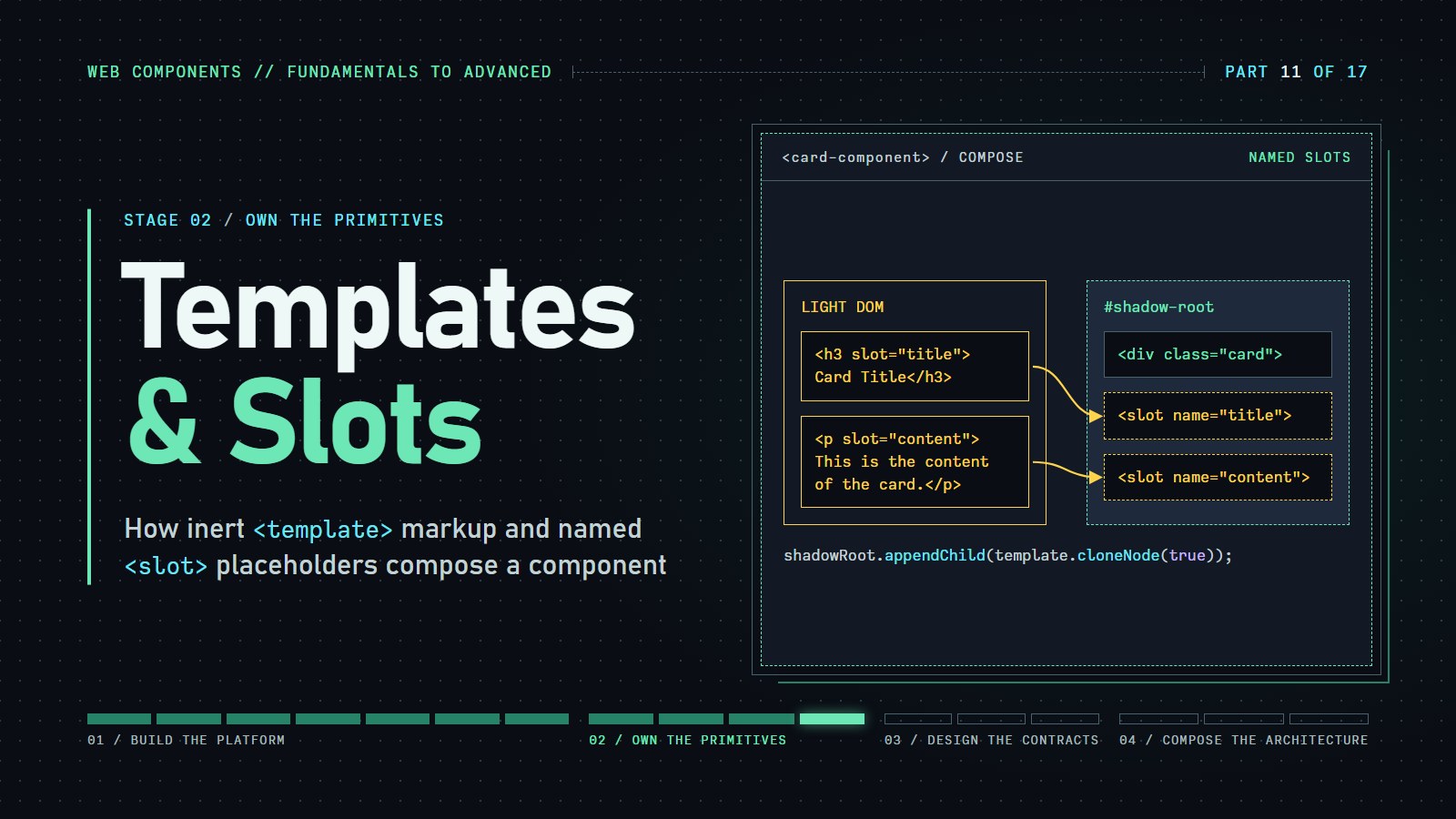
Introduction#
Think of a form letter: the wording is printed once, with blanks where each recipient's name goes. A web component wants the same thing, one fixed layout and a few blanks that each page fills in. HTML gives you two elements for this: <template> holds the layout, and <slot> marks a blank.
A <template> is a layout the browser keeps aside until we ask for a copy, and a <slot> is a labeled hole in that layout where the page's own content shows up.
You need only a little background. A custom element is a class that extends HTMLElement registered with customElements.define. Its shadow root is a private tree that page CSS cannot reach. The "light DOM" is the ordinary markup you write between the component's tags.
The <template> Element#
The <template> element allows us to define HTML fragments that are not rendered immediately when the page loads. Instead, these fragments can be instantiated and inserted into the DOM at runtime using JavaScript. This approach promotes code reuse and helps maintain a clean and efficient DOM structure.
Example:
<template id="my-template">
  <style>
    .message {
      color: blue;
      font-size: 20px;
    }
  </style>
  <div class="message">Hello, Friend!</div>
</template>
In this example, the <template> element contains a styled <div> that can be reused multiple times within the document.
Utilizing the Template in JavaScript:
// Access the template element
const template = document.getElementById('my-template');

// Clone the content of the template
const clone = document.importNode(template.content, true);

// Append the cloned content to the body
document.body.appendChild(clone);
Here, the template's content is cloned and appended to the document's body, rendering the defined message. Two details are easy to miss:
- Why
.content? The<template>element itself stays empty and invisible. Its children live insidetemplate.content, a detached fragment the browser never renders, so scripts in it do not run and images in it do not load. - Why
true? The second argument asks for a deep copy, children included. Leave it out and the failure is a quiet one: you get an empty fragment, andappendChildadds nothing.
template.content.cloneNode(true) does the same job and is what the later examples use.
Optional: the next two subsections are about where a template can come from. You can skip to The <slot> Element and come back later.
If we want to load a web component without embedding the HTML template directly in the file, we can dynamically fetch the HTML template from an external source (such as a separate HTML file, a server endpoint, or a CDN). This approach is useful for:
-
Modularity: Keep our HTML templates separate from our JavaScript logic.
-
Lazy Loading: Load templates only when needed, improving initial page load performance.
-
Reusability: Share templates across multiple components or projects.
Here is an interactive demo of cloning a template element like we learned above
---html
<h1>Basic Template Example</h1>
<p>This example shows how to use the <code><template></code> element to define content that isn't rendered immediately.</p>
<!-- Define a template that won't be rendered until we use it -->
<template id="card-template">
<div class="card">
<h2>Card Title</h2>
<p>This content was defined in a template element and then cloned into the document.</p>
<button>Click Me</button>
</div>
</template>
<button id="add-card">Add New Card</button>
<div id="container"></div>
---css
body {
font-family: system-ui, -apple-system, BlinkMacSystemFont, 'Segoe UI', Roboto, sans-serif;
max-width: 800px;
margin: 0 auto;
padding: 20px;
}
.card {
border: 1px solid #ddd;
border-radius: 8px;
padding: 15px;
margin-bottom: 15px;
background-color: #f8f9fa;
}
button {
background-color: #4CAF50;
color: white;
border: none;
padding: 8px 16px;
border-radius: 4px;
cursor: pointer;
}
---js
// Get references to our elements
const addButton = document.getElementById('add-card');
const template = document.getElementById('card-template');
const container = document.getElementById('container');
// Add click event to the button
addButton.addEventListener('click', () => {
// Clone the template content
const clone = template.content.cloneNode(true);
// Add a click event to the button inside the cloned template
clone.querySelector('button').addEventListener('click', e => {
alert('Button in cloned template was clicked!');
});
// Add the clone to the document
container.appendChild(clone);
});
Fetch the Template from an External HTML File (optional)#
fetch asks a server for a file. The snippet below is a pattern, not something you can paste and run: path/to/template.html is a placeholder for a real file on your own server, and it will fail on a page opened straight from disk. The runnable demo that follows keeps the same idea self-contained.
We can store our HTML template in a separate file (e.g., template.html) and fetch it using JavaScript.
Example:#
-
template.html(external file):<template id="my-template"> <div class="card"> <h2><slot name="title">Default Title</slot></h2> <p><slot name="content">Default content goes here.</slot></p> </div> </template> -
JavaScript for Web Component:
  class MyComponent extends HTMLElement {
    constructor() {
      super();
      this.attachShadow({ mode: 'open' });
    }

    async connectedCallback() {
      // Fetch the external template (replace 'path/to/' with the actual path)
      const response = await fetch('path/to/template.html');
      const text = await response.text();

      // Parse the fetched HTML and extract the template
      const parser = new DOMParser();
      const doc = parser.parseFromString(text, 'text/html');
      const template = doc.getElementById('my-template').content;

      // Clone and append the template to the shadow DOM
      this.shadowRoot.appendChild(template.cloneNode(true));
    }
  }

  customElements.define('my-component', MyComponent);
This example shows how to swap different templates at runtime to completely change a component's appearance while preserving its content.
---html
<h1>Dynamically Loading Templates Example</h1>
  <p>This example shows how to dynamically load different templates into a component to change its appearance.</p>

  <div class="theme-selector">
    <h3>Select a card theme:</h3>
    <button id="basic-theme" class="selected">Basic</button>
    <button id="modern-theme">Modern</button>
    <button id="elegant-theme">Elegant</button>
  </div>

  <!-- External templates -->
  <template id="basic-template">
    <style>
      .card {
        border: 1px solid #ddd;
        border-radius: 8px;
        padding: 20px;
        background-color: #f8f9fa;
      }

      .card-header {
        border-bottom: 1px solid #eee;
        padding-bottom: 10px;
        margin-bottom: 10px;
      }

      .card-title {
        margin: 0;
        color: #333;
      }

      .card-body {
        line-height: 1.5;
      }

      .card-footer {
        margin-top: 15px;
        padding-top: 15px;
        border-top: 1px solid #eee;
        text-align: right;
      }
    </style>

    <div class="card">
      <div class="card-header">
        <h3 class="card-title"><slot name="title">Card Title</slot></h3>
      </div>
      <div class="card-body">
        <slot>Card content goes here.</slot>
      </div>
      <div class="card-footer">
        <slot name="footer">Card footer</slot>
      </div>
    </div>
  </template>

  <template id="modern-template">
    <style>
      .card {
        border: none;
        border-radius: 12px;
        padding: 24px;
        background-color: #ffffff;
        box-shadow: 0 8px 30px rgba(0, 0, 0, 0.12);
      }

      .card-header {
        margin-bottom: 16px;
      }

      .card-title {
        margin: 0;
        color: #1a73e8;
        font-size: 1.4em;
      }

      .card-body {
        line-height: 1.6;
        color: #555;
      }

      .card-footer {
        margin-top: 20px;
        padding-top: 20px;
        display: flex;
        justify-content: flex-end;
      }

      ::slotted(button) {
        background-color: #1a73e8;
        color: white;
        border: none;
        padding: 8px 16px;
        border-radius: 4px;
        cursor: pointer;
      }
    </style>

    <div class="card">
      <div class="card-header">
        <h3 class="card-title"><slot name="title">Card Title</slot></h3>
      </div>
      <div class="card-body">
        <slot>Card content goes here.</slot>
      </div>
      <div class="card-footer">
        <slot name="footer">Card footer</slot>
      </div>
    </div>
  </template>

  <template id="elegant-template">
    <style>
      .card {
        border: 1px solid #e0e0e0;
        border-radius: 0;
        padding: 30px;
        background-color: #fff;
        position: relative;
        font-family: Georgia, serif;
      }

      .card::before {
        content: '';
        position: absolute;
        top: 0;
        left: 0;
        right: 0;
        height: 5px;
        background: linear-gradient(to right, #8e44ad, #3498db);
      }

      .card-header {
        margin-bottom: 20px;
      }

      .card-title {
        margin: 0;
        color: #2c3e50;
        font-size: 1.5em;
        font-weight: normal;
        letter-spacing: 1px;
      }

      .card-body {
        line-height: 1.7;
        color: #34495e;
        font-size: 1.1em;
      }

      .card-footer {
        margin-top: 25px;
        padding-top: 20px;
        border-top: 1px solid #f0f0f0;
        font-style: italic;
        color: #7f8c8d;
      }
    </style>

    <div class="card">
      <div class="card-header">
        <h3 class="card-title"><slot name="title">Card Title</slot></h3>
      </div>
      <div class="card-body">
        <slot>Card content goes here.</slot>
      </div>
      <div class="card-footer">
        <slot name="footer">Card footer</slot>
      </div>
    </div>
  </template>

  <themed-card>
    <h2 slot="title">Understanding Web Components</h2>
    <p>Web Components are a set of standards that allow for the creation of reusable custom elements with their functionality encapsulated away from the rest of your code.</p>
    <p>They consist of Custom Elements, Shadow DOM, and HTML Templates, which together provide powerful tools for building modular web applications.</p>
    <div slot="footer">
      <button>Learn More</button>
    </div>
  </themed-card>

  <!-- Advanced usage section -->
  <h2 style="margin-top: 40px;">Loading External Templates</h2>
  <p>In real-world applications, you might want to load templates from external files instead of embedding them in your HTML.</p>
  <p>Here's a simplified example of how you could fetch templates from external sources:</p>

  <pre style="background-color: #f5f5f5; padding: 15px; border-radius: 4px; overflow: auto;">
async function loadExternalTemplate(url) {
  try {
    const response = await fetch(url);
    const text = await response.text();

    // Parse the HTML into a document
    const parser = new DOMParser();
    const doc = parser.parseFromString(text, 'text/html');

    // Find and return the template
    return doc.querySelector('template');
  } catch (error) {
    console.error('Error loading template:', error);
    return null;
  }
}

// Usage in a component
class ComponentWithExternalTemplate extends HTMLElement {
  async connectedCallback() {
    const template = await loadExternalTemplate('/path/to/template.html');
    if (template) {
      this.shadowRoot.appendChild(template.content.cloneNode(true));
    }
  }
}
  </pre>

  <p>This approach gives you more flexibility in terms of organizing your components and templates, and can help with code maintainability in larger applications.</p>
---css
body {
      font-family: system-ui, -apple-system, BlinkMacSystemFont, 'Segoe UI', Roboto, sans-serif;
      max-width: 800px;
      margin: 0 auto;
      padding: 20px;
    }

    .theme-selector {
      margin: 20px 0;
    }

    button {
      padding: 8px 16px;
      margin-right: 8px;
      background-color: #4CAF50;
      color: white;
      border: none;
      border-radius: 4px;
      cursor: pointer;
    }

    button.selected {
      background-color: #2E7D32;
      outline: 2px solid #2E7D32;
      outline-offset: 2px;
    }

    button:not(.selected) {
      background-color: #9E9E9E;
    }
---js
// Define our custom element with dynamic template loading
class ThemedCard extends HTMLElement {
  constructor() {
    super();

    // Create a shadow root
    this.attachShadow({ mode: 'open' });

    // Set default theme
    this.currentTheme = 'basic';

    // Load the initial template
    this.loadTemplate();
  }

  // Connect event listeners
  connectedCallback() {
    // Listen for theme changes
    document.getElementById('basic-theme').addEventListener('click', () => this.changeTheme('basic'));
    document.getElementById('modern-theme').addEventListener('click', () => this.changeTheme('modern'));
    document.getElementById('elegant-theme').addEventListener('click', () => this.changeTheme('elegant'));
  }

  // Change the theme
  changeTheme(theme) {
    // Update the current theme
    this.currentTheme = theme;

    // Update button states
    document.querySelectorAll('.theme-selector button').forEach(btn => {
      btn.classList.remove('selected');
    });
    document.getElementById(`${theme}-theme`).classList.add('selected');

    // Load the new template
    this.loadTemplate();
  }

  // Load the template for the current theme
  loadTemplate() {
    // Clear the shadow root
    while (this.shadowRoot.firstChild) {
      this.shadowRoot.removeChild(this.shadowRoot.firstChild);
    }

    // Get the template
const templateId = `${this.currentTheme}-template`;
    const template = document.getElementById(templateId);

    if (template) {
      // Clone the template content
      const content = template.content.cloneNode(true);

      // Append to shadow DOM
      this.shadowRoot.appendChild(content);

      // Announce theme change for screen readers
      const announcement = document.createElement('div');
      announcement.setAttribute('aria-live', 'polite');
      announcement.style.position = 'absolute';
      announcement.style.clip = 'rect(0, 0, 0, 0)';
      announcement.textContent = `Theme changed to ${this.currentTheme}`;
      this.shadowRoot.appendChild(announcement);

      // Remove announcement after it's been read
      setTimeout(() => {
        this.shadowRoot.removeChild(announcement);
      }, 3000);
    } else {
      console.error(`Template "${templateId}" not found`);
    }
  }

  // Disconnect event listeners when element is removed
  disconnectedCallback() {
    document.getElementById('basic-theme').removeEventListener('click', () => this.changeTheme('basic'));
    document.getElementById('modern-theme').removeEventListener('click', () => this.changeTheme('modern'));
    document.getElementById('elegant-theme').removeEventListener('click', () => this.changeTheme('elegant'));
  }}


// Register our custom element
customElements.define('themed-card', ThemedCard);
Use JavaScript Modules and Template Literals (optional)#
If we prefer not to fetch templates from external files, we can also define them as strings in JavaScript modules.
Example:#
-
JavaScript Module:
const templateString = ` <template id="my-template"> <div class="card"> <h2><slot name="title">Default Title</slot></h2> <p><slot name="content">Default content goes here.</slot></p> </div> </template> `; export function getTemplate() { const parser = new DOMParser(); const doc = parser.parseFromString(templateString, 'text/html'); return doc.getElementById('my-template').content; } -
Web Component:
  import { getTemplate } from './template.js';

  class MyComponent extends HTMLElement {
    constructor() {
      super();
      const shadowRoot = this.attachShadow({ mode: 'open' });
      const template = getTemplate();
      shadowRoot.appendChild(template.cloneNode(true));
    }
  }

  customElements.define('my-component', MyComponent);
The <slot> Element#
The <slot> element serves as a placeholder within a web component's shadow DOM, allowing us to define where external content (light DOM) should be inserted. This mechanism enables the creation of flexible and customizable components that can accept and display varying content provided by the component's user.
Example:
<!-- Define the custom element -->
<template id="my-component-template">
  <style>
    .container {
      border: 1px solid #ccc;
      padding: 10px;
    }
  </style>
  <div class="container">
    <slot name="header"></slot>
    <p>This is the main content of the component.</p>
    <slot name="footer"></slot>
  </div>
</template>

<script>
  class MyComponent extends HTMLElement {
    constructor() {
      super();
      const template = document.getElementById('my-component-template').content;
      const shadowRoot = this.attachShadow({ mode: 'open' });
      shadowRoot.appendChild(template.cloneNode(true));
    }
  }

  customElements.define('my-component', MyComponent);
</script>

<!-- Use the custom element with slotted content -->
<my-component>
  <h2 slot="header">Welcome!</h2>
  <p slot="footer">Thanks for visiting.</p>
</my-component>
In this example, the <my-component> element defines slots named "header" and "footer." When the component is used, content is assigned to these slots using the slot attribute, enabling dynamic insertion of external content into the component's structure.
A named slot only takes children whose slot attribute matches. A child with no slot attribute goes to the one unnamed <slot> (the default slot), and if no default slot exists it is simply not shown.
---html
<h1>Simple Slots Example</h1>
<p>This example shows how to use <code><slot></code> elements within Shadow DOM to create customizable components.</p>
<!-- Using our custom element -->
<info-card>
<h2>Welcome to Slots!</h2>
<p>This content is being projected into the Shadow DOM through a slot.</p>
</info-card>
<info-card>
<h2>Another Card Example</h2>
<p>You can reuse the same component with different content.</p>
<p><strong>Slots make web components truly reusable.</strong></p>
</info-card>
---css
body {
font-family: system-ui, -apple-system, BlinkMacSystemFont, 'Segoe UI', Roboto, sans-serif;
max-width: 800px;
margin: 0 auto;
padding: 20px;
}
---js
// Define our custom element
class InfoCard extends HTMLElement {
constructor() {
super();
// Create a shadow root
const shadow = this.attachShadow({ mode: 'open' });
// Create the component structure
shadow.innerHTML = `
<style>
:host {
display: block;
border: 2px solid #2196F3;
border-radius: 8px;
padding: 16px;
margin-bottom: 20px;
background-color: #E3F2FD;
}
.card-content {
padding: 10px;
}
</style>
<div class="card-content">
<!-- The slot element acts as a placeholder for content -->
<slot></slot>
</div>
`;
}}
// Register our custom element
customElements.define('info-card', InfoCard);
---html
<h1>Named Slots Example</h1>
  <p>This example shows how to use named slots to position content in specific places within a component.</p>

  <!-- Using our custom element with named slots -->
  <profile-card>
    <img slot="avatar" src="https://via.placeholder.com/100" alt="Profile avatar">
    <h2 slot="name">Jane Doe</h2>
    <p slot="description">Front-end developer specializing in Web Components and modern JavaScript.</p>
    <div slot="contact">
      <p>Email: jane@example.com</p>
      <p>Twitter: @janedoe</p>
    </div>
  </profile-card>

  <!-- Another instance with different content -->
  <profile-card>
    <img slot="avatar" src="https://via.placeholder.com/100" alt="Profile avatar">
    <h2 slot="name">John Smith</h2>
    <p slot="description">UX Designer with 5 years of experience creating user-centered designs.</p>
    <div slot="contact">
      <p>Email: john@example.com</p>
      <p>LinkedIn: johnsmith</p>
    </div>
  </profile-card>
---css
body {
      font-family: system-ui, -apple-system, BlinkMacSystemFont, 'Segoe UI', Roboto, sans-serif;
      max-width: 800px;
      margin: 0 auto;
      padding: 20px;
    }
---js
// Define our custom element with named slots
class ProfileCard extends HTMLElement {
  constructor() {
    super();

    // Create a shadow root
    const shadow = this.attachShadow({ mode: 'open' });

    // Create the component structure with named slots
    shadow.innerHTML = `
          <style>
            :host {
              display: block;
              border: 1px solid #ccc;
              border-radius: 8px;
              padding: 20px;
              margin-bottom: 20px;
              background-color: #fff;
              box-shadow: 0 2px 4px rgba(0,0,0,0.1);
            }

            .profile-header {
              display: flex;
              align-items: center;
              margin-bottom: 15px;
              border-bottom: 1px solid #eee;
              padding-bottom: 15px;
            }

            .avatar-container {
              margin-right: 20px;
            }

            .avatar-container ::slotted(img) {
              border-radius: 50%;
              width: 80px;
              height: 80px;
              object-fit: cover;
            }

            .name-container ::slotted(h2) {
              margin: 0;
              color: #333;
            }

            .description-container {
              margin-bottom: 15px;
            }

            .contact-container {
              background-color: #f5f5f5;
              padding: 10px;
              border-radius: 4px;
            }
          </style>

          <div class="profile-card">
            <div class="profile-header">
              <div class="avatar-container">
                <!-- Named slot for the avatar -->
                <slot name="avatar"></slot>
              </div>
              <div class="name-container">
                <!-- Named slot for the name -->
                <slot name="name"></slot>
              </div>
            </div>

            <div class="description-container">
              <!-- Named slot for the description -->
              <slot name="description"></slot>
            </div>

            <div class="contact-container">
              <!-- Named slot for contact information -->
              <slot name="contact"></slot>
            </div>
          </div>
        `;
  }}


// Register our custom element
customElements.define('profile-card', ProfileCard);
Combining <template> and <slot> for Dynamic Components#
By integrating <template> and <slot>, we can create dynamic and reusable components that maintain a clear separation between structure and content.
Example:
<template id="card-template">
  <style>
    .card {
      border: 1px solid #ddd;
      border-radius: 5px;
      padding: 15px;
      box-shadow: 2px 2px 5px rgba(0, 0, 0, 0.1);
    }
  </style>
  <div class="card">
    <slot name="title"></slot>
    <slot name="content"></slot>
  </div>
</template>

<script>
  class CardComponent extends HTMLElement {
    constructor() {
      super();
      const template = document.getElementById('card-template').content;
      const shadowRoot = this.attachShadow({ mode: 'open' });
      shadowRoot.appendChild(template.cloneNode(true));
    }
  }

  customElements.define('card-component', CardComponent);
</script>

<!-- Using the card component -->
<card-component>
  <h3 slot="title">Card Title</h3>
  <p slot="content">This is the content of the card.</p>
</card-component>
Here, the CardComponent uses a template to define its structure and styling. The slots "title" and "content" allow users to insert custom content, making the component reusable and adaptable.
Challenge: add a footer slot. Fallback content is what a slot shows when the page gives it nothing. In the block below, the card has no footer. Add a footer slot to the template (the TODO) with the fallback text "Thanks for reading", then run it. Expected result: the footer text appears even though the page never supplies one. Then add a <p slot="footer">Custom footer</p> inside <fancy-note> and watch it replace the fallback.
---html
<fancy-note>
  <h3 slot="title">Hello</h3>
</fancy-note>
---css
body { font-family: sans-serif; }
---js
class FancyNote extends HTMLElement {
  constructor() {
    super();
    const root = this.attachShadow({ mode: 'open' });
    root.innerHTML = `
      <style>div { border: 1px solid #999; padding: 8px; }</style>
      <div>
        <slot name="title">Untitled</slot>
        <!-- TODO: add <slot name="footer"> with fallback text here -->
      </div>`;
  }
}
customElements.define('fancy-note', FancyNote);
---html
<h1>Slot Fallback Content Example</h1>
  <p>This example shows how to provide default content for slots that isn't replaced when no content is provided.</p>

  <h2>Card with all slots filled</h2>
  <notification-card type="success">
    <span slot="title">Success!</span>
    <span slot="message">Your changes have been saved successfully.</span>
    <button slot="action">View Changes</button>
  </notification-card>

  <h2>Card with some slots empty (using fallbacks)</h2>
  <notification-card type="warning">
    <span slot="title">Warning</span>
    <!-- No message or action provided, so fallbacks will be used -->
  </notification-card>

  <h2>Card with only type attribute (all fallbacks)</h2>
  <notification-card type="error">
    <!-- No slots provided, all fallbacks will be used -->
  </notification-card>

  <h2>Card with no attributes or slots</h2>
  <notification-card>
    <!-- No type attribute or slots, will use all defaults -->
  </notification-card>
---css
body {
      font-family: system-ui, -apple-system, BlinkMacSystemFont, 'Segoe UI', Roboto, sans-serif;
      max-width: 800px;
      margin: 0 auto;
      padding: 20px;
    }
---js
// Define our custom element with fallback content in slots
class NotificationCard extends HTMLElement {
  constructor() {
    super();

    // Create a shadow root
    const shadow = this.attachShadow({ mode: 'open' });

    // Get the notification type or use default
    const type = this.getAttribute('type') || 'info';

    // Define the colors based on notification type
    const colors = {
      info: { bg: '#E3F2FD', border: '#2196F3', icon: 'ℹ️' },
      success: { bg: '#E8F5E9', border: '#4CAF50', icon: '✅' },
      warning: { bg: '#FFF8E1', border: '#FFC107', icon: '⚠️' },
      error: { bg: '#FFEBEE', border: '#F44336', icon: '❌' } };


    // Get the color scheme for this notification
    const colorScheme = colors[type] || colors.info;

    // Create the component structure with fallback content
    shadow.innerHTML = `
          <style>
            :host {
              display: block;
              margin-bottom: 20px;
            }

            .notification {
              display: flex;
              padding: 15px;
              border-left: 4px solid ${colorScheme.border};
              background-color: ${colorScheme.bg};
              border-radius: 4px;
            }

            .icon {
              font-size: 24px;
              margin-right: 15px;
            }

            .content {
              flex: 1;
            }

            .title {
              font-weight: bold;
              margin-bottom: 5px;
            }

            .action-container {
              display: flex;
              align-items: center;
            }

            button {
              padding: 8px 12px;
              background-color: ${colorScheme.border};
              color: white;
              border: none;
              border-radius: 4px;
              cursor: pointer;
            }
          </style>

          <div class="notification">
            <div class="icon">${colorScheme.icon}</div>
            <div class="content">
              <div class="title">
                <!-- Named slot with fallback content -->
                <slot name="title">
                  ${type.charAt(0).toUpperCase() + type.slice(1)} Notification
                </slot>
              </div>
              <div class="message">
                <!-- Named slot with fallback content -->
                <slot name="message">
                  This is a default ${type} notification message.
                </slot>
              </div>
            </div>
            <div class="action-container">
              <!-- Named slot with fallback content -->
              <slot name="action">
                <button>Dismiss</button>
              </slot>
            </div>
          </div>
        `;
  }}


// Register our custom element
customElements.define('notification-card', NotificationCard);
---html
<h1>Slot Events Example</h1>
  <p>This example demonstrates how to listen for the <code>slotchange</code> event to react when slot content changes.</p>

  <div class="controls">
    <button id="add-item">Add Item</button>
    <button id="remove-item">Remove Item</button>
    <button id="clear-items">Clear All Items</button>
  </div>

  <dynamic-list>
    <li>Initial item 1</li>
    <li>Initial item 2</li>
  </dynamic-list>
---css
body {
      font-family: system-ui, -apple-system, BlinkMacSystemFont, 'Segoe UI', Roboto, sans-serif;
      max-width: 800px;
      margin: 0 auto;
      padding: 20px;
    }

    .controls {
      margin: 20px 0;
      padding: 10px;
      background-color: #f5f5f5;
      border-radius: 4px;
    }

    button {
      padding: 8px 12px;
      margin-right: 8px;
      background-color: #4CAF50;
      color: white;
      border: none;
      border-radius: 4px;
      cursor: pointer;
    }
---js
// Define our custom element with slot event handling
class DynamicList extends HTMLElement {
  constructor() {
    super();

    // Create a shadow root
    this.attachShadow({ mode: 'open' });

    // Create the component structure
    this.shadowRoot.innerHTML = `
          <style>
            :host {
              display: block;
              border: 1px solid #ddd;
              border-radius: 8px;
              padding: 20px;
              background-color: #fff;
              box-shadow: 0 2px 4px rgba(0,0,0,0.1);
            }

            .list-container {
              margin: 0;
              padding: 0;
            }

            .list-header {
              display: flex;
              justify-content: space-between;
              align-items: center;
              border-bottom: 1px solid #eee;
              padding-bottom: 10px;
              margin-bottom: 10px;
            }

            .count {
              background-color: #e0e0e0;
              border-radius: 12px;
              padding: 2px 8px;
              font-size: 14px;
            }

            ::slotted(li) {
              padding: 8px 0;
              border-bottom: 1px solid #f0f0f0;
              list-style-position: inside;
            }

            ::slotted(li:last-child) {
              border-bottom: none;
            }
          </style>

          <div class="list-container">
            <div class="list-header">
              <h3>Dynamic List</h3>
              <span class="count">2 items</span>
            </div>
            <ul>
              <slot></slot>
            </ul>
          </div>
        `;

    // Get references to elements
    this.slotElement = this.shadowRoot.querySelector('slot');
    this.countDisplay = this.shadowRoot.querySelector('.count');

    // Bind methods to this instance
    this.updateCount = this.updateCount.bind(this);

    // Add slotchange event listener
    this.slotElement.addEventListener('slotchange', this.updateCount);
  }

  // Called when the element is inserted into the DOM
  connectedCallback() {
    // Update count on initial render
    this.updateCount();
  }

  // Update the count when slot content changes
  updateCount() {
    // Count the actual children of the custom element instead of using assignedElements
    const count = this.childElementCount;
    this.countDisplay.textContent = `${count} item${count !== 1 ? 's' : ''}`;

    // Log the current items for demonstration
    console.log('List items updated:', count);
  }

  // Clean up when element is removed
  disconnectedCallback() {
    this.slotElement.removeEventListener('slotchange', this.updateCount);
  }}


// Register our custom element
customElements.define('dynamic-list', DynamicList);

// Control buttons functionality
document.getElementById('add-item').addEventListener('click', () => {
  const list = document.querySelector('dynamic-list');
  const newItem = document.createElement('li');
  newItem.textContent = `New item ${list.children.length + 1}`;
  list.appendChild(newItem);
  // Force count update in case the slotchange event doesn't trigger
  list.updateCount();
});

document.getElementById('remove-item').addEventListener('click', () => {
  const list = document.querySelector('dynamic-list');
  if (list.lastElementChild) {
    list.removeChild(list.lastElementChild);
    // Force count update in case the slotchange event doesn't trigger
    list.updateCount();
  }
});

document.getElementById('clear-items').addEventListener('click', () => {
  const list = document.querySelector('dynamic-list');
  while (list.firstChild) {
    list.removeChild(list.firstChild);
  }
  // Force count update in case the slotchange event doesn't trigger
list.updateCount();
});
---html
<h1>Template Inside a Component Example</h1>
  <p>This example shows how to use templates within a web component to create dynamic content based on data.</p>

  <div class="controls">
    <button id="add-task">Add Random Task</button>
    <button id="complete-task">Complete Random Task</button>
    <button id="clear-tasks">Clear All Tasks</button>
  </div>

  <task-list></task-list>
---css
body {
      font-family: system-ui, -apple-system, BlinkMacSystemFont, 'Segoe UI', Roboto, sans-serif;
      max-width: 800px;
      margin: 0 auto;
      padding: 20px;
    }

    .controls {
      margin: 20px 0;
      display: flex;
      gap: 10px;
      flex-wrap: wrap;
    }

    button {
      padding: 8px 16px;
      background-color: #4CAF50;
      color: white;
      border: none;
      border-radius: 4px;
      cursor: pointer;
    }
---js
// Define our custom element with internal template
class TaskList extends HTMLElement {
  constructor() {
    super();

    // Initialize tasks array
    this.tasks = [
    { id: 1, title: 'Learn about Web Components', completed: false },
    { id: 2, title: 'Understand Shadow DOM', completed: false },
    { id: 3, title: 'Master Templates and Slots', completed: false }];


    // Create a shadow root
    this.attachShadow({ mode: 'open' });

    // Create the component structure with an internal template
    this.shadowRoot.innerHTML = `
          <style>
            :host {
              display: block;
              border: 1px solid #ddd;
              border-radius: 8px;
              padding: 20px;
              background-color: #fff;
              box-shadow: 0 2px 4px rgba(0,0,0,0.1);
            }

            h3 {
              margin-top: 0;
              border-bottom: 1px solid #eee;
              padding-bottom: 10px;
            }

            .task-count {
              color: #666;
              font-size: 14px;
              margin-left: 10px;
              font-weight: normal;
            }

            .empty-state {
              padding: 20px;
              text-align: center;
              color: #888;
              font-style: italic;
            }

            .task {
              display: flex;
              align-items: center;
              padding: 10px 0;
              border-bottom: 1px solid #f0f0f0;
            }

            .task:last-child {
              border-bottom: none;
            }

            .task.completed .task-title {
              text-decoration: line-through;
              color: #888;
            }

            .checkbox {
              margin-right: 10px;
              appearance: none;
              width: 18px;
              height: 18px;
              border: 2px solid #aaa;
              border-radius: 4px;
              outline: none;
              cursor: pointer;
              position: relative;
            }

            .checkbox:checked {
              background-color: #4CAF50;
              border-color: #4CAF50;
            }

            .checkbox:checked::after {
              content: "✓";
              position: absolute;
              color: white;
              font-size: 14px;
              top: -2px;
              left: 3px;
            }

            .task-title {
              flex: 1;
            }

            .delete-btn {
              background: none;
              border: none;
              color: #f44336;
              cursor: pointer;
              font-size: 16px;
              opacity: 0.7;
            }

            .delete-btn:hover {
              opacity: 1;
            }
          </style>

          <div class="task-list-container">
            <h3>Task List <span class="task-count">(0 tasks)</span></h3>
            <div class="tasks-container"></div>
          </div>

          <!-- Template for individual task items -->
          <template id="task-template">
            <div class="task">
              <input type="checkbox" class="checkbox">
              <span class="task-title"></span>
              <button class="delete-btn">✕</button>
            </div>
          </template>

          <!-- Template for empty state -->
          <template id="empty-template">
            <div class="empty-state">
              No tasks found. Add a task to get started.
            </div>
          </template>
        `;

    // Bind methods
    this.renderTasks = this.renderTasks.bind(this);
    this.toggleTask = this.toggleTask.bind(this);
    this.deleteTask = this.deleteTask.bind(this);

    // Render initial tasks
    this.renderTasks();
  }

  // Connect component event listeners
  connectedCallback() {
    this.shadowRoot.addEventListener('click', e => {
      if (e.target.classList.contains('checkbox')) {
        const taskId = parseInt(e.target.dataset.id);
        this.toggleTask(taskId);
      } else if (e.target.classList.contains('delete-btn')) {
        const taskId = parseInt(e.target.dataset.id);
        this.deleteTask(taskId);
      }
    });
  }

  // Add a new task
  addTask(title) {
    const newTask = {
      id: Date.now(), // Use timestamp as unique ID
      title: title,
      completed: false };


    this.tasks.push(newTask);
    this.renderTasks();
    return newTask;
  }

  // Toggle task completion status
  toggleTask(taskId) {
    this.tasks = this.tasks.map(task => {
      if (task.id === taskId) {
        return { ...task, completed: !task.completed };
      }
      return task;
    });

    this.renderTasks();
  }

  // Delete a task
  deleteTask(taskId) {
    this.tasks = this.tasks.filter(task => task.id !== taskId);
    this.renderTasks();
  }

  // Render all tasks using the template
  renderTasks() {
    const container = this.shadowRoot.querySelector('.tasks-container');
    const taskTemplate = this.shadowRoot.getElementById('task-template');
    const emptyTemplate = this.shadowRoot.getElementById('empty-template');

    // Update task count
    this.shadowRoot.querySelector('.task-count').textContent =
    `(${this.tasks.length} task${this.tasks.length !== 1 ? 's' : ''})`;

    // Clear container
    container.innerHTML = '';

    // Show empty state if no tasks
    if (this.tasks.length === 0) {
      const emptyState = emptyTemplate.content.cloneNode(true);
      container.appendChild(emptyState);
      return;
    }

    // Add each task using the template
    this.tasks.forEach(task => {
      const taskElement = taskTemplate.content.cloneNode(true);
      const checkbox = taskElement.querySelector('.checkbox');
      const title = taskElement.querySelector('.task-title');
      const deleteBtn = taskElement.querySelector('.delete-btn');

      // Set task data
      checkbox.checked = task.completed;
      checkbox.dataset.id = task.id;
      title.textContent = task.title;
      deleteBtn.dataset.id = task.id;

      // Add completed class if needed
      if (task.completed) {
        taskElement.querySelector('.task').classList.add('completed');
      }

      // Add to container
      container.appendChild(taskElement);
    });
  }}


// Register our custom element
customElements.define('task-list', TaskList);

// Control buttons functionality
const taskList = document.querySelector('task-list');
const sampleTasks = [
'Read Web Components documentation',
'Build a custom component library',
'Create a portfolio website',
'Learn about ARIA attributes',
'Study Shadow DOM encapsulation',
'Practice with CSS custom properties',
'Build an accessible component',
'Refactor legacy code',
'Write unit tests'];


document.getElementById('add-task').addEventListener('click', () => {
  // Pick a random task from sample tasks
  const randomTask = sampleTasks[Math.floor(Math.random() * sampleTasks.length)];
  taskList.addTask(randomTask);
});

document.getElementById('complete-task').addEventListener('click', () => {
  // Get incomplete tasks
  const incompleteTasks = taskList.tasks.filter(task => !task.completed);
  if (incompleteTasks.length === 0) return;

  // Pick a random incomplete task
  const randomTask = incompleteTasks[Math.floor(Math.random() * incompleteTasks.length)];
  taskList.toggleTask(randomTask.id);
});

document.getElementById('clear-tasks').addEventListener('click', () => {
  taskList.tasks = [];
  taskList.renderTasks();
});
These examples showcase the versatility of templates and slots beyond basic usage. Slots Fallback Content creates resilient components with sensible defaults, improving developer experience while maintaining visual consistency. Slot Events transform components from passive containers into reactive elements that adapt to their content, though remember what slotchange does and does not report: it fires when the set of nodes assigned to a slot changes (and can fire once on first render if the slot starts with content). It does not fire when the text inside an already-slotted element changes. Templates Inside Components demonstrate composition at its best, enabling dynamic interfaces that render different structures based on data or user interaction—particularly valuable for complex interfaces that must adapt to changing requirements.
Conclusion#
You can now write a component's layout once as a <template>, clone it into a shadow root, and leave labeled <slot> holes that each page fills with its own markup, with fallback text when it fills nothing.
One limit remains: the layout is fixed, and the page's CSS cannot restyle what lives inside the shadow tree. The next question is how a component should let outside styles in on purpose, which is styling.
Comments require JavaScript.